


The best technology is designed with everyone in mind. That’s why our products and services have built-in features to help you create, connect, and do what you love, your way. Our long-standing commitment to accessibility is fundamental to everything we do.
Must-know vision, hearing, speech, mobility, and cognitive features.
-
Magnifier
Zoom in on the details, right from your Mac.


Magnifier
Magnifier works like a digital magnifying glass. It uses the camera on your iPhone or iPad to increase the size of any physical object you point it at, like a menu or sign, so you can see all the details clearly on your screen. Use the flashlight or LED flash to light the object, adjust filters to differentiate colors, or freeze a specific frame for a static close-up.
On Mac, the Magnifier app connects to an attached camera so you can zoom in on your surroundings, such as a screen or whiteboard. Magnifier works with Continuity Camera on iPhone as well as attached USB cameras. It also works as a video magnifier, or a desktop magnifier to read documents using Desk View. With multiple live session windows, you can multitask by viewing a presentation with a webcam while simultaneously following along in a book using Desk View. With customized views, you can adjust brightness, contrast, color filters, and even perspective to make text and images easier to see. Views can also be captured, grouped, and saved to add later on.
With Reader Mode, Accessibility Reader integrates with Magnifier so you can seamlessly interact with text in the real world, such as in books or on dining menus.1 Temporarily capture a frame that contains text and adjust the font, size, and color of the text to your liking. Get guidance on framing a document and adjusting the perspective before viewing it in Reader Mode, with audible prompts to help make sure the full document is in camera view. Reader Mode works with spoken content, so you can follow along with text as it’s read out loud.
-
Live Listen
Amplify conversations and get captions of what you hear.


Live Listen
Live Listen helps you have conversations in loud places by picking up audio from people who are speaking from a distance, such as in a lecture hall or across a dining table. Just turn on the feature and place your device near the people who are speaking. Audio is picked up by the device’s microphone and sent to your AirPods, Beats headphones, or Made for iPhone hearing devices, so you can hear what’s being said more clearly.2
Live Listen on Apple Watch works with a new set of features, including real-time Live Captions.3 When a Live Listen session is active on iPhone, you can view Live Captions of the conversation that iPhone picks up on a paired Apple Watch — or on a nearby iPhone or iPad signed into the same Apple Account — while listening along to the audio. Live Listen can be controlled from across the room with Apple Watch, so you don’t have to get up and interrupt a meeting or class to start or stop a session. Apple Watch, iPhone, or iPad can serve as a remote control to jump back a few seconds to capture something you may have missed or to stop Live Listen sessions.
Features are subject to change. Some features, applications, and services may not be available in all regions or all languages. See iOS and iPadOS, macOS, or watchOS for Live Captions availability.
Set up Live Listen on:
-
AirPods Pro 3 + Hearing Health
Set up a clinical-grade Hearing Aid feature.


AirPods Pro 3 + Hearing Health
AirPods Pro offer an end-to-end hearing health experience, giving you access to a Hearing Test, a clinical-grade Hearing Aid feature, and active Hearing Protection.4
Take a scientifically validated Hearing Test in the comfort of your home in about five minutes by pairing AirPods Pro with an iPhone or iPad.4 You’ll receive easy-to-understand results and insights into your hearing. The clinical-grade Hearing Aid feature can help those with perceived mild to moderate hearing loss.4 It makes adjustments that improve the clarity of voices and sounds around you. You can even customize settings — including amplification, balance, and tone — to your needs. AirPods Pro also provide active Hearing Protection across listening modes to help prevent exposure to loud environmental noise.5
Set up Hearing Health on:
Watch Apple Support videos on YouTube:
How to take a Hearing Test and turn on the Hearing Aid feature, opens in new tab
-
Personal Voice
Create a voice that sounds like you.


Personal Voice
If you are at risk of voice loss or have a condition that can progressively impact your voice, Personal Voice can help. It’s a simple and secure way to create a voice that sounds like you.6 Read through a series of 10 randomized phrases to record audio that can be used to generate a voice that sounds similar to your own.7 Using advances in on-device machine learning and artificial intelligence, Personal Voice is faster, easier, and more powerful, so you can create a smoother, more natural-sounding voice in less than a minute. If you have difficulty pronouncing or reading full sentences, you can even create your Personal Voice using short, three-word phrases.
Personal Voice is created on your device to keep your information private and secure. You can also save an encrypted copy of your voice to iCloud to use on your other devices. Personal Voice seamlessly integrates with Live Speech, so you can type what you want to say and have your iPhone, iPad, Mac, Apple Watch, or Apple Vision Pro speak it aloud in the voice you created. It also works with third-party apps that you allow, such as augmentative and alternative communication (AAC) apps.
Features are subject to change. Some features, applications, and services may not be available in all regions or all languages. See iOS and iPadOS or macOS for feature availability.
Watch Apple Support videos on YouTube:
Set up and use Personal Voice and Live Speech on iPhone and iPad, opens in new tab
-
Eye Tracking
Control your device with just your eyes.

Eye Tracking
If you have reduced mobility or need to interact with your device without using your hands, you can navigate iPhone and iPad with just your eyes. Use the front-facing camera to set up and calibrate Eye Tracking in seconds, with Face Guidance to help you with optimal positioning. And thanks to on-device machine learning, all data used to set up and control this feature is kept securely on your device and isn’t shared with Apple. Eye Tracking works with iOS and iPadOS apps and doesn’t require additional hardware or accessories.8
To help you navigate through different apps, you can use Dwell Control, which enables you to interact with controls by keeping your eyes on them for a selected amount of time. And Eye Tracking lets you access additional functions such as physical buttons and swipes or even type using only your eyes. For faster keyboard typing, you can use a shorter keyboard dwell time or even “slide to type” with QuickPath on iPhone and Apple Vision Pro. Eye Tracking integrates with Switch Control on iPhone and iPad, so you have the option to use a switch or dwell to make selections. iPad also supports third-party eye trackers.
Watch Apple Support videos on YouTube:
How to set up and use Eye Tracking on iPhone and iPad, opens in new tab
-
Assistive Access
Customize your apps to work for you.

Assistive Access
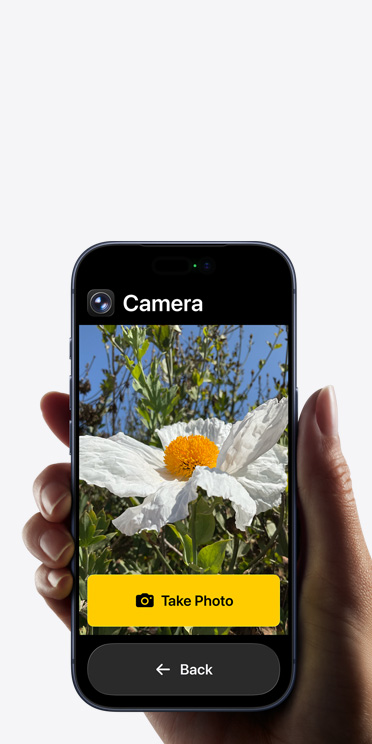
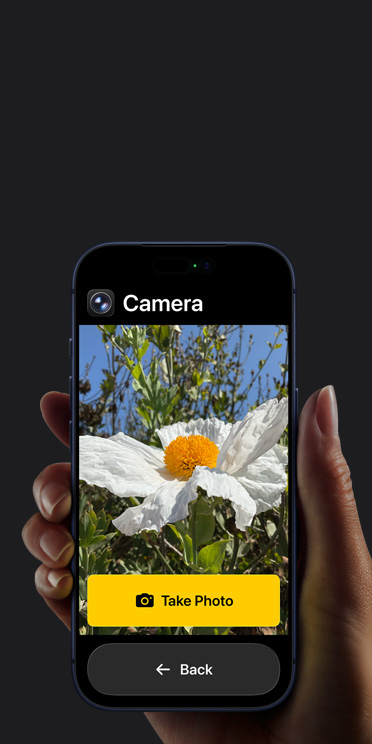
Assistive Access makes it easy for people with cognitive disabilities to tailor iPhone and iPad to lighten their cognitive load and suit their specific needs and preferences. Designed with feedback from individuals with cognitive disabilities and their trusted supporters, Assistive Access offers a distinctive interface with high-contrast buttons, large text labels, and visual alternatives to text. It also has tools to help individuals and their supporters adjust the experience in specific apps.
Assistive Access includes customized experiences for Phone and FaceTime (which have been combined into a single Calls app), Messages, Camera, Photos, Music, Magnifier, and the Apple TV app on iPhone and iPad. For those who prefer communicating visually, Messages includes an emoji-only keyboard and the option to record a video message. Choose a more visual, grid-based layout for your Home Screen and apps, or a row-based layout if you prefer text. Assistive Access also supports third-party apps, including augmentative and alternative communication (AAC) apps.
Watch Apple Support videos on YouTube:
How to set up Assistive Access on your iPhone or iPad, opens in new tab








Explore our accessibility resources.
-
More about this tile
Support Videos
Learn tips and how-tos from Apple Support on YouTube.
-
More about this tile
Accessibility Support
Get help with your features or connect with an expert.
-
More about this tile
Assistive Technologies
Browse third-party devices for vision, hearing, and mobility.
-
More about this tile
Accessibility in Apple’s Workplace
Discover how Apple supports accessibility for every employee.
-
More about this tile
Accessibility in Education
Explore accessibility features for your learning community.
-
More about this tile
Developer Guides
Find resources for designing accessible apps.
Discover how accessible design makes all the difference.


More from Apple on accessibility.
Our values lead the way.
-
Education
We empower students and educators to learn, create, and define their own success.
-
Environment
We’re committed to bringing net emissions to zero across our entire carbon footprint by 2030.
-
Inclusion and Diversity
We’re holding ourselves accountable for creating a culture where everyone belongs.
-
-
Racial Equity and Justice
We’re addressing systemic racism by expanding opportunities for communities of color globally.
-
Supply Chain Innovation
We uphold high standards to safeguard people and the planet across our global supply chain.