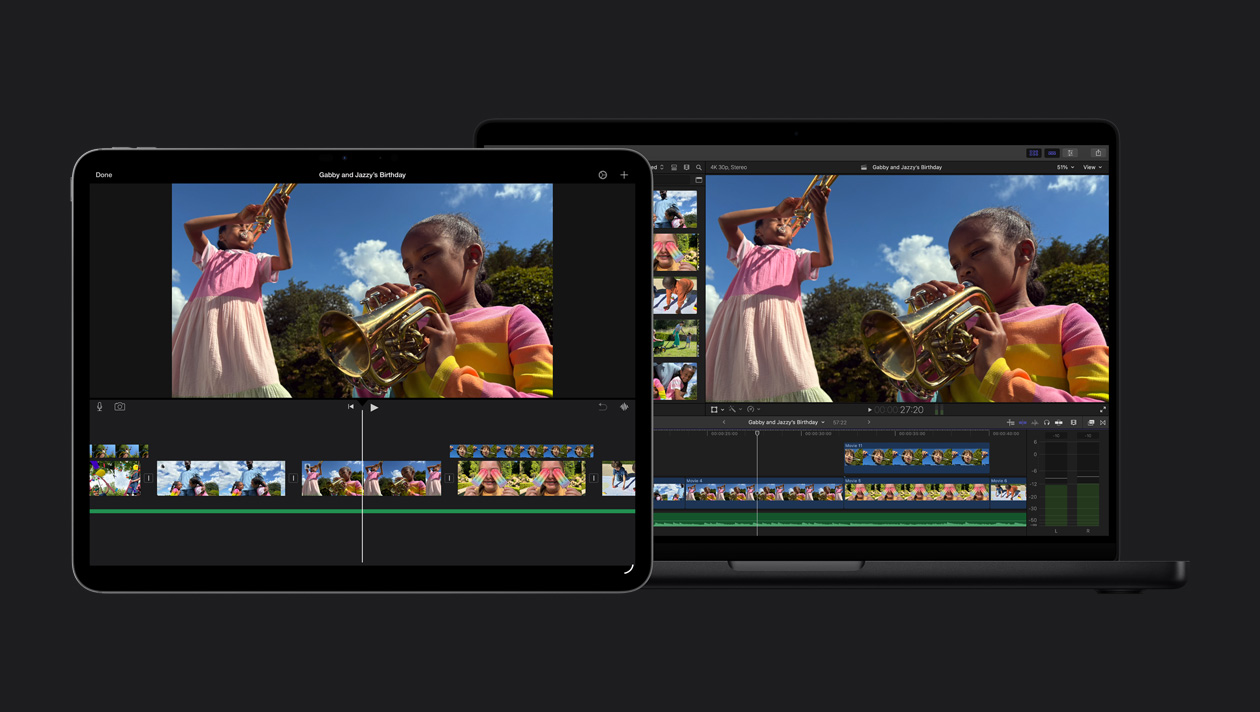
Final Cut Pro 6
Open format Timeline
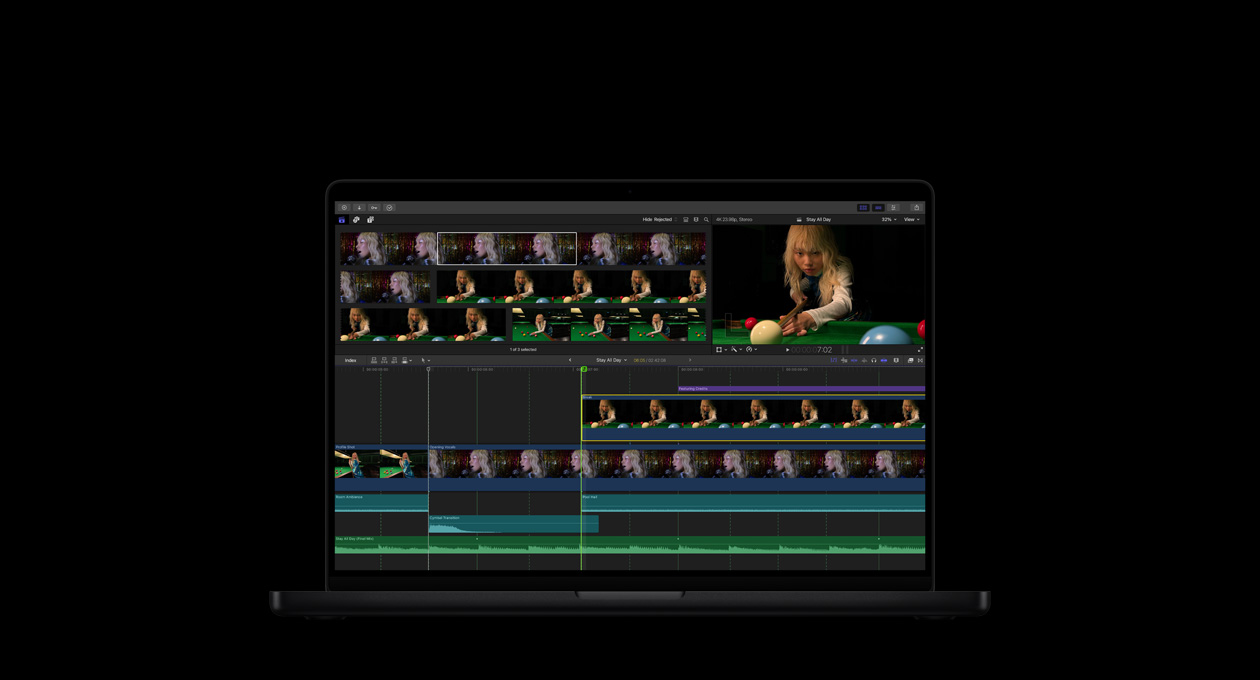
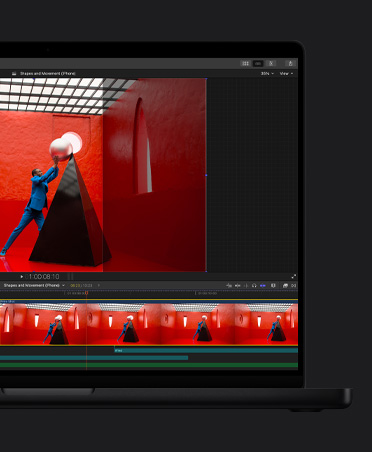
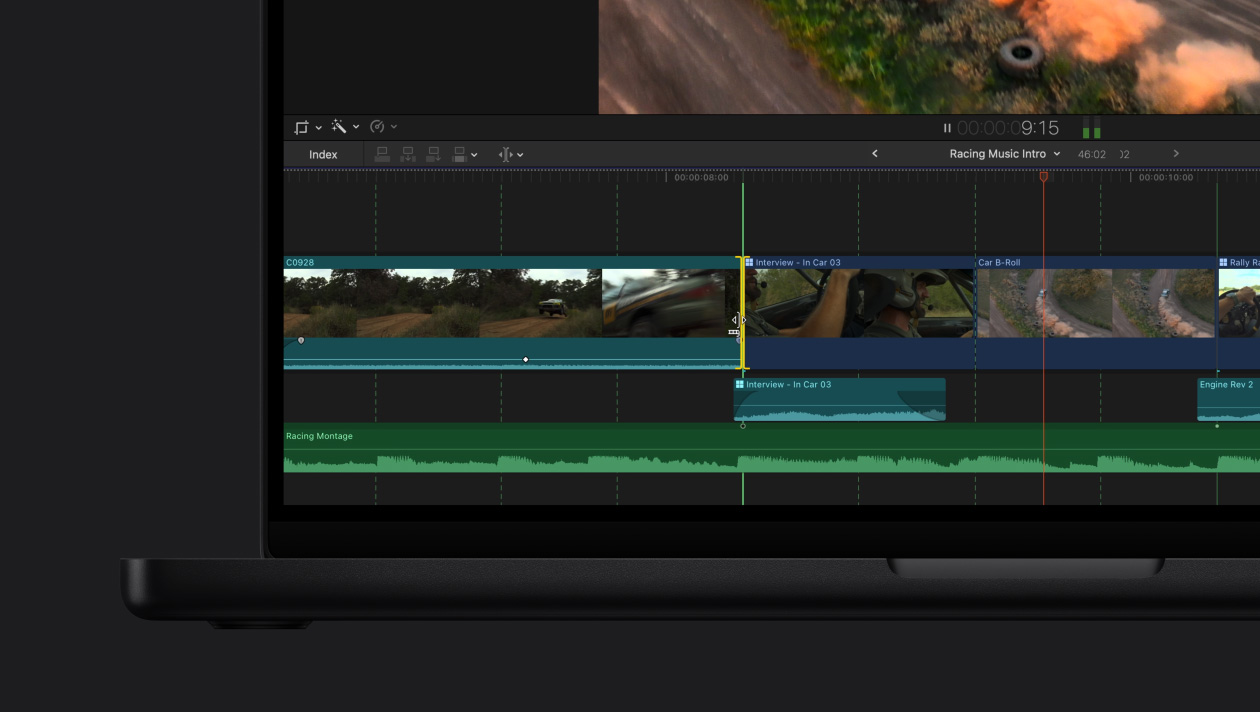
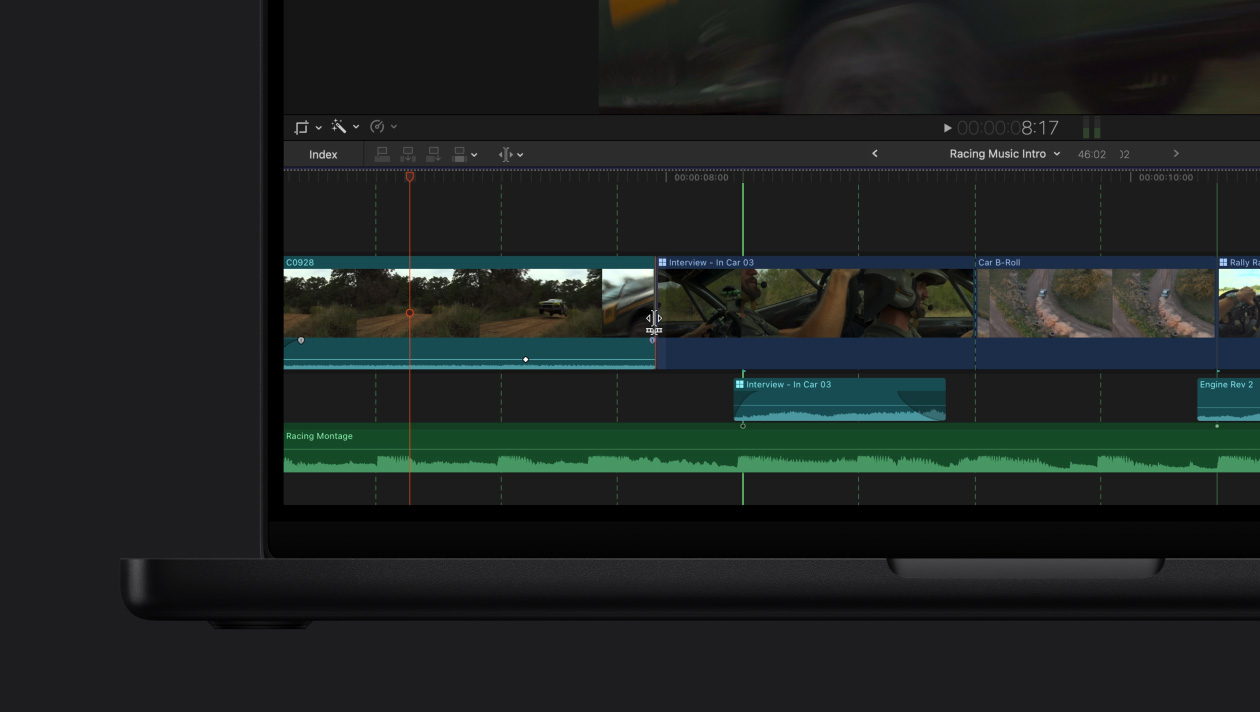
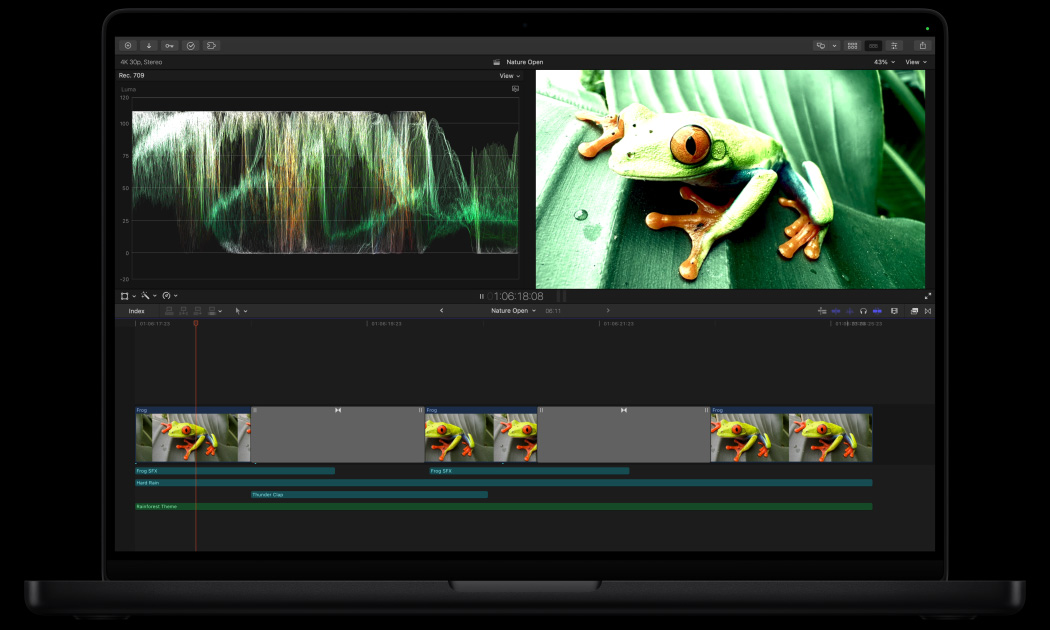
The new open format Timeline in Final Cut Pro 6 lets you mix and match source material in a wide range of formats and even different frame rates. Freely edit a combination of HD and SD, including NTSC and PAL — all in real time.
Deep integration with Motion 3
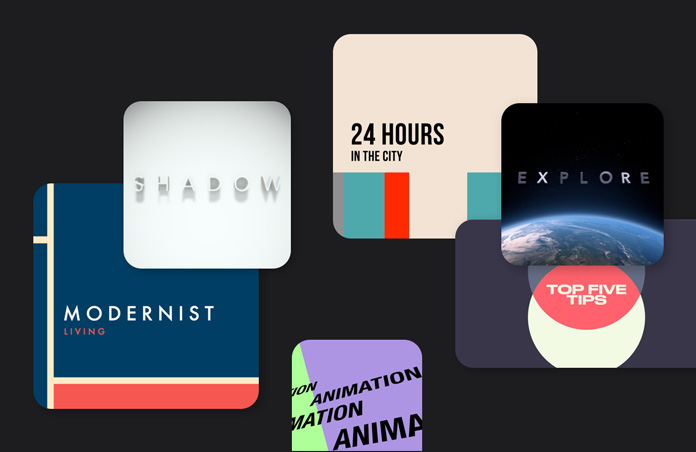
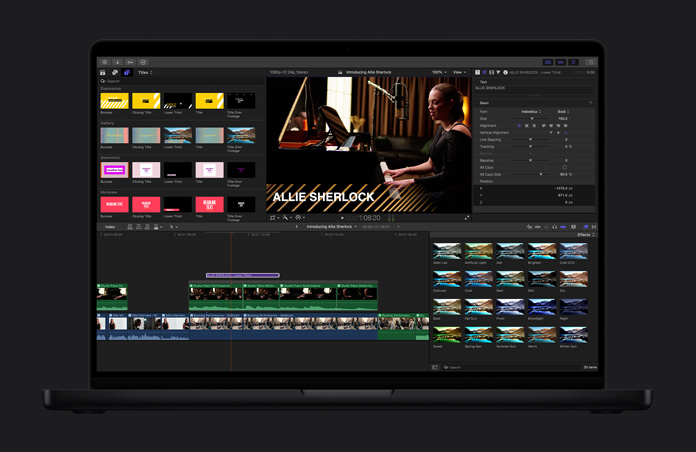
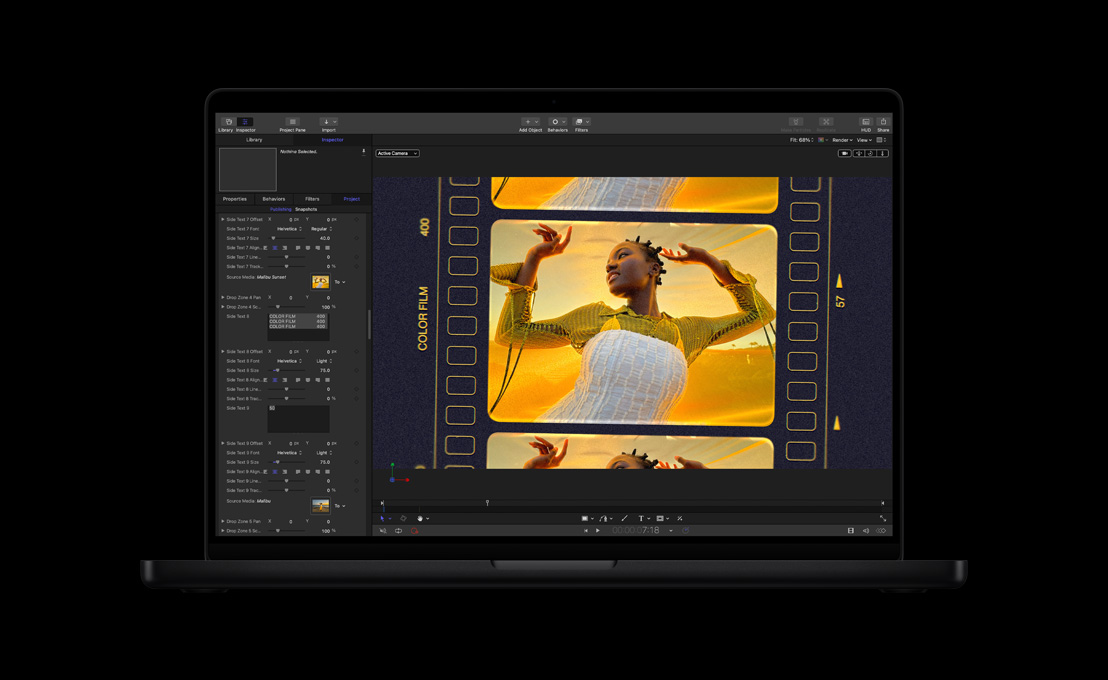
Editable Motion 3 master templates — complete with video drop zones and text fields — let you easily update content without leaving Final Cut Pro. Send clips from Final Cut Pro to Motion for advanced image processing, including sophisticated retiming effects and image stabilization. Data from variable speed changes and SmoothCam adjustments made in Final Cut Pro appears in Motion along with your footage.
Simplified setups
Setting up a sequence is now as easy as dragging and dropping. Final Cut Pro instantly configures the setup to match the format of the first clip you drop into the Timeline. For manual setups, the Easy Setup feature takes you through three simple choices. Select a format category (for example, HDV), frame rate, and finally the specific format. Each list shows you only the options you need based on the other choices you’ve made.
Apple ProRes 422
Final Cut Pro 6 introduces ProRes 422, Apple’s new post-production format offering uncompressed HD quality at SD file sizes. Use ProRes 422 when collaborating over an Xsan storage network or working on a portable computer in the field; when working with non-native camera formats; or to preserve maximum quality for composites and demanding colour grading work.
FxPlug filters and transitions
Add to more than 150 real-time filters and effects in Final Cut Pro 6 by bringing in third-party filters based on the FxPlug standard — the format used to produce the extraordinary real-time effects in Motion. Leading developers use FxPlug to create hundreds of real-time, GPU-accelerated plug-ins at 32-bit float quality. Final Cut Pro 6 includes more than 25 new FxPlug filters to get you started.
Integration with Color
When you want to give your finished project a specific cinematic look — or if you need to do significant colour correction across the entire project — send it to Color for advanced colour grading with round-trip ease. Color can also be used in Digital Intermediate workflows to colour grade and output high-resolution film scans.
SmoothCam
The SmoothCam feature automatically smoothes out shaky shots while preserving standard camera moves like dollies, pans, and zooms. SmoothCam uses powerful optical flow technology to analyze your footage in the background while you continue to edit other material.
Improved audio
New Soft Normalize and Gain controls can be applied to single or multiple clips to automatically raise the level of any clip to its maximum without distortion. Create a surround sound mix in Soundtrack Pro, then return to Final Cut Pro to monitor your audio in full 5.1 surround sound as you continue your video edit.
Cinema Tools 4
Cinema Tools 4 includes a streamlined interface that helps you work more efficiently than ever. Customizable film lists now let you mix timecode and keycode in the same list. Output beautifully formatted, easy-to-read PDF lists for reference or to share with clients. You can also export your lists as XML and import them into industry-standard tracking systems used to pull film negatives.
Motion 3
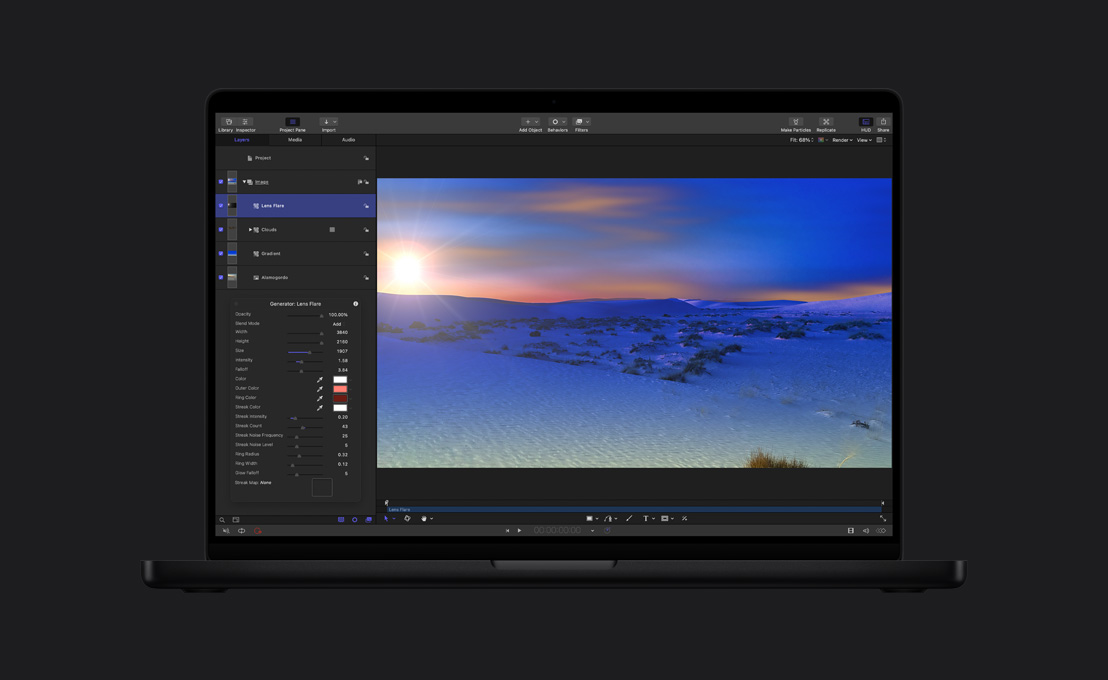
3D multiplane compositing environment
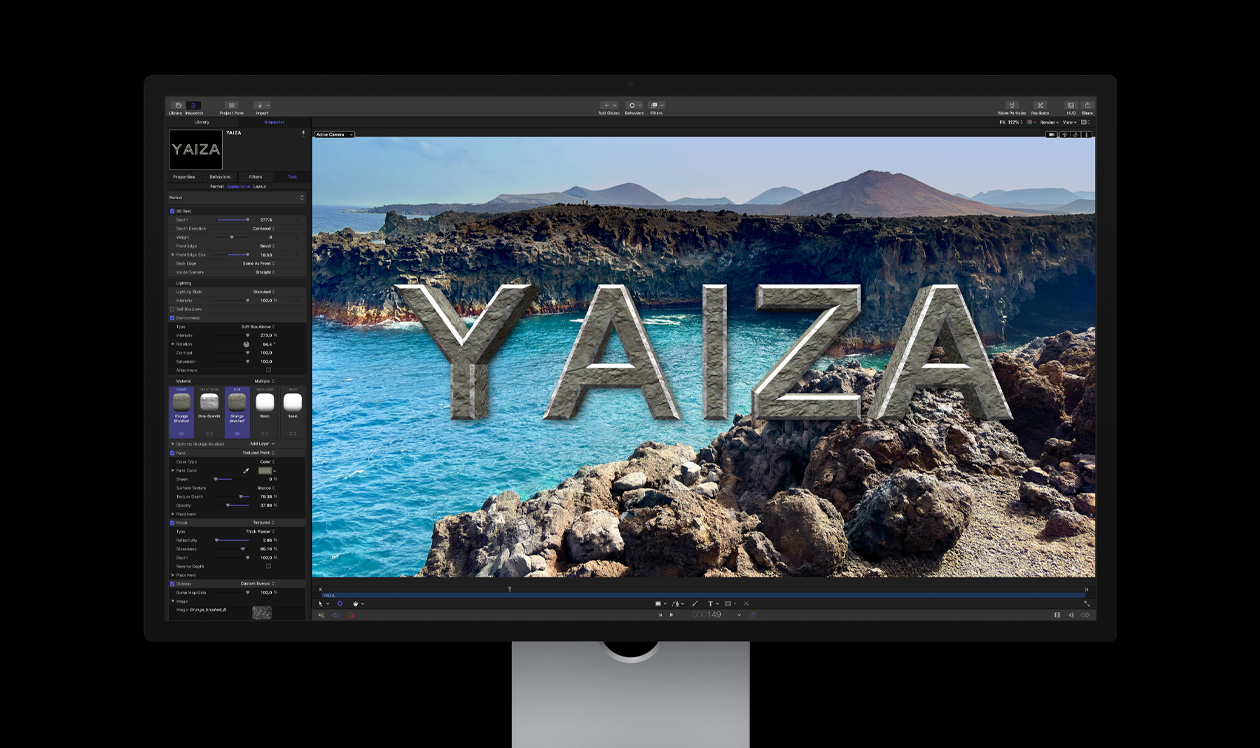
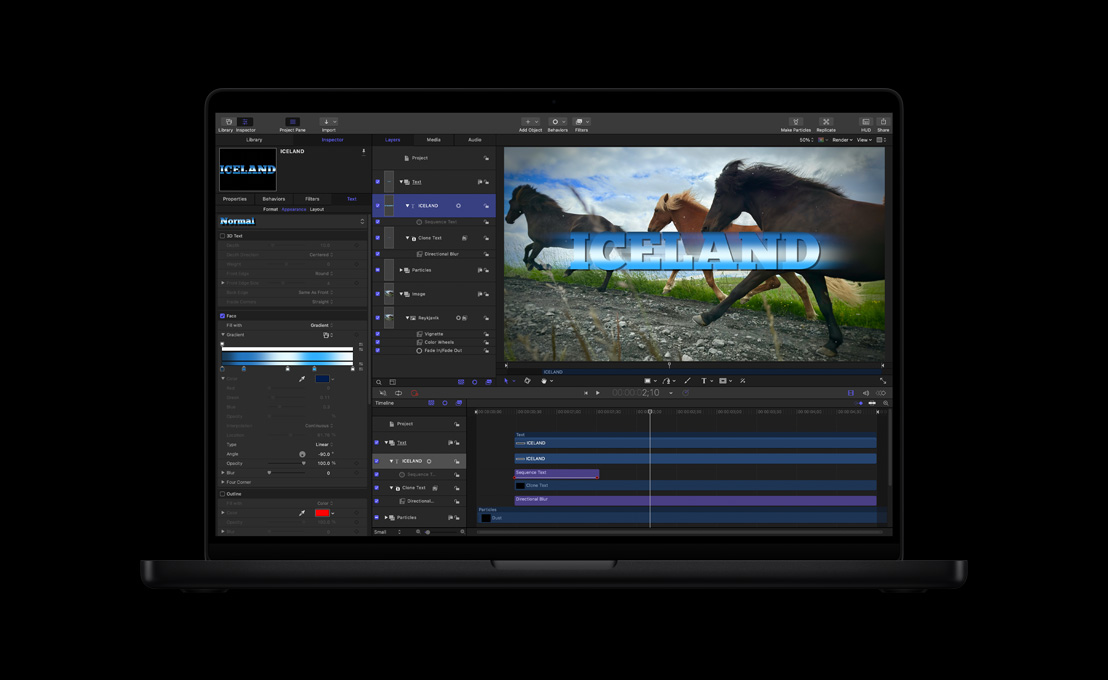
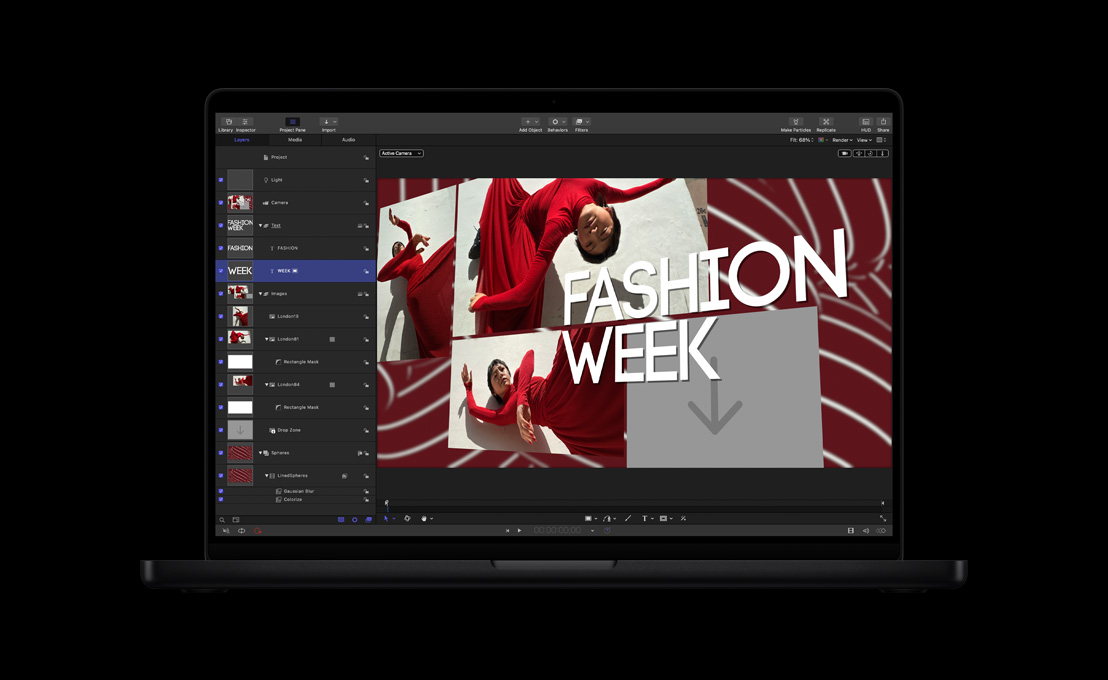
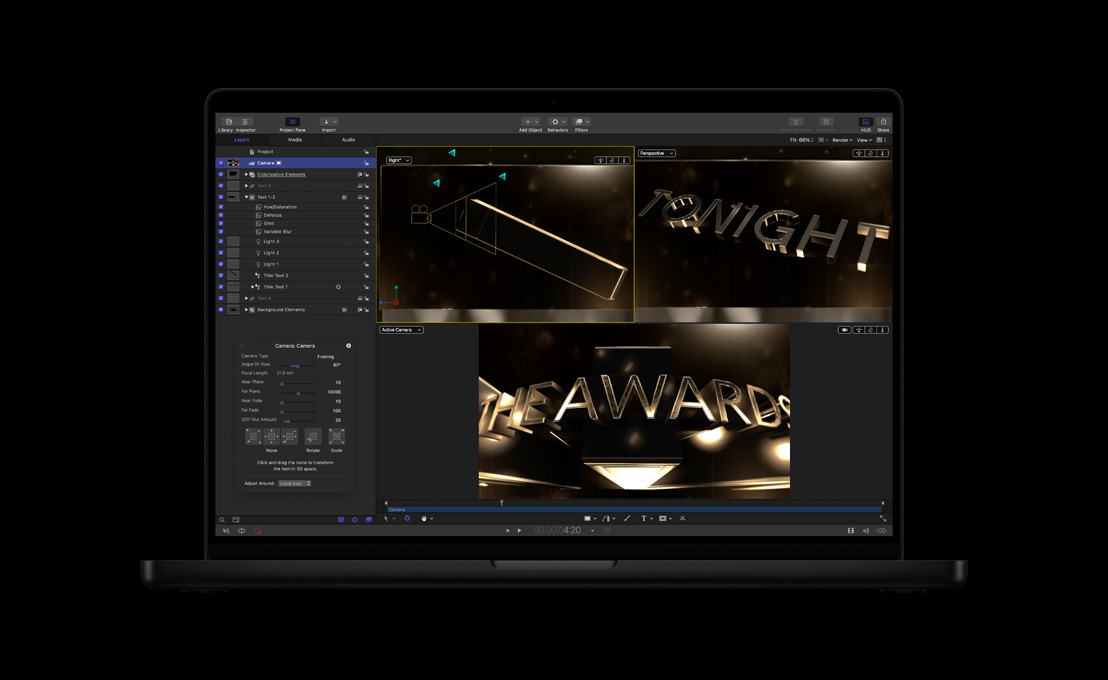
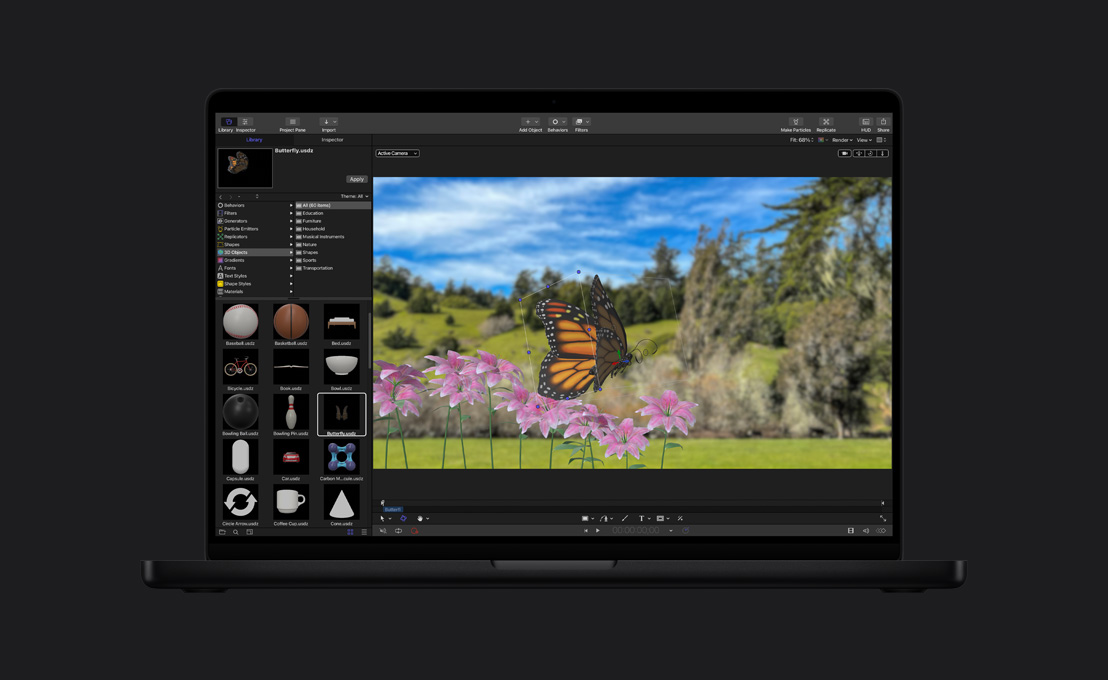
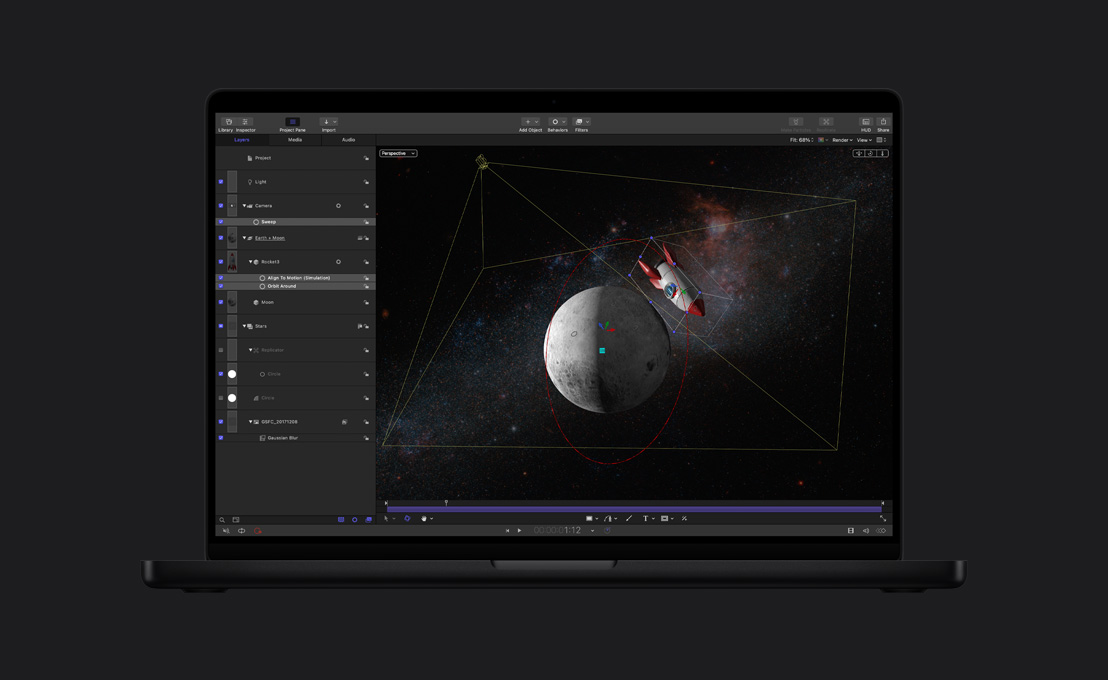
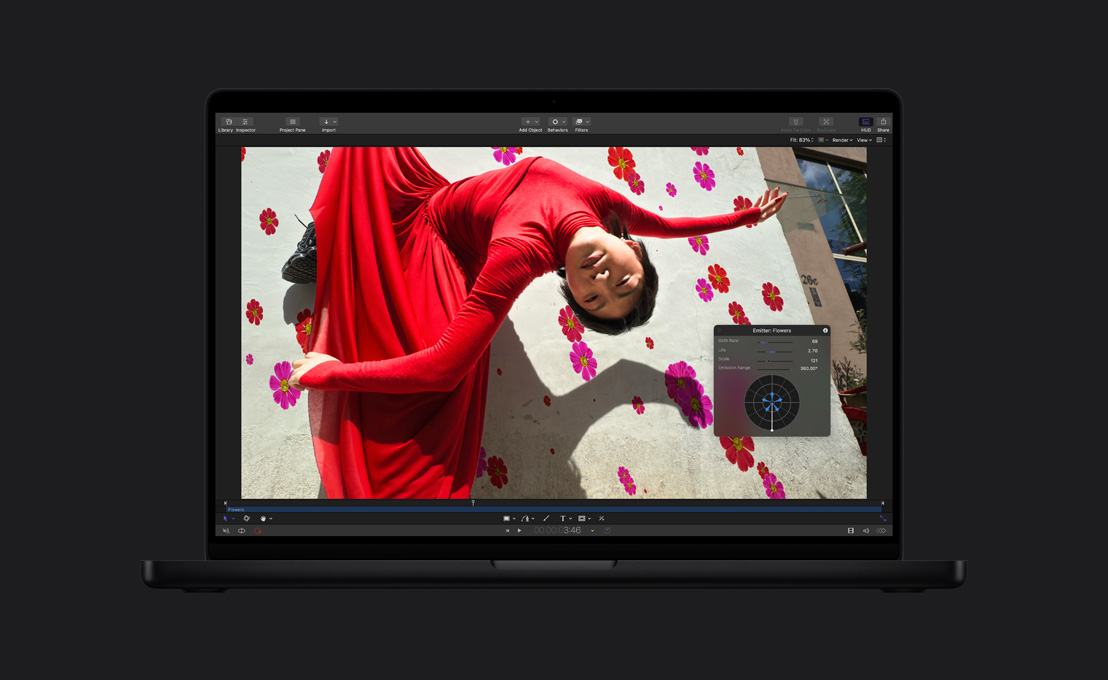
Motion 3 makes it easy to create 3D motion graphics by extending the 2D tools you already use into 3D space. Drag and drop camera behaviors to dolly, truck, and orbit around a scene or move from layer to layer. Use multiple viewports to adjust cameras, lights, layers, and motion paths in 3D space. Design with particles, Replicator patterns, and text behaviors in the comprehensive 3D design environment.
Vector-based paint strokes
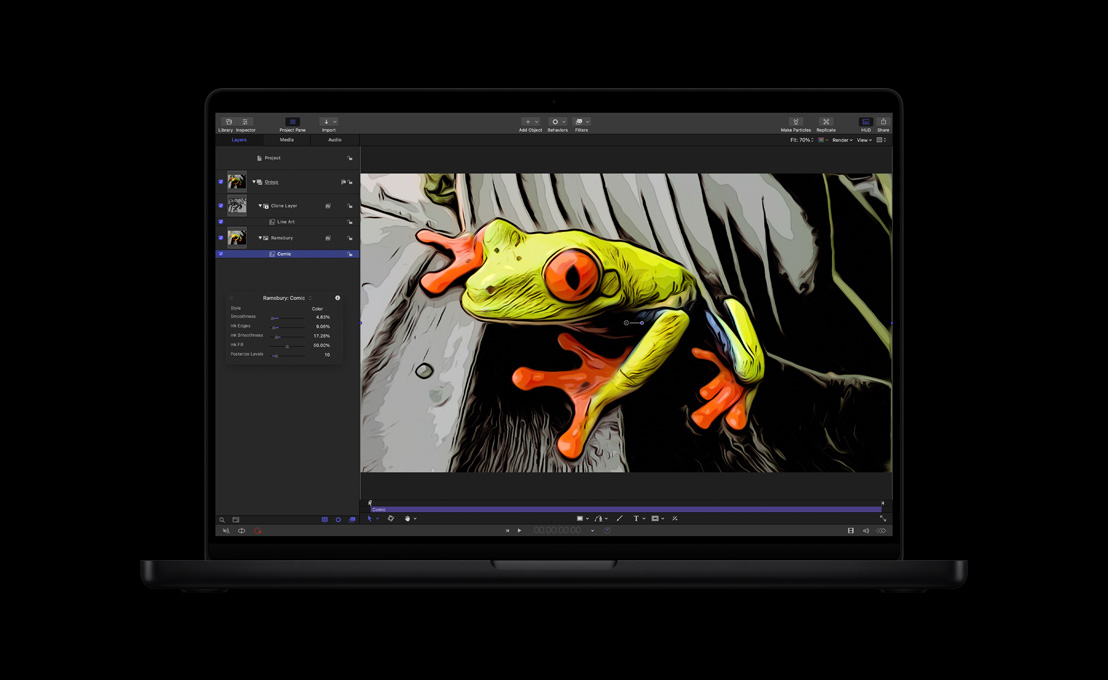
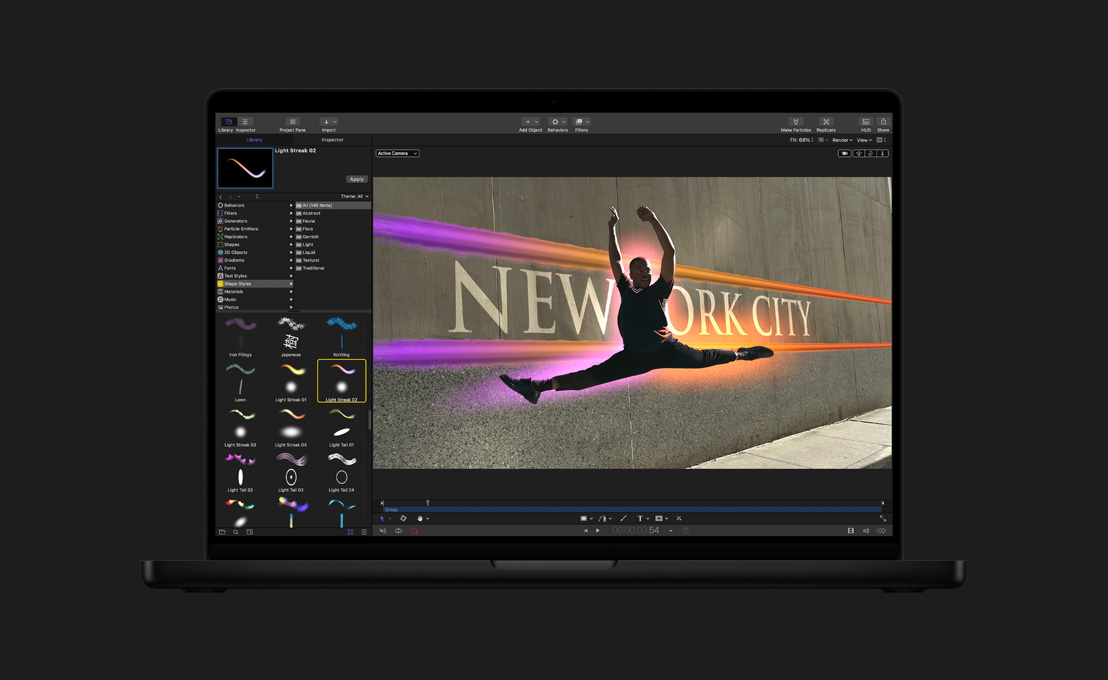
Use a pen to create pressure-sensitive paint strokes, complete with dramatic 3D looks. Choose from more than 150 built-in brush styles, including strokes that look like floating feathers or glowing light trails. You can design your own brushes using colour, gradients, or even QuickTime files. Because the strokes are vector-based, you can adjust their path and position without losing any of their texture or animated properties.
Dynamic retiming behaviors
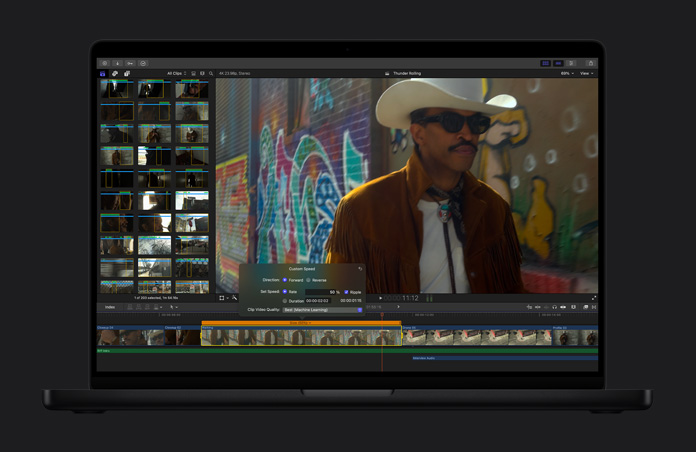
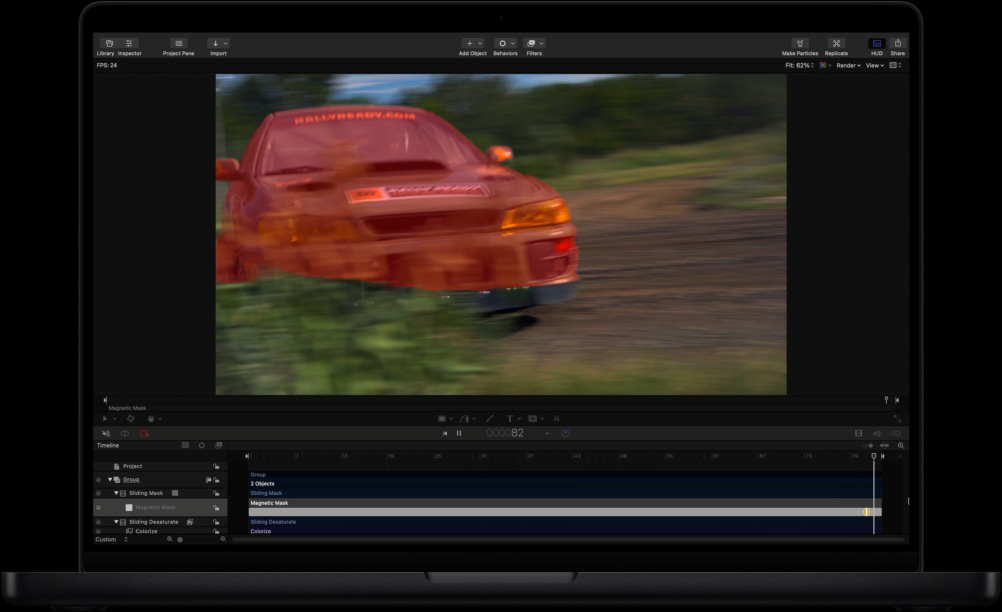
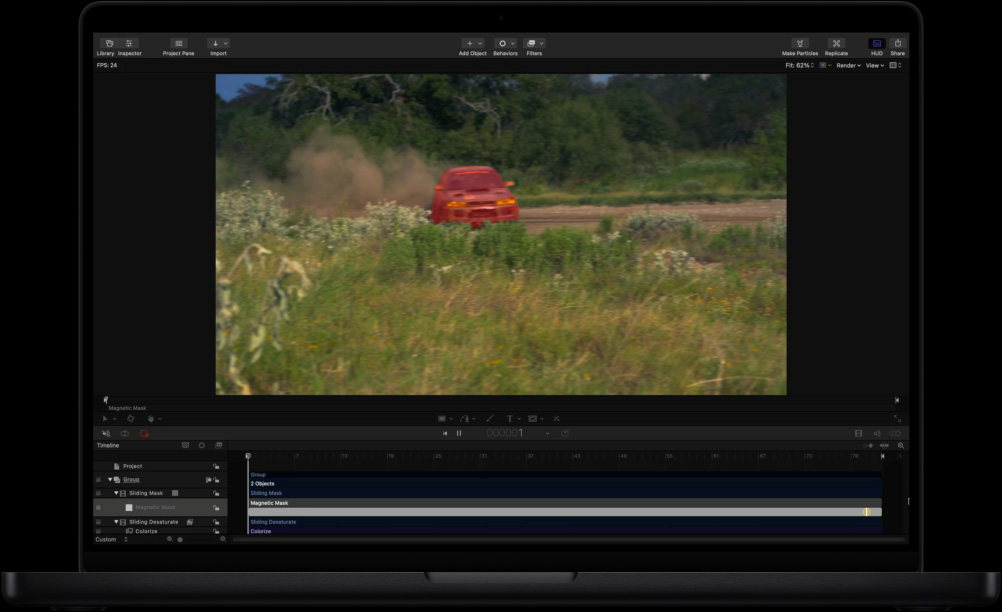
New retiming behaviors in Motion 3 let you create sharp, clean speed changes and adjust them dynamically. Slide the behavior in the Timeline to modify the start and end times of the retiming effect. Adjust sliders to set ramp in and ramp out times, as well as a range of other parameters, and see your changes in real time as you continue to adjust your settings. Motion 3 even calculates match frames for the beginning and end of retiming effects. You’ll see remarkably crisp, clear results, thanks to optical flow technology adapted from Shake.
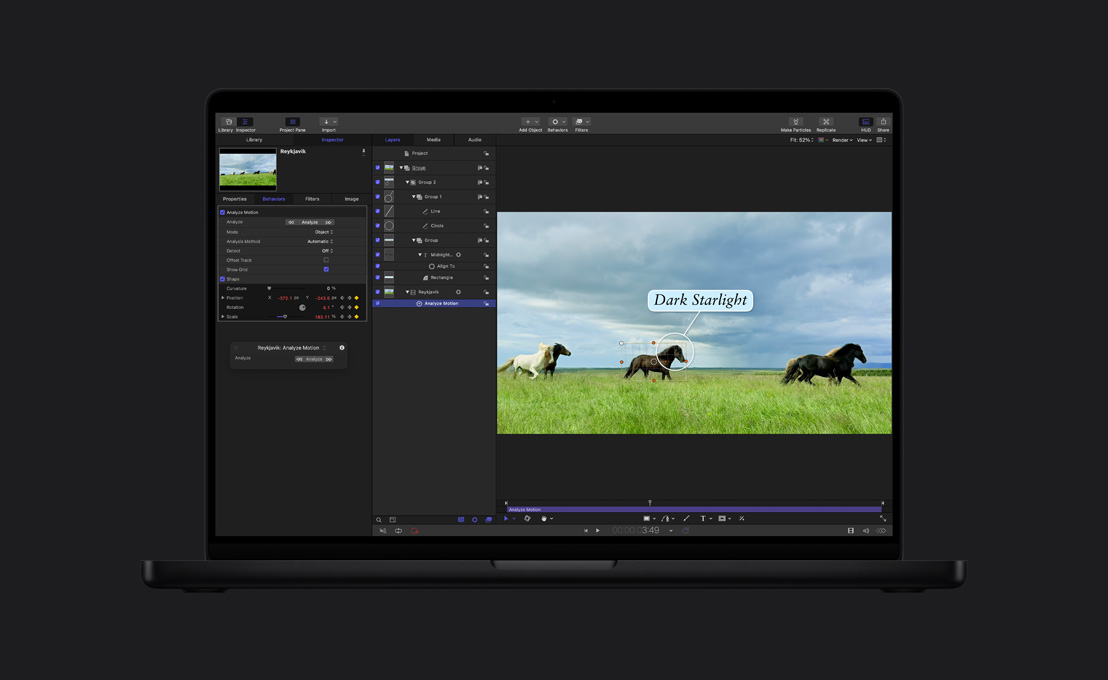
Point tracking and match moving
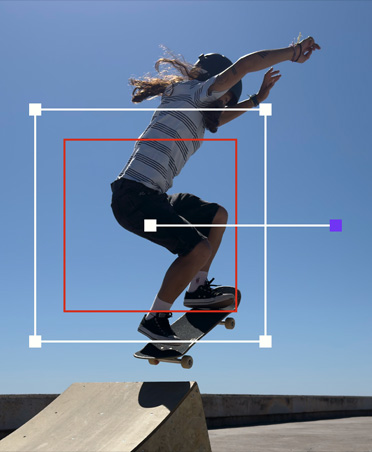
Set up point tracking or four-corner match moves in just a few clicks using intuitive new tools in Motion 3. Quickly attach text, particles, or any layer to an object in a video clip and follow the movement of the object with pinpoint accuracy. Motion identifies the best potential tracking points and dynamically adjusts for common tracking errors.
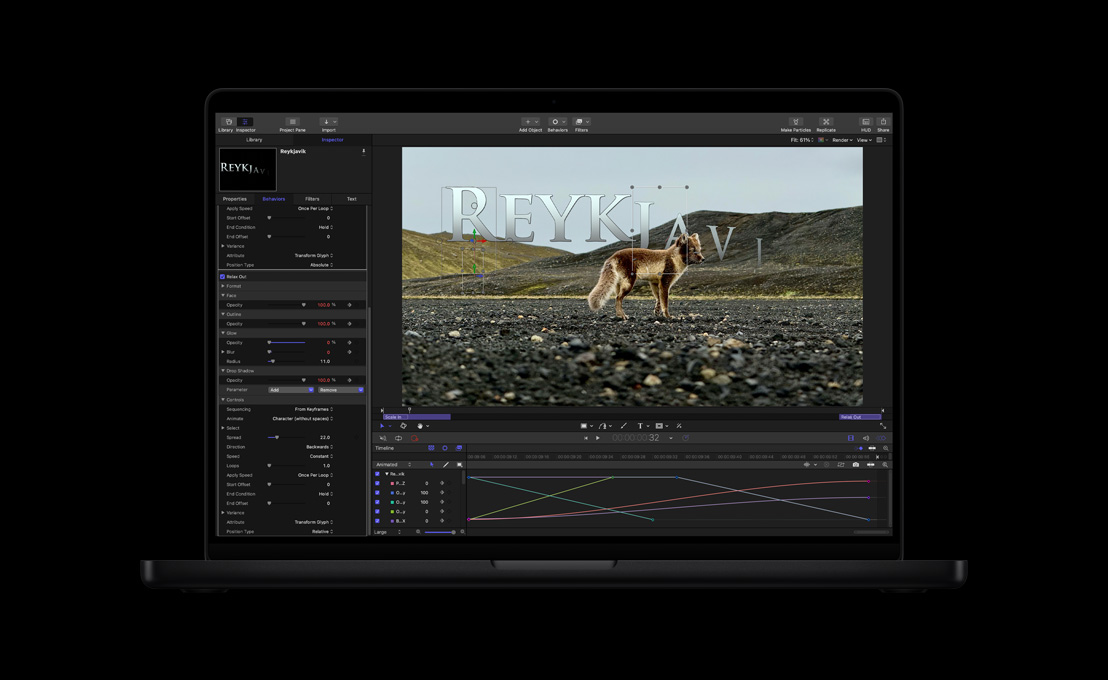
3D text behaviors
Build title sequences with drag-and-drop ease using new 3D text behaviors. Choose from more than 150 built-in text behaviors and use them in 3D space. Use the Text Sequence behavior to ripple 3D moves character by character or to fly characters at the camera with full 3D rotation. For astonishing multidimensional effects, drag 3D text behaviors onto text aligned on a 3D path.
Advanced Keyframe Editor
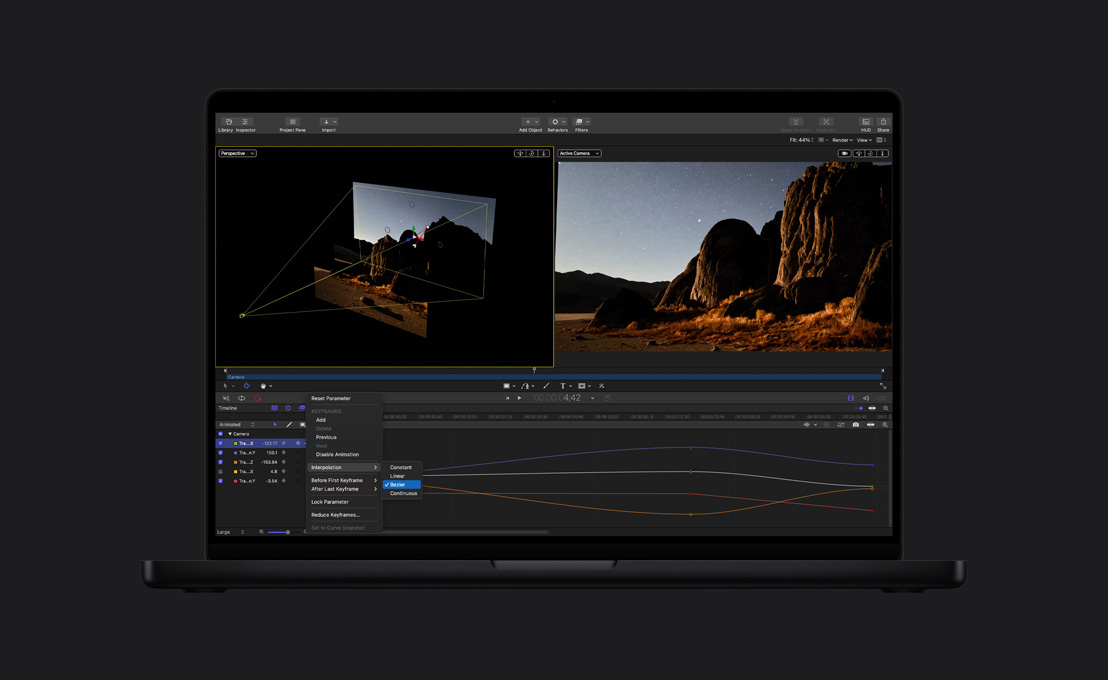
Draw animation curves for any parameter in seconds using the intuitive new keyframe pen tool in Motion 3. Use the flexible transform box to squish, stretch, and reposition groups of keyframes. Call up curves for position, opacity, rotation, scale, shear, and anchor point with time-saving keyboard shortcuts.
Image stabilization and SmoothCam
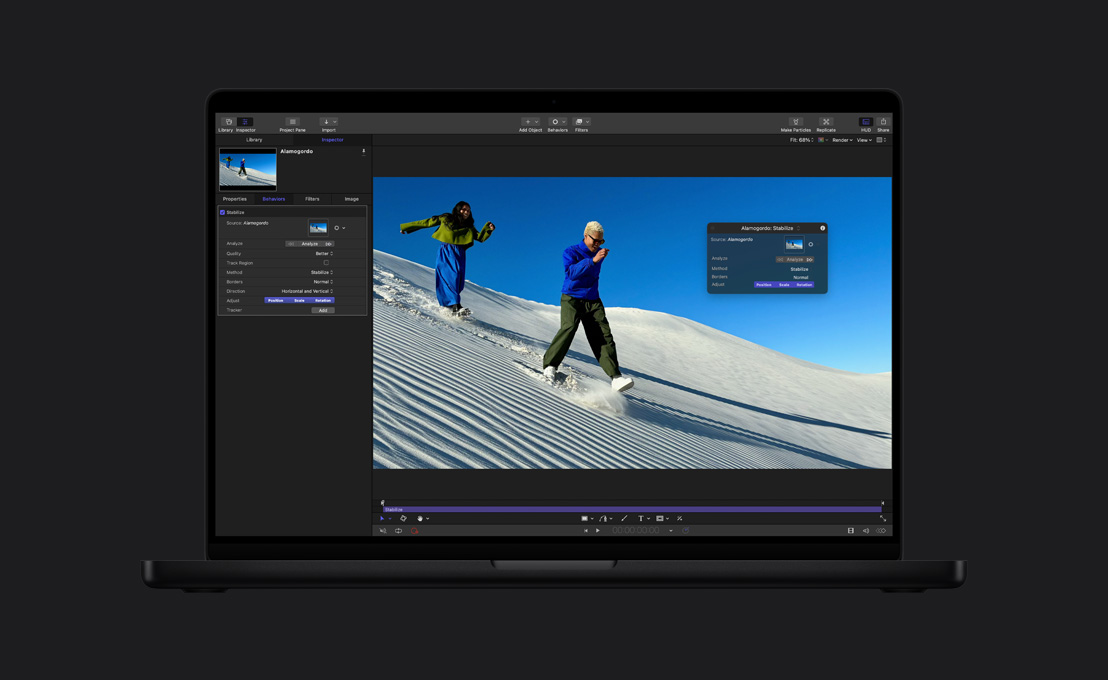
Use the image stabilizer to lock down a shot without the time-consuming setup required by most stabilization tools. Or use the SmoothCam feature to retain standard camera moves like pans, tilts, and zooms while eliminating handheld camera jitters or bumps. Both features are based on sophisticated optical flow technology originally developed for Shake.
Synchronized Audio behavior
With the new Audio behavior in Motion 3, creating an animation that synchronizes to music has never been easier. Apply the behavior to any parameter on any layer, then use a graphical interface to narrow the frequency range used for the animation. You can continue to refine the animation’s response as you watch the results in real time.
Seamless integration with Final Cut Pro
Send clips from Final Cut Pro to Motion when you want to apply advanced image processing to a shot or to layer motion graphics on top of your footage. Motion 3 preserves cuts, layers, retiming, and SmoothCam information, so your previous work in Final Cut Pro is not wasted.
New editable Motion 3 master templates — complete with video drop zones and editable text fields — let you easily update content, without disturbing the underlying motion graphics and without leaving Final Cut Pro.
Soundtrack Pro 2
Professional multitrack editing
Work more efficiently than ever in the single-window interface, with tools designed to save you time on common tasks such as selecting takes, spotting sound to video, and removing noise from field recordings. Then use a rich palette of audio effect plug-ins, Foley, sound effects, and music to add the perfect creative touch to your soundtrack.
Multipoint spotting display
The innovative new three-up video display makes it easier than ever to synchronize sound effects and dialogue to specific events in the video. The display shows video frames for a clip’s start, sync, and end points. Scrub the audio cue back and forth and watch the video dynamically update as you identify exactly where to position your sound effect.
Surround mixing
Soundtrack Pro 2 makes it easy to create professional surround sound mixes. Use an innovative surround panner to view a dynamic visual representation of how sound is panned in the surround field. Choose from more than 1000 royalty-free surround music beds and sound effects; use any of the provided surround audio effect plug-ins, such as the Space Designer convolution reverb, or adapt any mono or stereo effect plug-in for use on surround tracks.
Lift & Stamp
Use the new Lift & Stamp tool to quickly copy a set of effects or EQ characteristics from one clip and apply them to another, or save them as a preset for future use. The Lift & Stamp EQ matching technology in Soundtrack Pro 2 makes it easier than ever to have dialogue from different sources sound as though it was recorded at the same time.
Automatic audio conform process
If you make changes to your sequence in Final Cut Pro, use the powerful new Conform feature in Soundtrack Pro to automatically update your audio project to match the video edit. The Conform feature compares the two versions and highlights the changed audio clips. Confidence ranking, auditioning, and intuitive navigation tools help you choose which changes to accept, reject, or modify. Then Soundtrack Pro repositions your accepted changes to match the audio edit to the video edit.
Revolutionary “take” management
Combine parts of the best takes in record time. The new Multitake Editor lets you view all takes simultaneously in a single window. Select the best words or phrases from each take, then let Soundtrack Pro combine them in a final composite, including crossfades between takes for seamless playback. The unused phrases stay with the composite in case you need to make changes in the future.
Professional podcasting
Soundtrack Pro 2 makes it easy to create professional podcasts, including audio-only, enhanced, and video podcast formats. Place chapter, artwork, and URL markers without leaving Soundtrack Pro and output your files with a single click. Compressor 3 works in the background to encode your podcast files with pristine quality. You can even create podcast chapter markers from Final Cut Pro chapter markers in a single step.
Color
Introducing Color
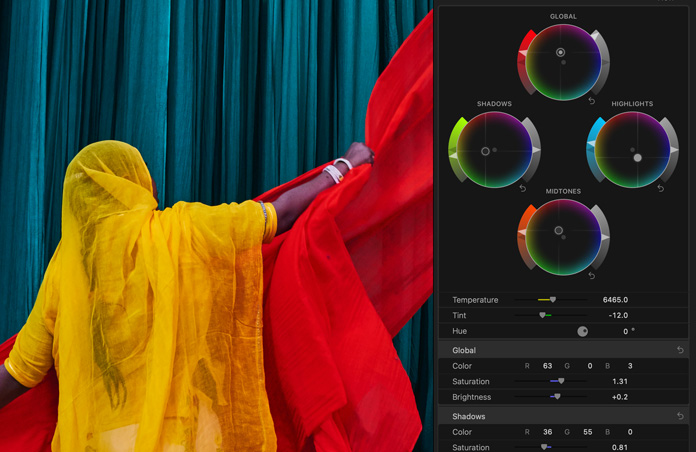
Meet Color, the newest member of the Final Cut Studio family. Use professional colour grading tools to create signature looks for projects ranging from short video pieces to full-length theatrical films. With an intuitive, task-based workflow, you can easily grade SD, HD, and even 2K projects in real time. Color uses GPU-acceleration to produce RGB output in resolutions up to 4:4:4 with 32-bit float processing.
Intuitive Task-Based Workflow
Color uses a task-based workflow that is organized into eight “rooms” or workspaces so you have access to just the tools you need at each stage of the process. Start with the Primary room for foundation grading, then use any other room in any order until you’re ready for final output.
Primary Room
The Primary In room is used in every colour grading project to perform global adjustments on an entire clip or sequence. The primary grade serves as the foundation for applying additional corrections and effects as needed. Use familiar colour wheels to adjust highlights, midtones, and shadows. Rapidly make adjustments for lift, gamma, gain, and saturation. Work with interactive curves to make adjustments to red, green, blue, and luma channels to refine your grade.
Secondary Room
Use secondary correction tools to isolate discrete parts of the image for further adjustment. You can track selection areas over time so that effects happen precisely where you want them. Select areas using hue, saturation, or luminance values. Or create custom masks, called Vignettes — including freeform shapes with soft edges that offer complete control over edge falloff.
Interactive 2D and 3D Scopes
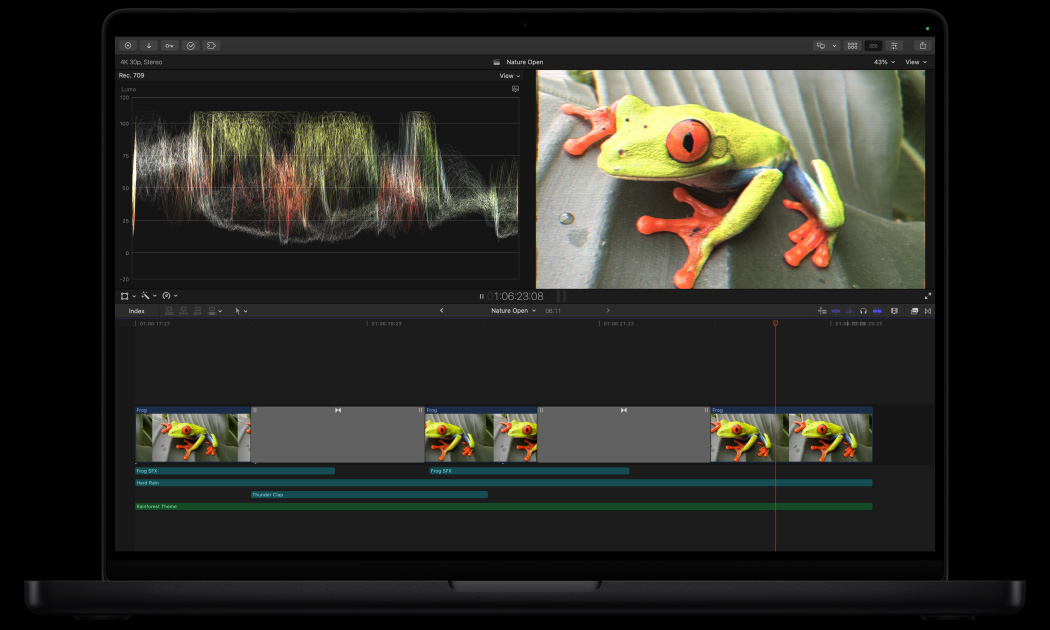
Work with traditional waveform monitors and vectorscopes as you make adjustments. Or use the innovative 3D scope to display chrominance and luminance in a single view that can be manipulated in 3D space.
ColorFX Room
The Color FX room allows you to apply colour transformations and other effects. Work in an intuitive node-tree view that lets you visually arrange and order effects allowing you to create and save specific "looks" for your project.
Geometry Room
Quickly adjust the composition of a single scene, or your entire project by using the pan and scan tools in the Geometry room. Create custom shapes, track objects, and keyframe changes over time.
Real-time professional colour grading
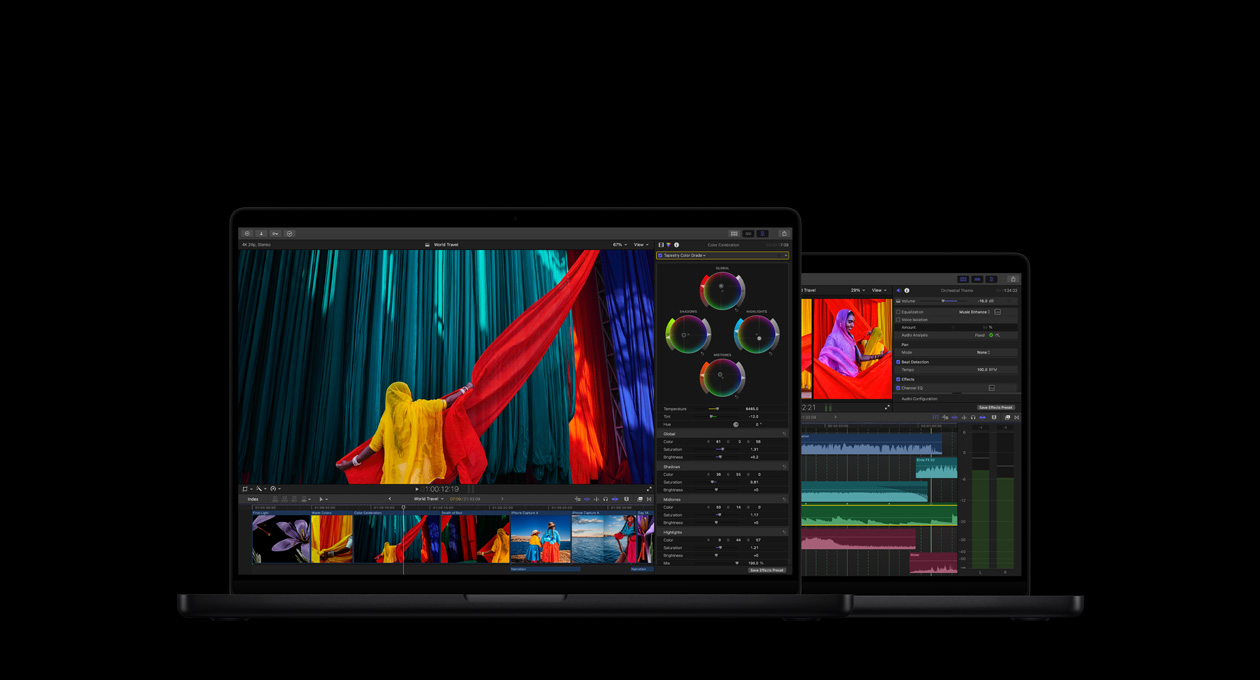
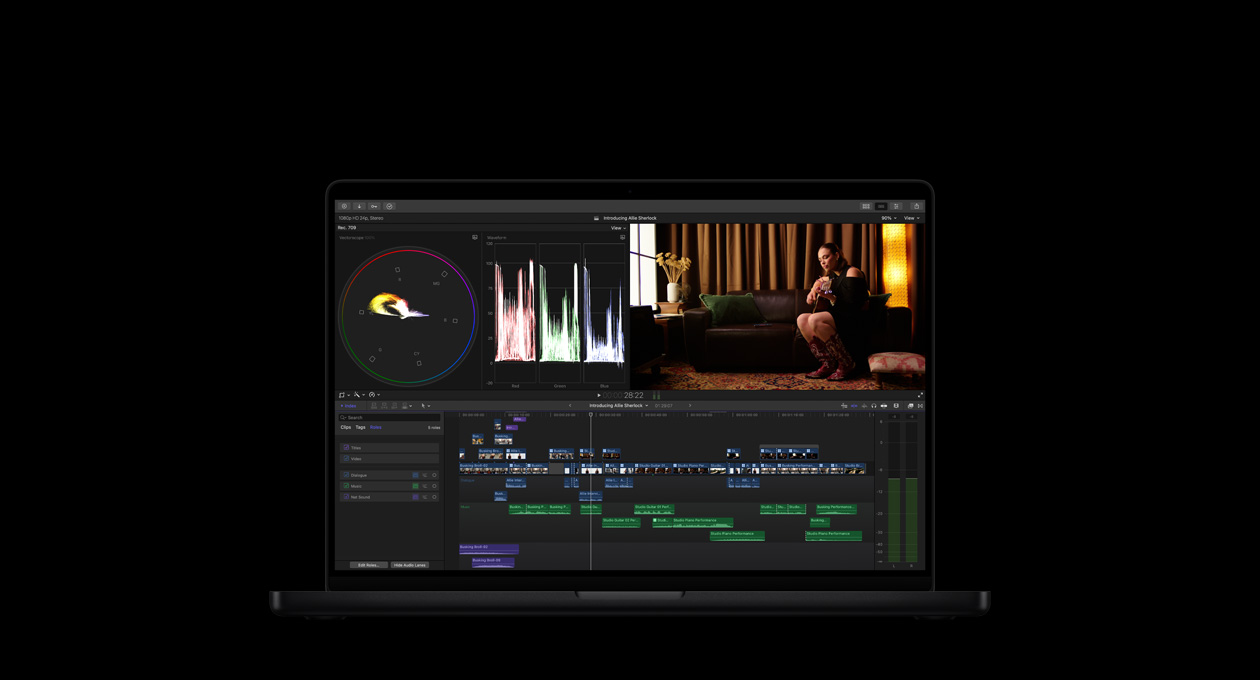
Use Color, Apple’s new colour grading application, to create signature looks for projects ranging from short video pieces to full-length theatrical films. Move freely through a set of streamlined workspaces designed for primary and secondary colour adjustments, colour effects, reference stills, and geometry changes. An easy-to-use toolset helps editors work efficiently, using familiar interfaces and intuitive adjustment tools. Round-trip integration makes Color a seamless extension of your work in Final Cut Pro 6.
Compressor 3
Streamlined workflow
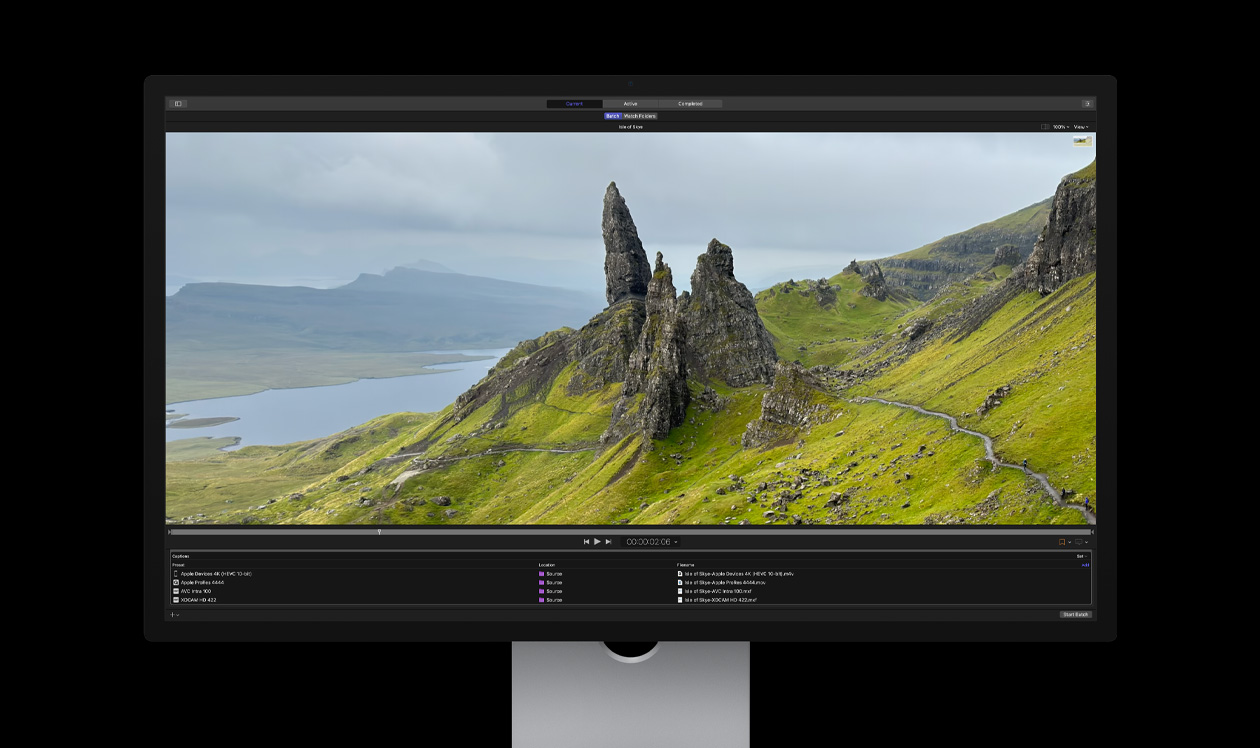
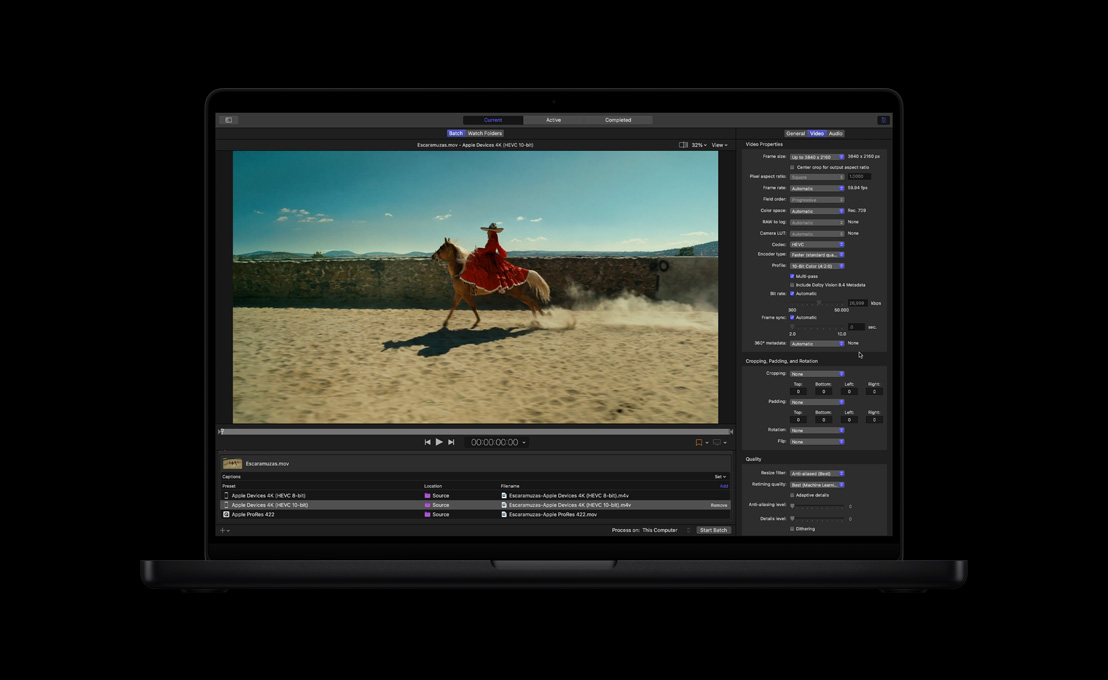
The new interface in Compressor streamlines the encoding workflow. Customize the window layout and toolbar to fit the way you work. Quickly find presets using hierarchical folders. Drag presets in any order to create batch processes, then save the batch as a template for reuse. You can even use job chaining to designate the output of one process as the source for the next step in the sequence.
Qmaster AutoCluster
Use the Qmaster application included in Compressor 3 to distribute encoding jobs across a network of Mac systems. The new AutoCluster feature automatically configures a cluster of computers based on available resources. For even faster throughput, configure Qmaster to manage individual processors in each computer, turning any Mac Pro into a virtual render farm.
Sophisticated frame controls
Flexible retiming controls in Compressor let you speed up, slow down, or fit your video to a time duration. Compressor uses optical flow technology to analyze and interpolate frames for pristine retiming effects. For an alternate approach that plays back all of the existing frames, Compressor uses frame mapping to adjust the playback speed of your clip to fit exactly the frame rate you need. In addition, a new reverse telecine feature converts 29.97-fps video to 23.98 fps while removing pulldown.
Expanded format support
Use Compressor 3 to create files for delivery on iPod, Apple TV, the web, DVD, mobile phones, and next-generation Blu-ray and HD DVD discs. Compressor makes it easy, with expanded support for leading industry-standard formats, such as MPEG-2 and H.264, as well as chaptering tools for podcasts and Apple TV.
Support for Telestream Episode Pro plug-in
Expand your encoding choices with the new Episode Pro plug-in from Telestream. The plug-in supports a range of formats including Flash 8 FLV, Windows Media WMV, and VC-1. In addition, Episode Pro encodes broadcast-specific formats, such as GXF, IMX, MPEG-2 4:2:2, High Profile H.264, and formats used by broadcast servers manufactured by Omneon, Quantel, Avid, Grass Valley, and Leitch.
Fine-tuned audio control
Use audio filters to perform final adjustments on your audio before encoding it. Filters include Dynamic Range, Peak Limiter, Graphic Equalizer, and the Fade In/Fade Out control with options for duration and gain. Audition your settings in the Preview window to hear how your finished file will sound before you start encoding. You can now import and preview Dolby Digital AC-3 files as well as import or output MP3 files.
Dynamic video filters
Compressor 3 lets you easily place animated watermarks in your footage by bringing in a Motion project or an alpha channel QuickTime movie. Add timecode overlays to your encoded footage and include text labels for reel number, location, or other information. You can also create fade in/fade out effects for your video, with separate duration and opacity settings for each half of the transition.
New geometry controls
Compressor 3 offers new geometry controls that help you reframe your source material when you convert it from one aspect ratio to another. The automatic cropping feature detects unwanted black borders — for example, during a conversion from 16:9 HD video to 4:3 SD video — and removes letterbox bars or pillars. New output padding options let you play SD footage on an HD display without scaling the SD content. Padding maintains the original resolution of the source image while creating black borders to fill the rest of the destination frame.
Advanced encoding options
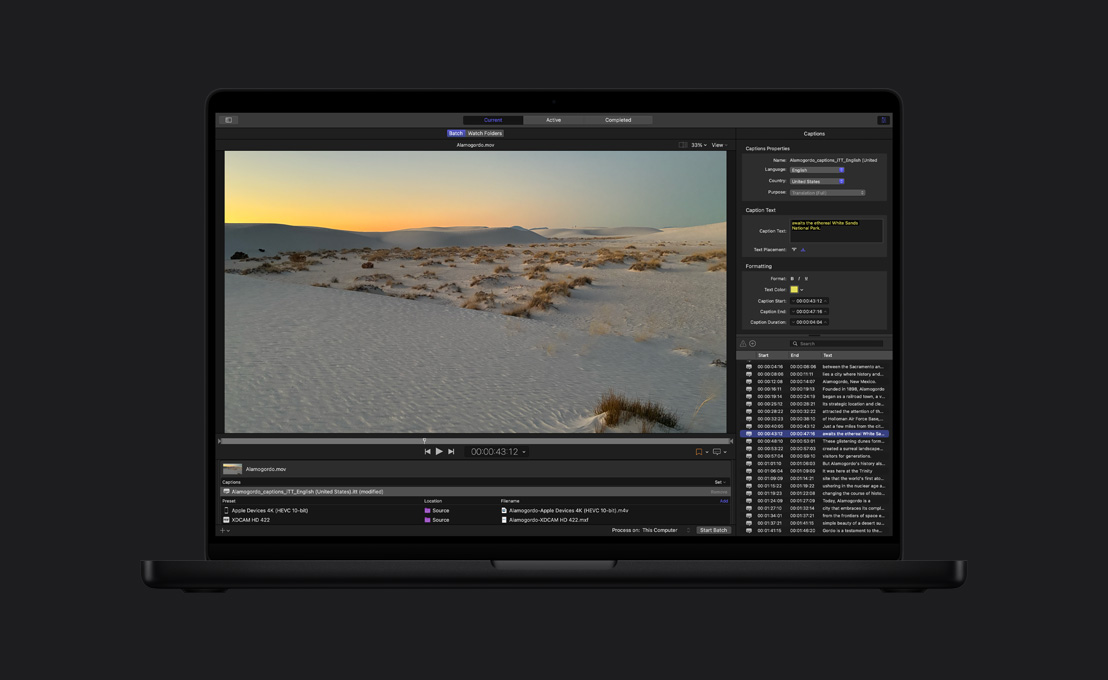
Compressor 3 includes options for adding metadata to files, including keywords, copyright information, and other annotations. You can now also include closed caption information with the output of MPEG and QuickTime files.