


iCloud is built into every Apple device. It keeps your photos, videos, notes and more safe, automatically backed up and available anywhere you go — with 5GB of storage for free. When you upgrade to iCloud+, you get even more storage, unique party invitations with Apple Invites and enhanced privacy features that protect you and your data. It’s all the power of iCloud. Plus.1
Every iCloud+ plan includes
Apple Invites, iCloud Private Relay, Hide My Email, Custom Email Domain and HomeKit Secure Video. And additional plans have even more storage.
Everything
that matters.
Saved and sound.

iCloud Photos keeps a lifetime of your original high-resolution photos and videos securely stored and protected in iCloud — with lightweight space-saving versions on all your devices. So whether it’s a video of your puppy at the beach taken yesterday or a photo of your friends years ago, your entire collection is accessible and shareable no matter where you are.
Shared Photo Library is the best way to seamlessly share the photos and videos you want with up to five other people. Shared library content appears in Featured Photos and Memories so you can relive your adventures using photos everyone took.
Shared Albums makes it easy to share the photos you want with the people you choose, like combining your road trip photos with your friends’ photos or keeping family updated on the kids’ adventures. The people you share the album with are notified whenever it’s updated, and everyone can add their own photos, videos and comments over time.

iCloud Drive makes the files and folders you save easy to get to and share, no matter which device you’re using. Access them all from the Files app on iOS and iPadOS, the Finder on your Mac, File Explorer for Windows PCs, or iCloud.com.


iCloud Backup keeps important data on your iPhone and iPad, including all your favourite apps, automatically backed up whenever your device is connected to power and Wi-Fi — so your backup is always up to date.2
Restore your device or set up a new one from your iCloud backup to seamlessly bring along all your photos, files, contacts, apps, settings and more, so it looks just like your previous one.

Your everyday essentials, available everywhere.

iCloud.com has been redesigned so you can easily view, manage and edit what you have stored in iCloud on any device. And with the iCloud for Windows app, you can access photos and files you’ve saved to iCloud directly from your PC.
Visit iCloud.com
Notes. Jot down a quick to-do list on your Mac and open it on your iPhone while you’re out and about.
Calendar. Keep track of your schedule on the go and share events like book club meet-ups, soccer practices and spring break plans with friends and family.
Photos. View, edit and share photos and videos from anywhere, on any device.

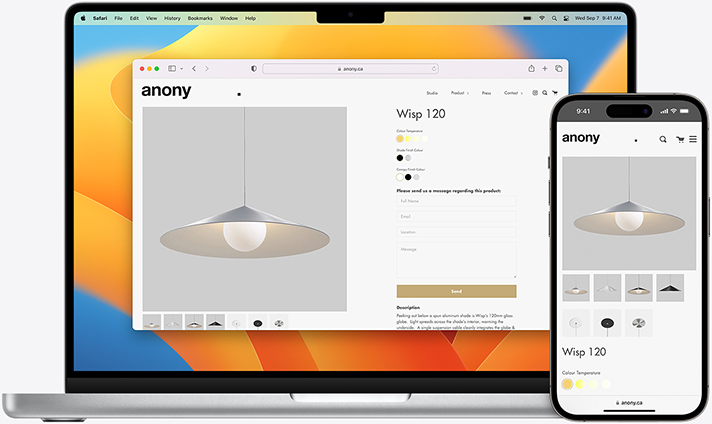
Safari. Your tabs and bookmarks stay up to date automatically, so you can switch devices and pick up your online shopping or school research project right where you left off.

Passwords and Keychain. Securely store your passwords and use AutoFill to make signing in to your favourite apps and websites simple.

Contacts. Phone numbers and email addresses of your friends and family are kept in sync, so it’s easy to reach out to anyone from any device.
Easily collaborate and share files, folders, documents and more while you’re on the go. Just send a private link and control whether others can view, share or edit the work. And with live updates, you can see edits as they’re being made.

More privacy.
More protection.
More peace of mind.
iCloud Private Relay takes your privacy to the next level when browsing with Safari. It’s designed to prevent websites and network providers from building a profile about you based on your IP address, location and browsing history. Just turn it on and you’re instantly protected.3
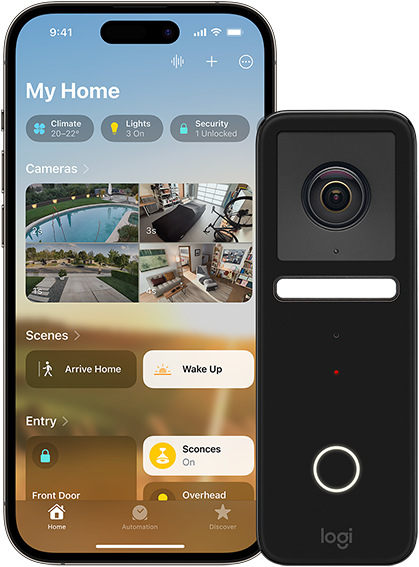
HomeKit Secure Video enables activity detected by your security cameras to be recorded, analyzed on your home hub device, and uploaded to iCloud so you can view it in the Home app from anywhere. Footage is end-to-end encrypted, so you can trust that your video is always private and that only the people you choose can access it.4
Stay connected.
From small stuff
to big events.
Apple Invites is a new way to create unique invitations for your biggest moments. Pick a background or use Apple Intelligence to generate an image and design your invitation. Use Apple Music, Photos, Maps and more to bring your event to life. Then send it to all your guests and track their RSVPs. It’s everything you need to get the party started, and it’s included in your iCloud+ subscription.
Learn more
iCloud Mail is seamlessly integrated with the Mail app on your iPhone, iPad or Mac, and iCloud.com makes it easy to send and receive email from anywhere. Security features like spam protection and antiphishing are built in to detect and block junk mail before it reaches your inbox. It’s simple to set up your own @icloud.com email address, and when you subscribe to iCloud+ you’ll be able to personalize your email with a custom domain.


Choose the plan
that’s right for you.
Features
Free
$1.29per month
$3.99per month
$12.99per month
$39.99per month
$79.99per month
Storage
Space for photos, files, backups and more.
5GB
50GB
200GB
2TB
6TB
12TB
Automatic Syncing
Sync and access your data across all your devices.
iCloud Private Relay
Keep your Safari browsing private.
Custom Email Domain
Personalize your iCloud email address with a custom domain.
HomeKit Secure Video
Store, analyze and view encrypted video from your home security cameras.
1 camera
5 cameras
Unlimited
cameras
Unlimited
cameras
Unlimited
cameras
Family Sharing
Share an iCloud+ plan with up to five family members.5
Apple Invites
Create unique invitations and manage events.
Limited
features
-
Storage
Space for photos, files, backups and more.
5GBAutomatic Syncing
Sync and access your data across all your devices.
iCloud Private Relay
Keep your Safari browsing private.
Custom Email Domain
Personalize your iCloud email address with a custom domain.
HomeKit Secure Video
Store, analyze and view encrypted video from your home security cameras.
Family Sharing
Share an iCloud+ plan with up to five family members.5
Apple Invites
Create unique invitations and manage events.
Limited features -
Storage
Space for photos, files, backups and more.
50GBAutomatic Syncing
Sync and access your data across all your devices.
iCloud Private Relay
Keep your Safari browsing private.
Custom Email Domain
Personalize your iCloud email address with a custom domain.
HomeKit Secure Video
Store, analyze and view encrypted video from your home security cameras.
1 cameraFamily Sharing
Share an iCloud+ plan with up to five family members.5
Apple Invites
Create unique invitations and manage events.
-
Storage
Space for photos, files, backups and more.
200GBAutomatic Syncing
Sync and access your data across all your devices.
iCloud Private Relay
Keep your Safari browsing private.
Custom Email Domain
Personalize your iCloud email address with a custom domain.
HomeKit Secure Video
Store, analyze and view encrypted video from your home security cameras.
5 camerasFamily Sharing
Share an iCloud+ plan with up to five family members.5
Apple Invites
Create unique invitations and manage events.
-
Storage
Space for photos, files, backups and more.
2TBAutomatic Syncing
Sync and access your data across all your devices.
iCloud Private Relay
Keep your Safari browsing private.
Custom Email Domain
Personalize your iCloud email address with a custom domain.
HomeKit Secure Video
Store, analyze and view encrypted video from your home security cameras.
Unlimited camerasFamily Sharing
Share an iCloud+ plan with up to five family members.5
Apple Invites
Create unique invitations and manage events.
-
Storage
Space for photos, files, backups and more.
6TBAutomatic Syncing
Sync and access your data across all your devices.
iCloud Private Relay
Keep your Safari browsing private.
Custom Email Domain
Personalize your iCloud email address with a custom domain.
HomeKit Secure Video
Store, analyze and view encrypted video from your home security cameras.
Unlimited camerasFamily Sharing
Share an iCloud+ plan with up to five family members.5
Apple Invites
Create unique invitations and manage events.
-
Storage
Space for photos, files, backups and more.
12TBAutomatic Syncing
Sync and access your data across all your devices.
iCloud Private Relay
Keep your Safari browsing private.
Custom Email Domain
Personalize your iCloud email address with a custom domain.
HomeKit Secure Video
Store, analyze and view encrypted video from your home security cameras.
Unlimited camerasFamily Sharing
Share an iCloud+ plan with up to five family members.5
Apple Invites
Create unique invitations and manage events.
Questions? Answers.
-
iCloud+ is a premium subscription that provides additional storage to keep your photos, videos, files and more backed up and automatically available across your devices. It also includes access to features like Apple Invites, iCloud Private Relay, Hide My Email, Custom Email Domain and HomeKit Secure Video support for a private and connected experience.
-
It’s easy. Just click one of the upgrade links on this page, or go to iCloud Settings on your iPhone, iPad or Mac to upgrade to iCloud+.
-
Yes. You can share any iCloud+ plan with up to five other people in your Family Sharing group. Everyone will get access to the storage they need, along with features that keep them in control of their privacy, at no additional cost, per user. A single subscription can cover everyone in your household, and each person’s files, documents and other personal information remain private and separate.
-
Yes. The first time you sign in to an iPhone, iPad or Mac with your Apple Account, you’ll get 5GB of free iCloud storage. This allows you to back up your data and keep your personal information in sync across your devices and at iCloud.com. To get additional storage for all your data, as well as access to iCloud Private Relay, Hide My Email, HomeKit Secure Video and more, simply upgrade to iCloud+.
-
Yes. iCloud+ is included as part of all Apple One plans, so you can get all of Apple’s services with a single subscription. You can also combine an iCloud+ subscription with Apple One for even more total storage.

Bundle iCloud+ with up
to five other great services. And enjoy more for less.

Family Sharing
Share iCloud+ with up to five family members — with everyone's personal photos and files kept separate.
Privacy
Innovative features like two-factor authentication and Advanced Data Protection provide the highest level of cloud data security.