Get up to S$240 to S$1,085 in credit via bank transfer towards iPhone 17, iPhone Air or iPhone 17 Pro when you trade in iPhone 13 or higher.* Shop iPhoneGet up to S$560 when you trade in your current smartphone.* Learn more about trade-in
-
Getting Started
Switching from Android to iPhone is simple.

-
Designed to Last
iPhone holds its value longer than other smartphones.

-
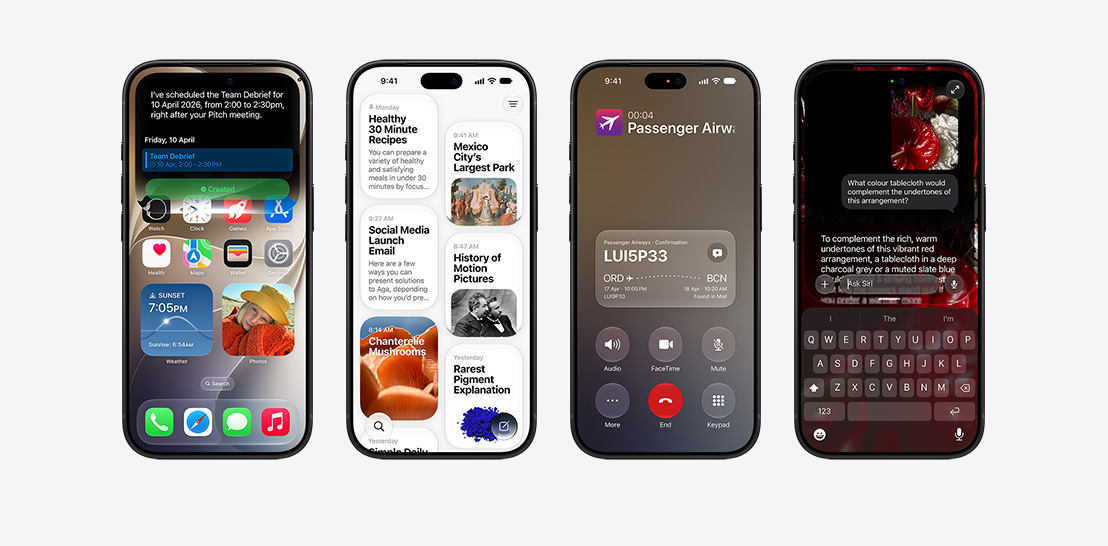
iOS and Apple Intelligence
New look. Even more magic.

-
Privacy
Your data.
Just where you want it.
-
Cutting-Edge Cameras
Picture your best
photos and videos.
-
Environment
Designed with the Earth in mind.

-
Peace of Mind
Helpful features.
Just in case.




-
iPhone 17 Pro

- Cosmic Orange
- Deep Blue
- Silver
Innovative design for ultimate
performance and battery life. -
iPhone Air

- Sky Blue
- Light Gold
- Cloud White
- Space Black
The thinnest iPhone ever.
With the power of pro inside. -
iPhone 17

- Lavender
- Sage
- Mist Blue
- White
- Black
Even more delightful.
Even more durable. -
New iPhone 17e

- Pink
- White
- Black
Feature stacked.
Value packed. -
iPhone 16

- Ultramarine
- Teal
- Pink
- White
- Black
Amazing performance.
Durable design.
Take a closer look.

-
Apple Trade In
Save on a new iPhone with a trade‑in.
Get S$240 to S$1,085 in credit via bank transfer towards iPhone 17, iPhone Air or iPhone 17 Pro when you trade in iPhone 13 or higher.*

-
Financing
Pay 0% interest for up to 24 months.
With an eligible credit card, you can choose the financing option that works for you.12

-
Personal Setup
Meet your new iPhone with Personal Setup.
Jump into online sessions with a Specialist to set up your iPhone and discover new features.

-
Delivery and Pickup
Free delivery and pickup.
Get free delivery or pick up at your Apple Store.

-
Guided Shopping
Shop one on one with a Specialist online.
Choose your next iPhone with help from a Specialist online.

-
Apple Store App
Explore a shopping experience designed around you.
Use the app to get a more personal way to shop.


-
Apple Trade In
You can get up to S$560 for your Android smartphone.*
With Apple Trade In, you can get credit via bank transfer towards a new iPhone when you trade in your Android phone.

-
Financing
Pay 0% interest for up to 24 months.
With an eligible credit card, you can choose the financing option that works for you.12
-
Personal Setup
Meet your new iPhone with Personal Setup.
Jump into online sessions with a Specialist to set up your iPhone and discover new features.
-
Guided Shopping
Shop one on one with a Specialist online.
Choose your next iPhone with help from a Specialist online.
-
Delivery and Pickup
Free delivery and pickup.
Get free delivery or pick up at your Apple Store.
-
Apple Store App
Explore a shopping experience designed around you.
Use the Apple Store app to get a more personal way to shop.
Upgrade to iPhone.

-
Innovation
Beautiful and durable,
by design.
-
Cutting-Edge Cameras
Picture your best
photos and videos.
-
Chip and Battery Life
Fast that lasts.

-
iOS and Apple Intelligence
New look. Even more magic.
-
Environment
Designed with the Earth in mind.
-
Privacy
Your data.
Just where you want it.
-
Peace of Mind
Helpful features.
Just in case.


Privacy. That’s iPhone.


Significant others.
-
With iPhone Mirroring, you can view your iPhone screen on your Mac and control it without picking up your phone. Continuity features also let you answer calls or messages directly from your Mac. You can even copy images, video or text from your iPhone and paste it all into a different app on your Mac. And with iCloud, you can access your files from either device.

-
Misplaced your iPhone? The latest Apple Watch models can show you its approximate distance and direction.14 To set up a group photo on your iPhone, join the group and use Apple Watch as a viewfinder to snap the shot. And when you take a call on your Apple Watch, just tap your iPhone to continue the conversation there.

-
Set up AirPods on iPhone with just a tap. You’ll love Adaptive Audio, which automatically tailors the noise control for you to provide the best listening experience across different environments and interactions throughout the day.
