
-
New Siri AI. An even more capable AI assistant with expanded intelligence to be more helpful every day.1


-
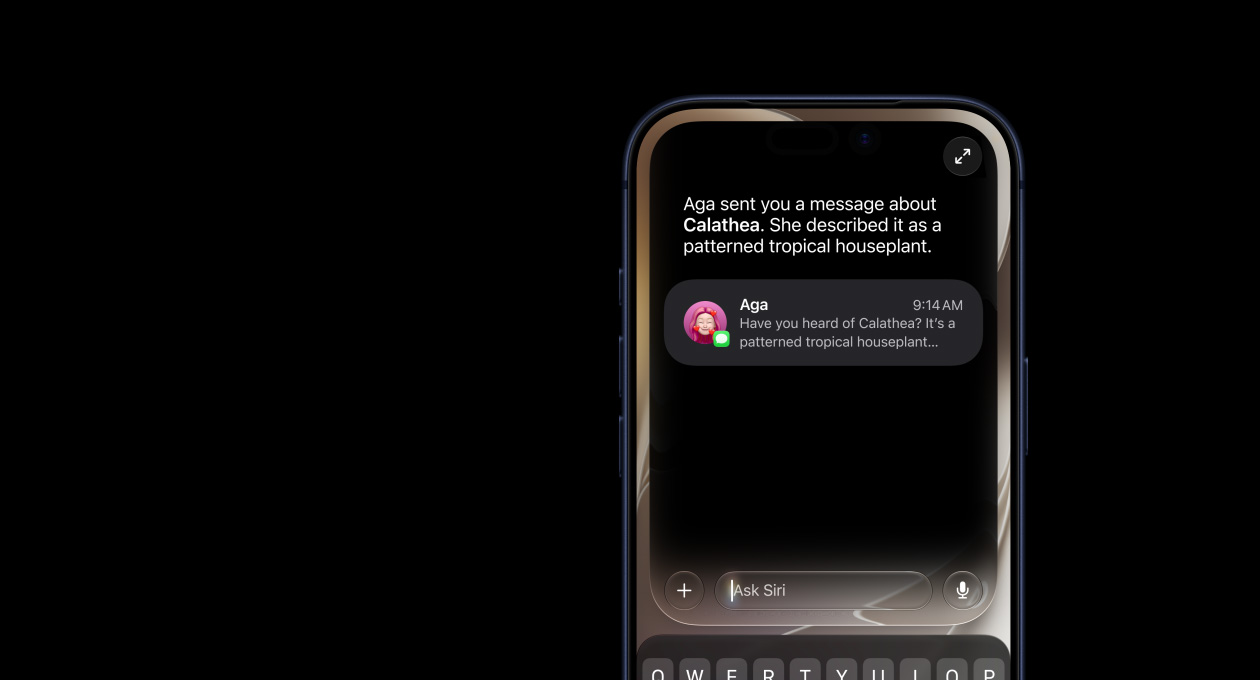
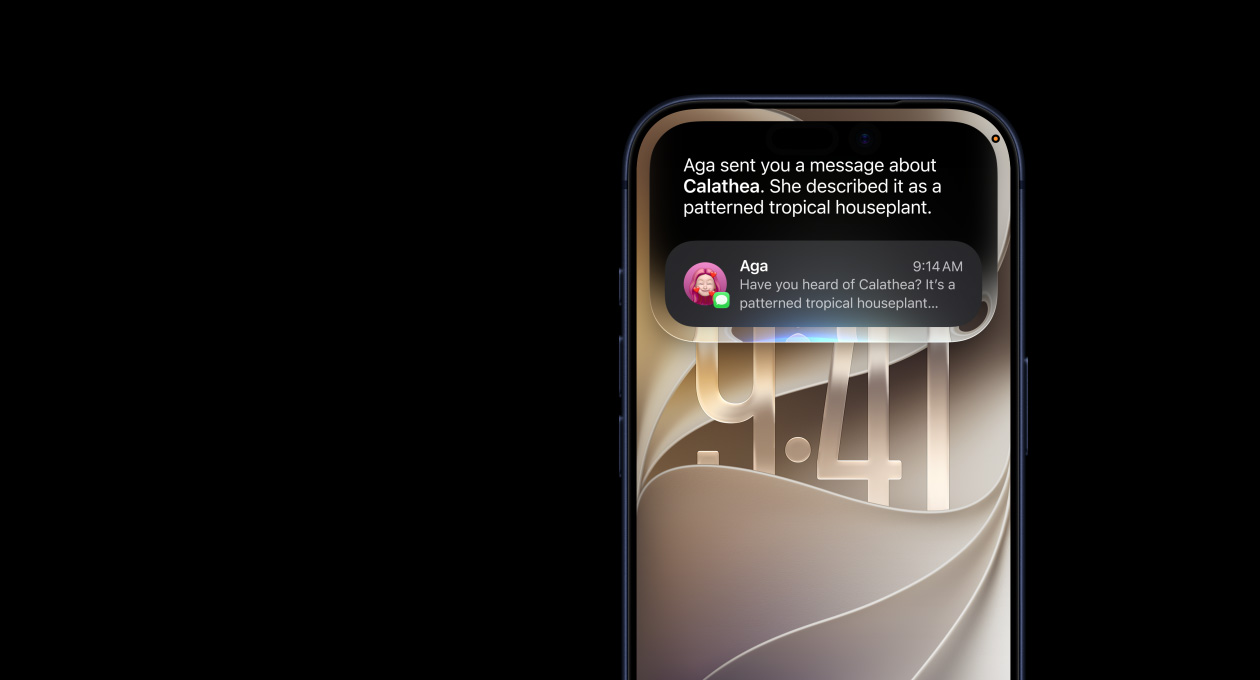
Type or talk naturally with Siri AI to find what you need and get more done.
-
Transform photos with new, easy-to-use AI editing tools, like Spatial Reframing and upgraded Clean Up.


-
Siri mode in Camera — start a visual search right from your viewfinder.


-
New, intuitive child safety features help make it easier for parents to protect kids on iPhone.

-
An expansive set of improvements across key areas that makes your iPhone even more responsive and delightful.


-
Just ask Siri AI.
Powered by Apple Intelligence, Siri AI is your conversational AI assistant with entirely new capabilities on iPhone. Ask open-ended questions, brainstorm ideas for work or creative projects on the go, and engage in natural, back-and-forth conversations.
-
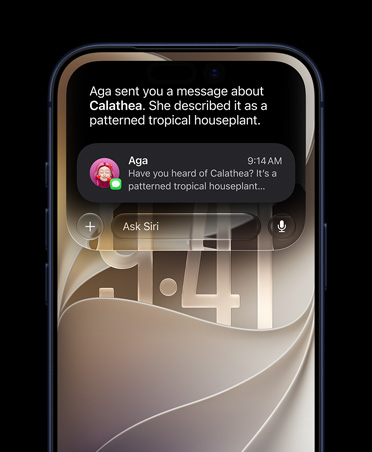
Siri understands your personal context.
Siri AI can find relevant answers to what you’re looking for just by asking. Search for a photo from years ago, easily locate an email buried in your inbox or pull up a note you saved on your iPhone.

-
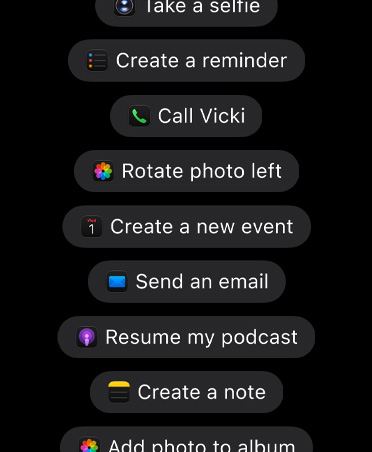
Take action in more apps.
Siri AI can take actions in apps like Messages, Music, Reminders and more based on what you’re doing in the moment. Quickly edit a message you just sent or add a song you hear in the car to your workout playlist.
-
Tap into broad world knowledge.
Ask about virtually any topic that’s on your mind, from important facts to recipes and restaurant recommendations. Siri AI can reference information online to give you detailed, up-to-date insights.

-
Introducing the Siri app.
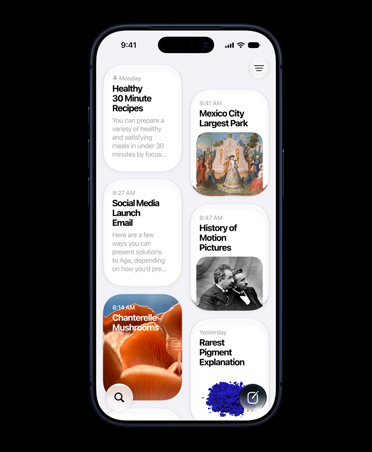
A dedicated app brings together all your conversations in one place, so you can ask a question on your iPhone and pick up where you left off on your iPad. You can also pin conversations for easy access or start a new one.
-
Siri mode in Camera.
Siri mode and Visual Intelligence let you search, ask questions and take action based on what’s around you with just a tap.2

-
Customise how Siri sounds.
Pick a voice, then customise expressivity and pace until it clicks for you.3

-
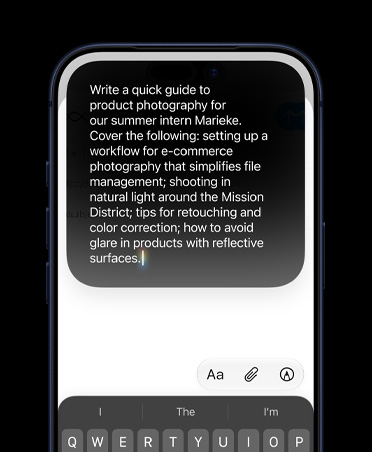
Write with Siri virtually anywhere you type.
Siri AI can now generate a draft from scratch or provide feedback on what you’ve written. Just describe what you need in your own words. And in Messages and Mail, Siri AI can match your writing style, punctuation and tone — so you sound like you.
-
Next-level intelligent photo editing.
Reframe a photo after it’s been taken with Spatial Reframing. Expand your shots with the Extend tool. And remove even larger objects with the enhanced Clean Up tool.

-
Express more with Image Playground.
Create unique, high-quality images in just about any style, including photorealistic. Modify and transform your images with just a description for endless possibilities.

-
Get things done with Suggestions.
Messages and Mail offer suggestions to help you take quick actions based on context from your conversation — add a calendar event or search for a photo with just a tap.

Coming in English
-
Get relevant information while on a call.
Call Context can proactively surface relevant information from across your apps when calling a business — like a confirmation code from Mail when you call an airline.

Coming in English
-
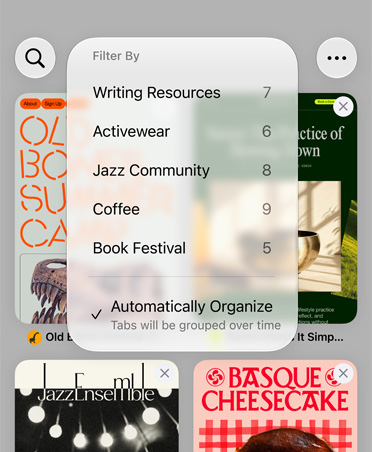
Safari works smarter for you.
Now your tabs can be automatically grouped into topics, so related pages are easier to find. And Safari Notify Me monitors pages for changes — for example, a price change or restock — and alerts you when it’s time to act.
-
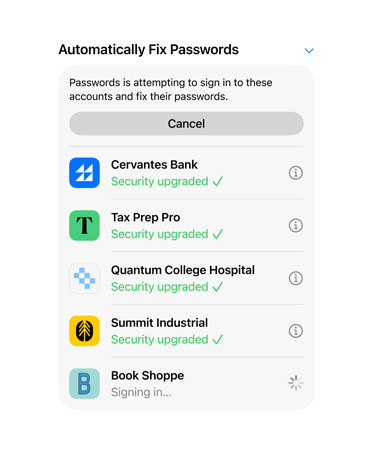
Fix passwords with a tap.
The Passwords app alerts you to weak or compromised passwords and can update them on your behalf without the hassle.
-
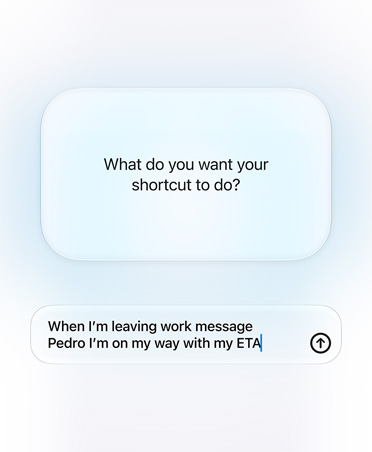
Describe a shortcut.
Automate daily tasks with a simple description. Just describe what you need, and Shortcuts connects actions across multiple apps to get it done. You can say something like “When I’m leaving work, message Pedro I’m on my way with my ETA.”
-
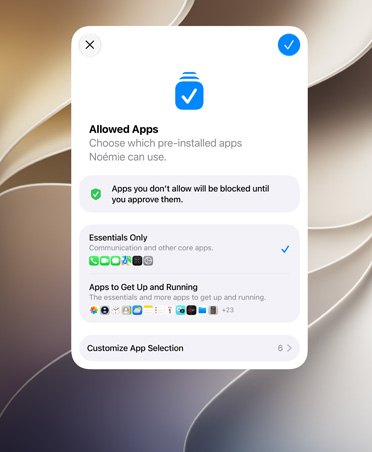
Set a foundation.
In Setup Assistant, parents can choose exactly which system apps their kids can use. They can select a few essential apps, a recommended set or the specific ones they want. And with Ask to Buy, parents can add more over time.5
-
Approve new websites.
With the new Ask to Browse,6 kids must request permission to access new websites. Parents can take a closer look at the request in Messages before approving.7

-
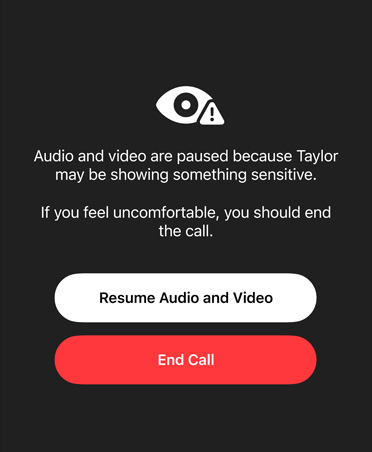
Help them communicate safely.
Communication Safety helps protect children from viewing or sharing nudity in Messages, FaceTime and more. It now also intervenes before children see gore or violence in shared images and videos.
-
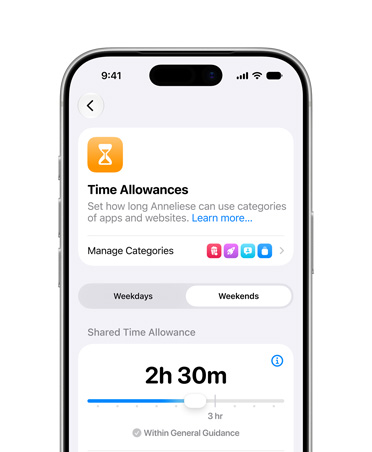
Time Allowances and Schedules.
Parents can set Time Allowances across categories like Entertainment, Games and Social Media. We provide parents with guidance for setting Time Allowances that is based on a child’s age and developed with clinical and child development experts. Parents can always adjust these allowances based on what’s best for their child. And Schedules lets parents choose which apps are available to their child at different times or days of the week.
-
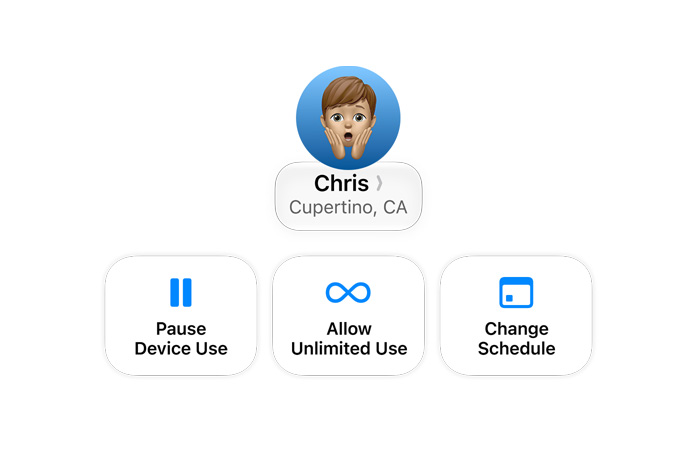
Intuitive, easy-to-use controls.
An all-new design makes parental controls in Settings even easier to use. At a glance, parents can check how their kids have been using their iPhone. And parents can quickly adjust access in the moment with just a tap.
-
Design refinements.
Updates to Liquid Glass ensure exceptional readability with more uniform refraction and improved contrast. App icons are sharper and more detailed. And a new slider lets you easily customise how Liquid Glass looks, from ultra clear to fully tinted.

-
Faster performance.
Experiences across iOS are faster. For example, app launches are up to 30% faster,8 new photos load in your Photos library up to 70% faster9 and AirDrop transfers are up to 80% faster.10
-
Smoother network transitions.
Your iPhone more seamlessly chooses the best available Wi‑Fi or cellular connection, so whether you’re getting directions as you leave home or taking a FaceTime call as you step off a plane, you’ll stay connected.

-
More relevant Search in Mail.
A new ranking system brings the most relevant results to the top to help you find what you need right away — even if it’s buried deep in your inbox.

-
And so many more.
With improvements at the very core of the system, like an optimised CPU scheduler, and enhancements to apps and experiences you rely on every day, iOS feels better than ever.

iOS 27 features And so much more.

Accessibility.
VoiceOver gets new capabilities for understanding the world around you, including richer image descriptions and Action button integration. A new captioning feature automatically generates synced subtitles for any video you watch, and it can even translate existing captions into other languages. And for navigating everyday life, Magnifier brings powerful tools designed for low vision.

Improved iCloud Shared Albums.
It’s easier for friends and family on Android or Windows to join and contribute their own photos on iCloud.com. Shared Albums also adds support for full-resolution sharing and new ways to filter and react to photos and invite others to share an album.

Perimenopause and menopause support.
Cycle Tracking in the Health app can provide notifications when your logged cycle patterns are suggestive of perimenopause. You can track related symptoms and find support with educational resources.11

Enhanced Flyover in Maps.
Flyover now uses aerial imagery combined with Visual Intelligence models to render everything from architectural fixtures to the shapes of individual trees in stunning, sharp detail.

AirPods Custom EQ.
You can further personalise how your AirPods sound by adjusting the lows, mids and highs in AirPods settings.

Smarter Home.
Apple Intelligence in the Home app unlocks new capabilities, like intelligently combining related activity notifications,12 describing what happened in a selection of HomeKit Secure Video footage before you watch13 and using AI to search for a clip based on what happened.14 And supported HomeKit Secure Video cameras can now stream and record in 4K.15

GymKit on iPhone.
GymKit comes to iPhone and AirPods Pro 3, allowing you to connect to compatible cardio gym equipment like treadmills, ellipticals, bikes and stair-steppers for more accurate real-time metrics while you work out.