If your iPhone or iPad won't connect to a Wi-Fi network
Get help connecting to Wi-Fi on your iPhone or iPad.
Make sure that your router is on and that you're within range
If you're too far from your Wi-Fi router, you can't get a signal, so make sure that you're within range.
Make sure that Wi-Fi is on and that you can see your network
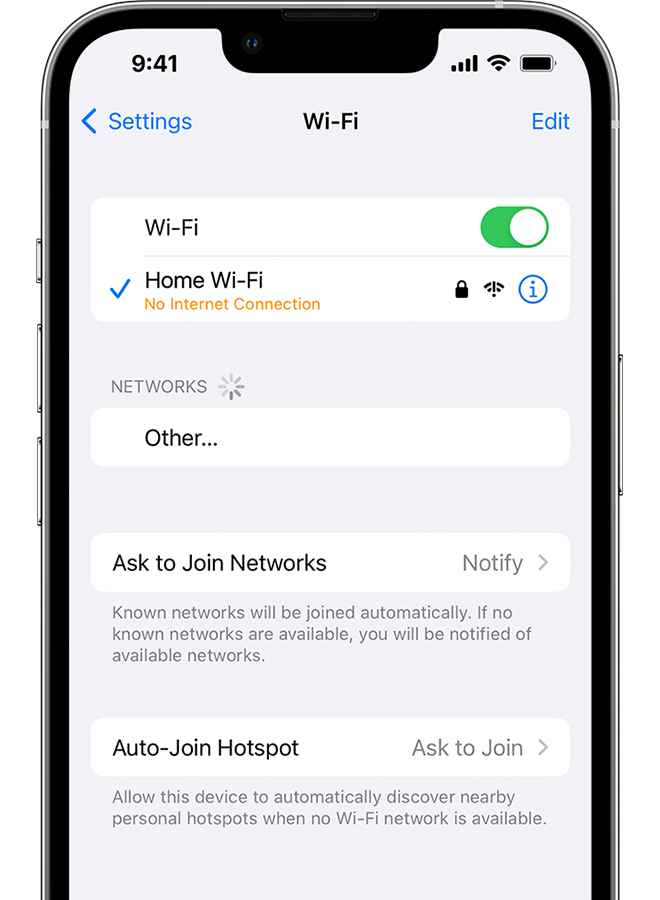
Go to Settings > Wi-Fi and make sure that Wi-Fi is on. Tap the name of your Wi-Fi network to join. A blue checkmark beside a network name means that you're connected.
If you see Auto Join disabled under Settings > Wi-Fi > [Your Network], tap the More Info button and then tap Auto-Join.

If asked, enter your Wi-Fi password
If asked, enter the password for your Wi-Fi network. Get help if you don't know your password.
Even if you enter the correct password, you might see an "unable to join the network" message or an "incorrect password" message. Restart all of your devices, then try to enter your password again.
Check for issues with your Wi-Fi network
If iOS or iPadOS detects an issue with your Wi-Fi connection, you might see a Wi-Fi recommendation under the name of the Wi-Fi network that you're connected to. For example, you might see the alert "No Internet Connection." To get more information, tap the Wi-Fi network.
Check your cables and connections
If you still can't connect to your network or get online, make sure that your router is connected to the modem and turned on.
Restart
Restart your iOS or iPadOS device.
Restart your router and cable or DSL modem by unplugging the device and then plugging it back in.
After you restart each device, see if you fixed the issue.
Reset your network settings
If you're using iOS or iPadOS 15 or later, tap Settings > General > Transfer or Reset [Device] > Reset > Reset Network Settings.
If you're using iOS or iPadOS 14 or earlier, tap Settings > General > Reset > Reset Network Settings.
This also resets Wi-Fi networks and passwords, cellular settings, and VPN and APN settings that you've used before.

Get more help
If you're connected to a Wi-Fi network but you can’t get online, try to use your Wi-Fi network on other devices. If you can't get online using your other devices, there might be a service outage. Call your cable company or internet provider for help.
Try connecting to a Wi-Fi network in a different location. If your device can connect, you need to get help with your Wi-Fi network. If your device can't connect to any Wi-Fi networks, contact Apple.
Update your Wi-Fi router with the latest firmware and make sure that the router supports your Apple product. For more information, contact the router's manufacturer.

