
Final Cut Pro
Inteligência em ação.
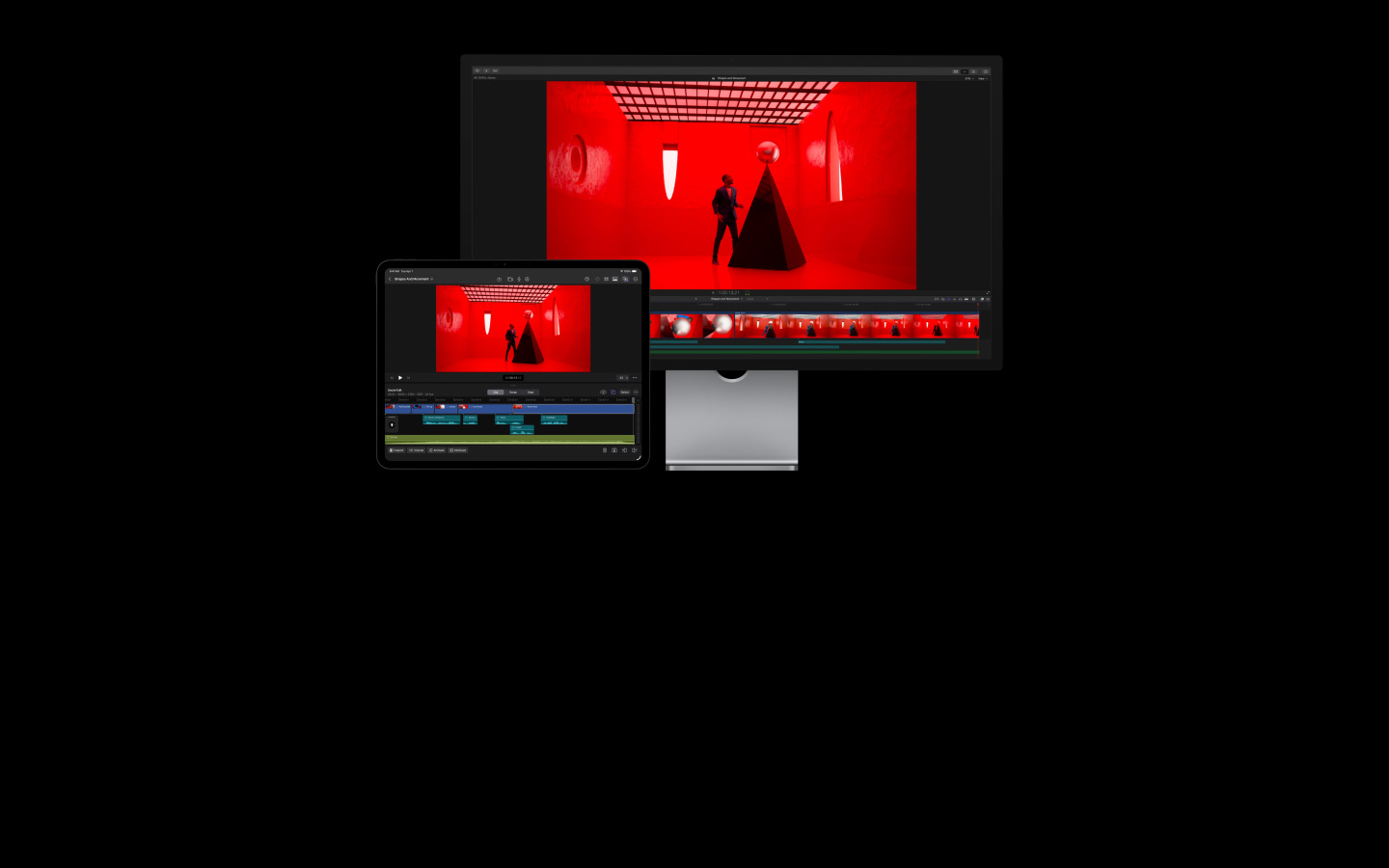
O Final Cut Pro facilita a criação de vídeos com qualidade profissional no Mac e no iPad. Seus recursos de inteligência poderosos ajudam você a transformar cada quadro em uma obra‑prima.
-
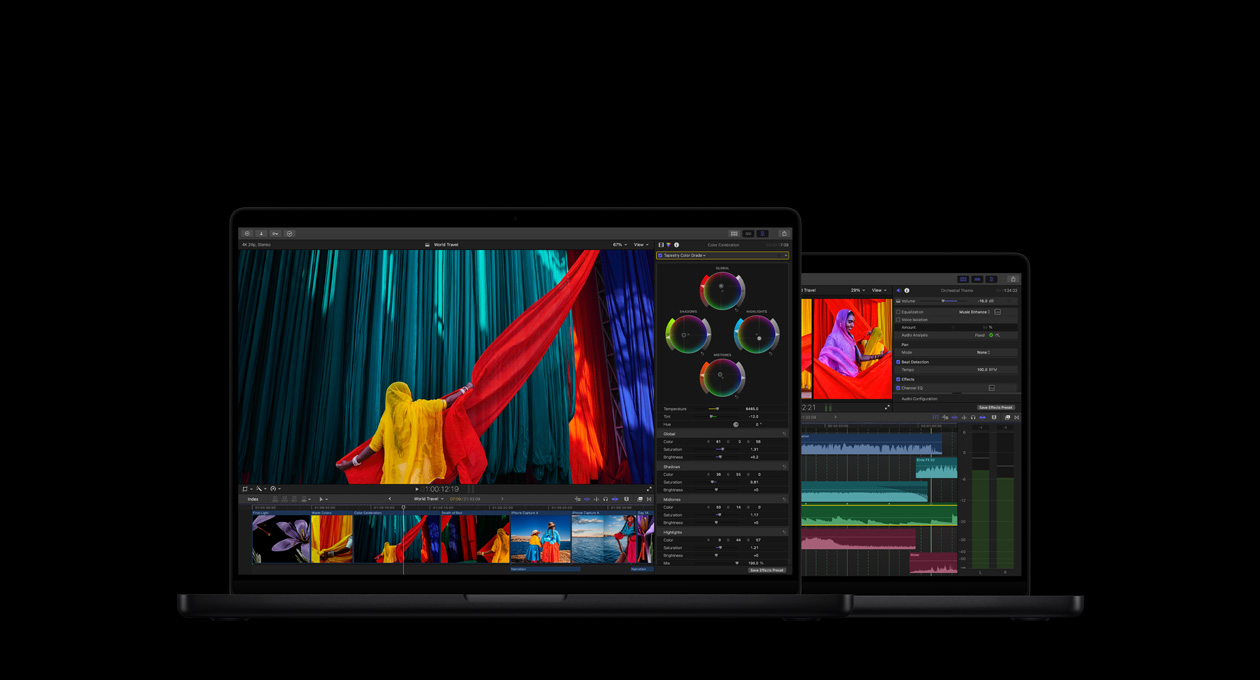
Um app com tudo para seus vídeos. Edição, áudio, ilustrações animadas e gradação de cores.
-
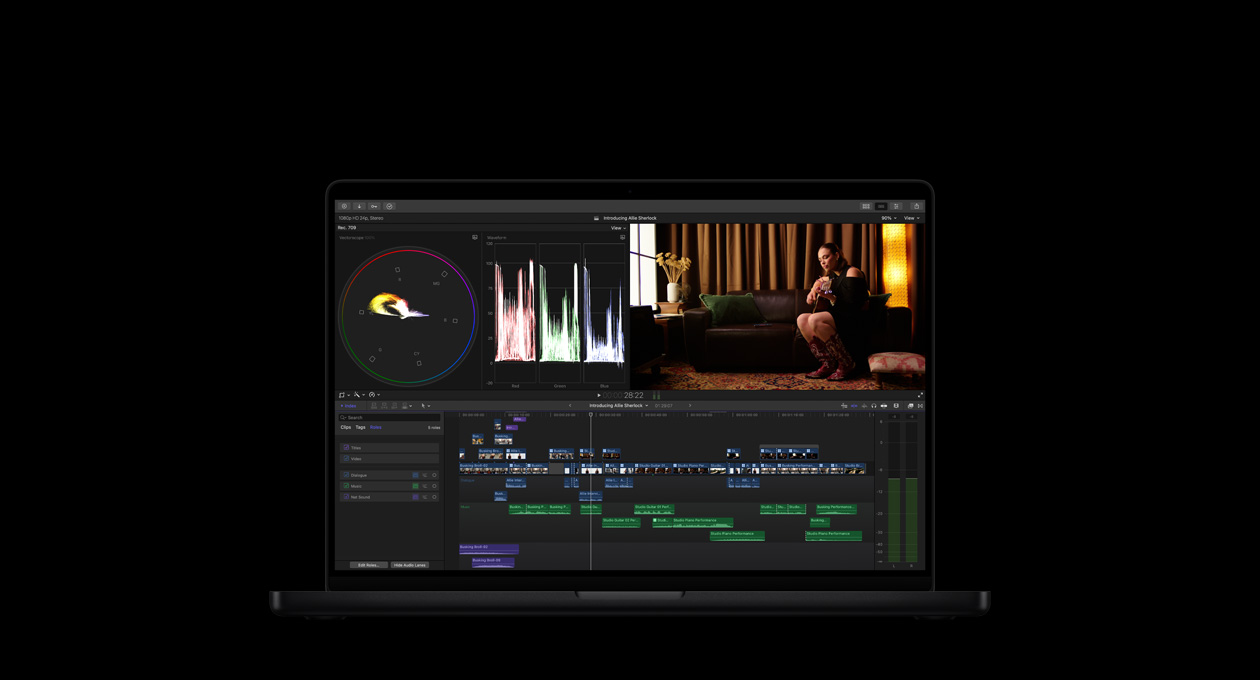
Edição rápida. Trabalho eficiente. Criatividade sem limites.
-
Recursos poderosos de IA
impulsionados pela Apple Intelligence
diretamente nos seus projetos2. -
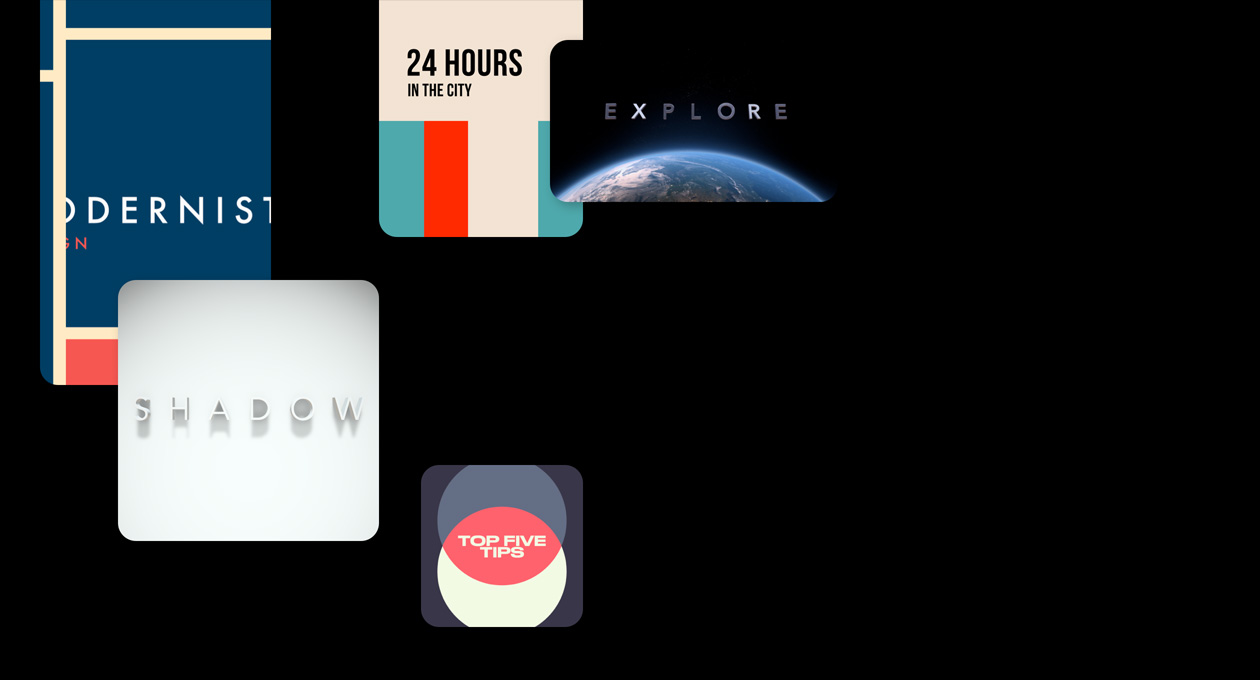
Uma biblioteca inspiradora com títulos, transições, trilhas sonoras e efeitos.
-
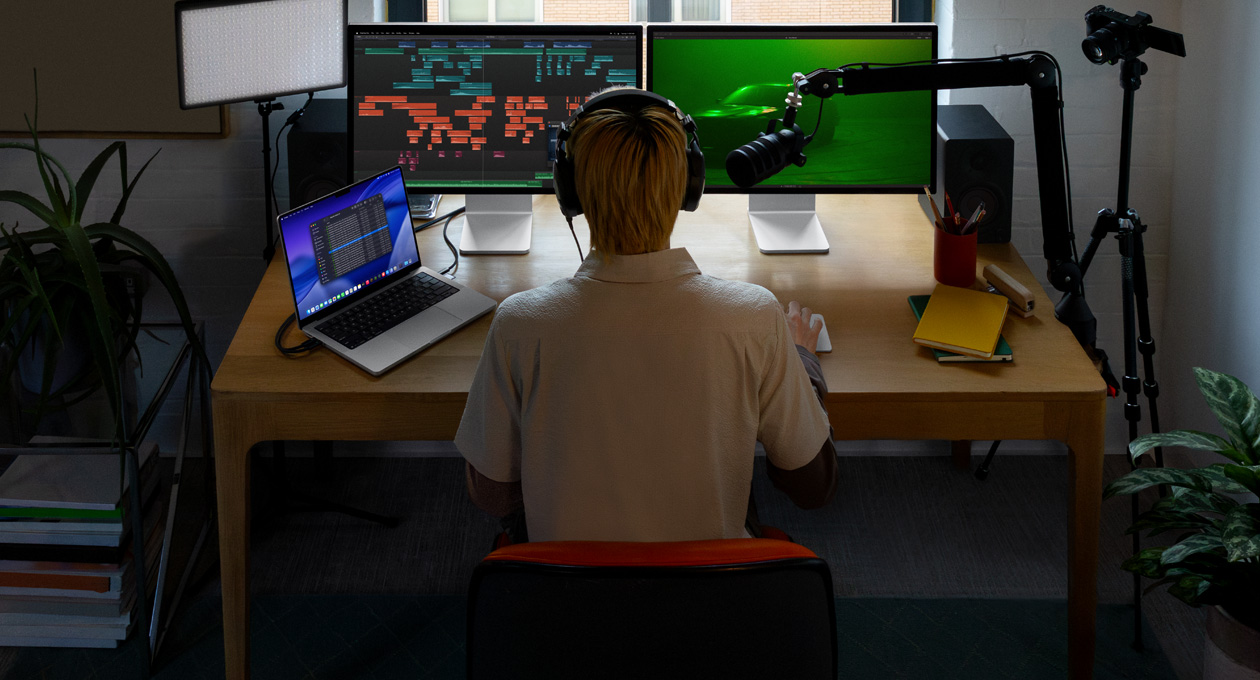
Edição de áudio avançada. Seus vídeos ficam tão incríveis de ver quanto de ouvir.
-
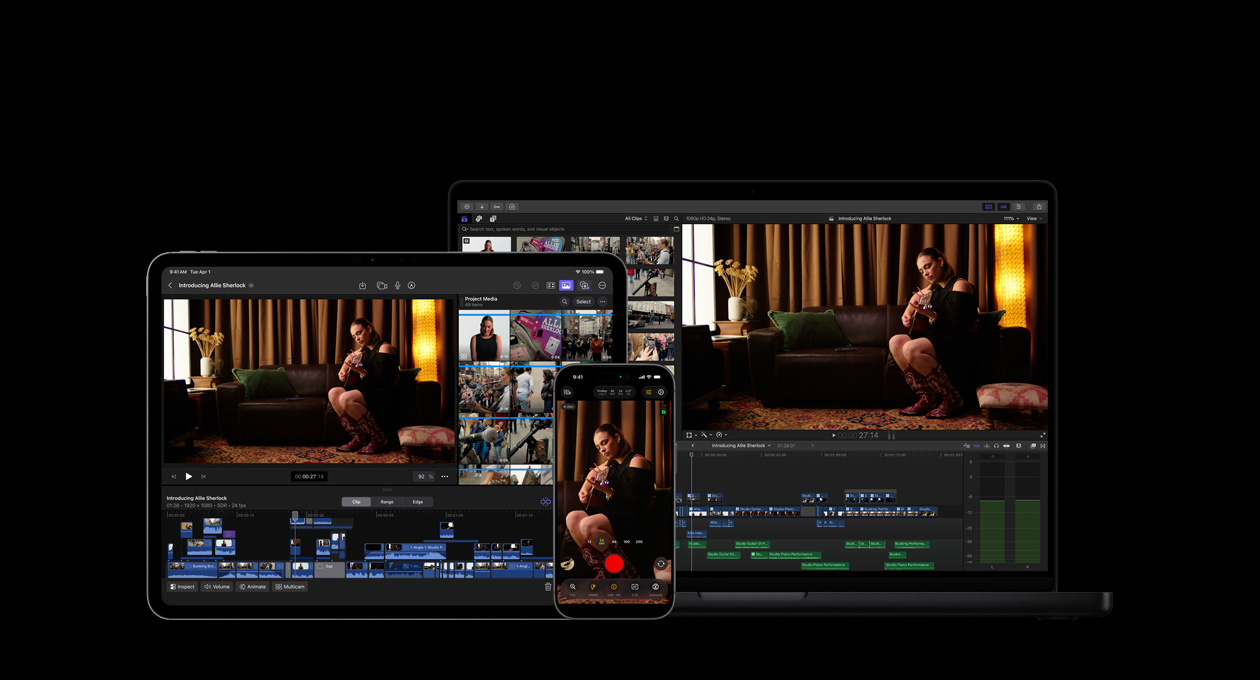
Expresse sua visão nos seus aparelhos Apple, apps e acessórios3.


-
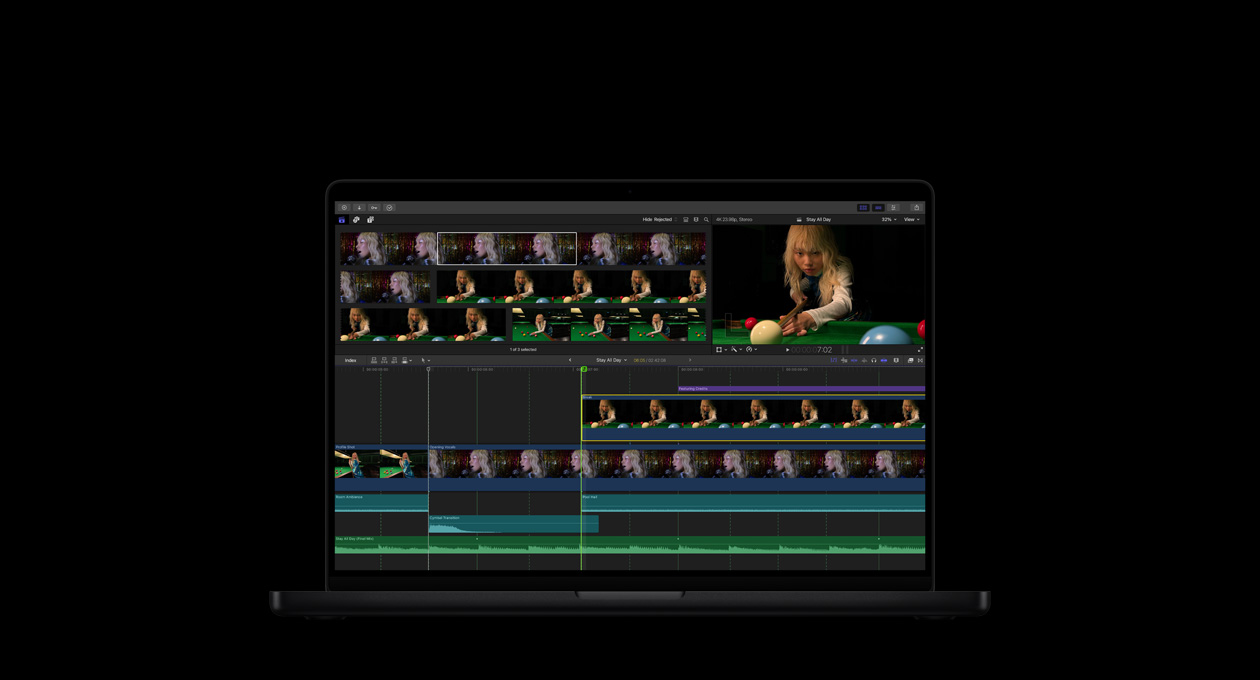
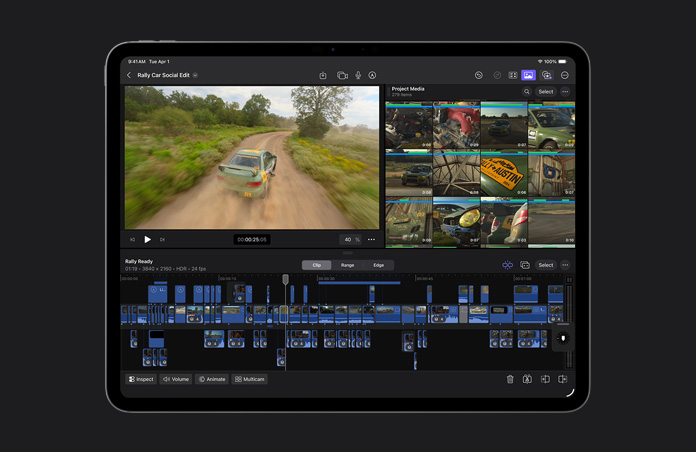
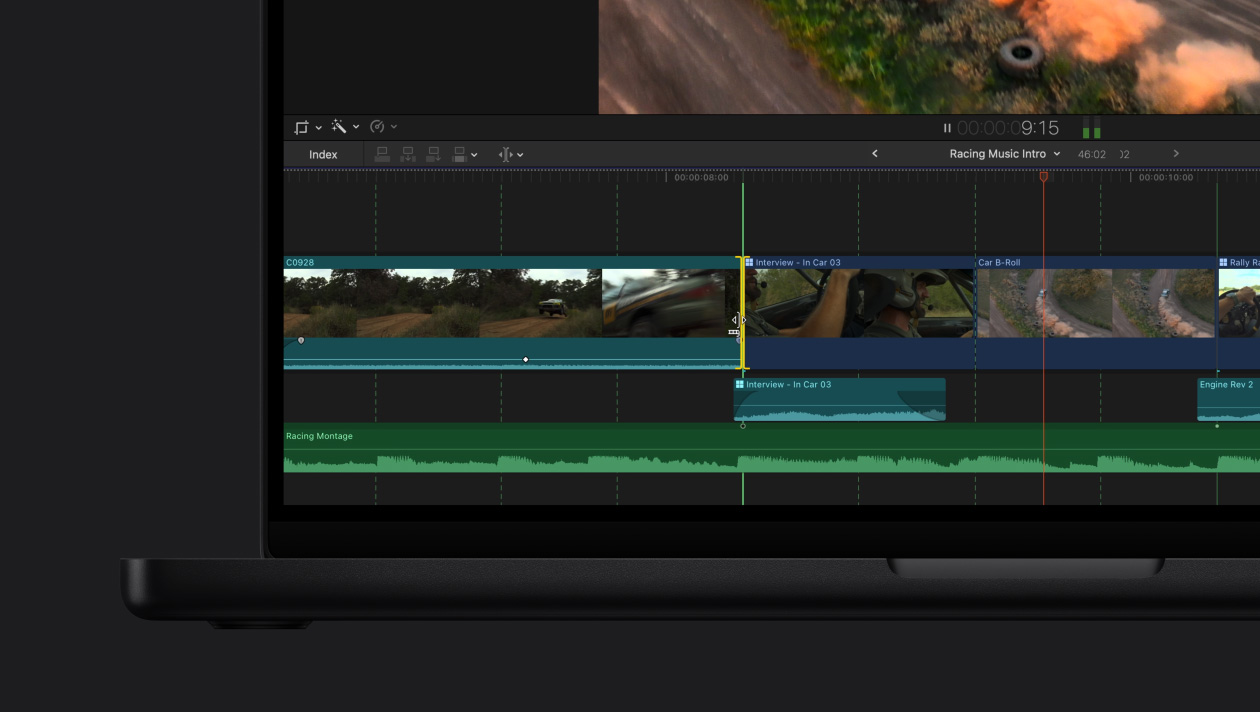
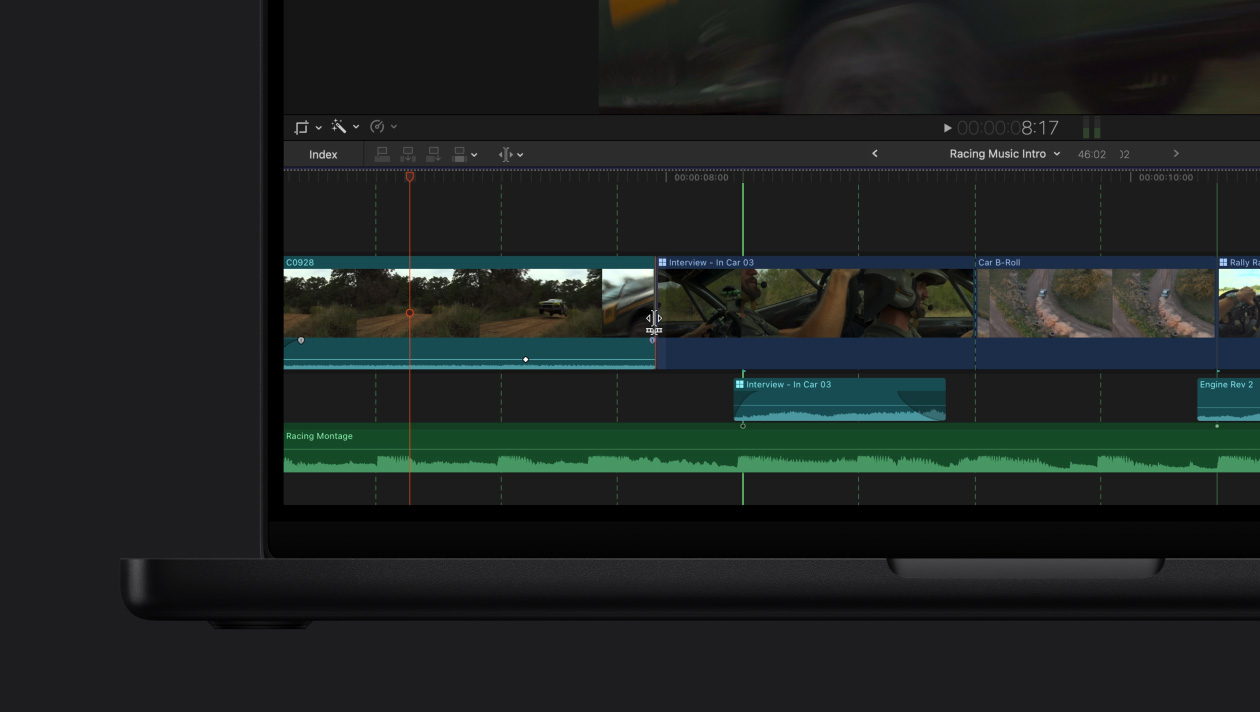
Linha do Tempo Magnética. Edição rápida e flexível.
Experimente diferentes edições e narrativas movendo e recortando os clipes, sem perder a sincronia.
-
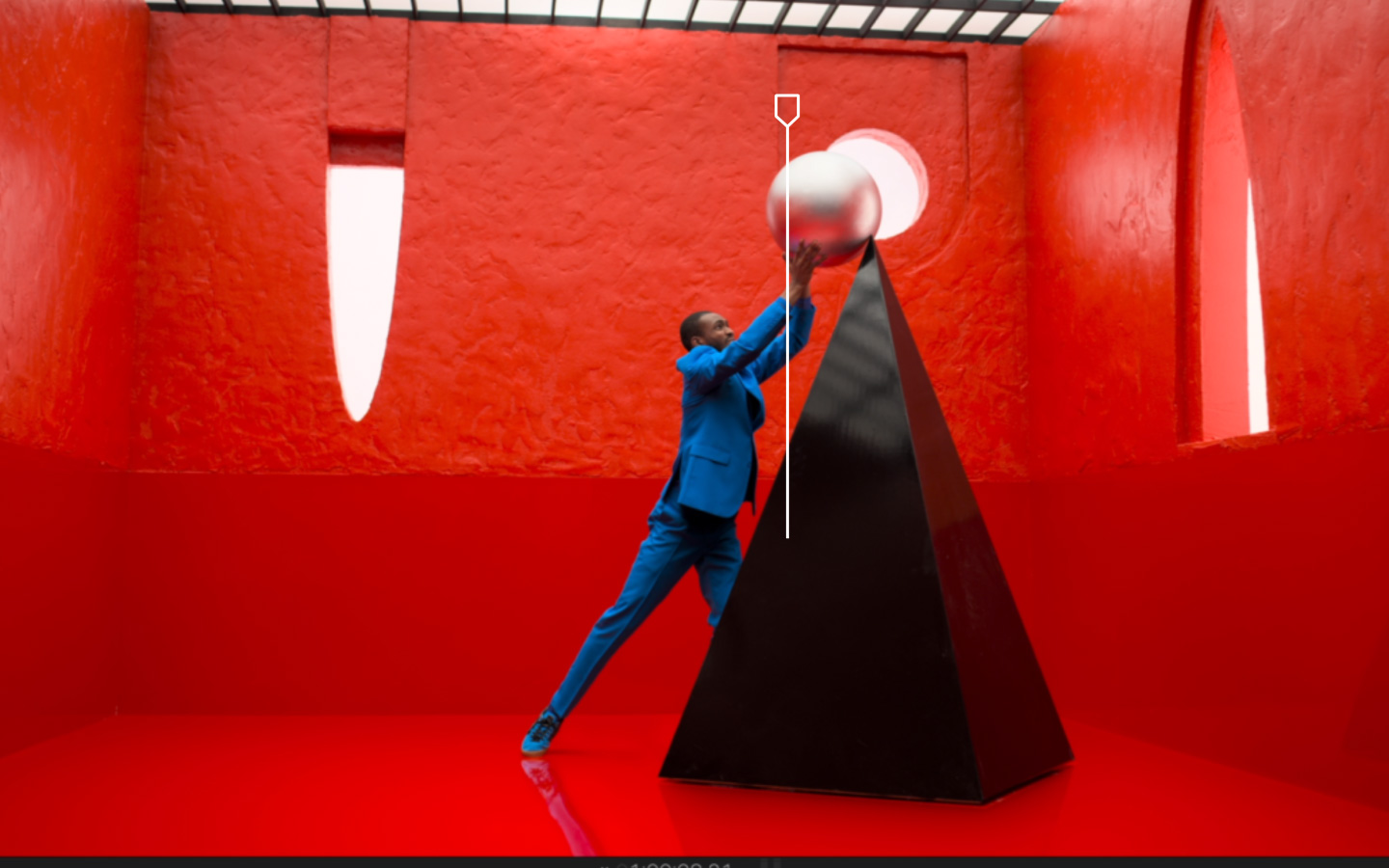
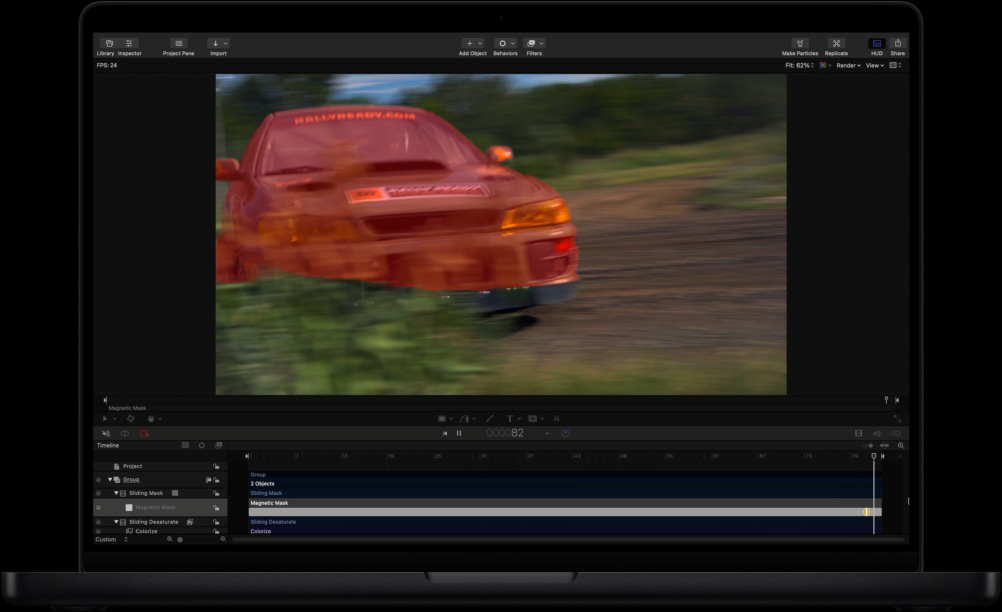
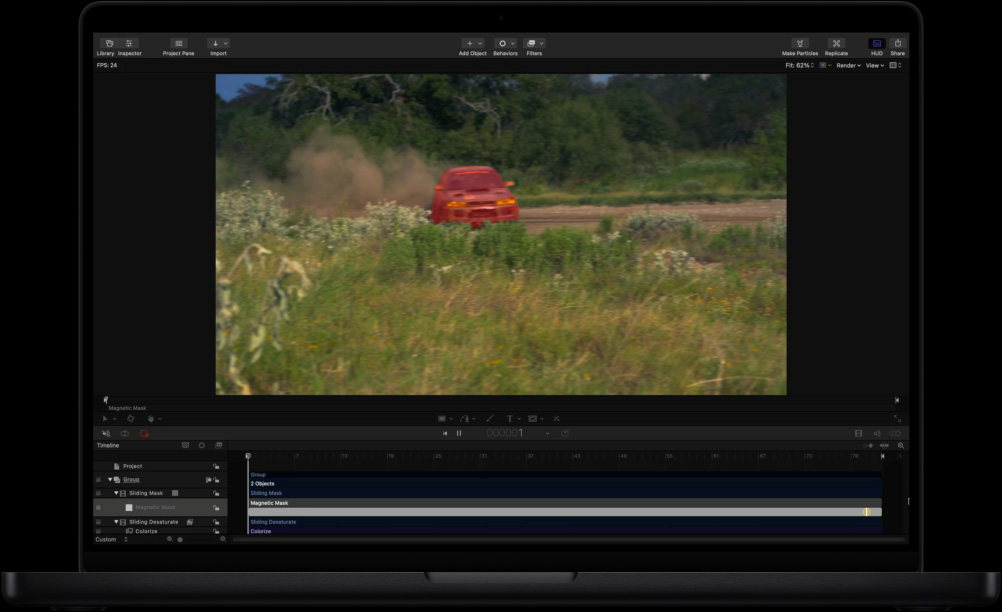
Selecione um objeto com a Máscara Magnética.
Separe pessoas e objetos do fundo sem a necessidade de tela verde ou rotoscopia complicada.

-
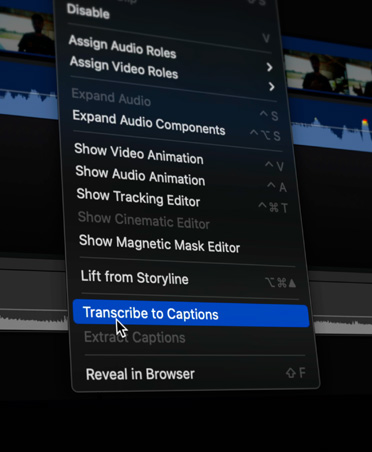
Legendas automáticas.
O Final Cut Pro analisa as vozes no áudio e cria legendas precisas em um instante.
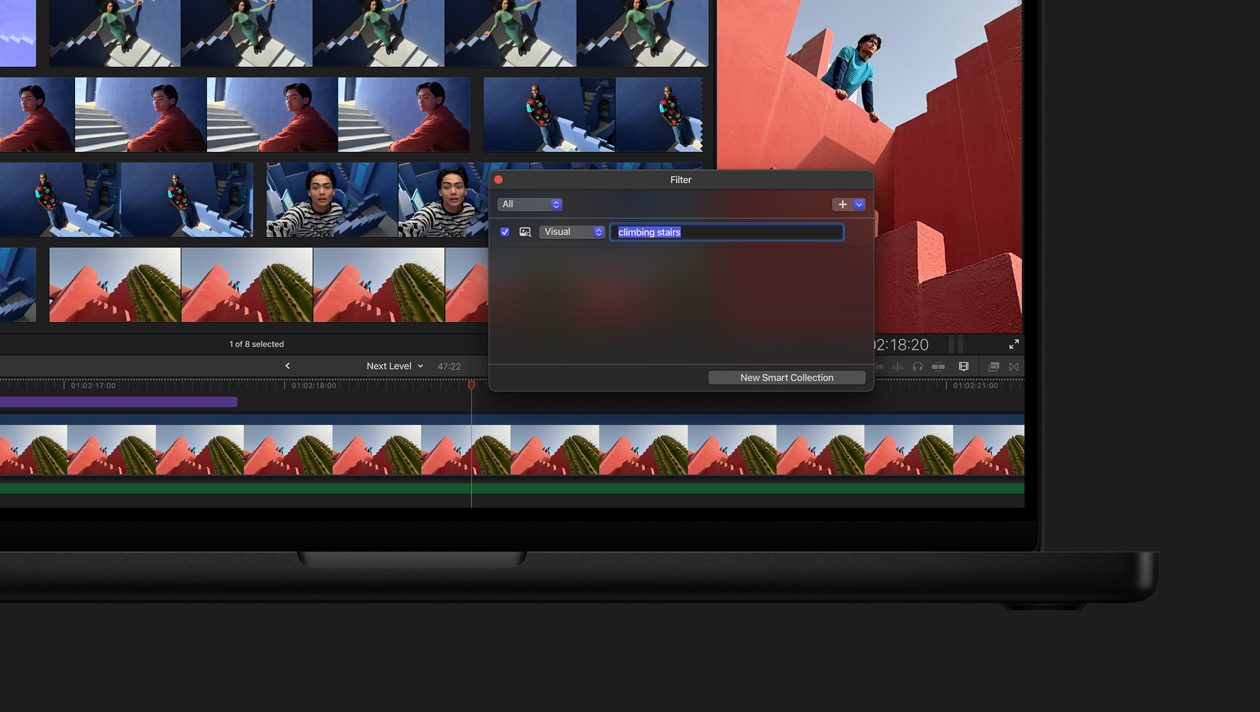
Faça buscas por momentos. A Busca Visual encontra clipes sem esforço. Descreva o que você procura para encontrar objetos e ações em segundos4.
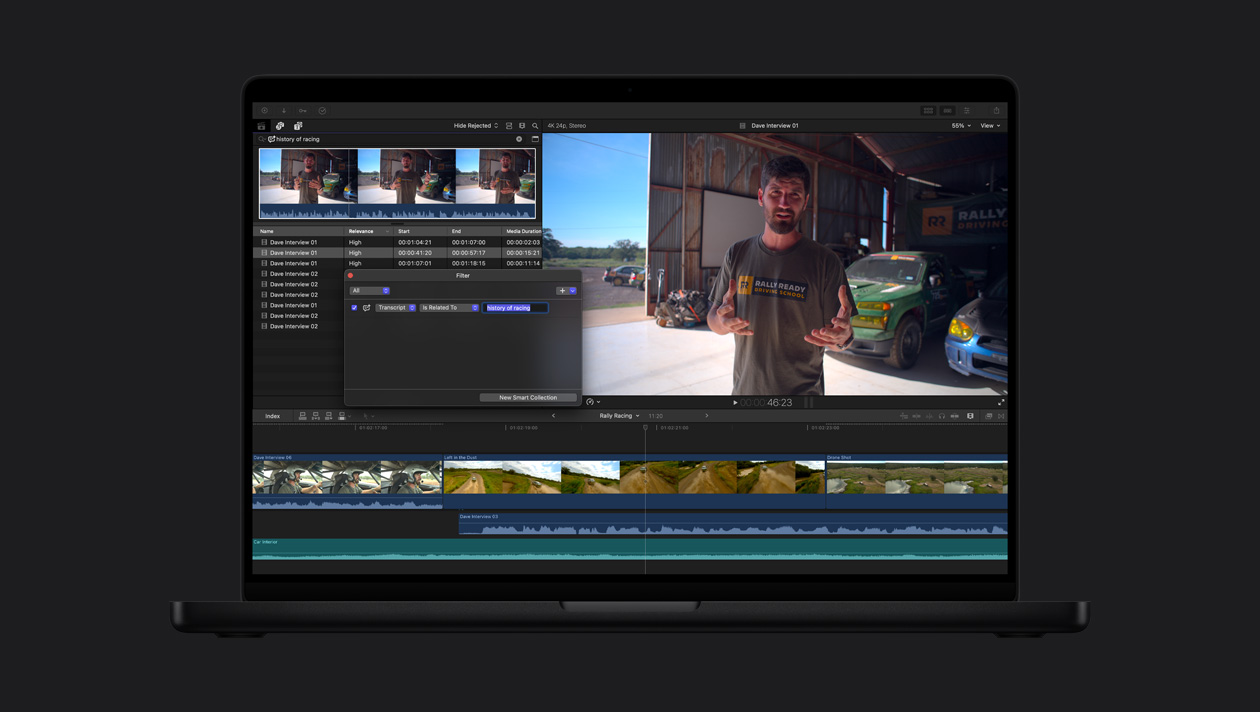
Encontre o ponto certo pela fala certa. Chega de passar horas fazendo buscas no material filmado. A Busca na Transcrição analisa vozes para encontrar instantaneamente diálogos, por palavras exatas ou relacionadas5.

-
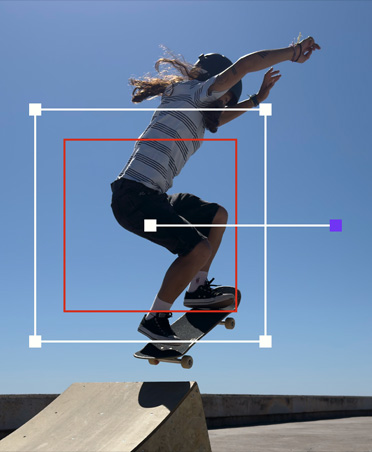
Rastreamento automático de movimento.
O Rastreador de Objeto mapeia o movimento de pessoas, objetos e rostos para você aplicar efeitos e títulos ou fazer ajustes conforme eles se deslocam pela cena.
-
Gradação de cores num clique.
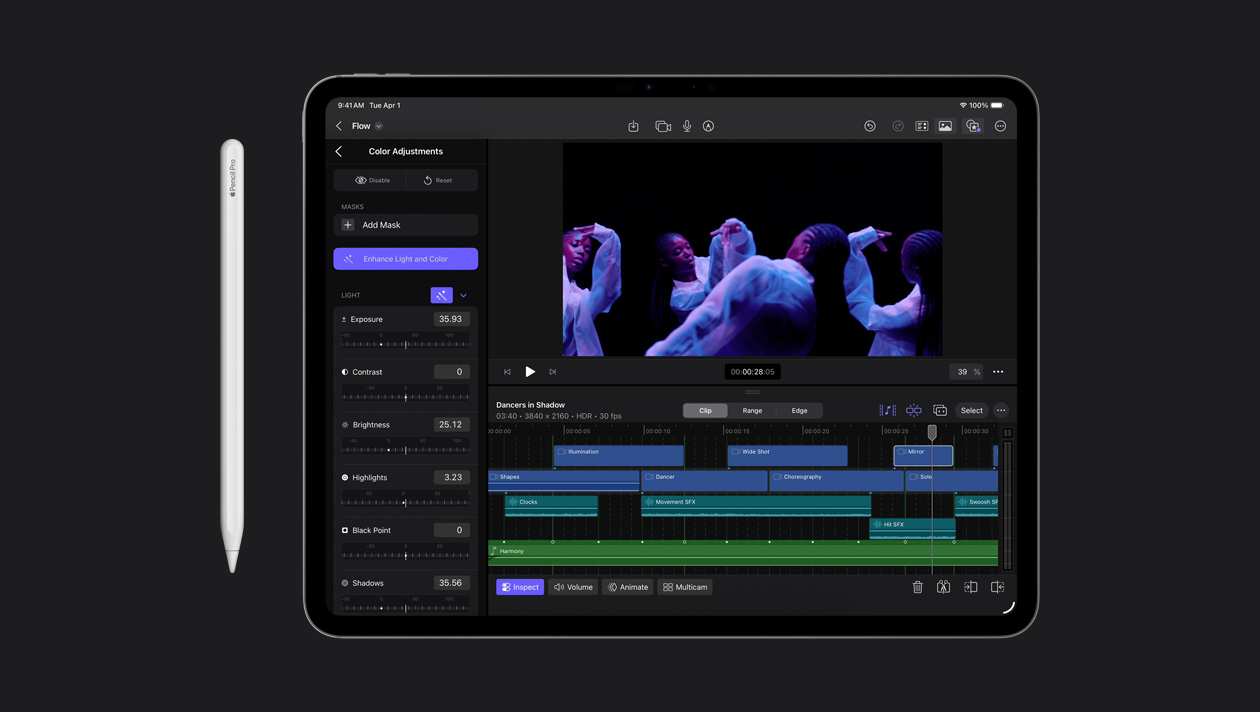
Melhore automaticamente as cores, o contraste e o brilho de vídeos ou imagens com o efeito Aprimorar Luz e Cor processado por aprendizado de máquina.

-
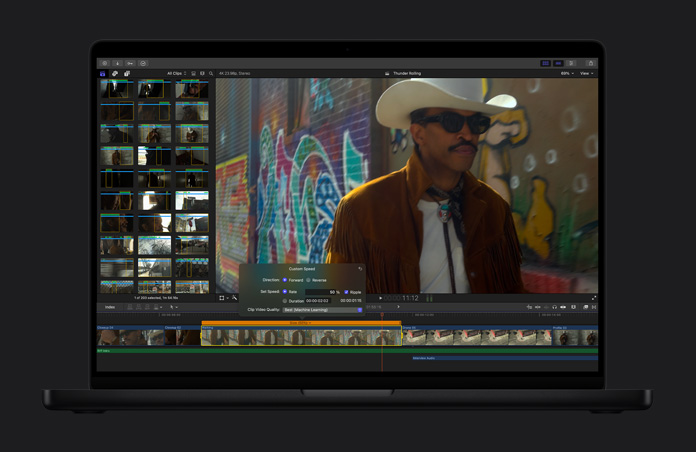
Mude o vídeo para câmera lenta.
O recurso Suavizar Câmera Lenta gera e combina quadros de vídeo de forma inteligente para reproduzir seu projeto com a mais alta qualidade e detalhismo.
-
Altere o enquadramento de um clipe automaticamente.
Seus vídeos são facilmente ajustados a todos os formatos. E ficam prontos para ser compartilhados no Mac, iPhone, iPad e nas suas redes sociais favoritas.
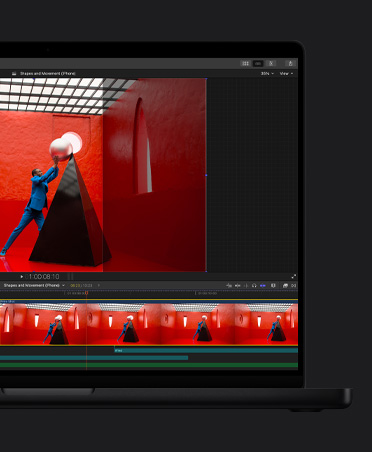
Entre no ritmo com a Detecção de Batidas.
-
Gráficos e transições.
Aproveite uma biblioteca extensa de opções de conteúdo de vídeo dinâmico, com flexibilidade de adaptação, tanto no formato vertical quanto no horizontal.
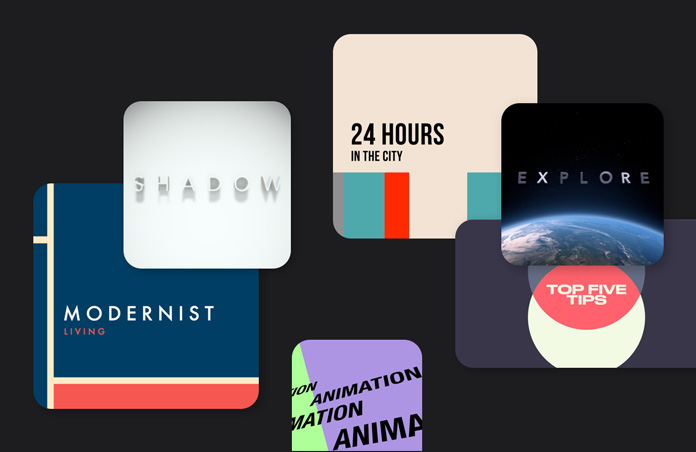
-
Títulos dinâmicos.
Deixe seu projeto ainda melhor com letreiros temáticos, letreiros nos terços inferiores e cartelas customizadas.
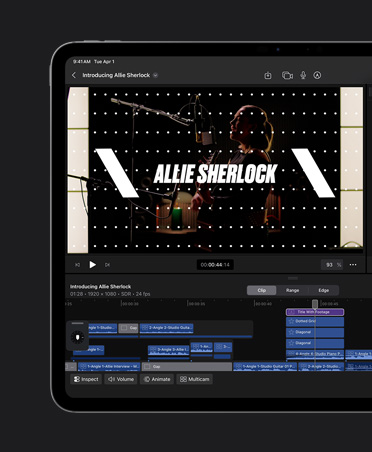
-
Efeitos poderosos.
Crie efeitos visuais sensacionais apenas arrastando e soltando. E suas possibilidades ficam ainda maiores com milhares de ferramentas de terceiros.
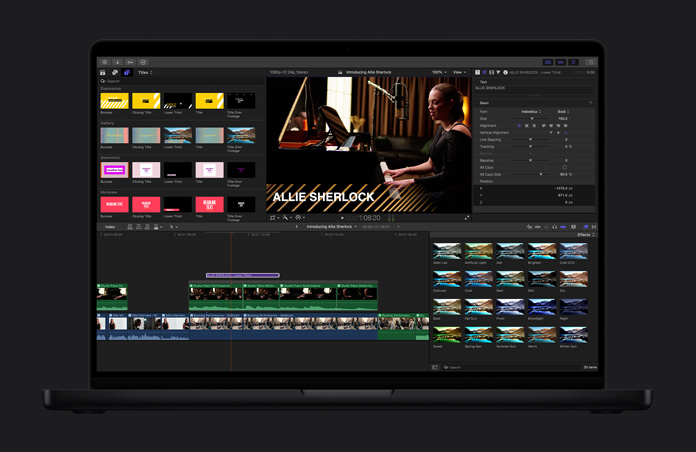
-
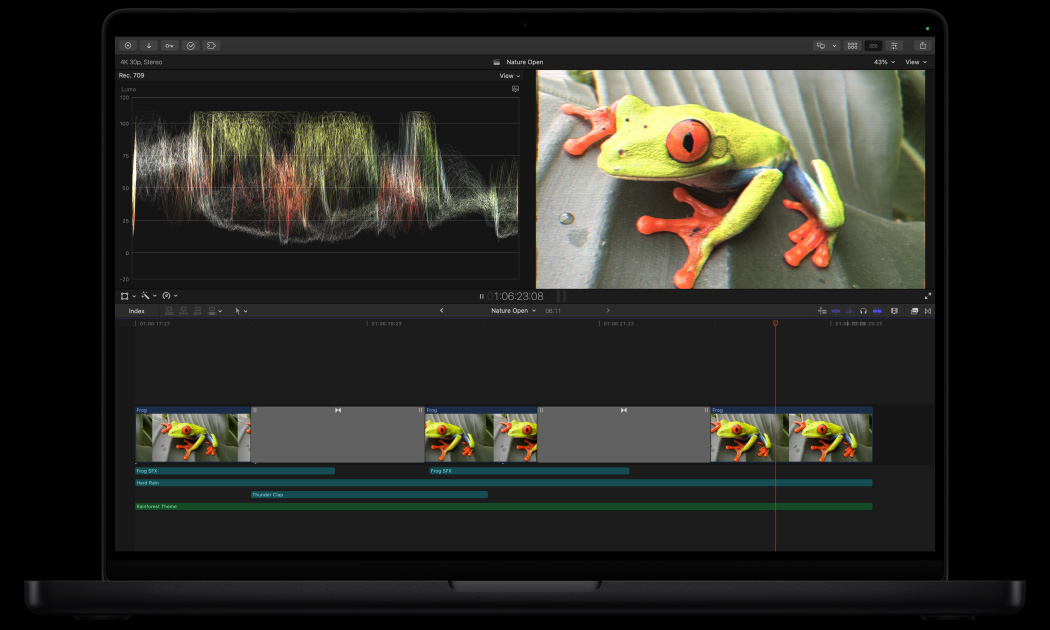
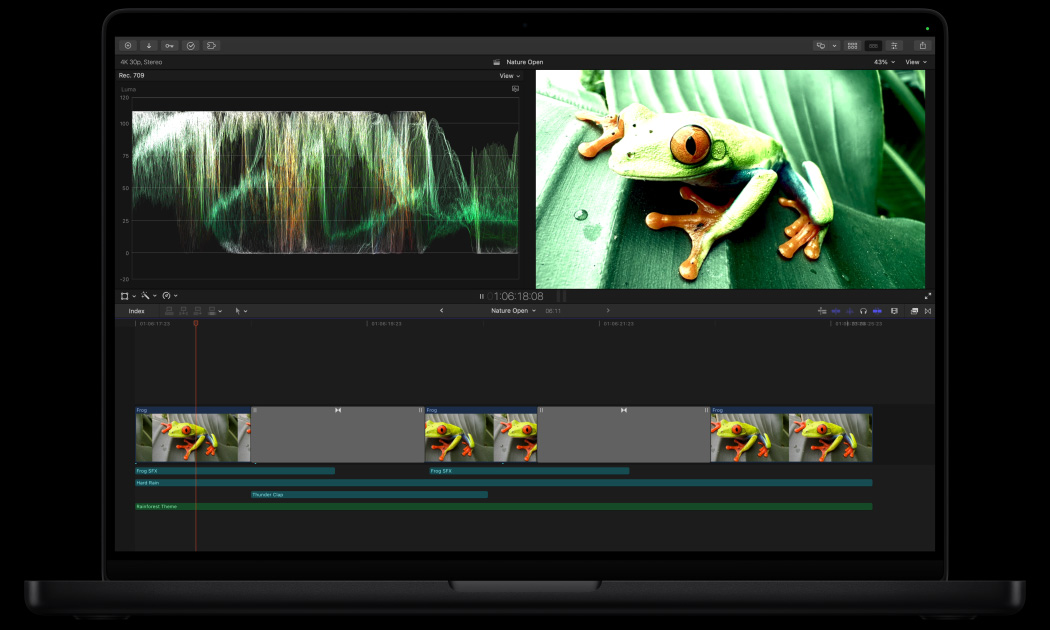
Aprimore sua gradação de cores.
Ferramentas profissionais como curvas de cores, curvas de matiz/saturação, um inspetor com disco de cores e a aplicação de LUTs, dão ao seu projeto um visual incrível.
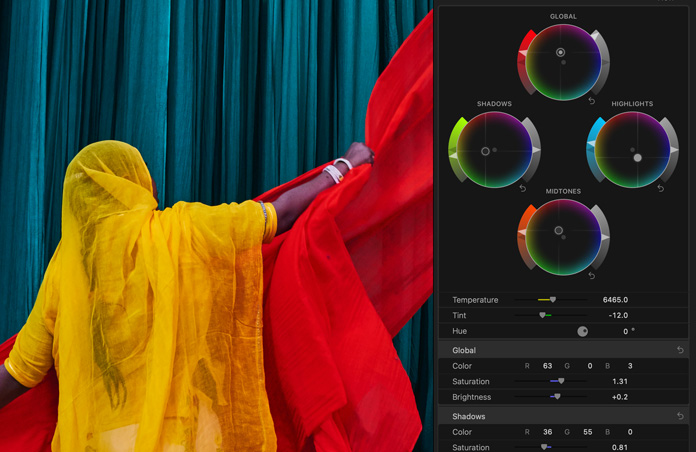

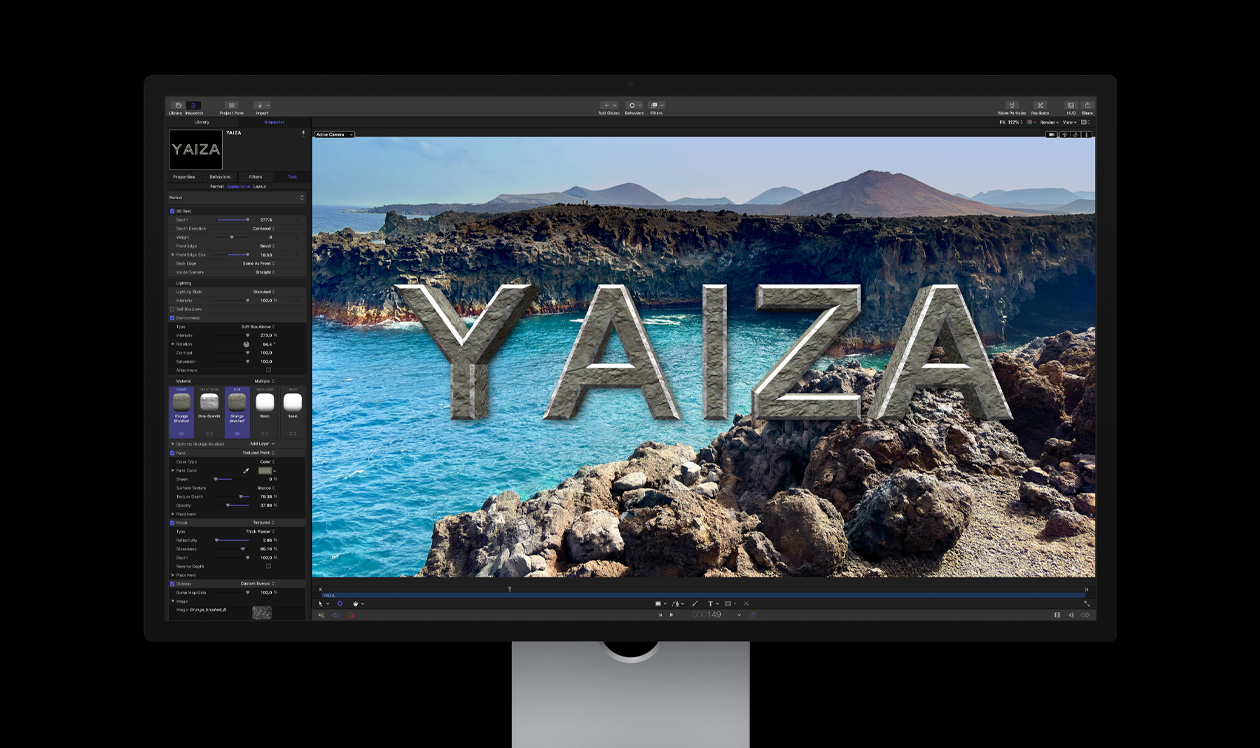
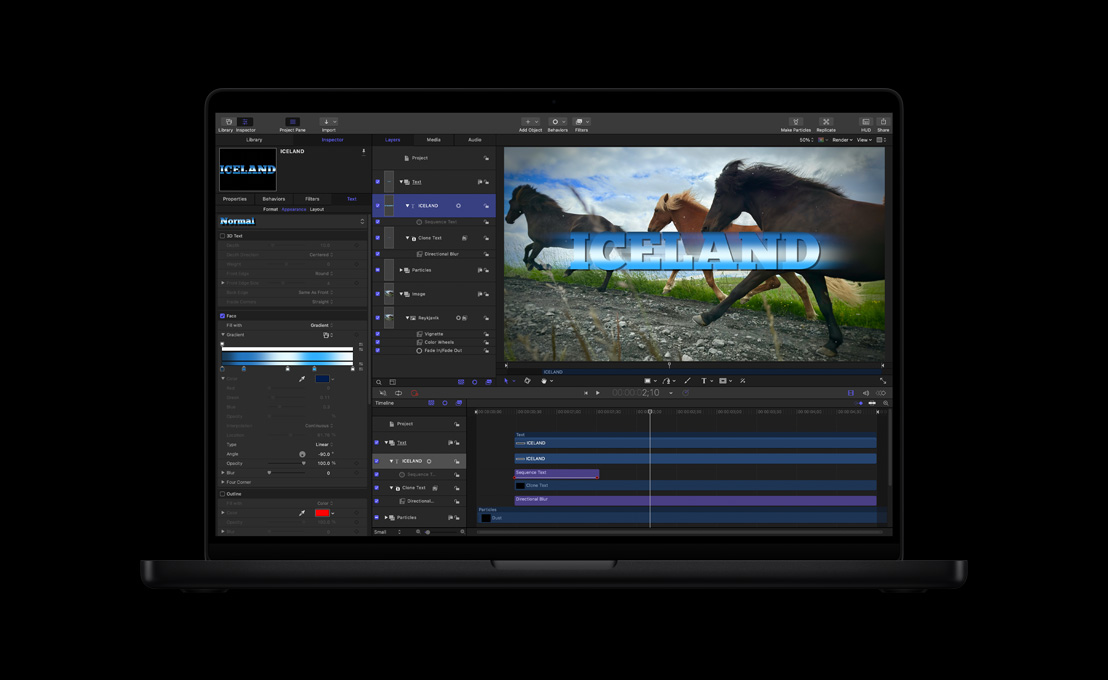
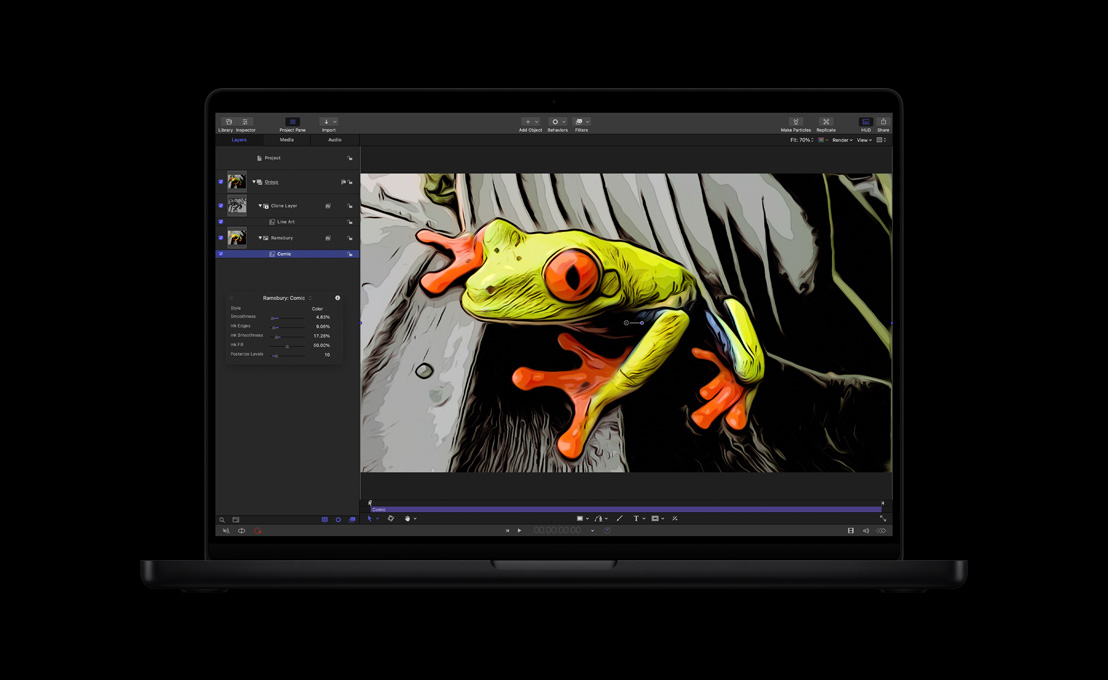
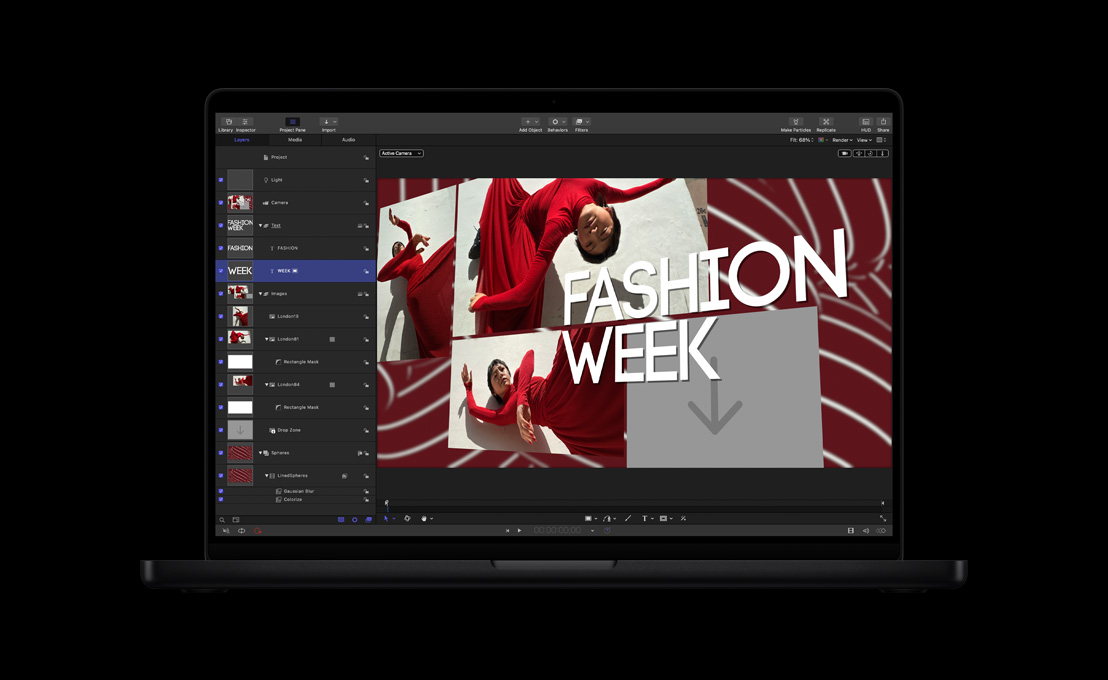
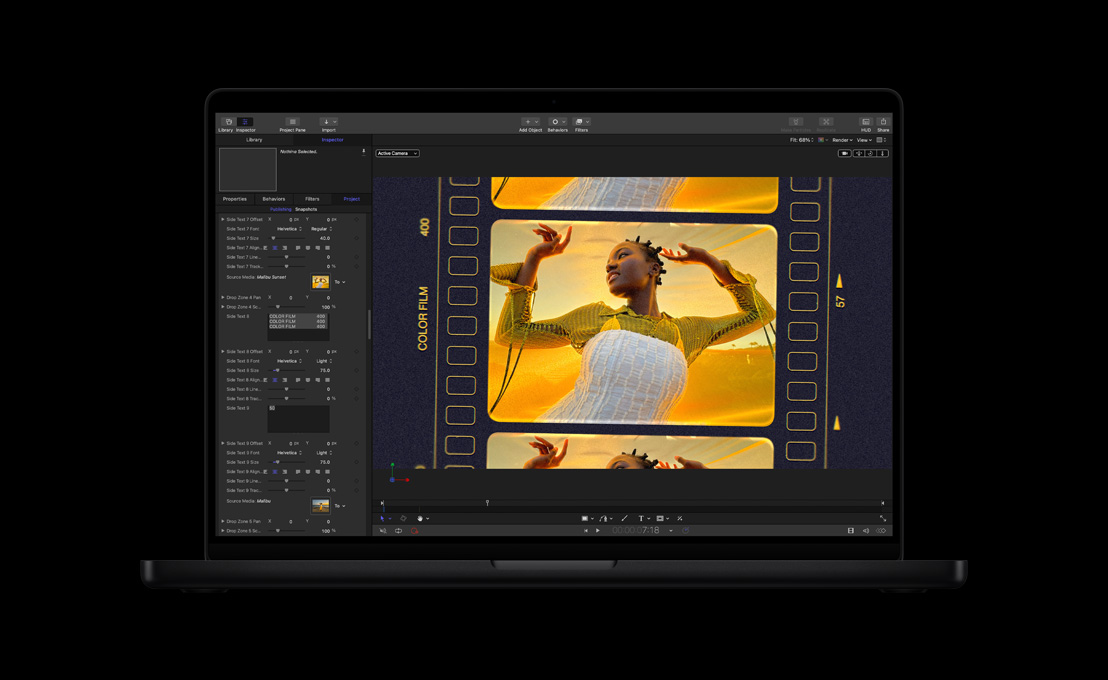
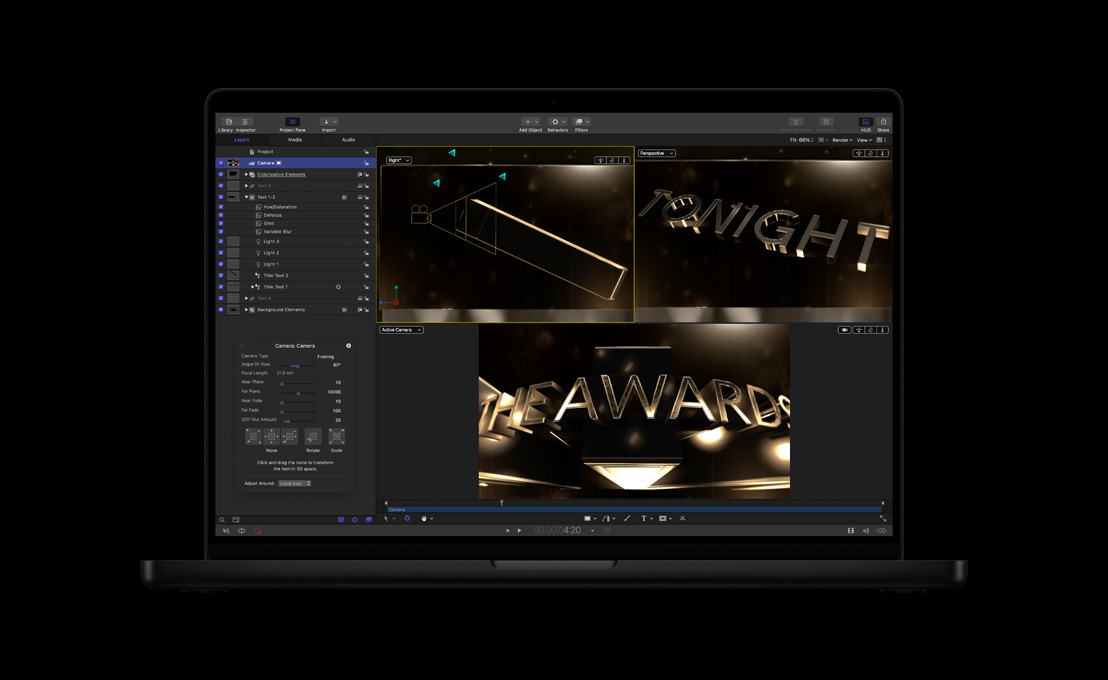
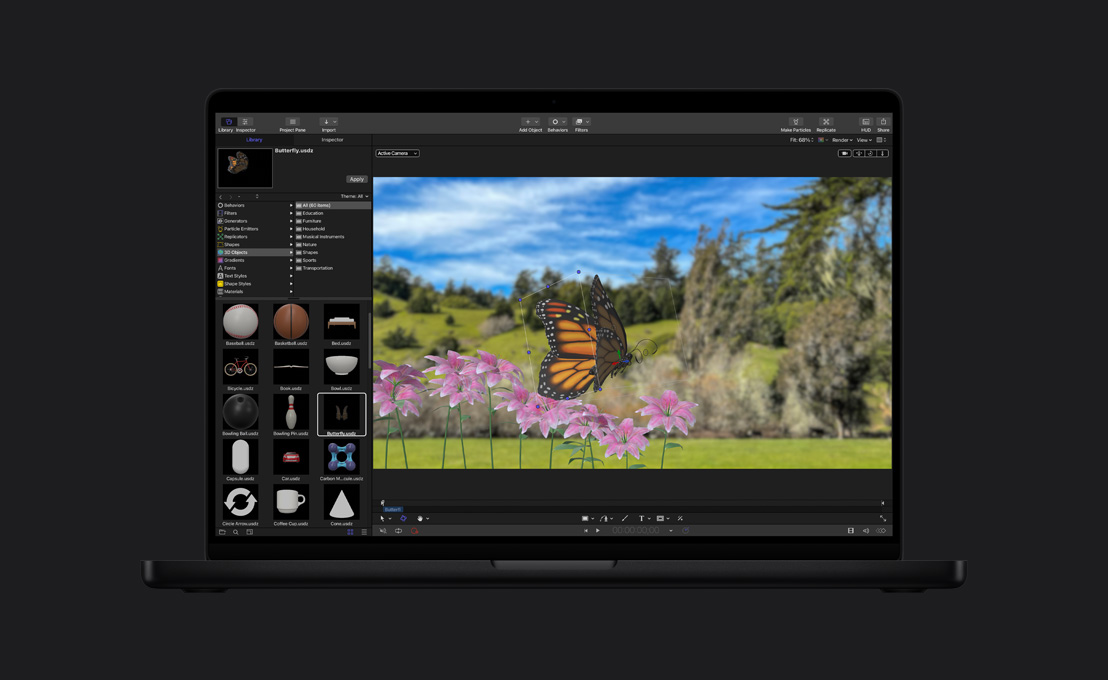
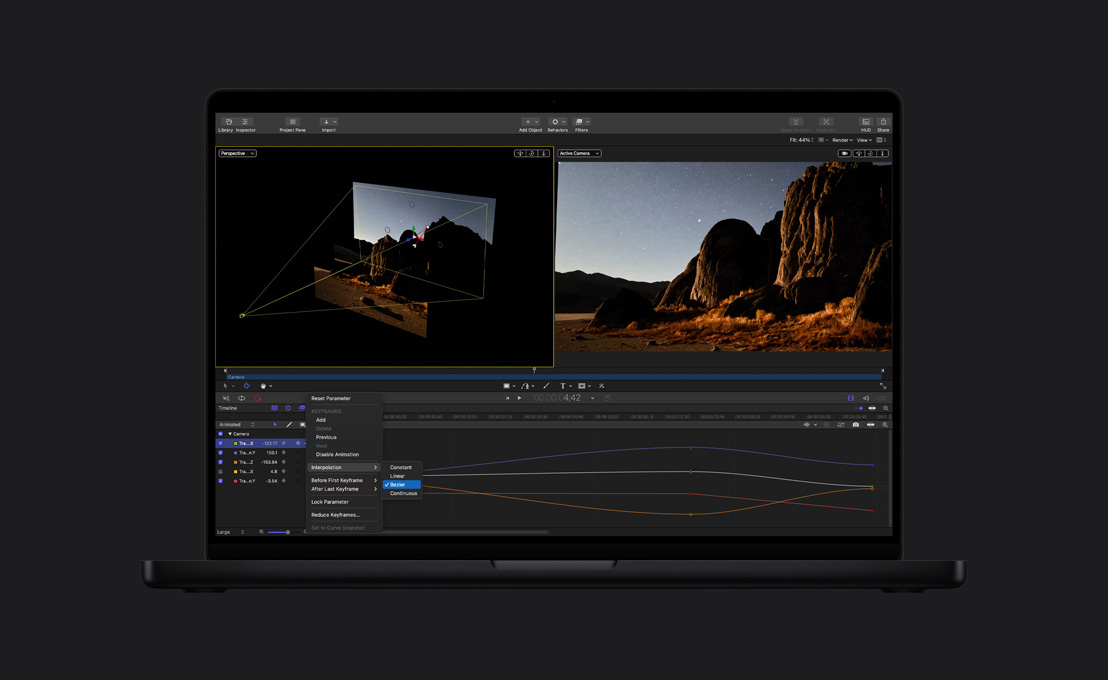
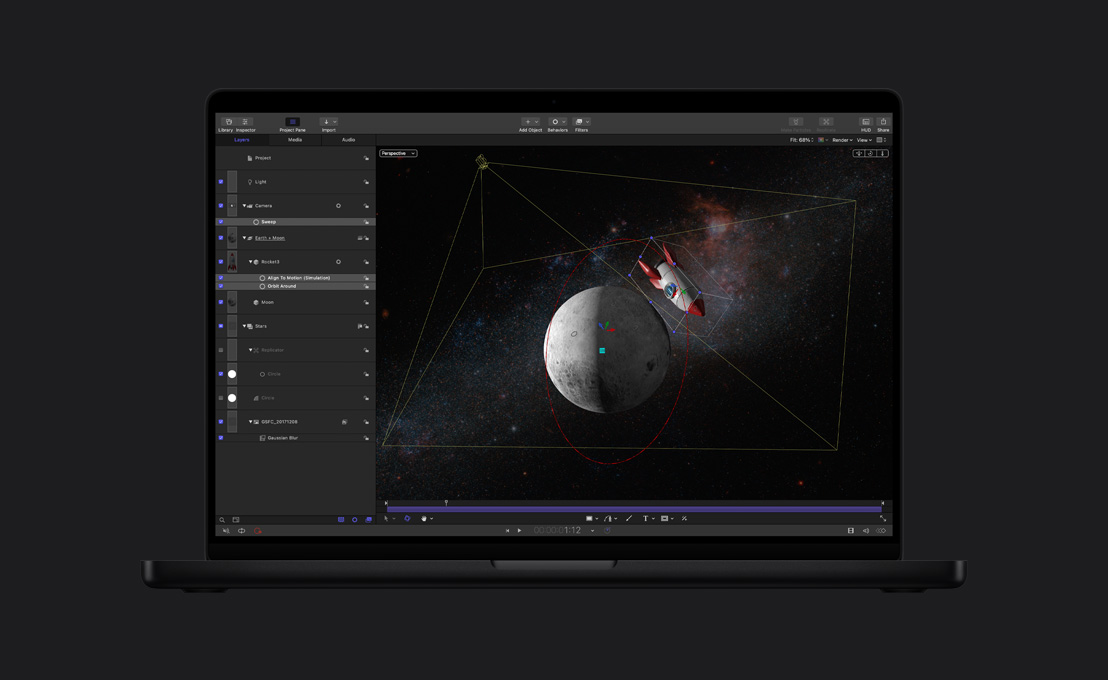
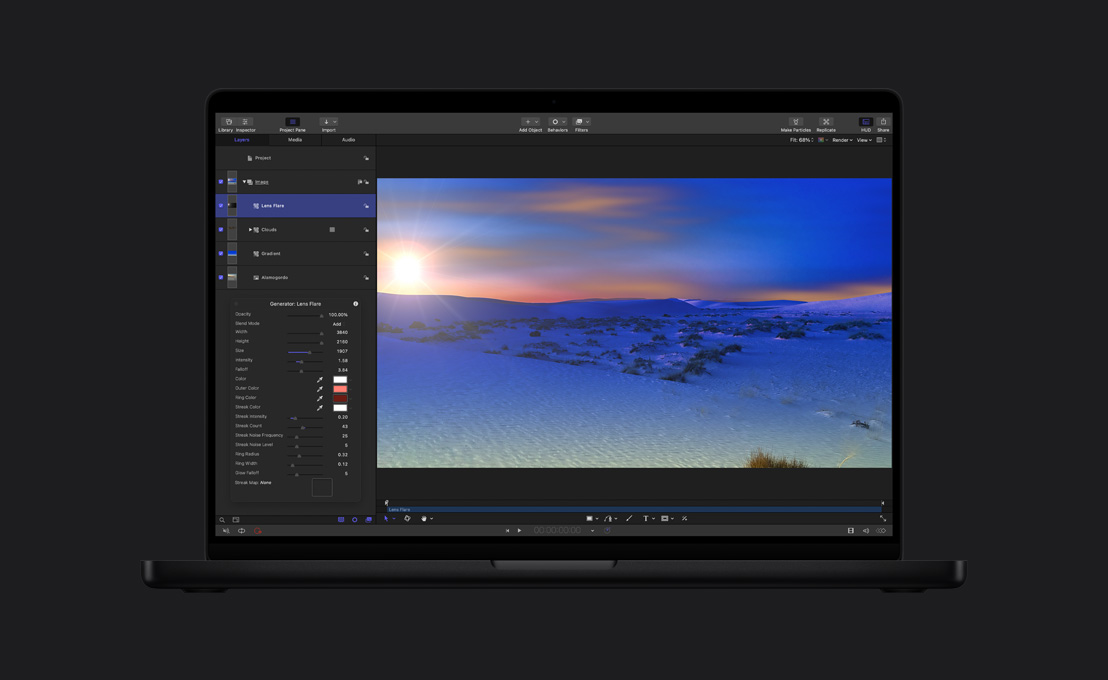
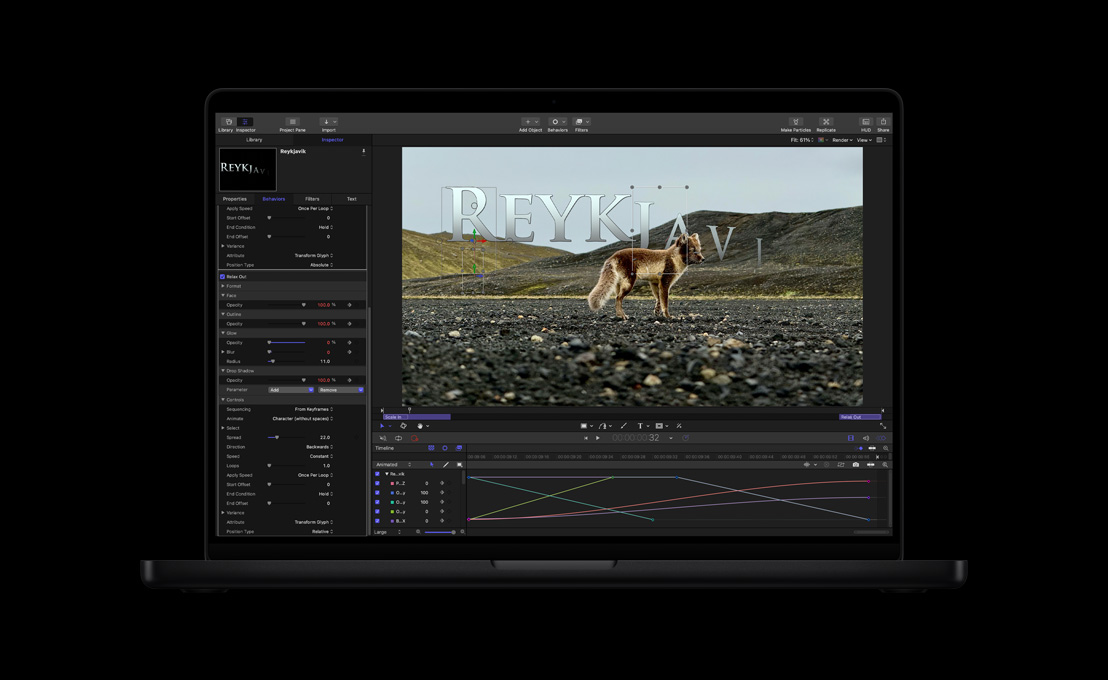
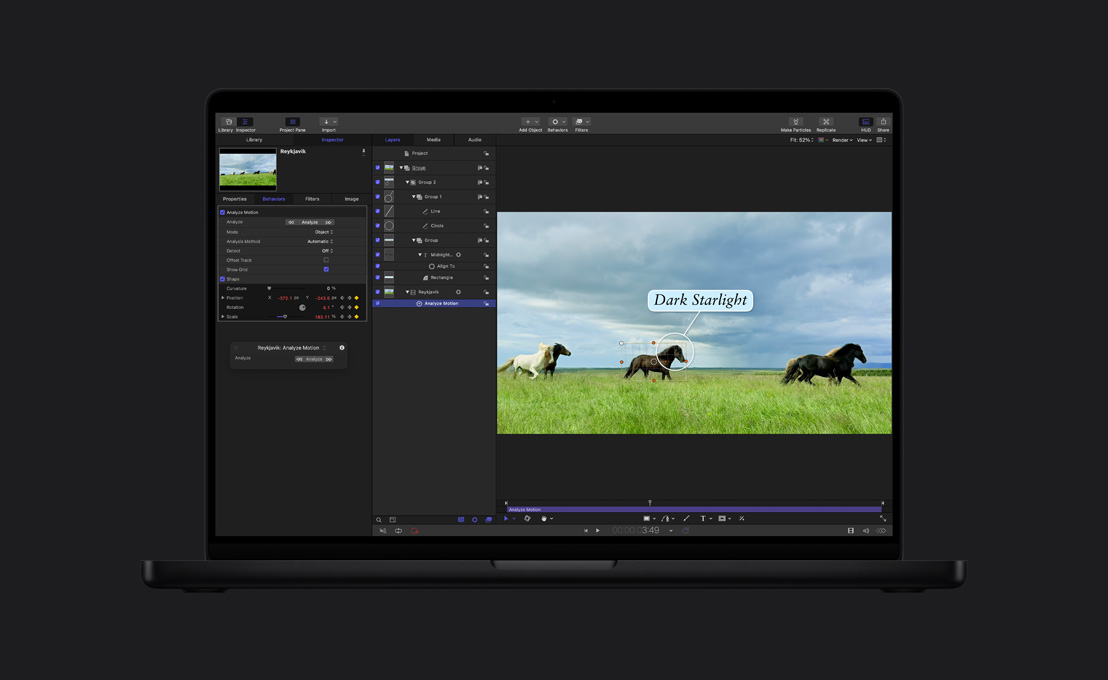
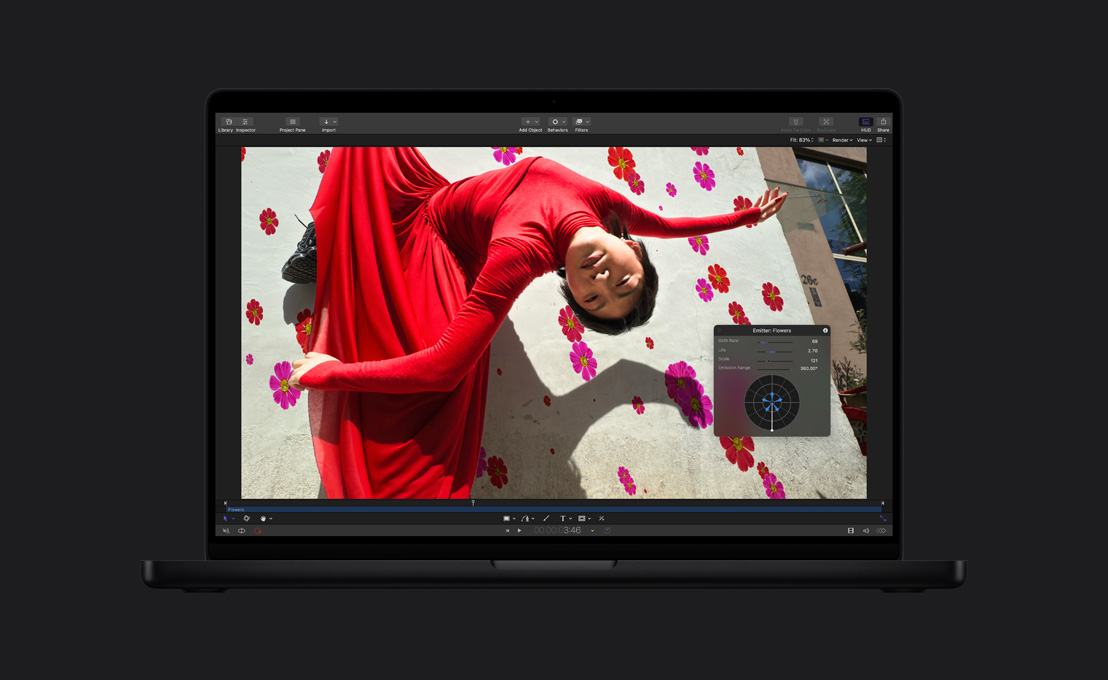
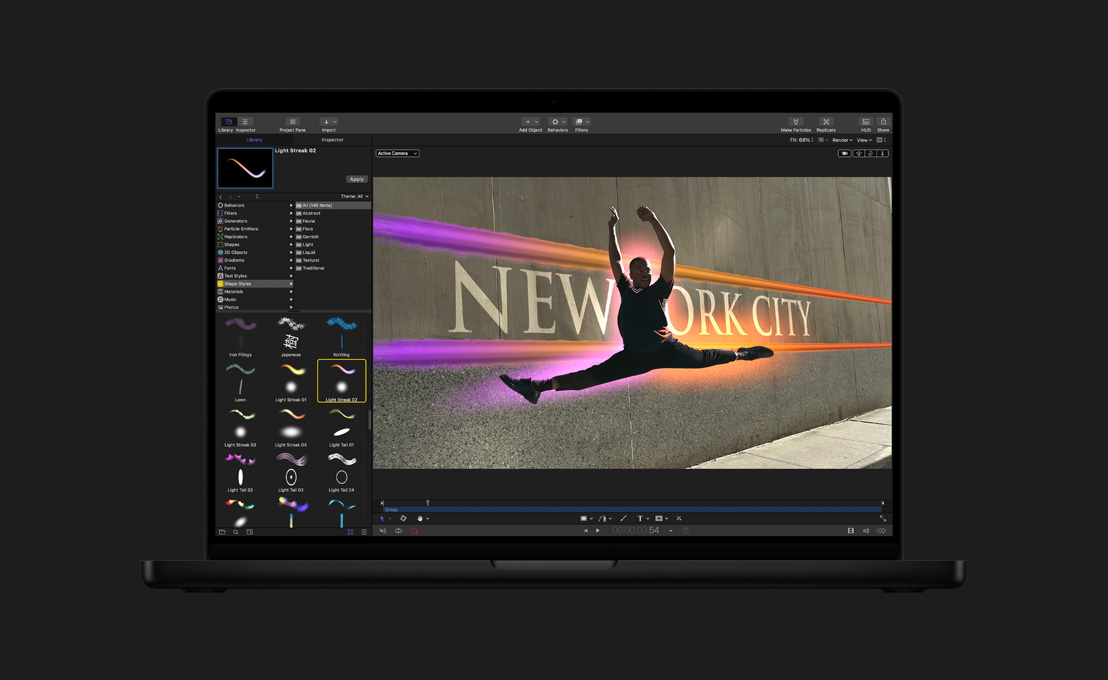
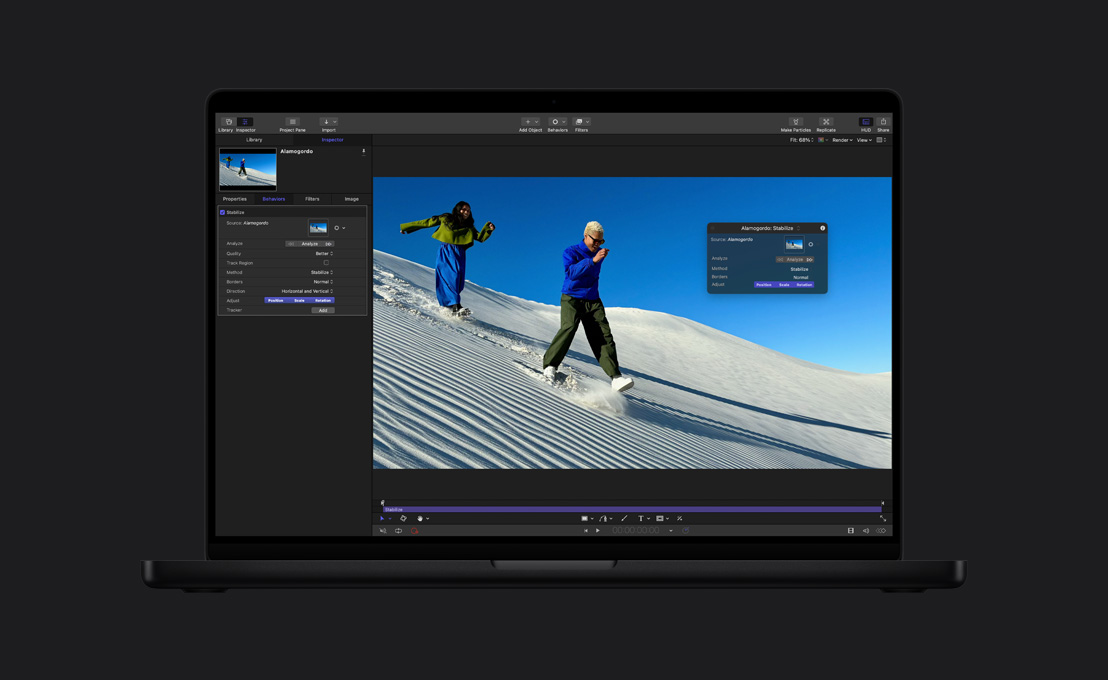
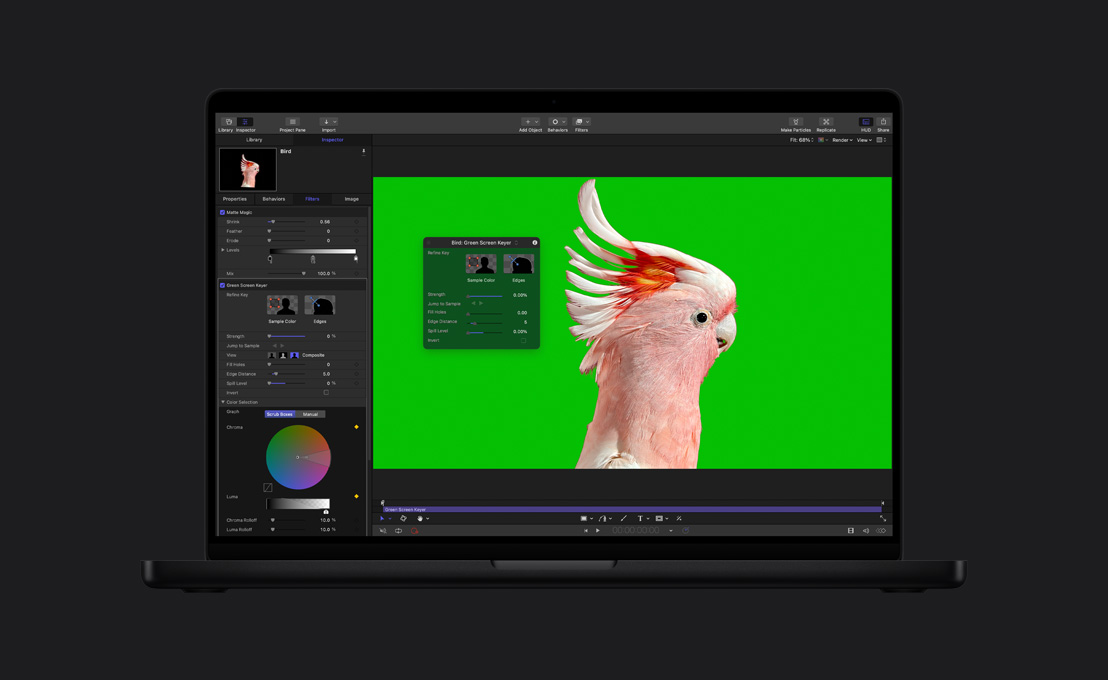
Efeitos de arrasar.
Em cartaz no Motion.






-
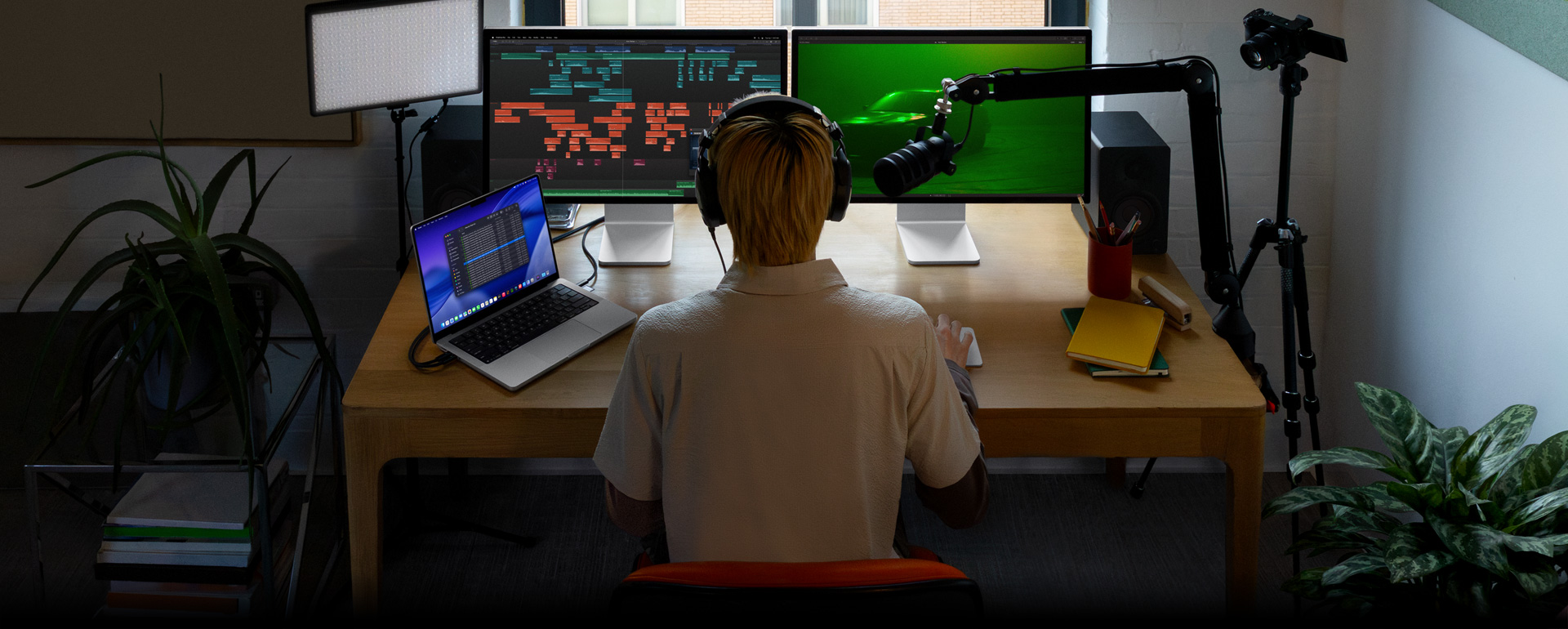
Ferramentas de edição de áudio.
Escolha na biblioteca de plugins opções para compressão de áudio, equalização e efeitos mais ousados. Ou exporte para um app de áudio profissional, como o Logic Pro, para fazer mixagens avançadas.
-
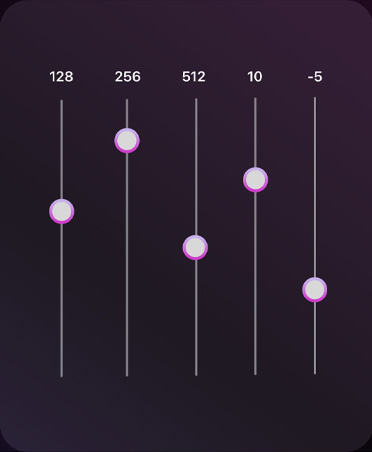
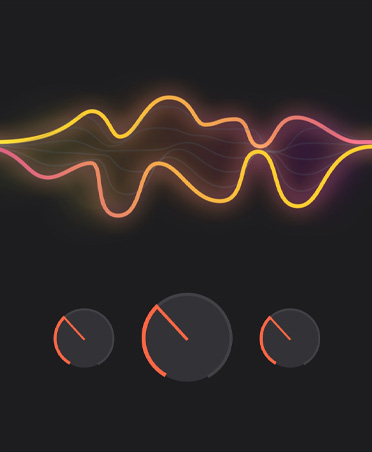
Efeitos do Logic Pro.
Você não precisa mudar de aplicativo. O Final Cut Pro possui vários plugins de áudio poderosos do Logic Pro e de terceiros6.
-
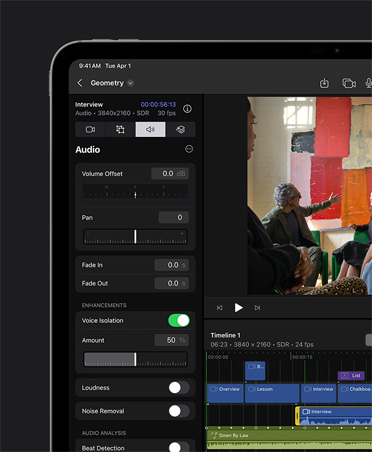
Isolamento de Voz.
Elimine ruídos de fundo e melhore a clareza das vozes para sua edição ficar impecável.
-
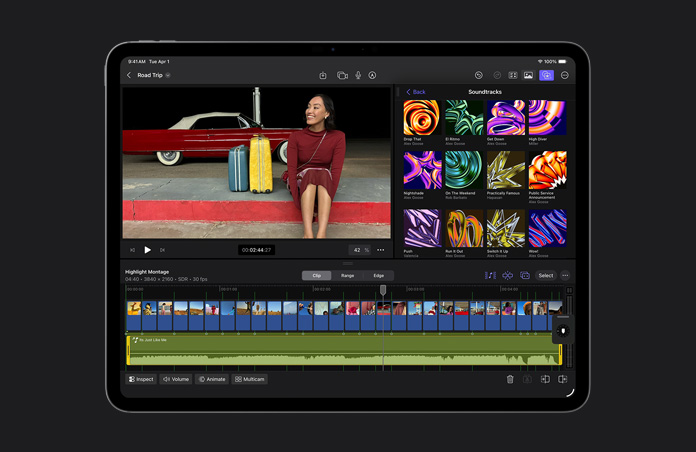
Faça a música casar com a montagem no iPad.
As trilhas sonoras se ajustam dinamicamente à duração do projeto, aumentando, diminuindo e mantendo a sincronia conforme a cena evolui.
-
Otimização de arquivos.
Transcodifique vídeos para Apple ProRes e aumente o desempenho durante a edição, a rapidez dos tempos de renderização e a qualidade da cor na composição.
-
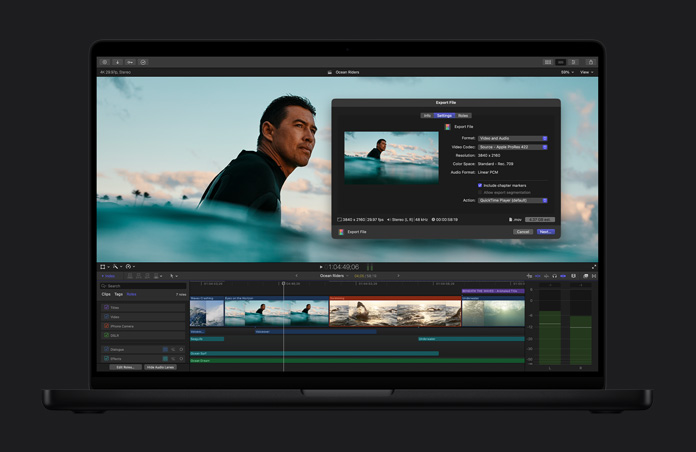
Compartilhamento em alta qualidade.
Exporte seu projeto finalizado em um arquivo com qualidade profissional que pode ser usado nas etapas finais de pós‑produção ou transmissão e distribuição.
-
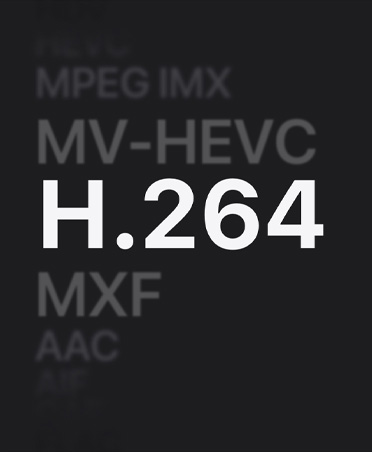
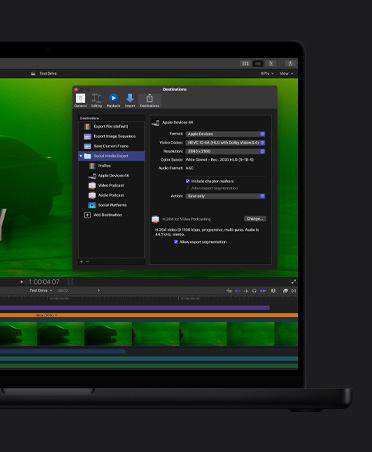
Exportação em lote.
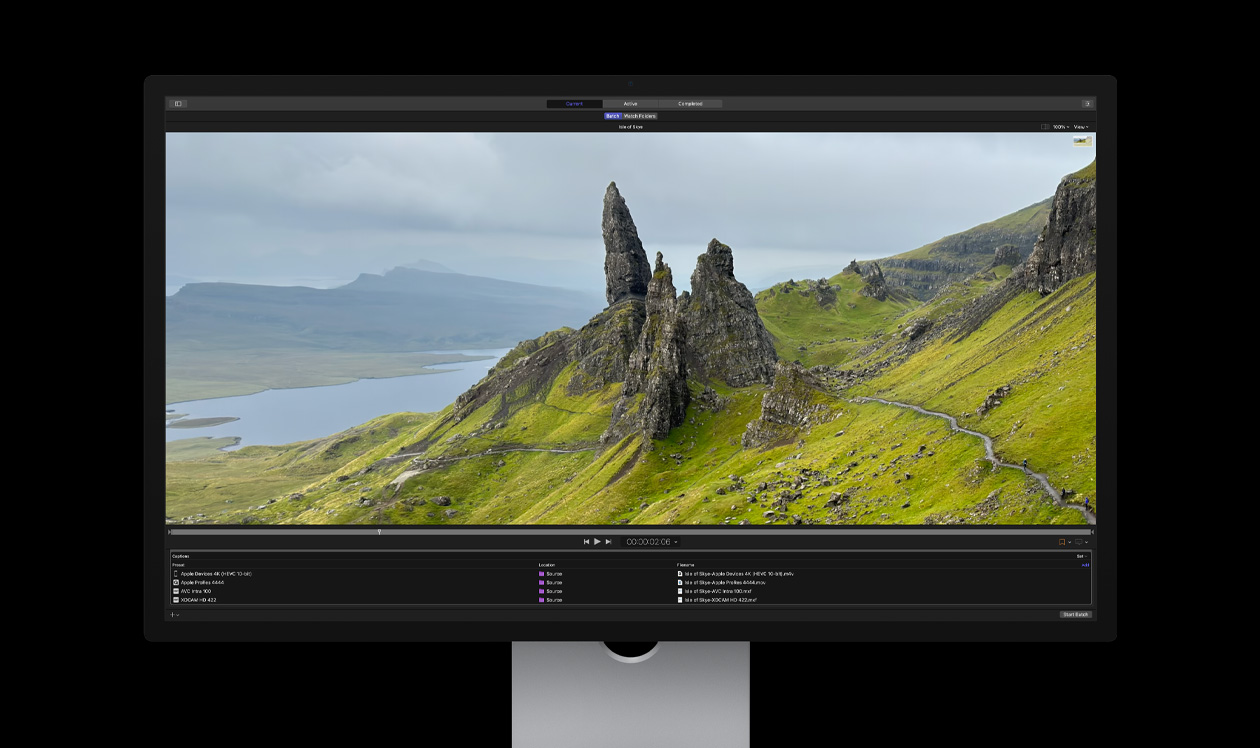
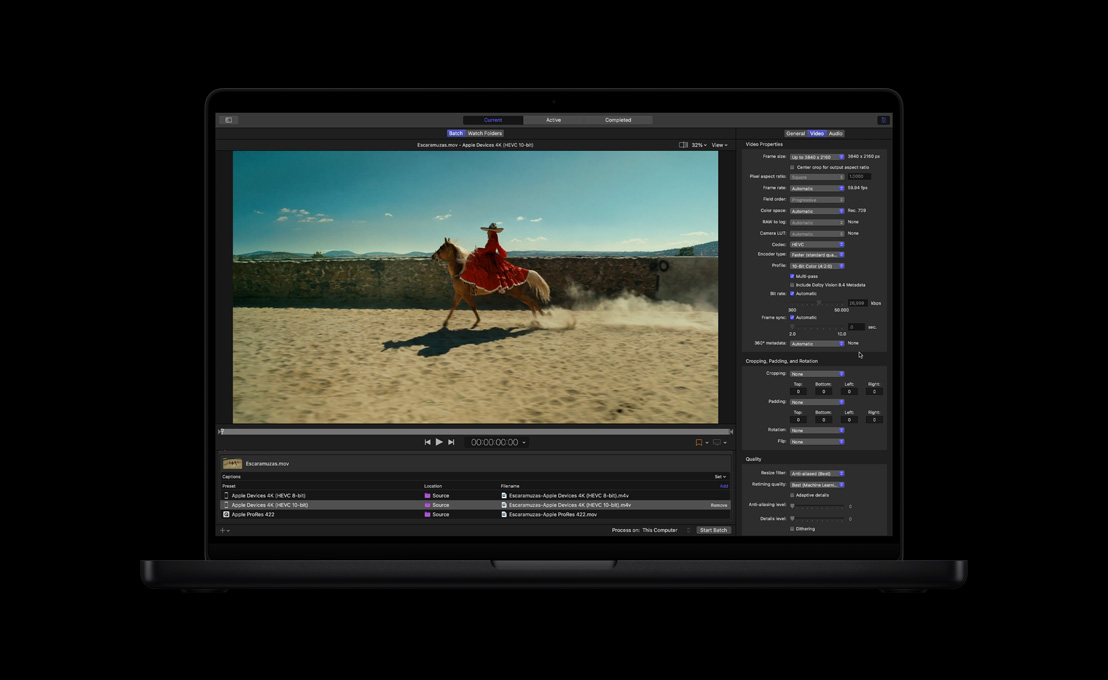
Exporte múltiplos projetos, clipes ou sequência de clipes de uma vez para diferentes finalidades, como aparelhos móveis ou redes sociais.

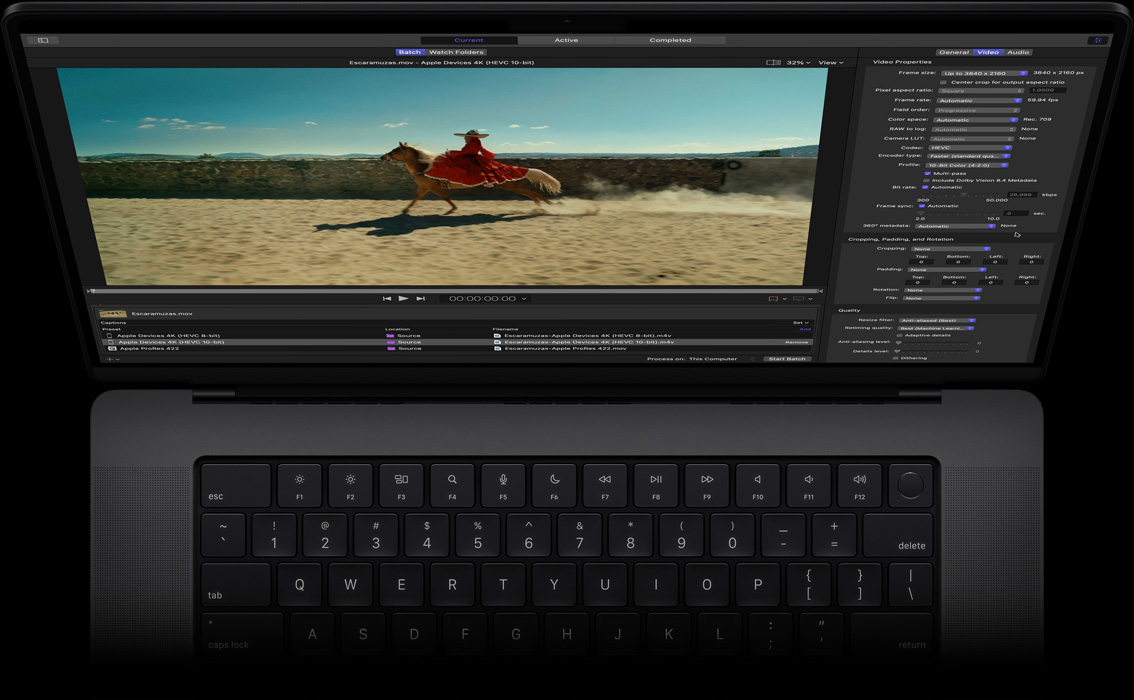
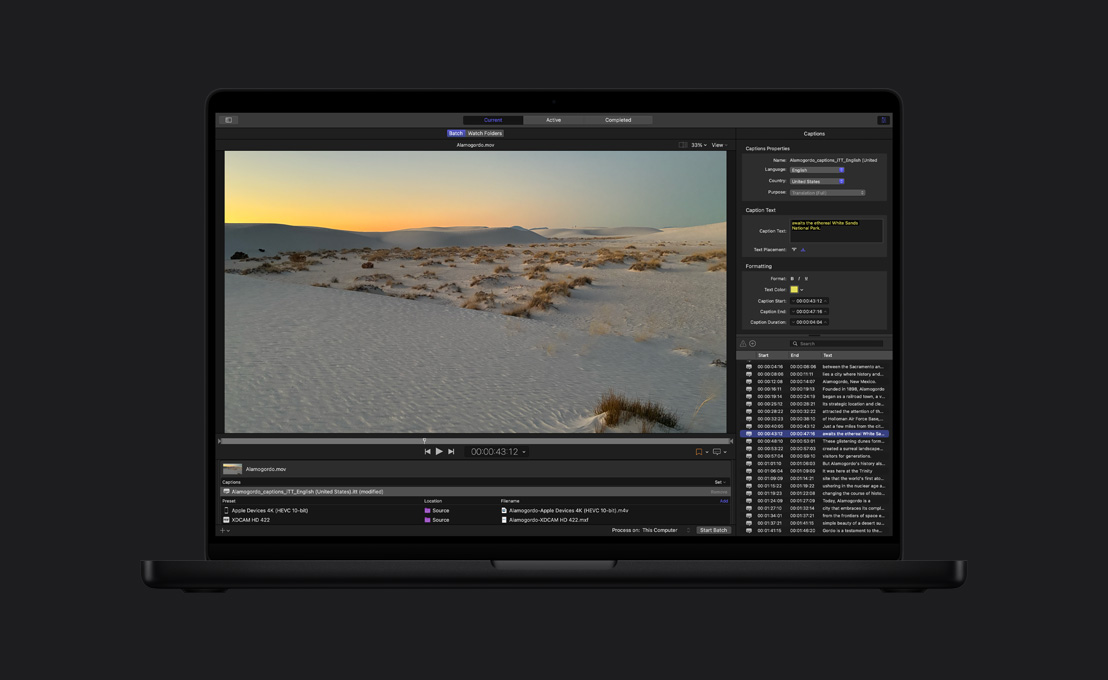
Compressor. Amplie suas opções de codificação.


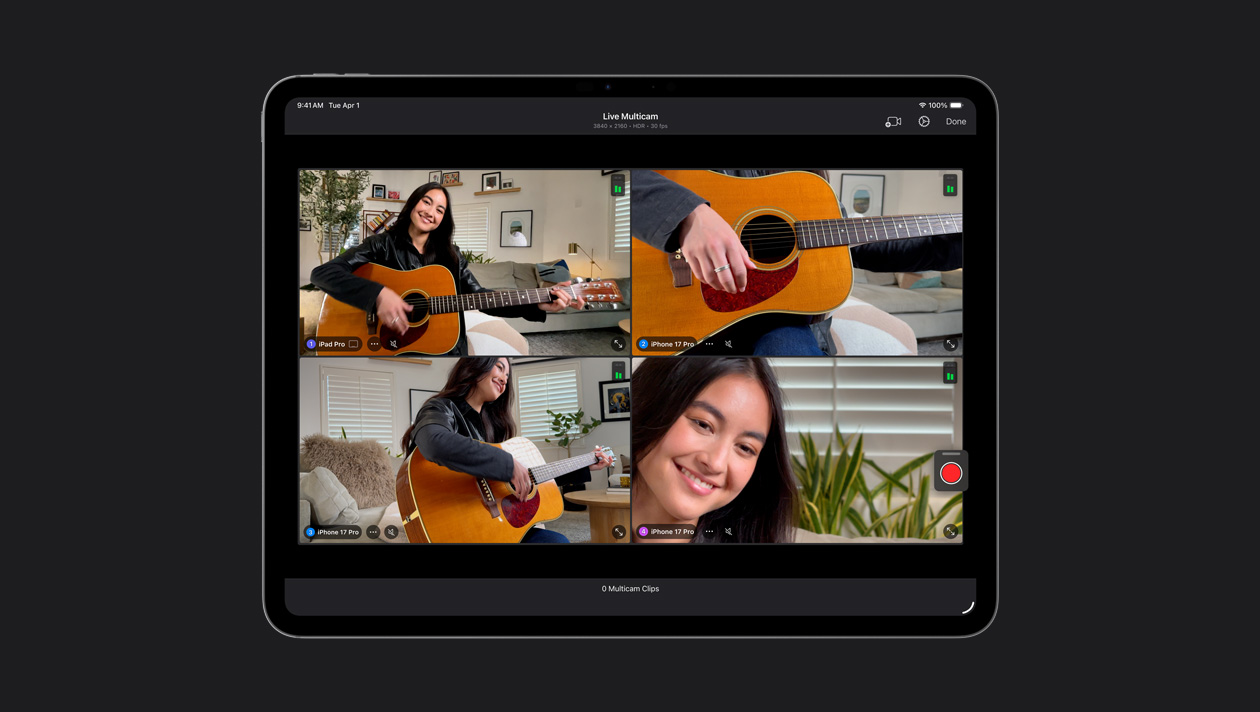
Conecte até quatro modelos do iPhone ou iPad, controle as configurações remotamente e sincronize suas filmagens de forma automática. Grave videoclipes, podcasts e entrevistas com facilidade.
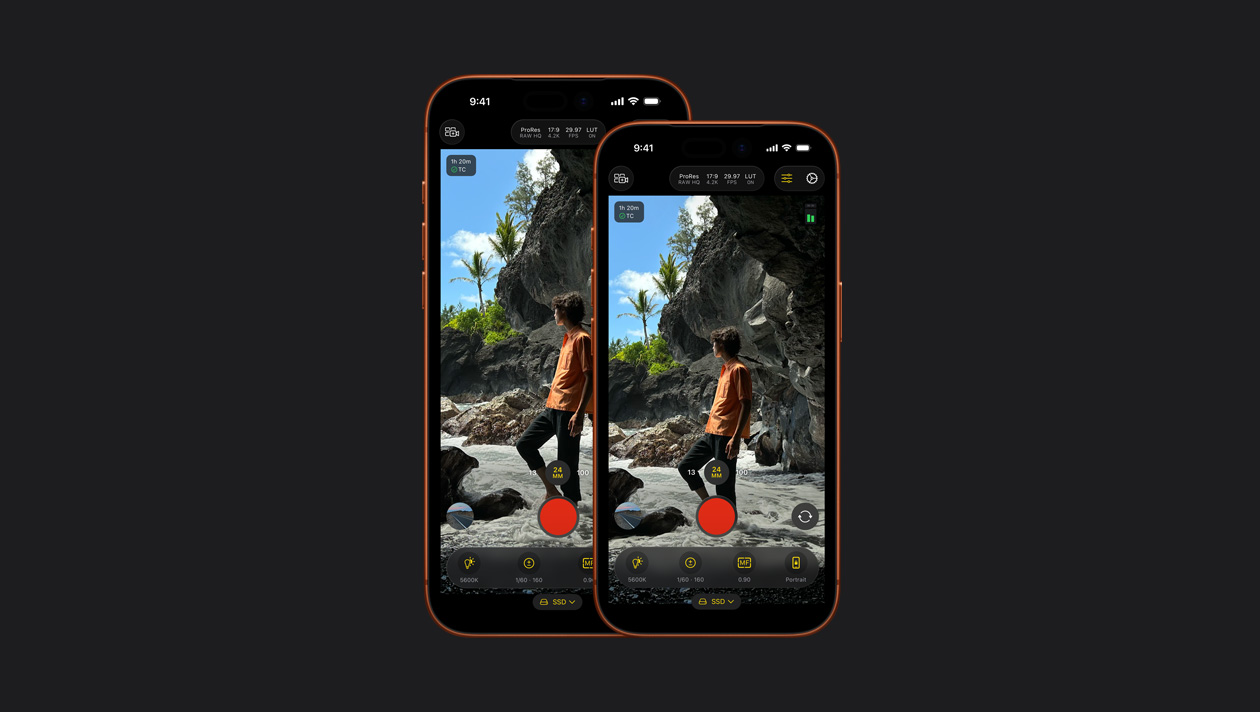
Grave vídeos de qualidade profissional no iPhone ou iPad com controles manuais poderosos, como ISO, velocidade do obturador, balanço de branco e muitos outros7.
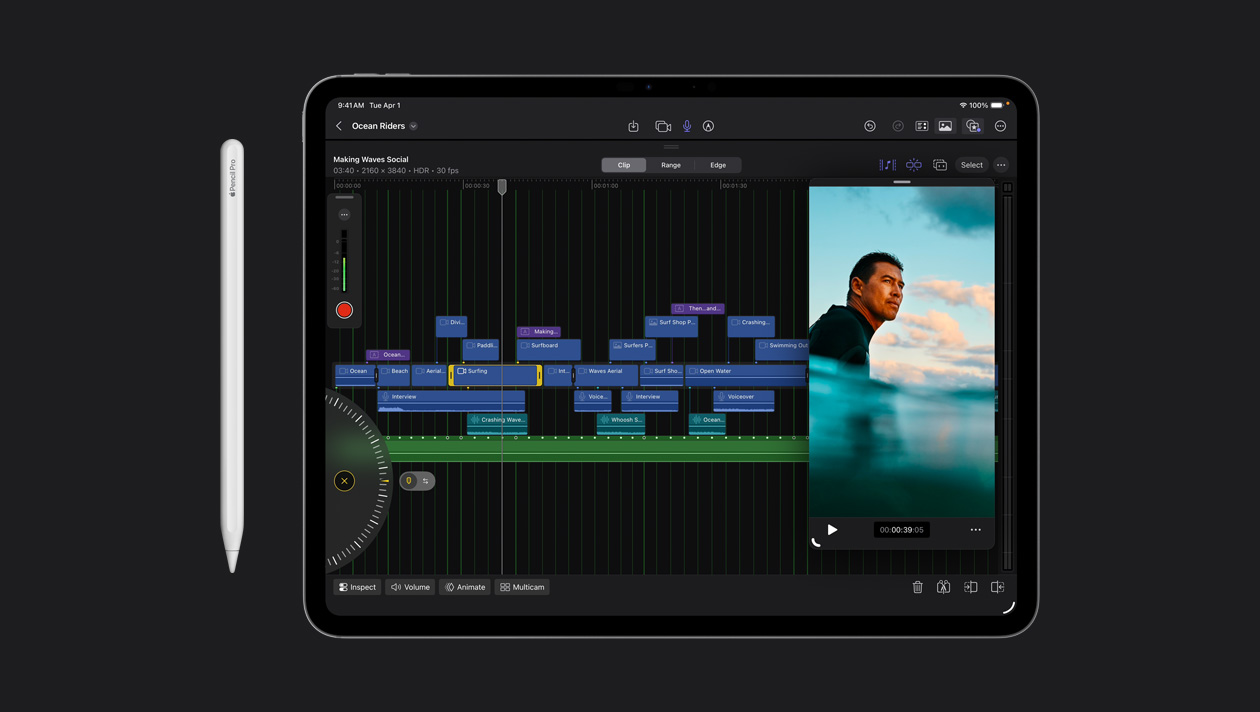
Faça edições precisas com apenas um toque. Ou rode o controle giratório para navegar voando pelas cenas e refinar seus clipes.
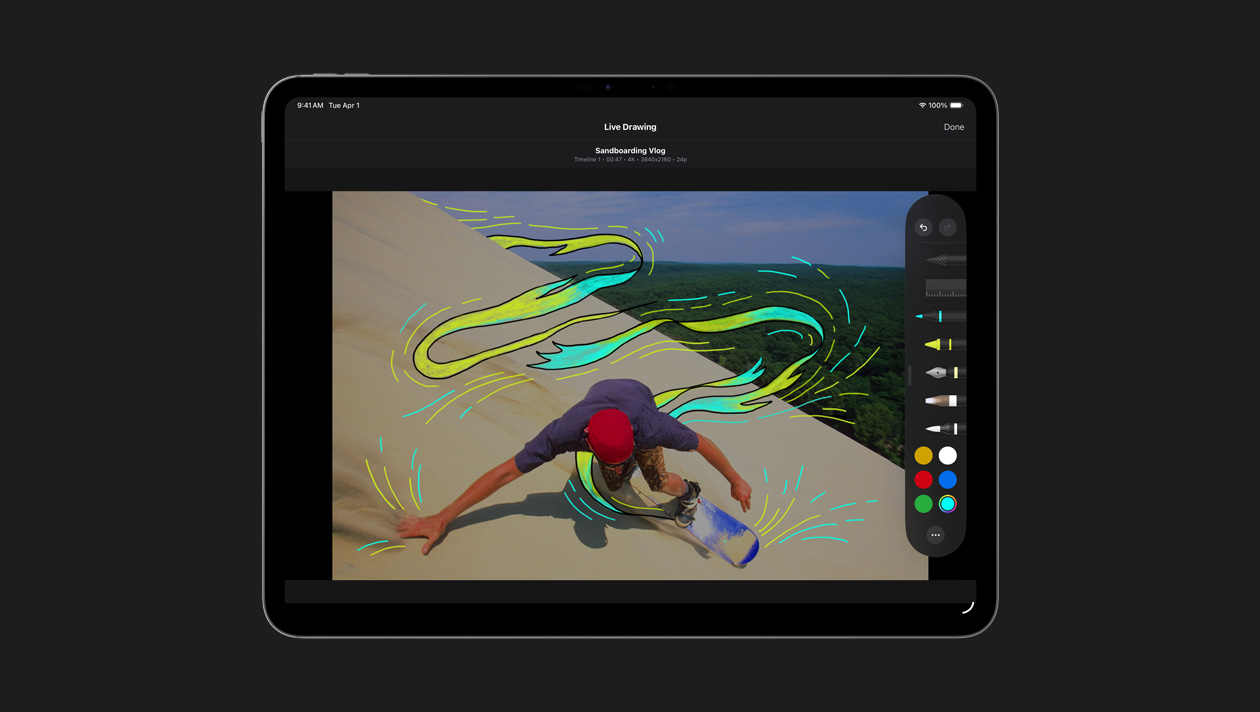
Esboce, realce ou escreva sobre a imagem com o dedo ou o Apple Pencil para fazer ilustrações e animações de títulos.
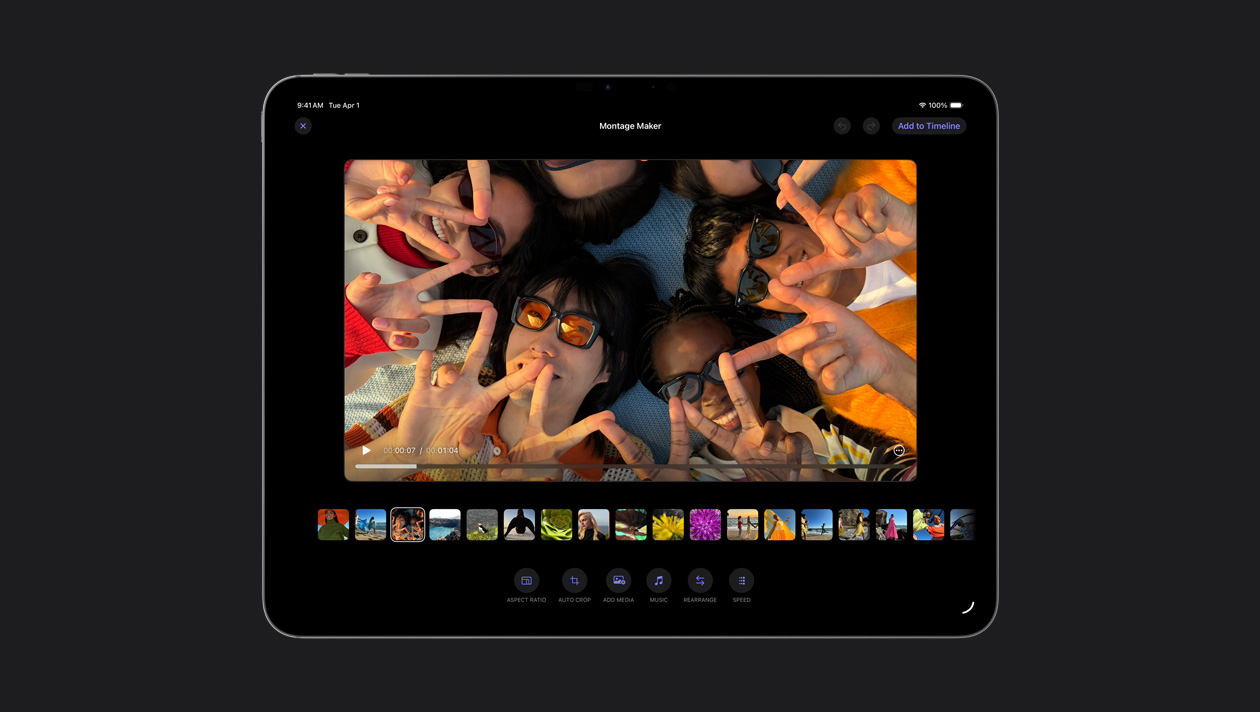
O Criador de Montagens seleciona automaticamente os melhores visuais do seu material e sincroniza todos na batida de qualquer música. Você só precisa afinar o ritmo, dar uns retoques e compartilhar.
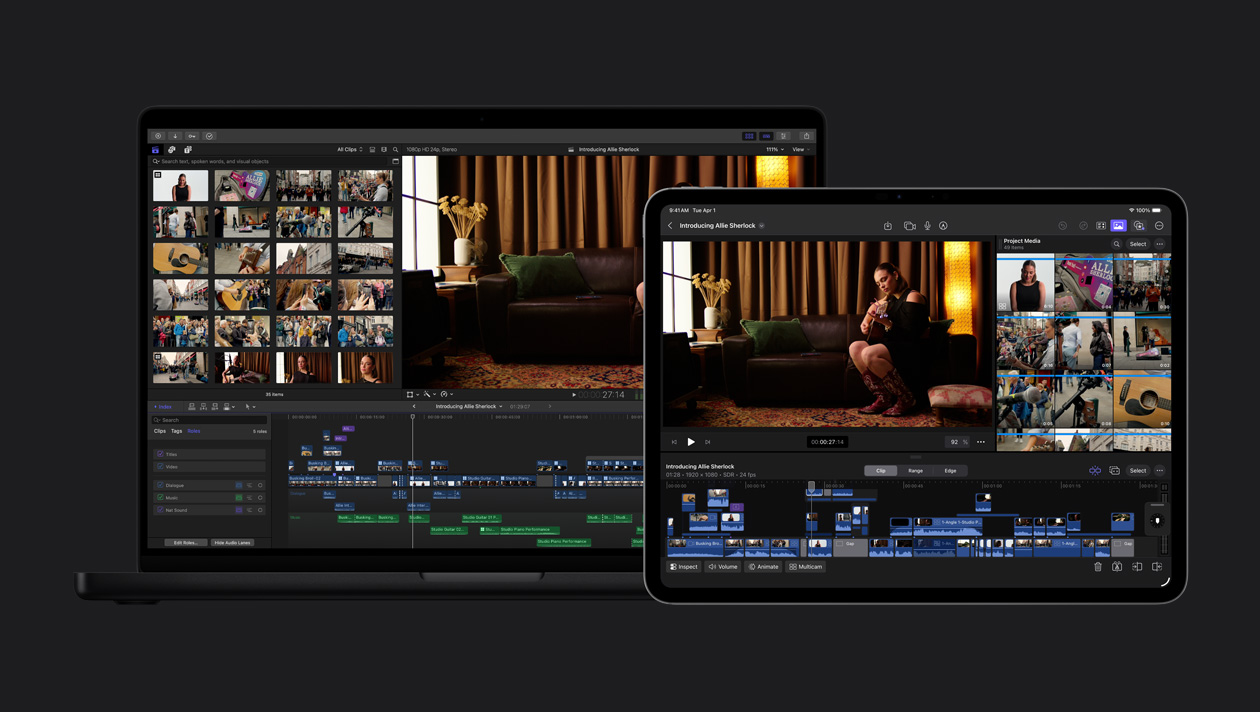
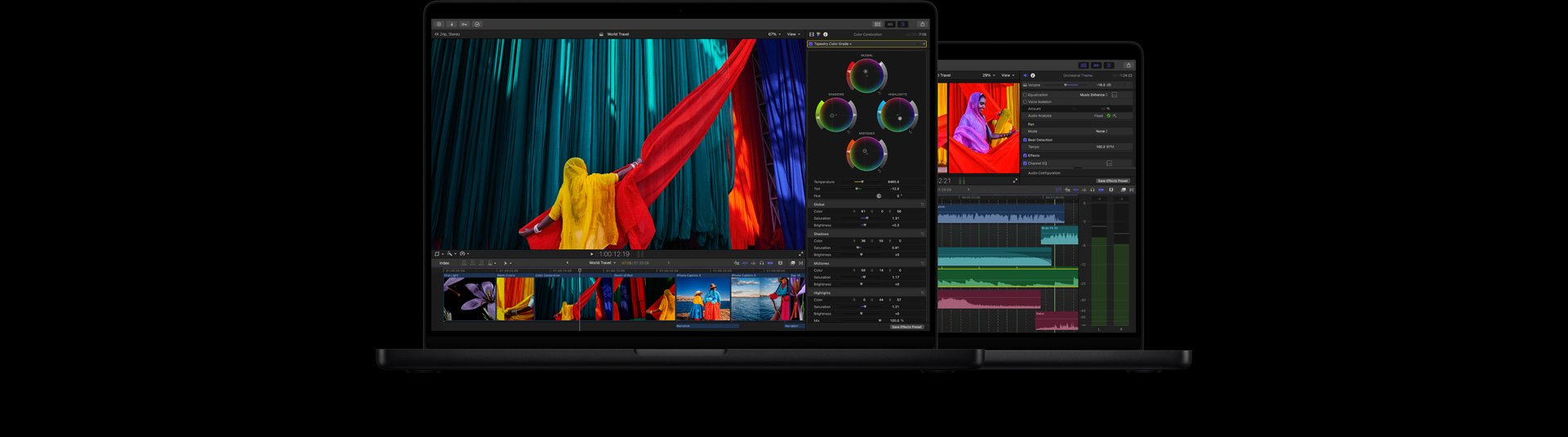
Exporte seu projeto do iPad para o Mac e acesse recursos como gradação de cores avançada, Máscara Magnética e muito mais.
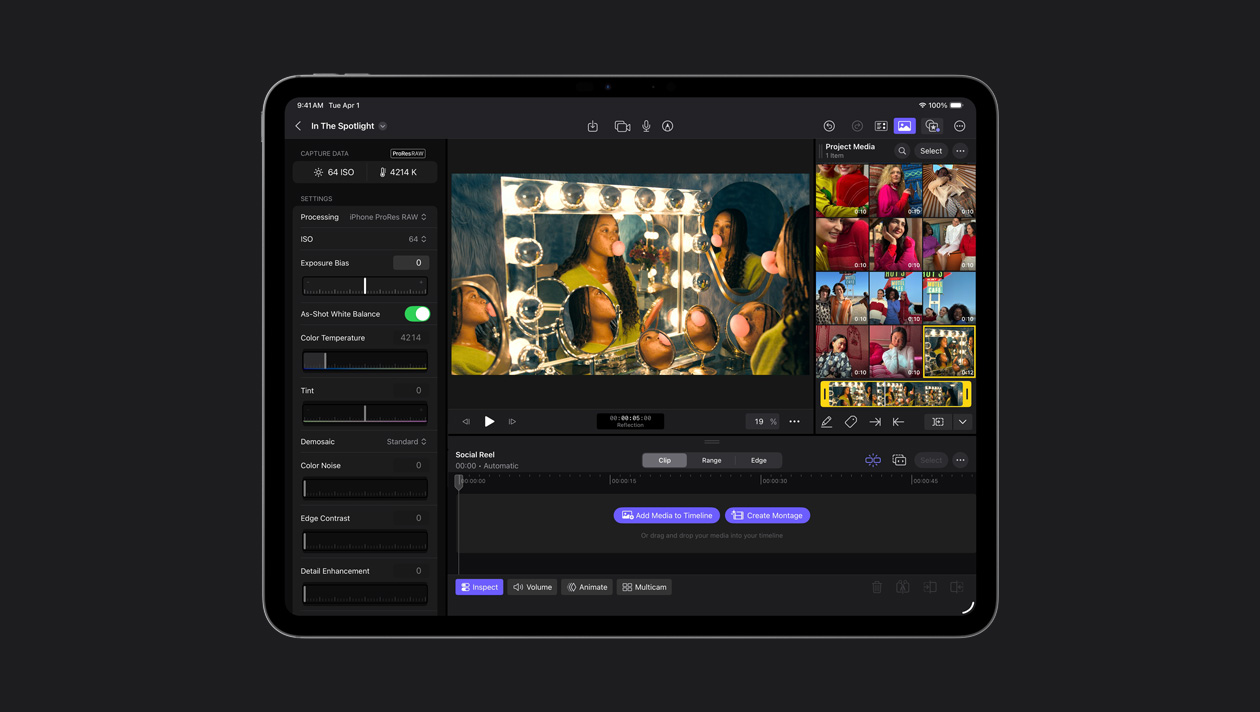
O Final Cut Camera captura em ProRes RAW para dar flexibilidade máxima na hora de definir o visual do vídeo e aumentar os detalhes em áreas claras e escuras. O ProRes RAW oferece a qualidade do RAW com renderização e exportação mais rápidas.
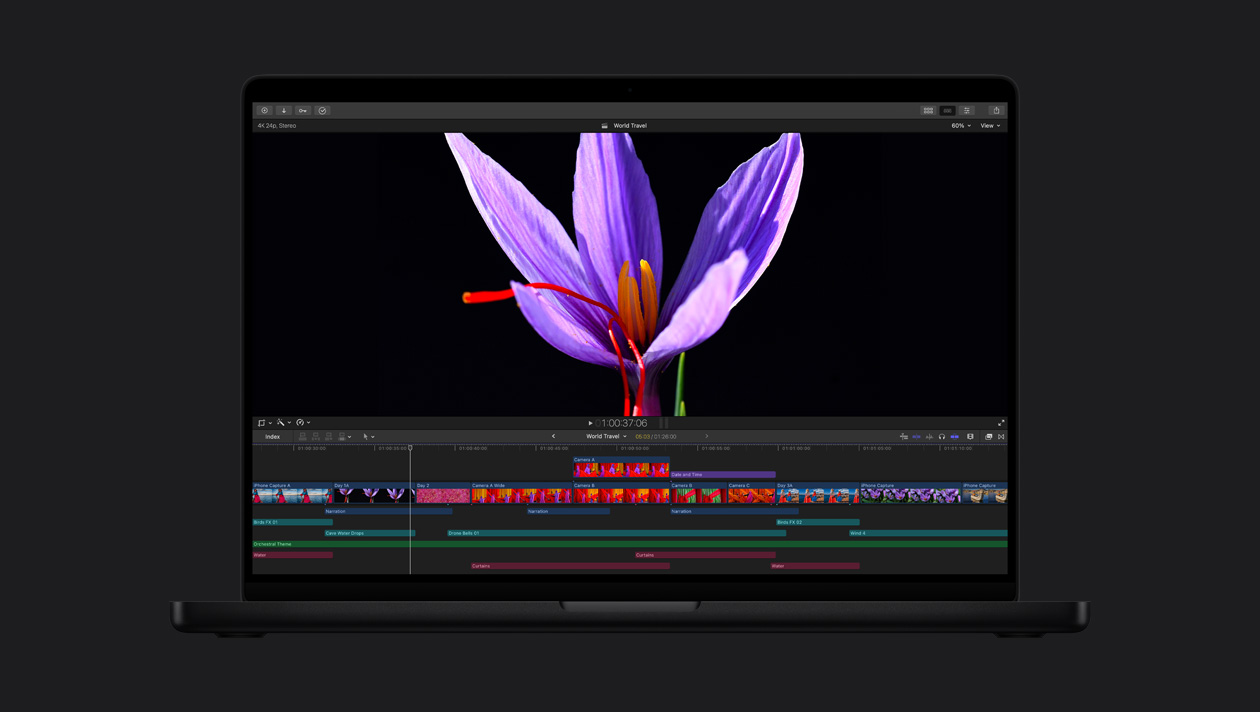
As telas Liquid Retina XDR e Ultra Retina XDR líderes do setor oferecem brilho, contraste e cores incríveis. Elas são ideais para edição, gradação e finalização em HDR com o Final Cut Pro.
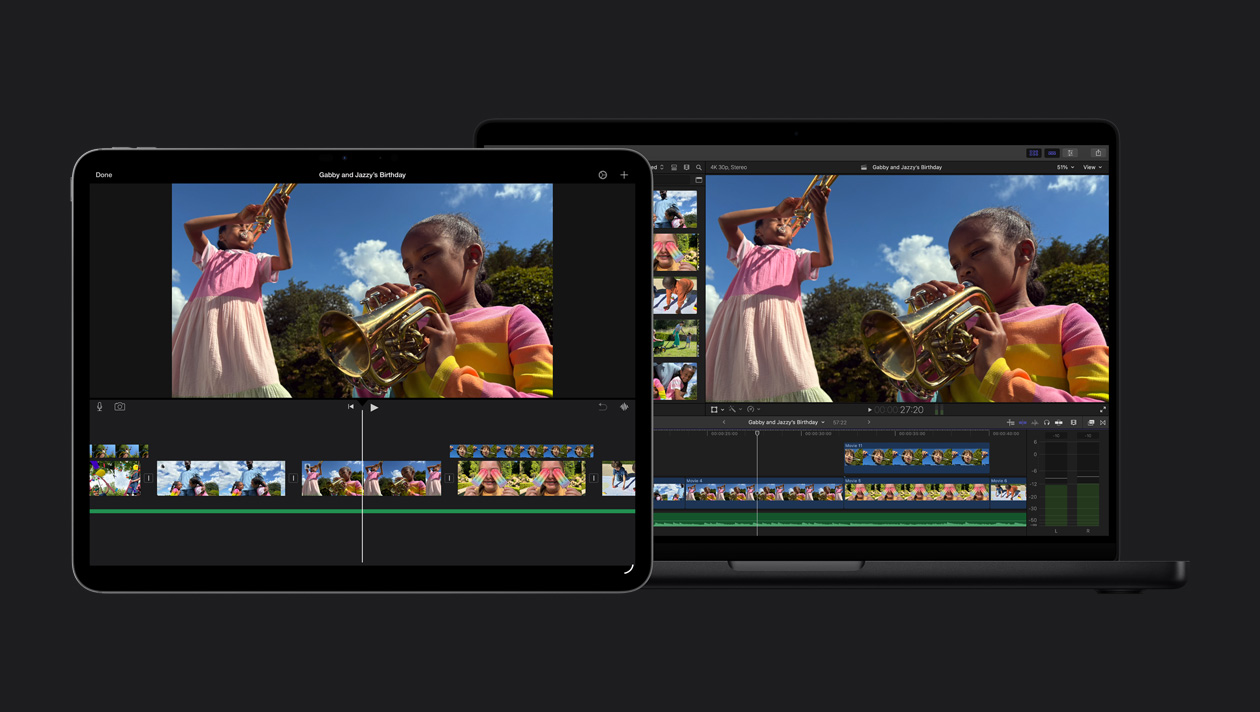
Importe seu projeto do iMovie para o Final Cut Pro e comece a experimentar recursos avançados.