
Final Cut Pro
Reel intelligence.
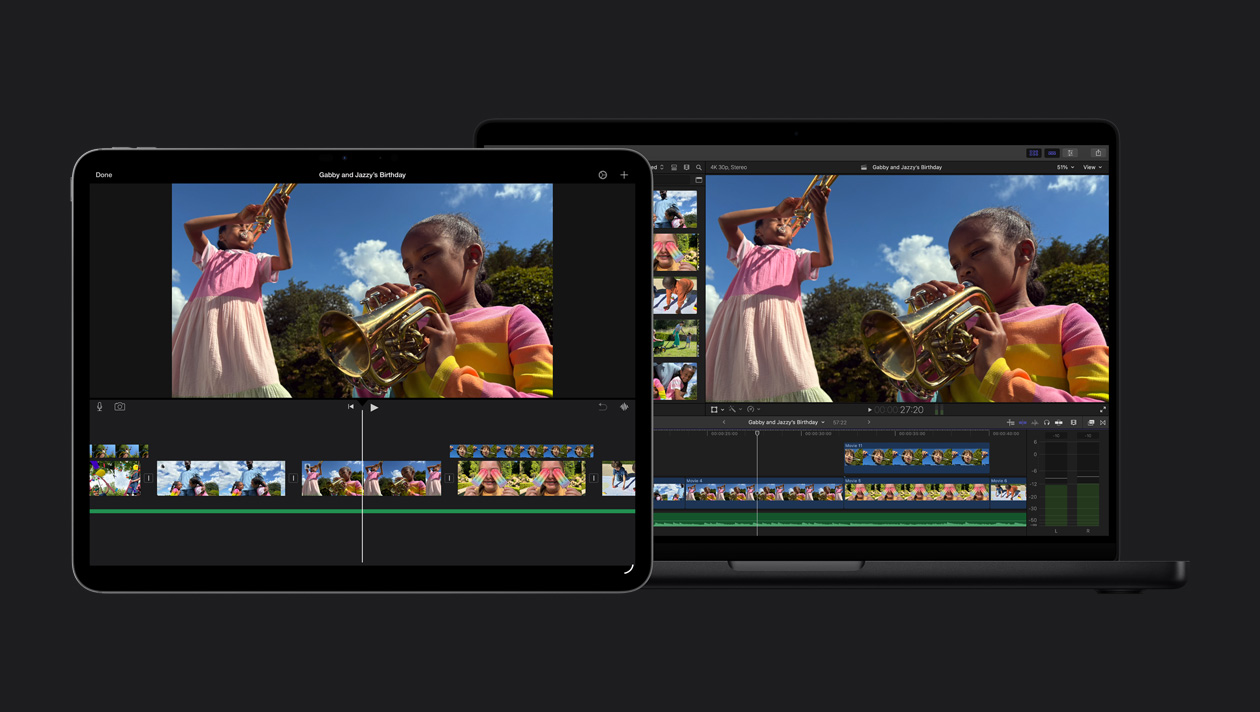
Final Cut Pro makes it easy to create polished, pro‑quality videos across Mac and iPad. It’s packed with powerful intelligence features, helping you turn every frame into something unforgettable.
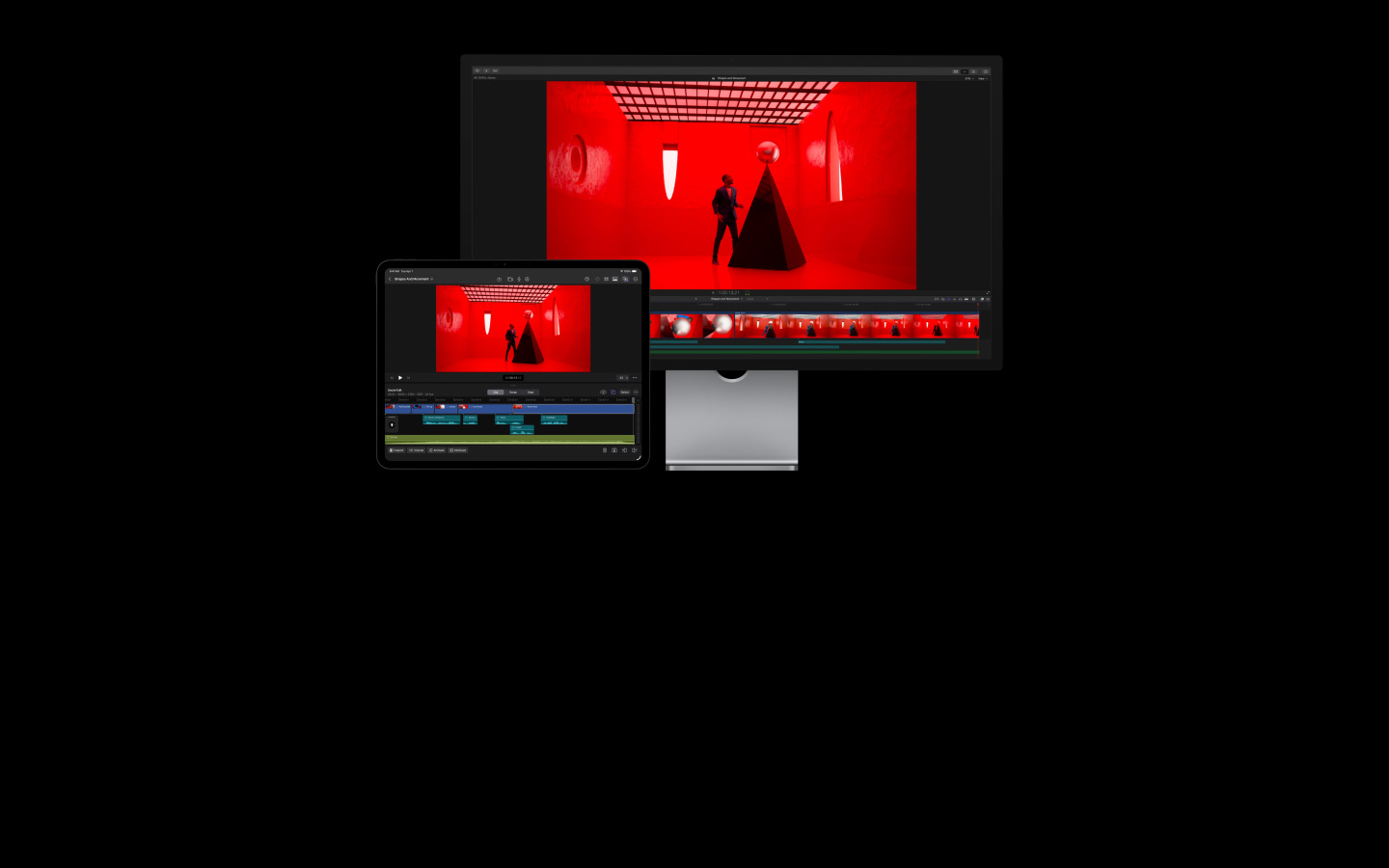

-
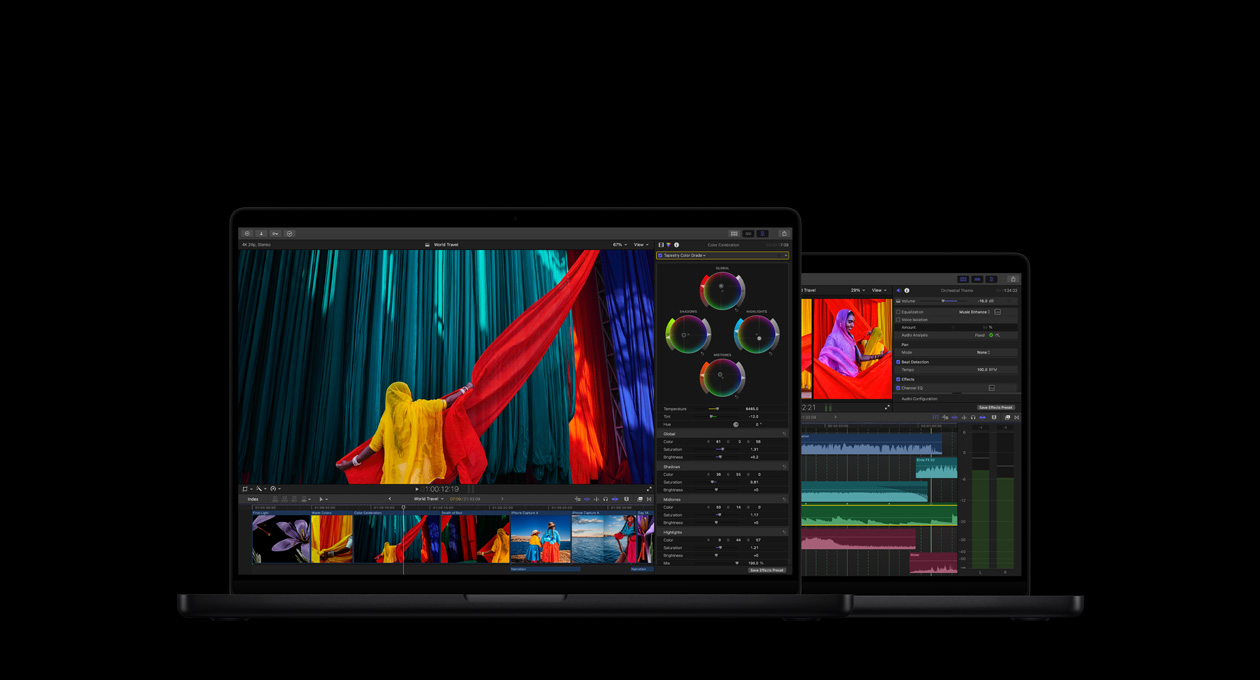
A complete video playground for editing, audio, motion graphics and colour grading.
-
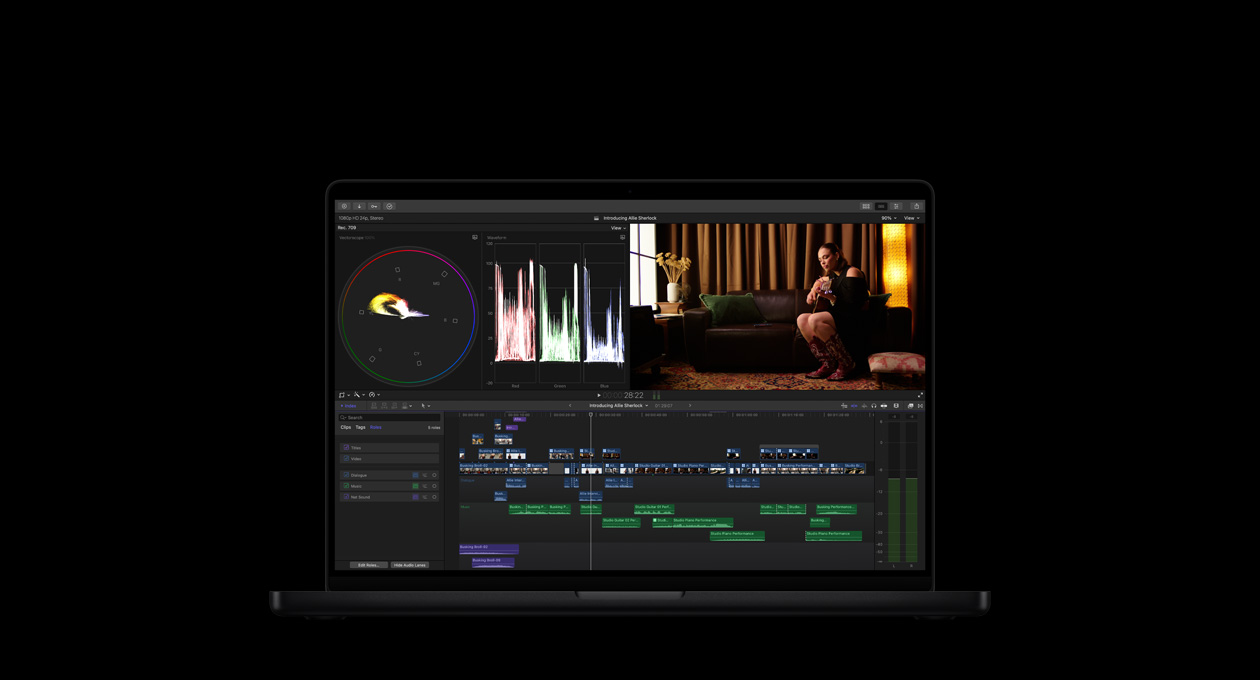
Edit quickly. Work smoothly. Create endlessly.
-
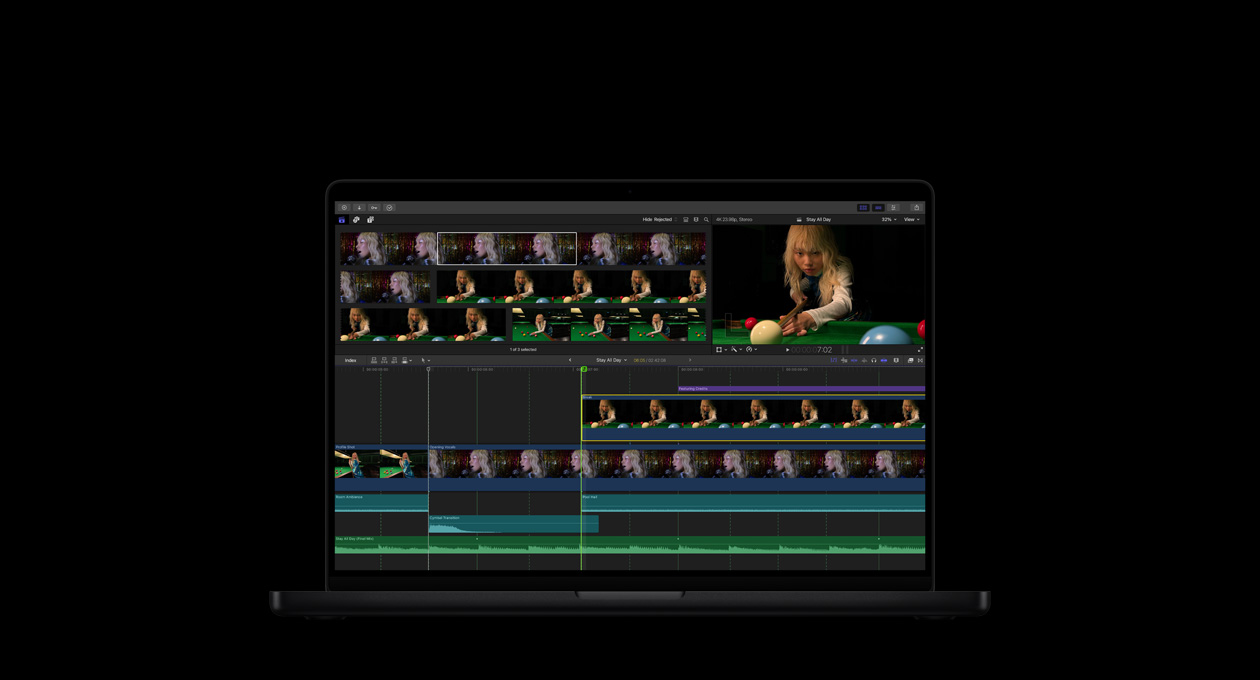
Powerful AI features that build on Apple Intelligence, right in your workflow.2
-
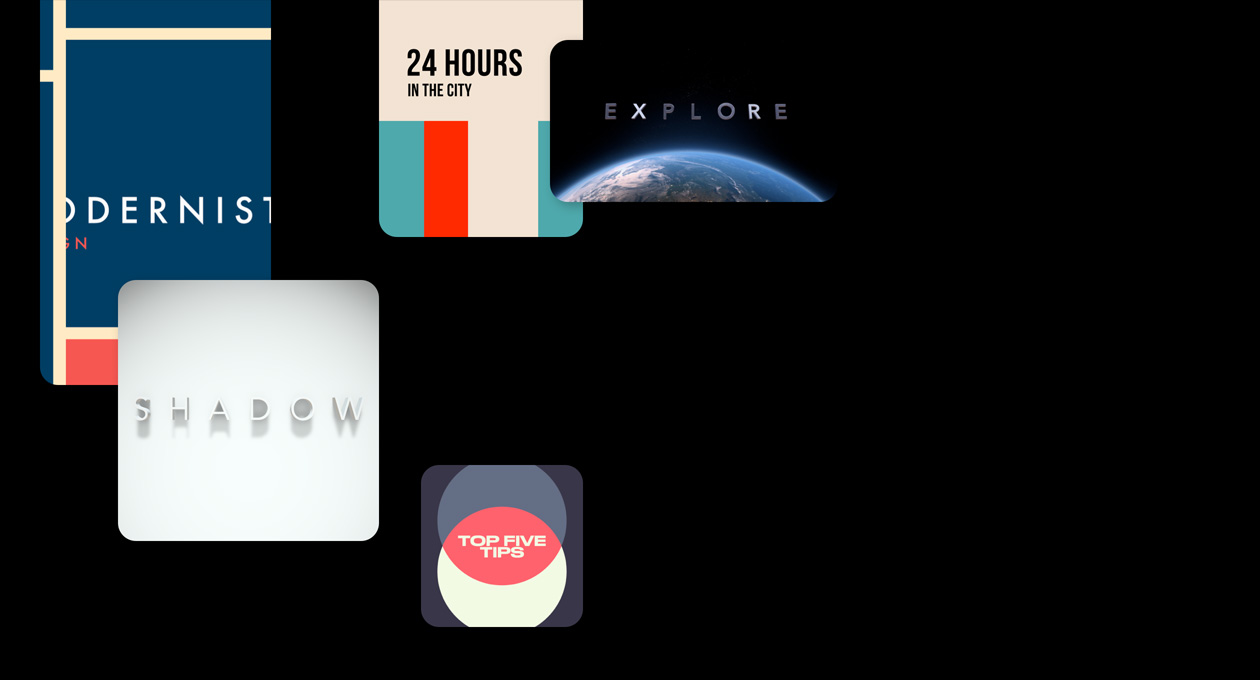
A library of titles, transitions, soundtracks and effects that inspire and ignite.
-

Advanced audio editing so your videos sound as good as they look.
-
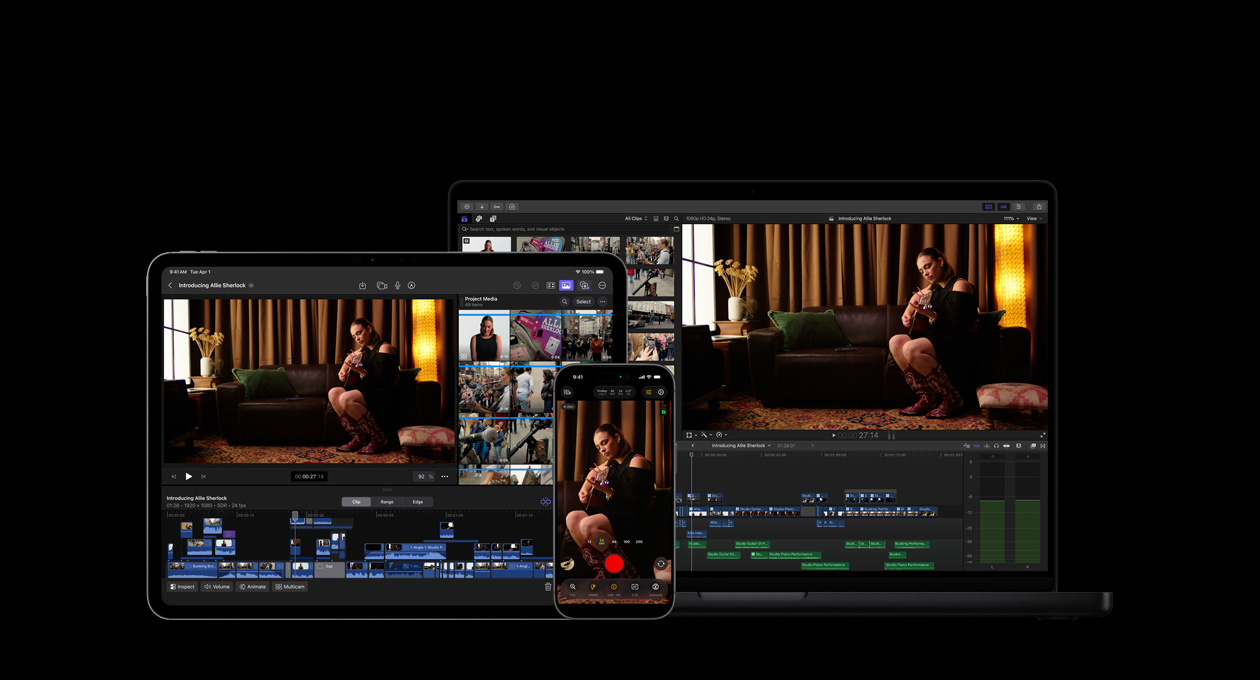
Your artistic vision realized — across your Apple devices, apps and accessories.3


-
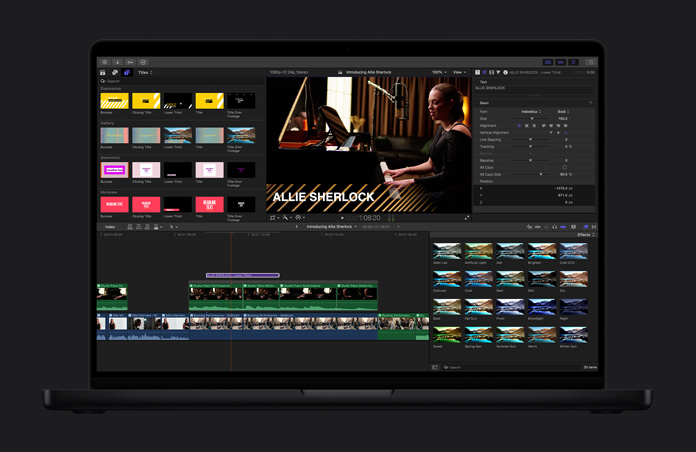
Magnetic Timeline for fast, flexible editing.
Experiment with different edits and story ideas by moving and trimming clips, all while keeping everything in sync.
-
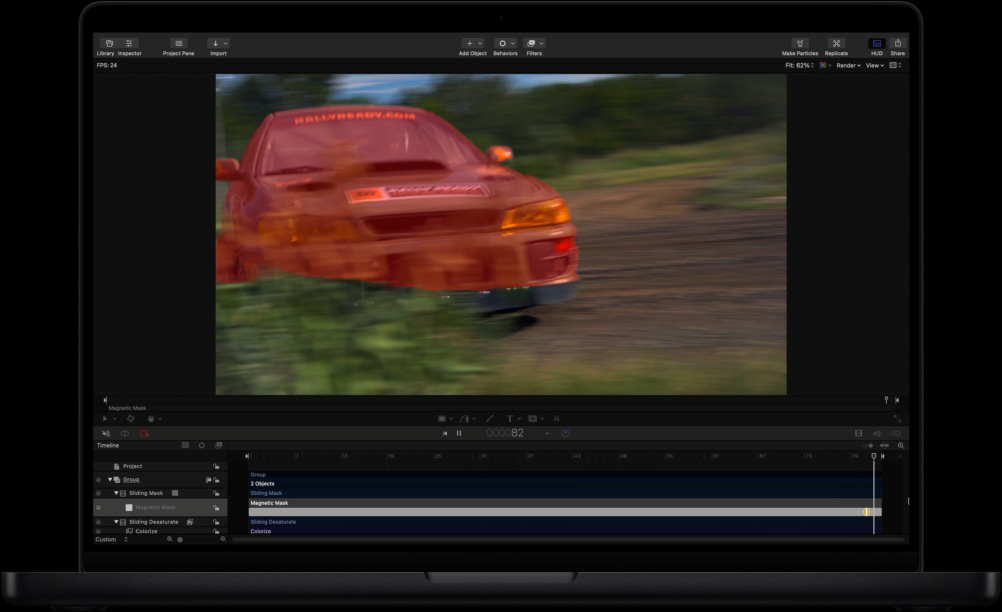
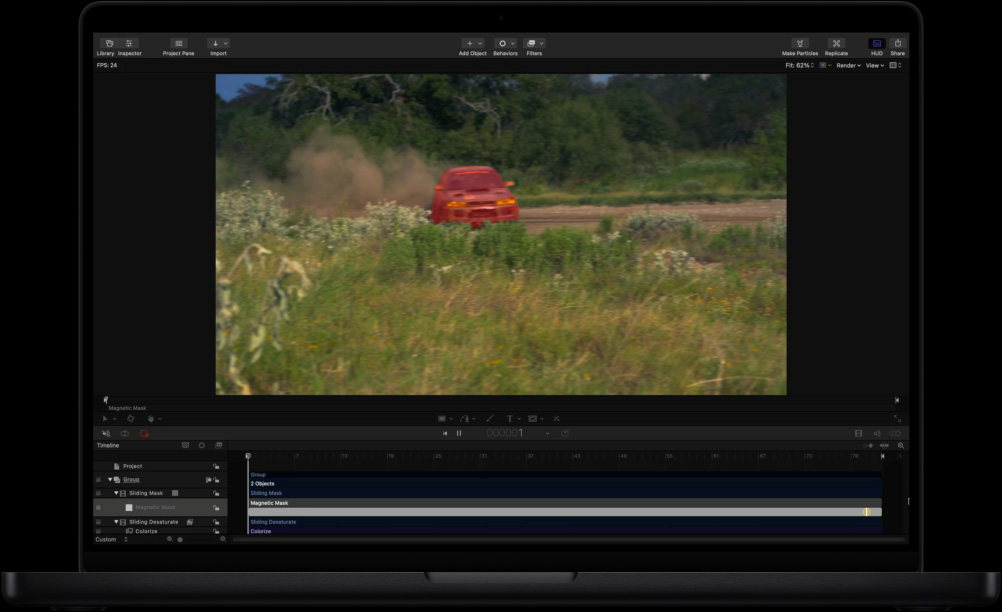
Isolate with Magnetic Mask.
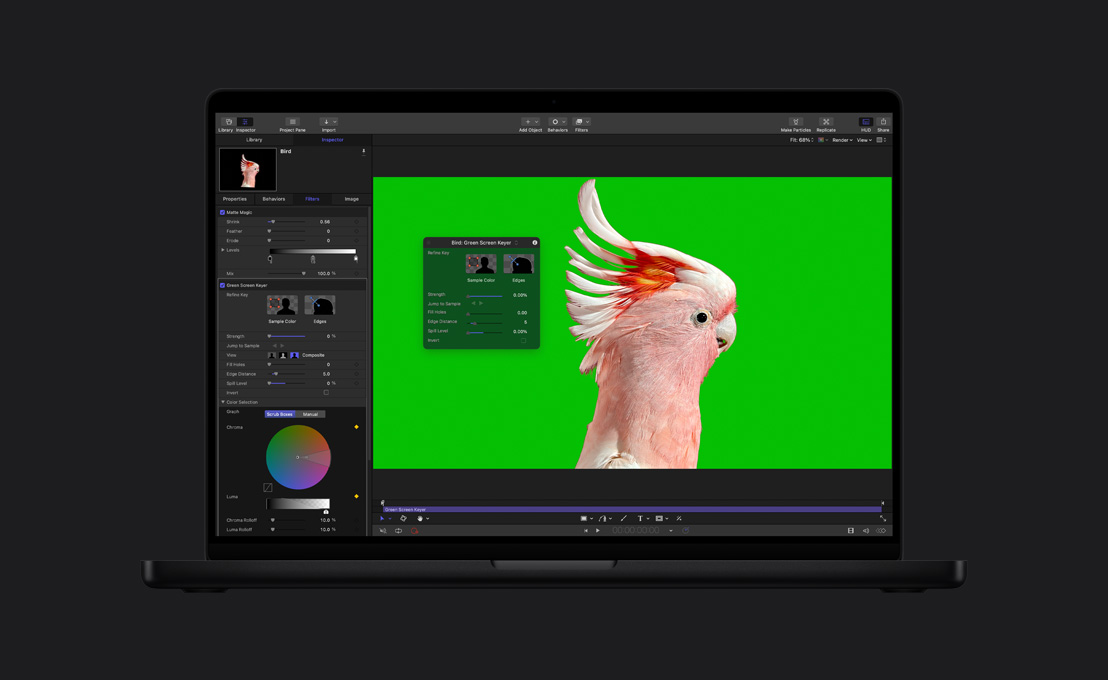
Separate people and objects from the background without a green screen or complicated rotoscoping.

-
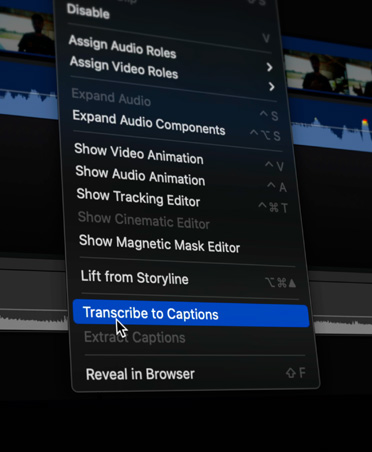
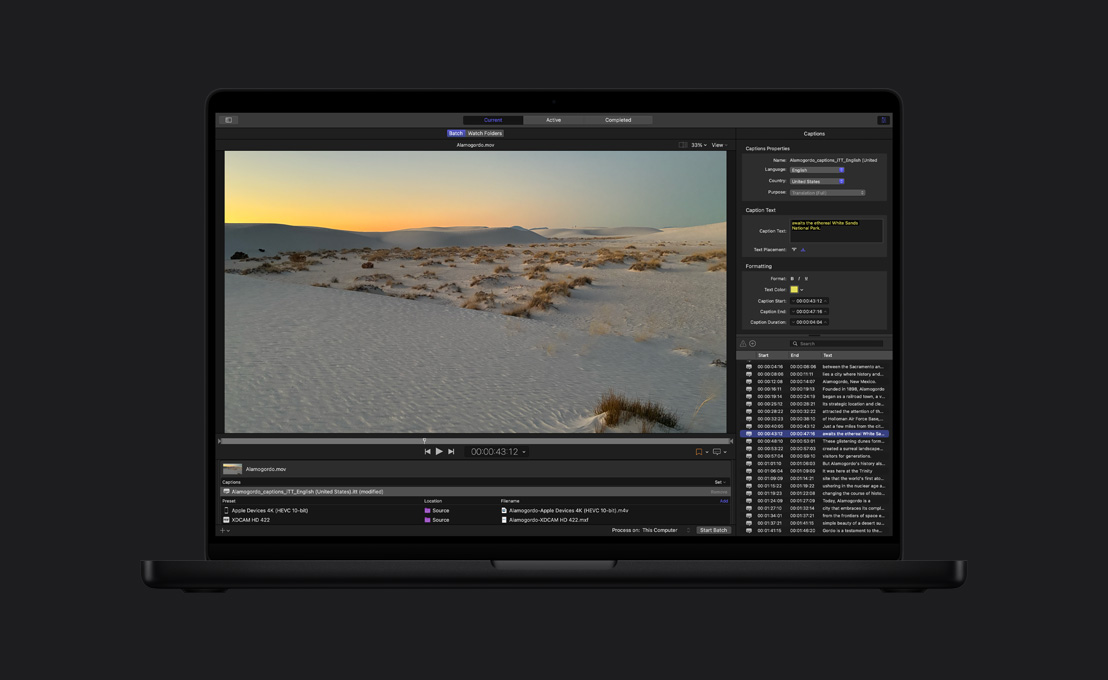
Automatic captions.
By analyzing spoken audio, Final Cut Pro creates captions with lightning‑fast, accurate results.
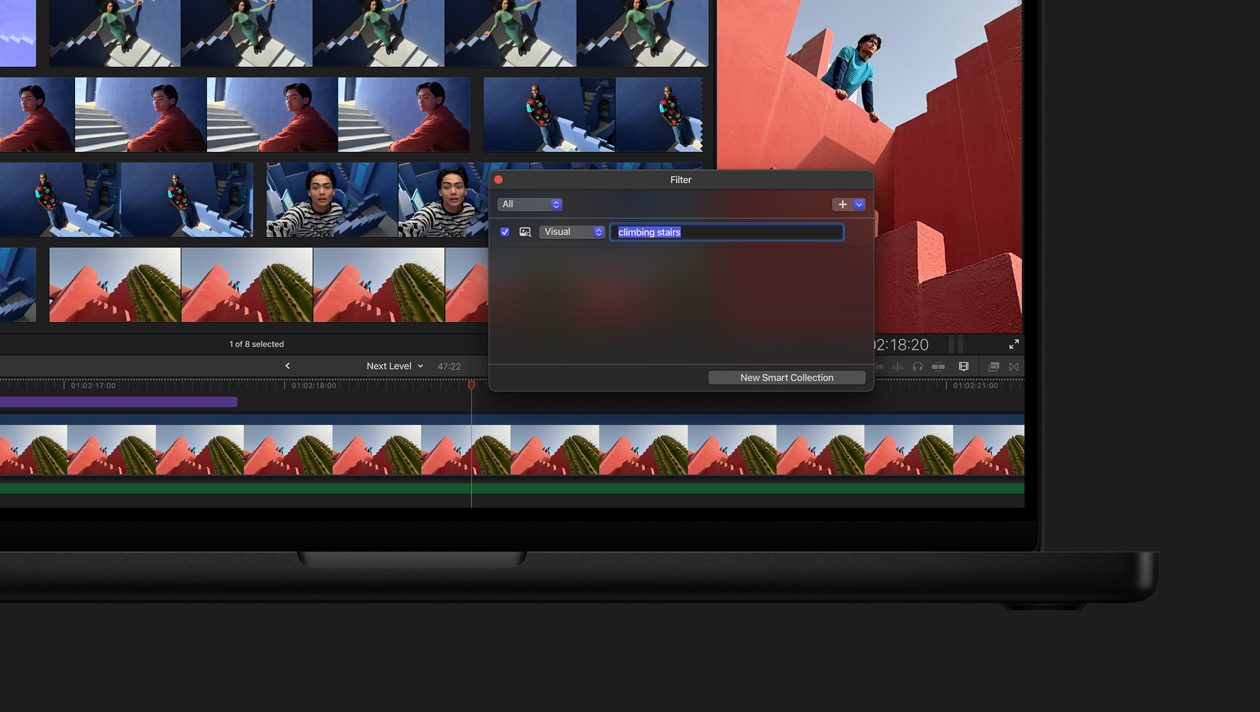
Search visual moments. With Visual Search, locating clips is effortless. Just type what you’re looking for and it pinpoints objects and actions in seconds.4
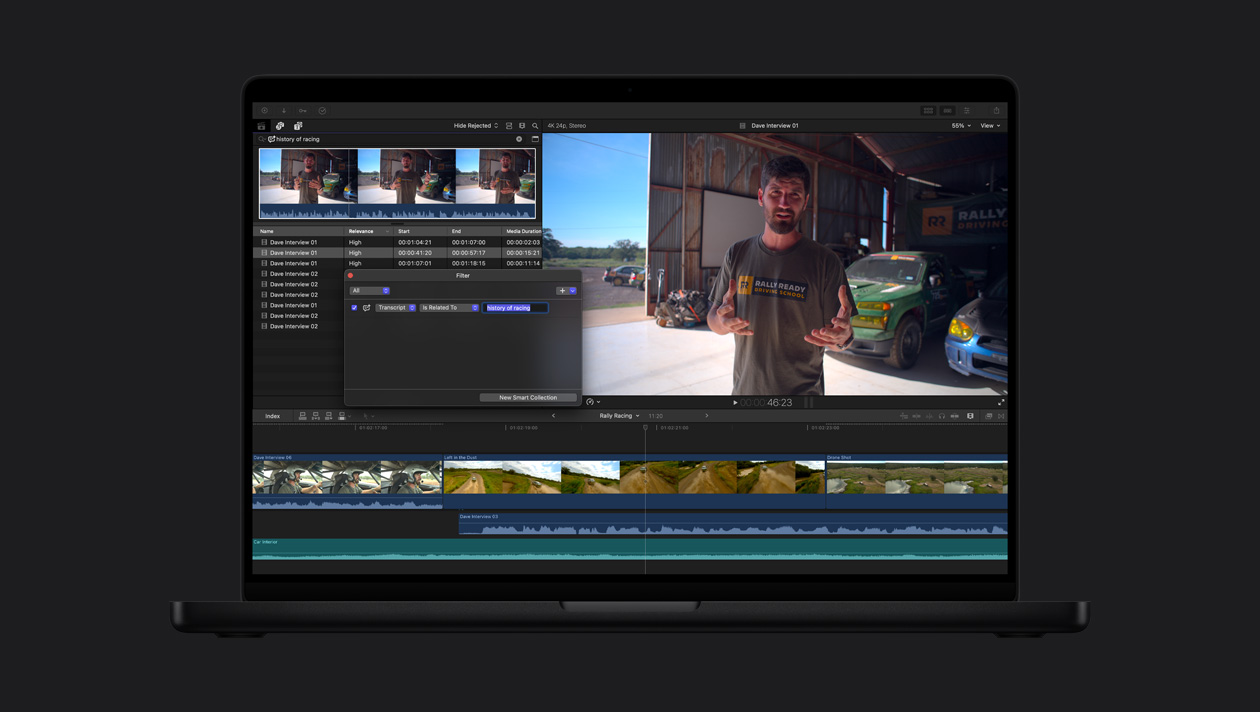
Grab the perfect sound bite. No more sifting through hours of footage. Transcript Search analyzes speech to instantly find spoken phrases, whether by exact match or by related words.5

-
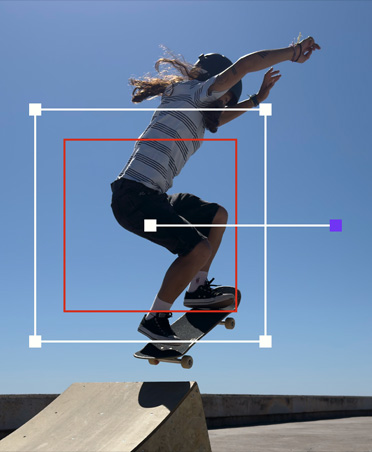
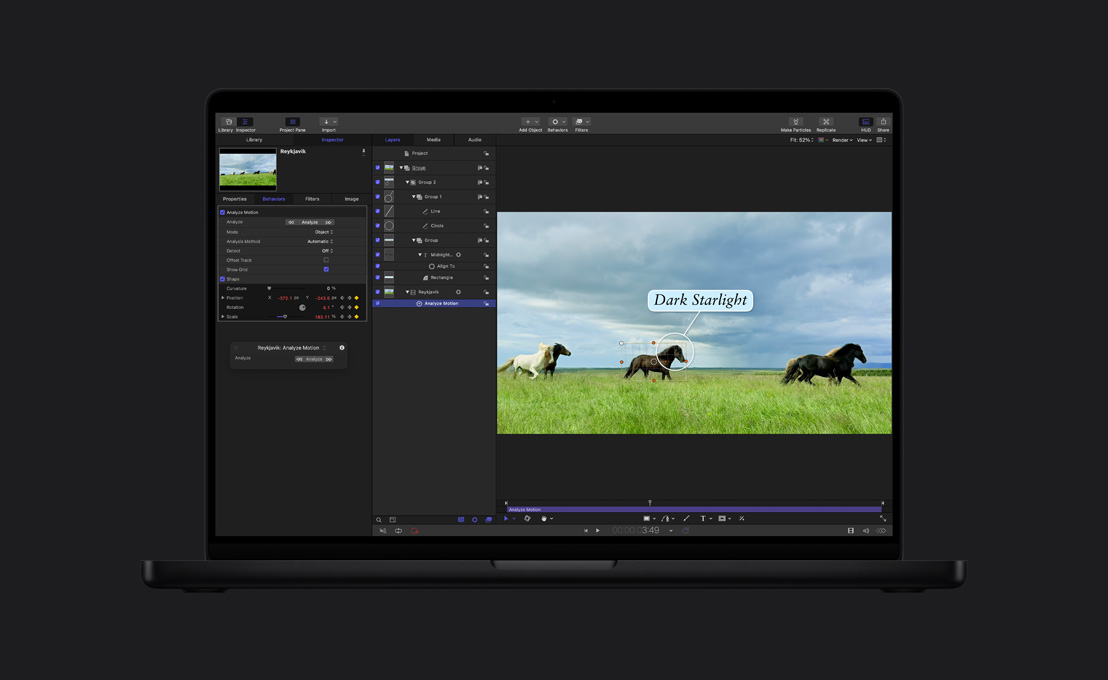
Automatically track movement.
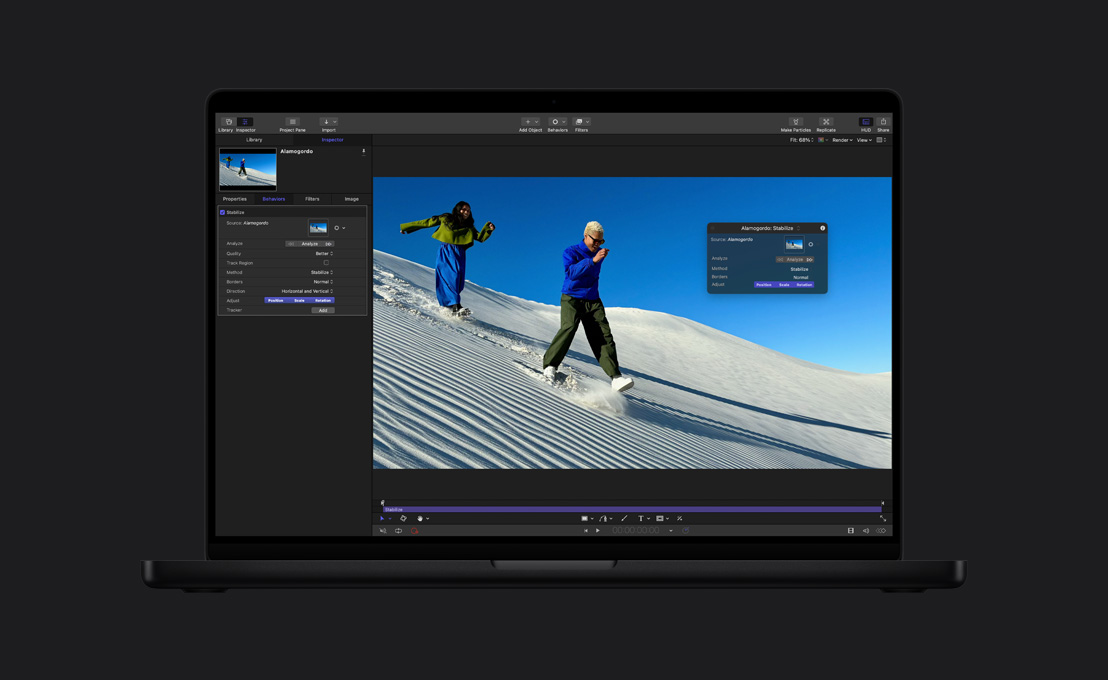
Object Tracker maps the movement of people, objects or faces so you can attach effects and titles or make adjustments as they move through the shot.
-
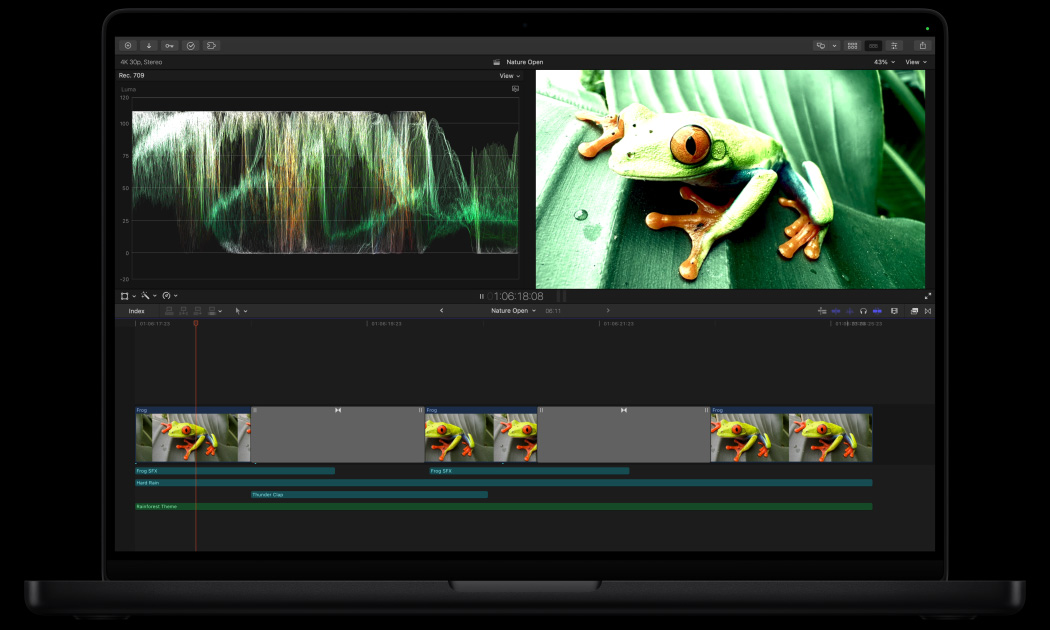
One‑click colour grading.
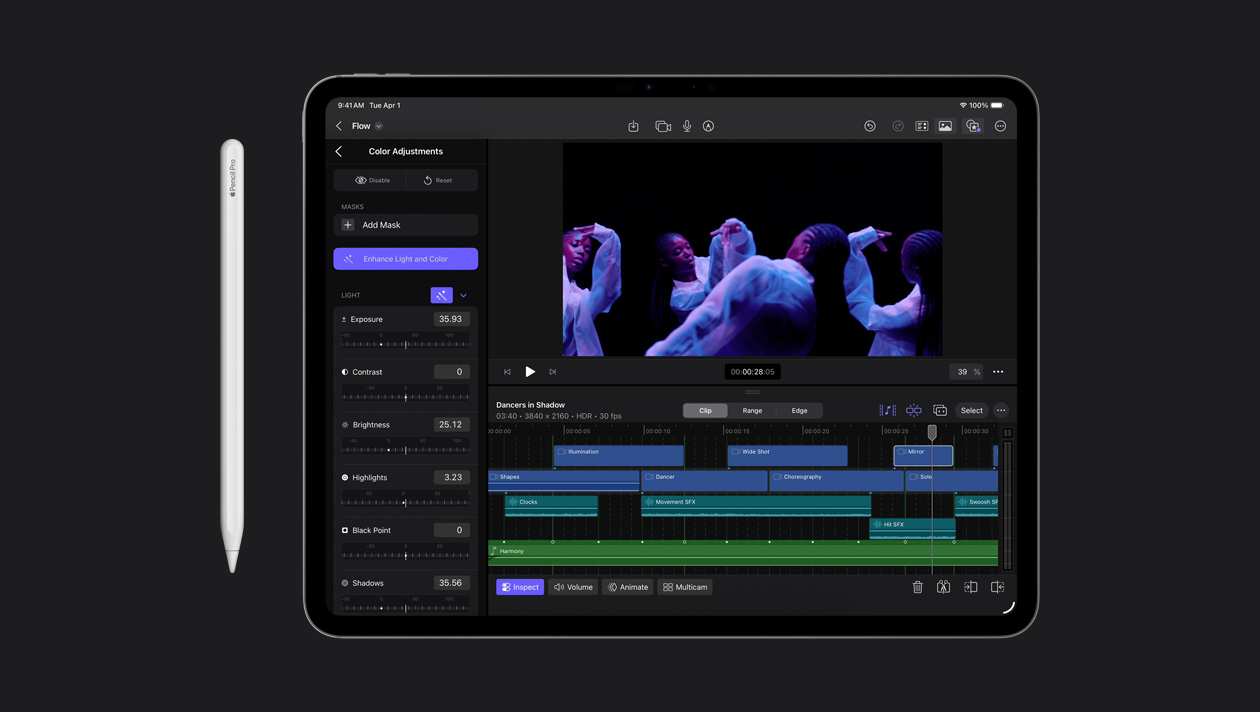
Automatically enhance the colour balance, contrast and brightness of video or still images with the Enhance Light and Color effect, powered by machine learning.

-
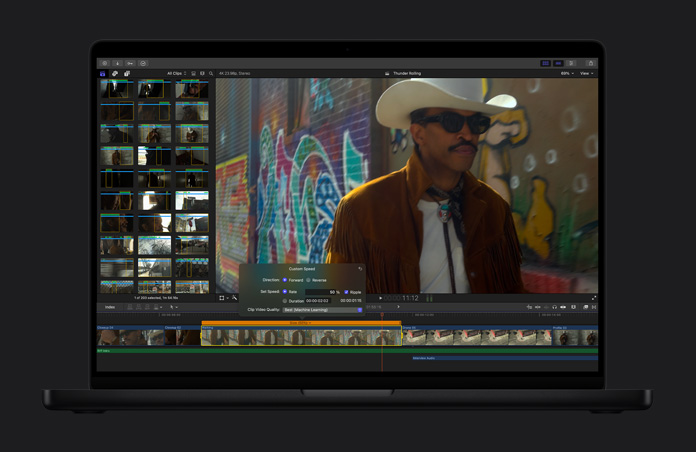
Turn video into slow motion.
Smooth Slo‑Mo intelligently generates and blends video frames to provide the highest‑quality movement and add more drama to a project.
-
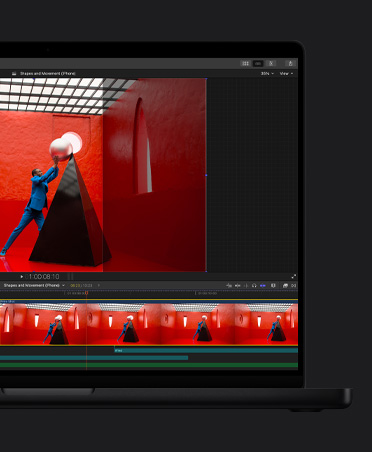
Automatically reframe a clip.
Your videos adjust seamlessly to fit every aspect ratio, so that they’re ready to share on Mac, iPhone, iPad and all your favorite social platforms.
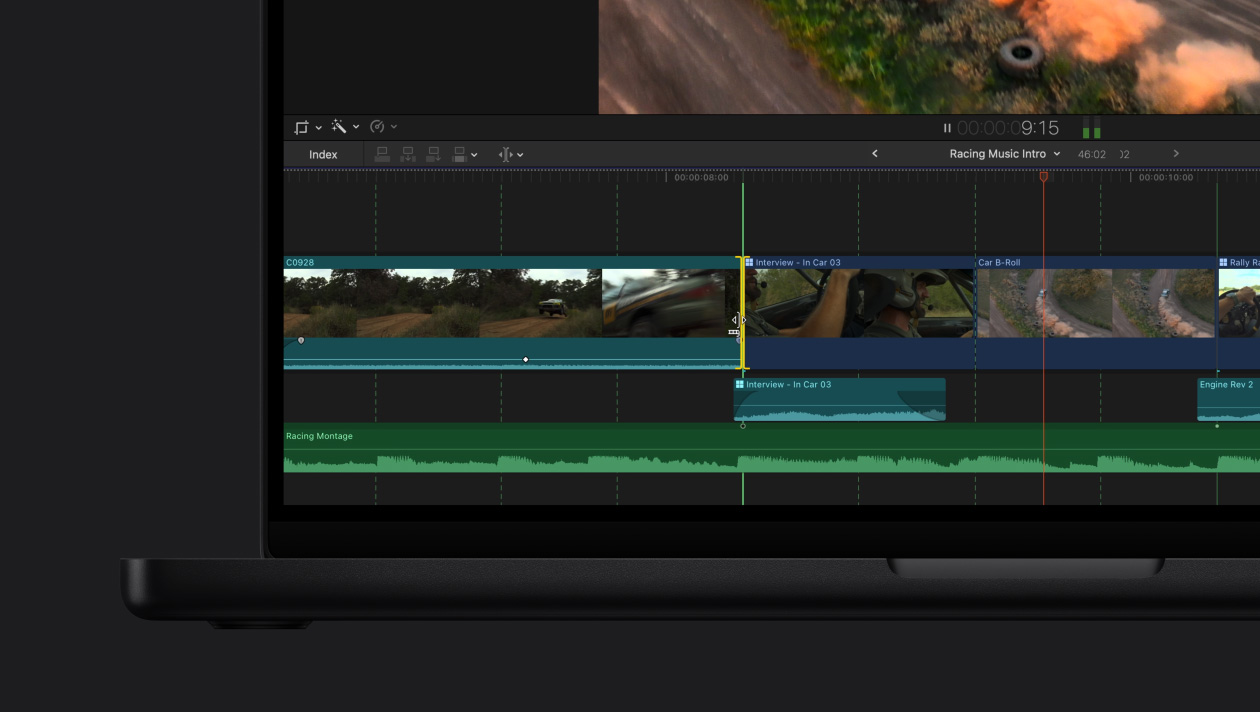
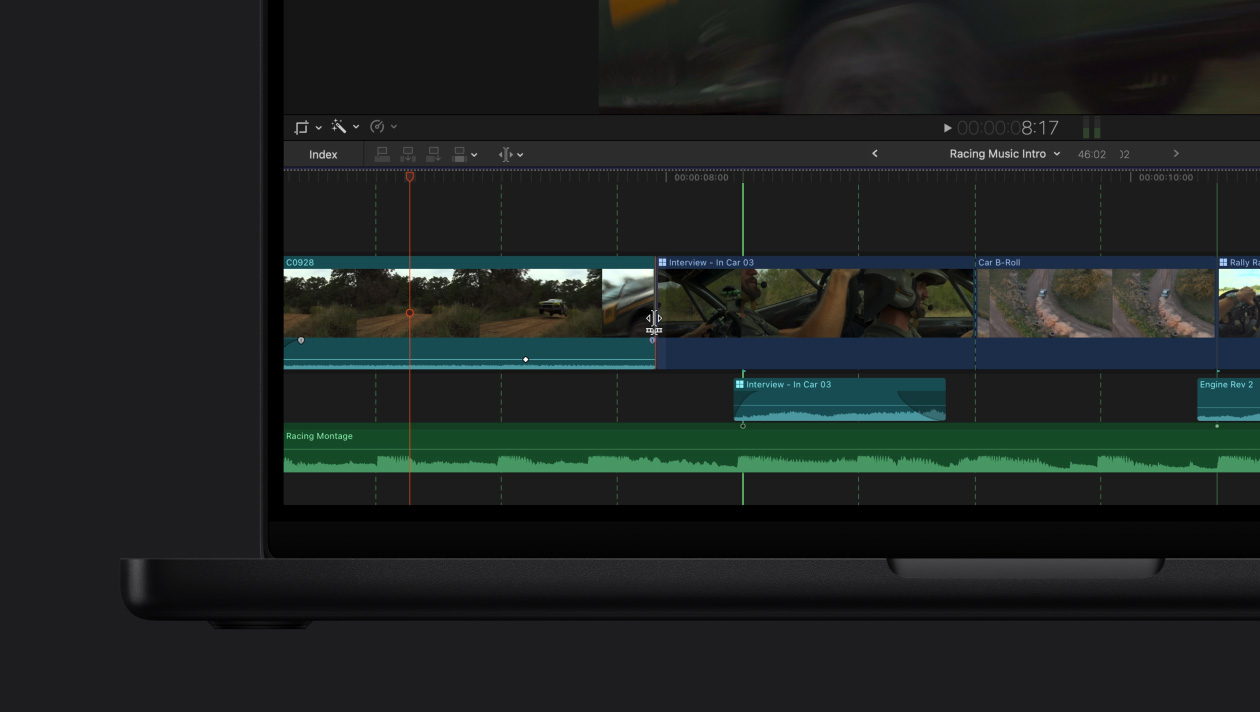
Get in the groove with Beat Detection.
-
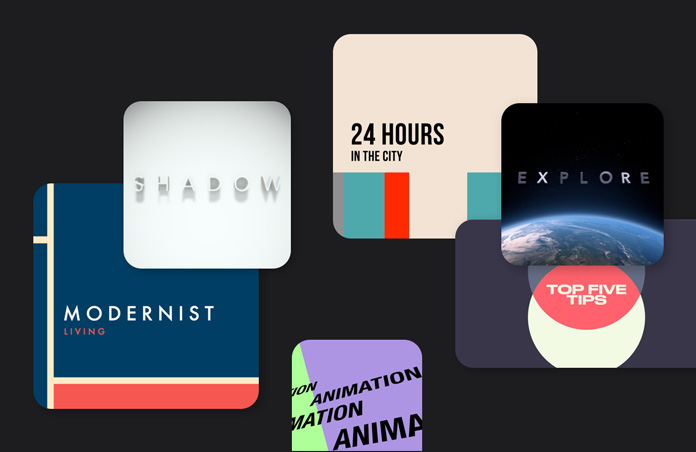
Graphics and transitions.
Tap into an extensive library of dynamic video content options, designed for flexibility and customization for both portrait and landscape.
-
Dynamic titles.
Customize themed titles, lower thirds and bumpers to enhance your project.
-
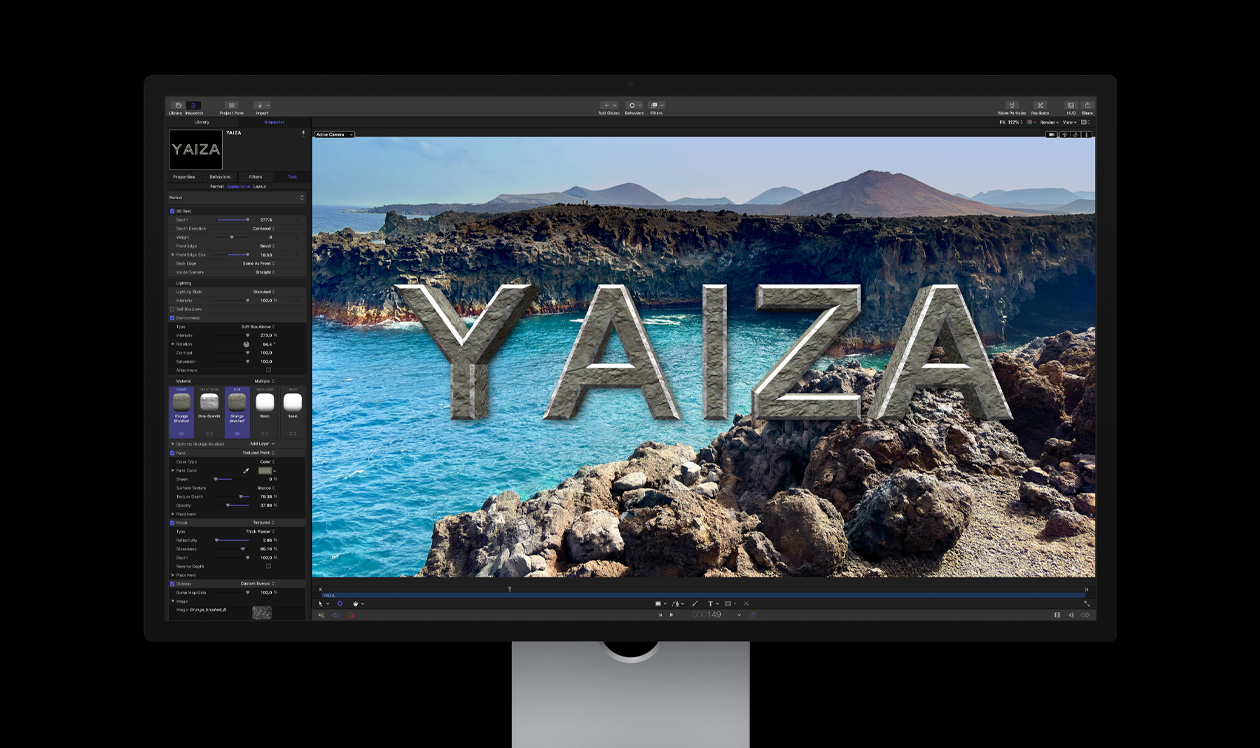
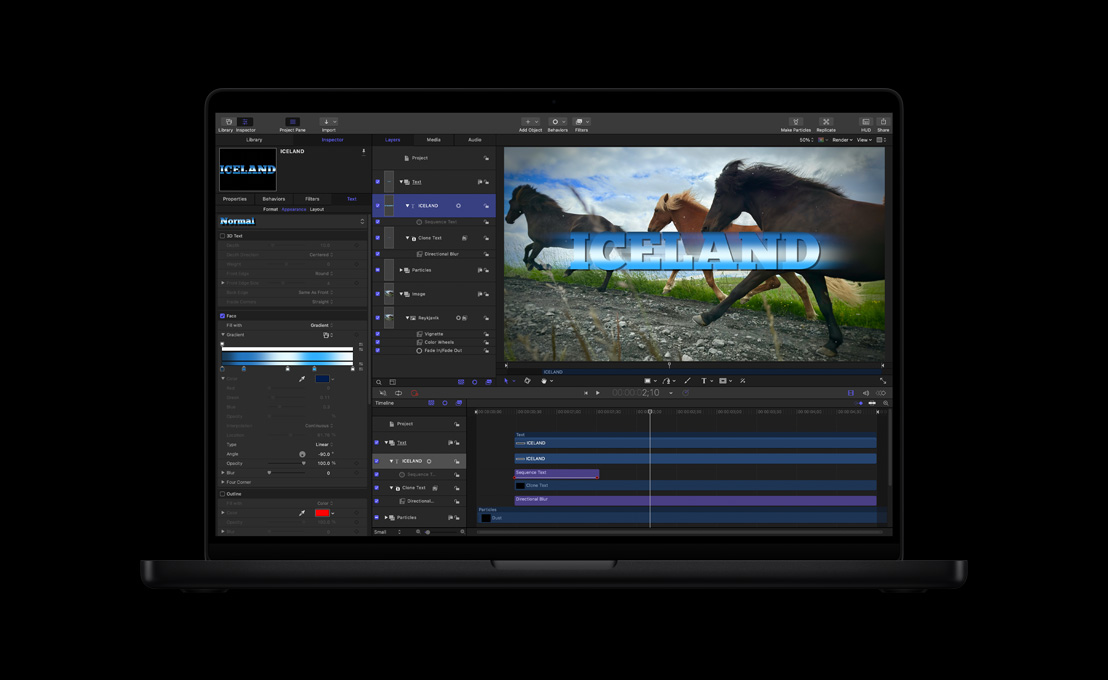
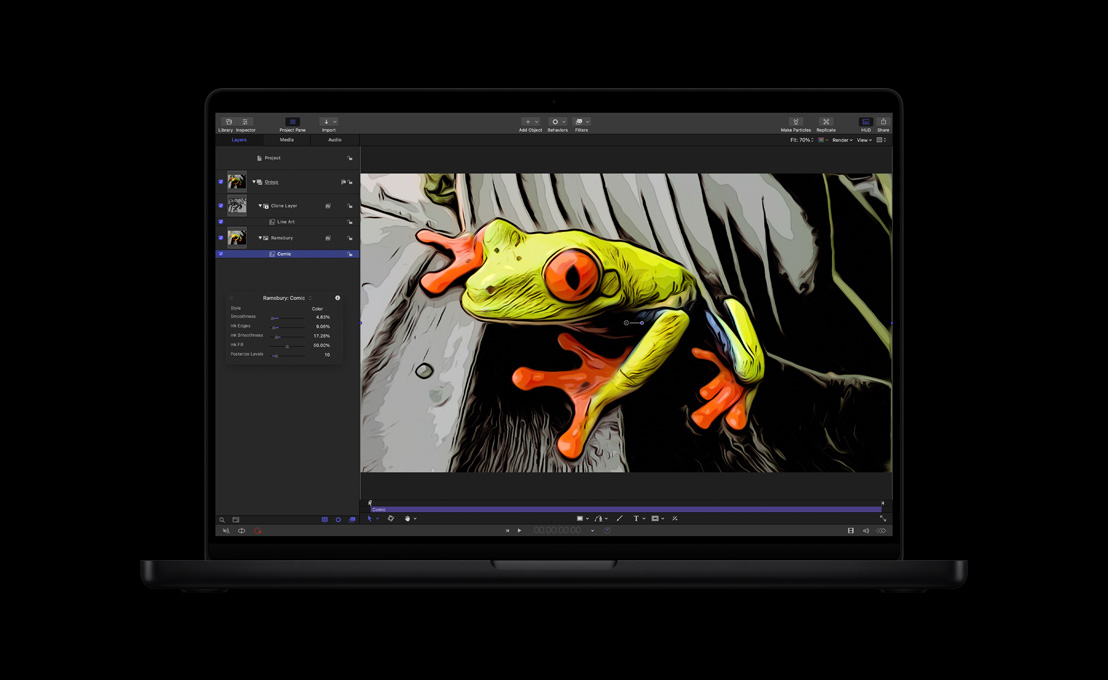
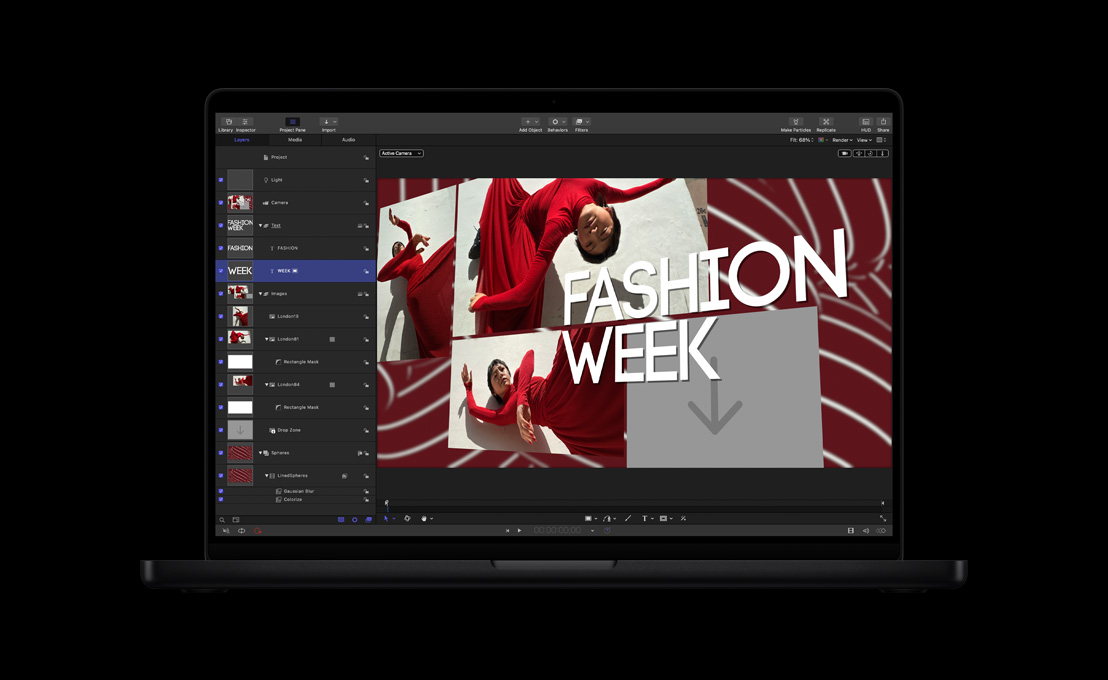
Powerful effects.
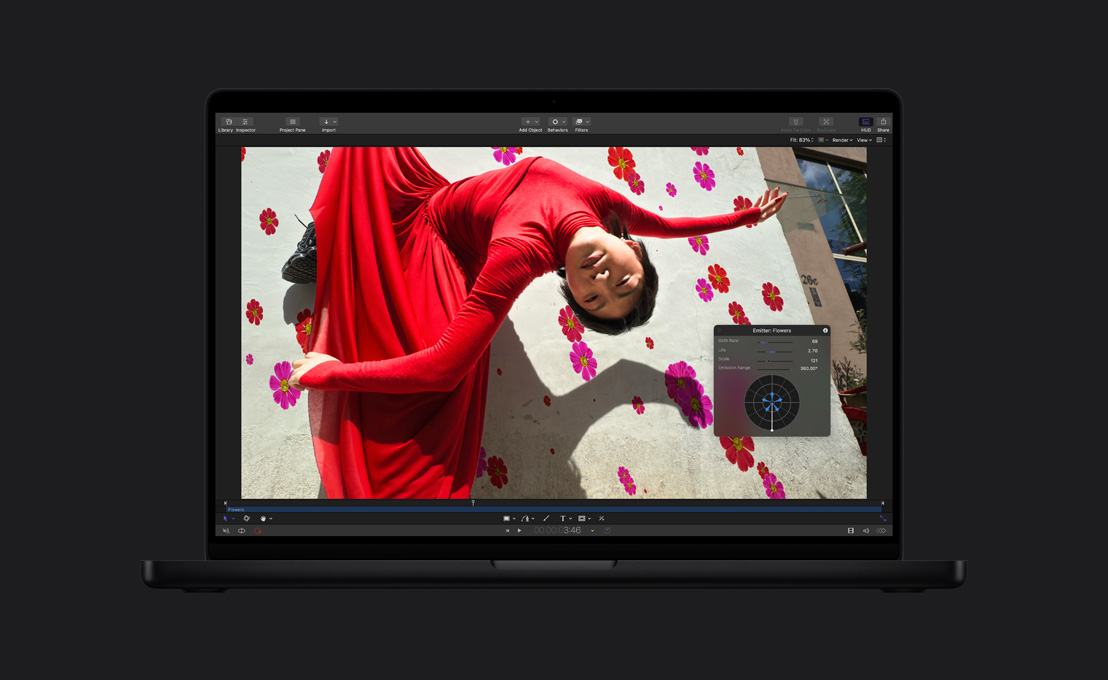
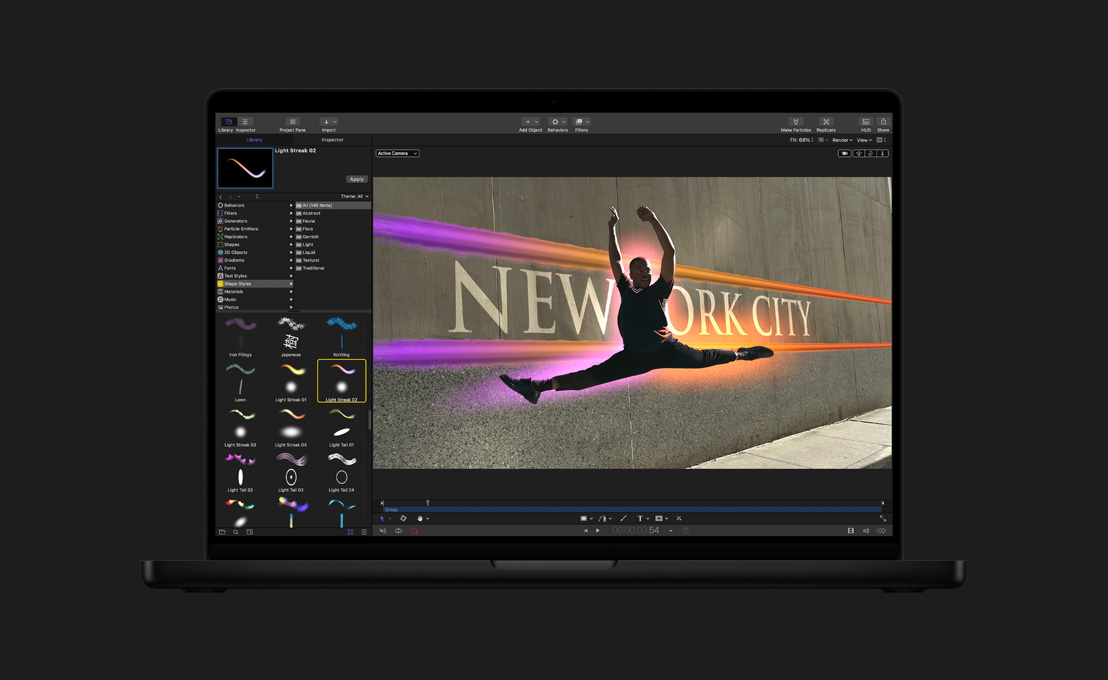
Create amazing visuals just by dragging and dropping. And you can expand your options with thousands of third‑party tools.
-
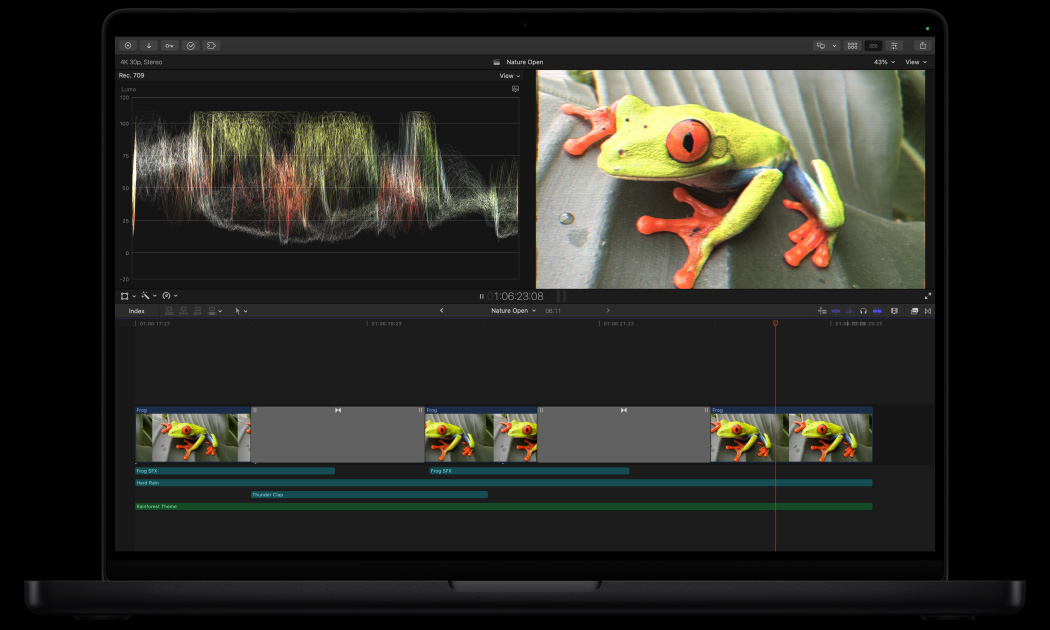
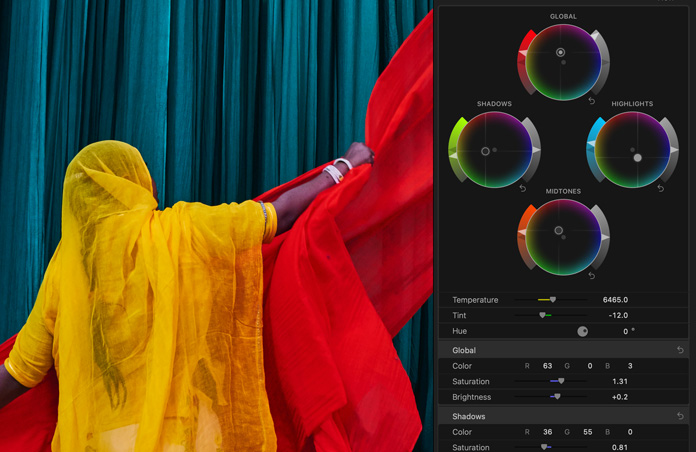
Perfect your colour grading.
Professional tools like colour curves, hue/saturation curves, a colour inspector with colour wheels and the ability to apply LUTs help your projects look their best.

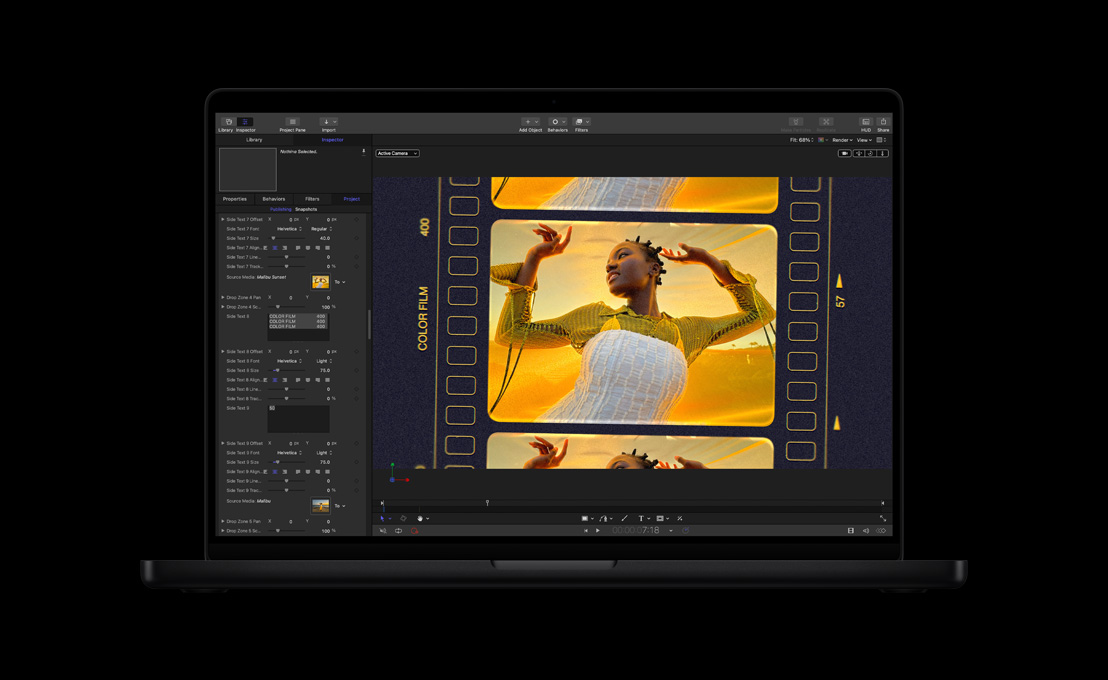
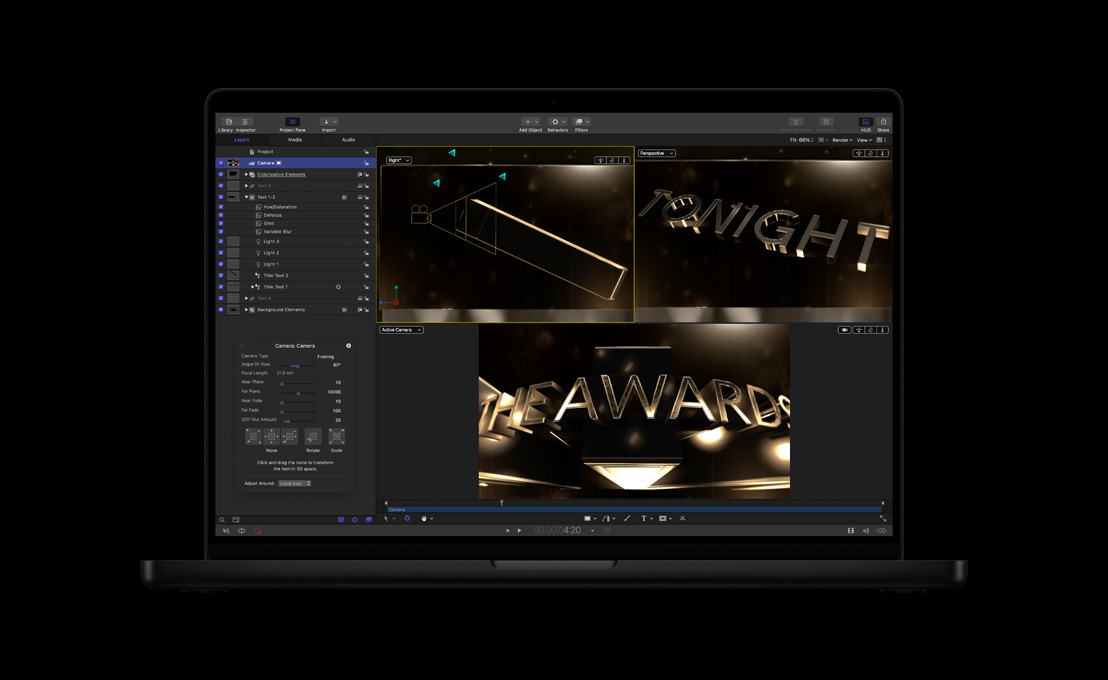
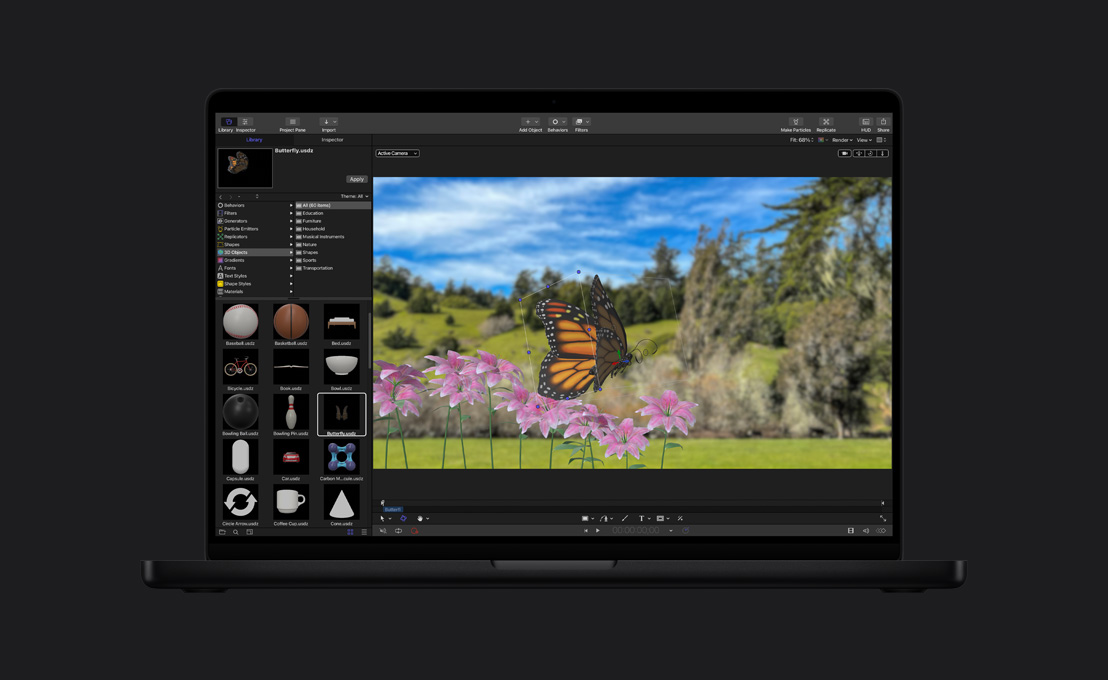
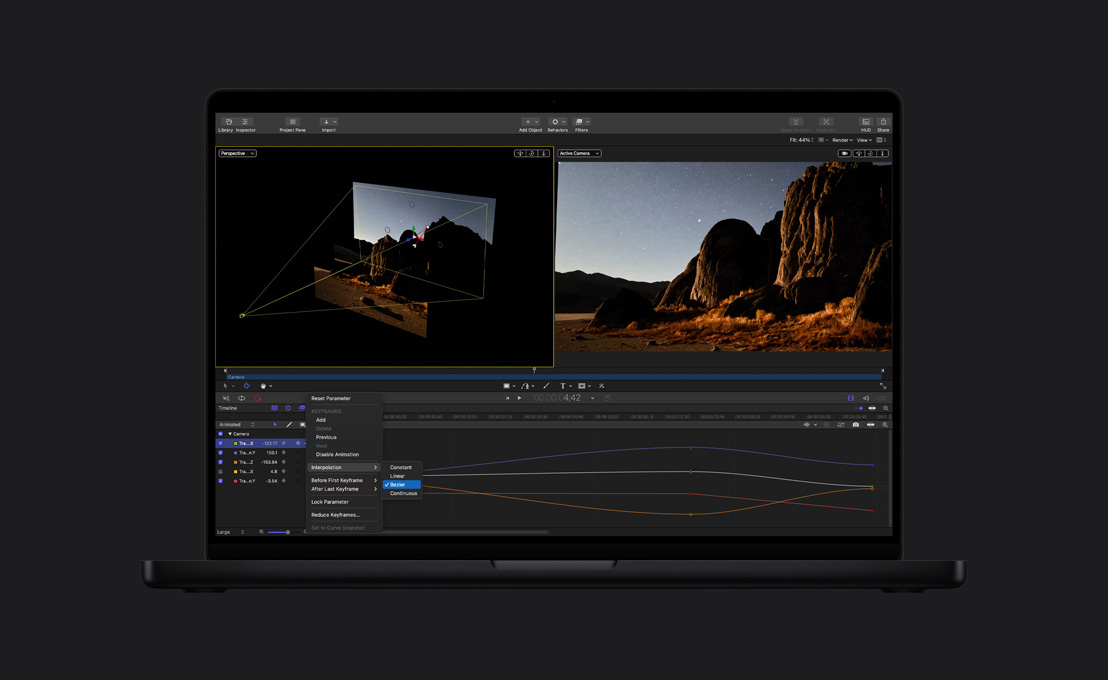
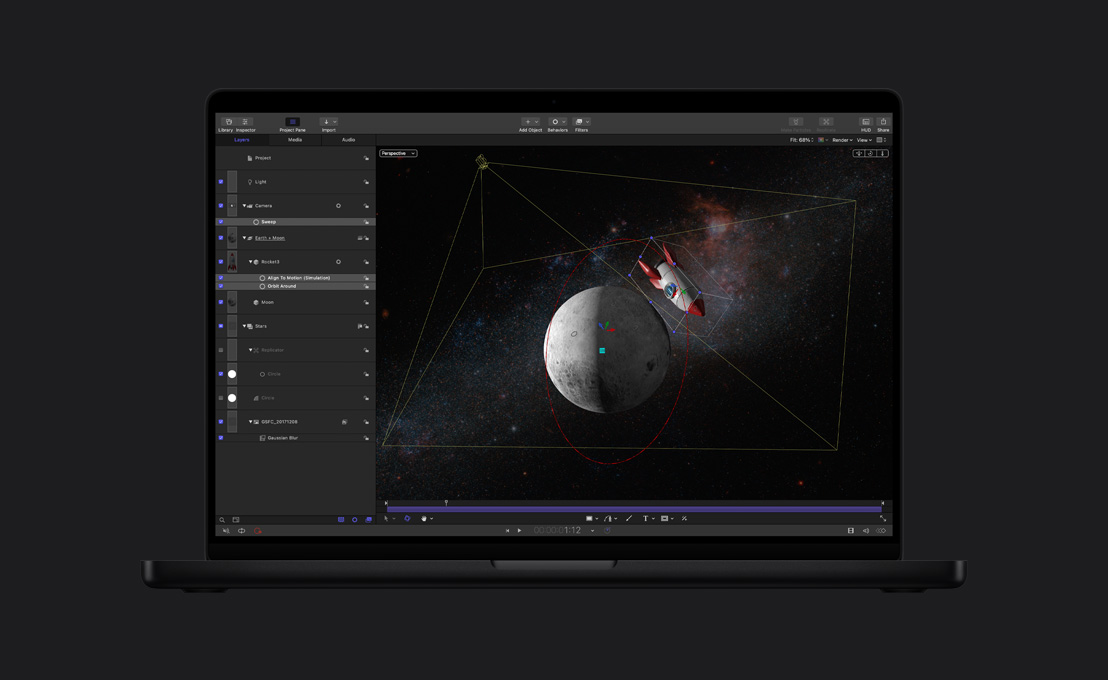
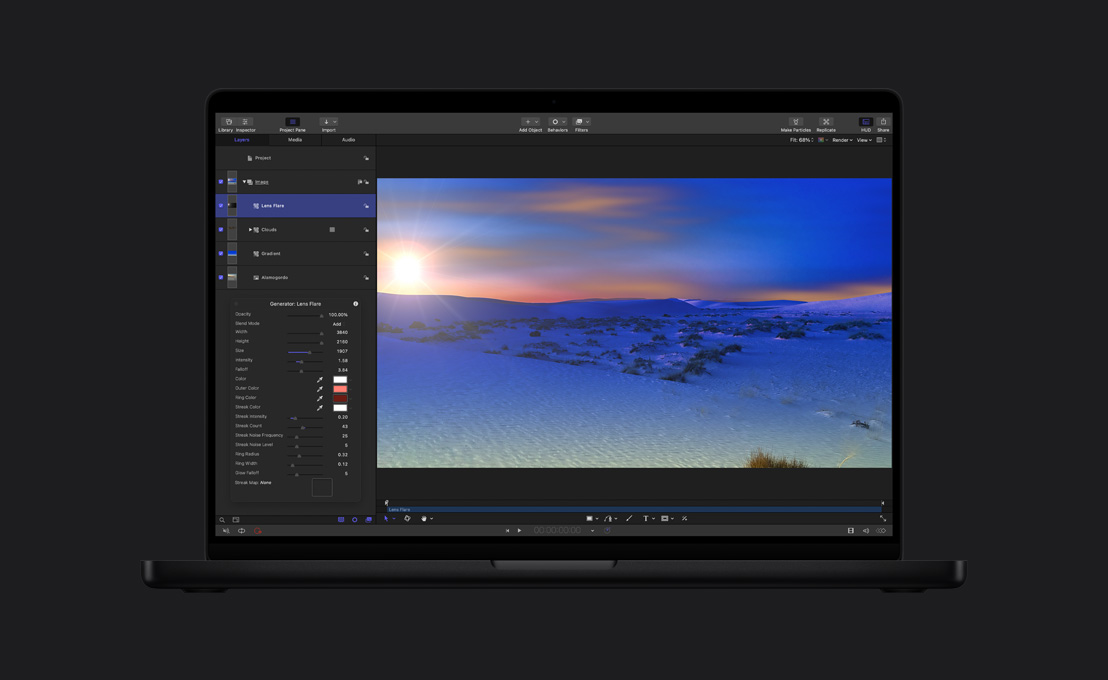
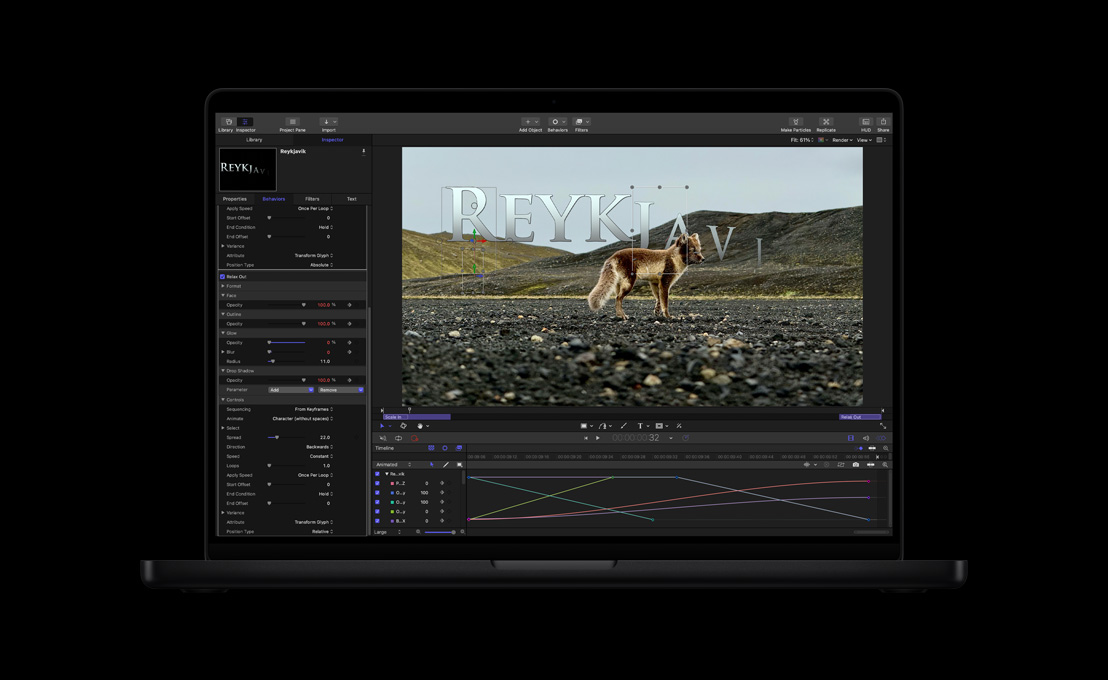
Stunning effects,
set in Motion.







-
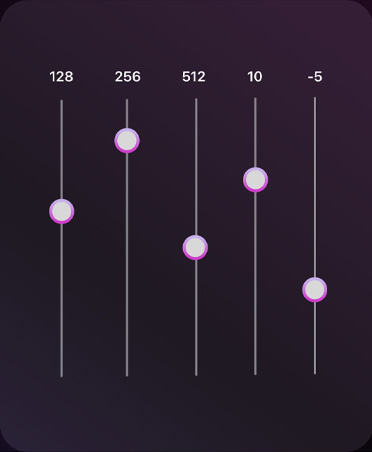
Audio editing tools.
Choose from a library of plug‑ins for audio compression, EQ and more adventurous effects. Or export to a pro audio app like Logic Pro for advanced audio mixing.
-
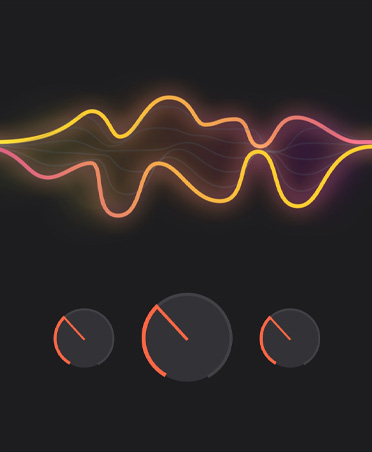
Use effects from Logic Pro.
No need to switch apps. Final Cut Pro includes a range of powerful audio plug‑ins from Logic Pro, along with third‑party audio plug‑ins.6
-
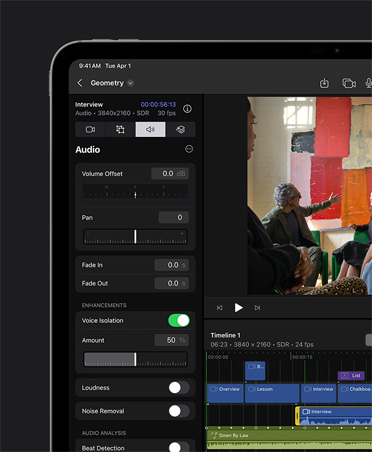
Voice Isolation.
Eliminate background noise and improve clarity of speech so your edit sounds pristine.
-
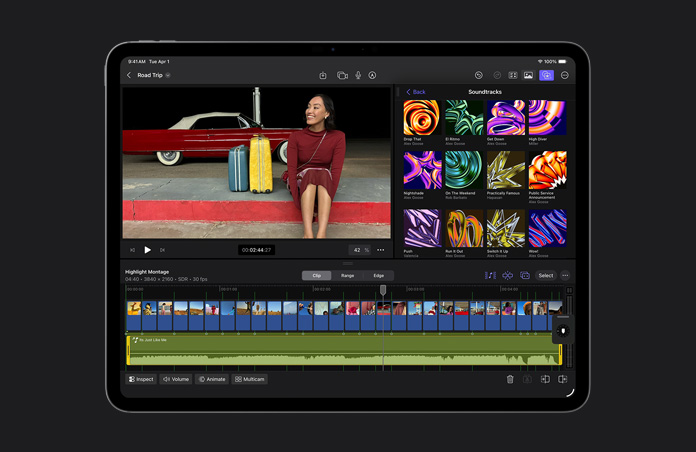
Fit the music to the cut with iPad.
Soundtracks dynamically adjust to fit the length of your project — expanding, shifting and staying in sync as a scene evolves.

-
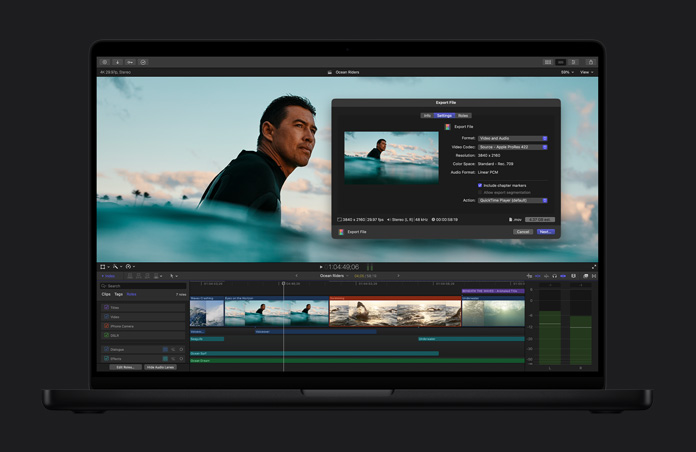
Optimize files.
Transcode video to Apple ProRes for better performance while editing, faster render times and enhanced colour quality for compositing.
-
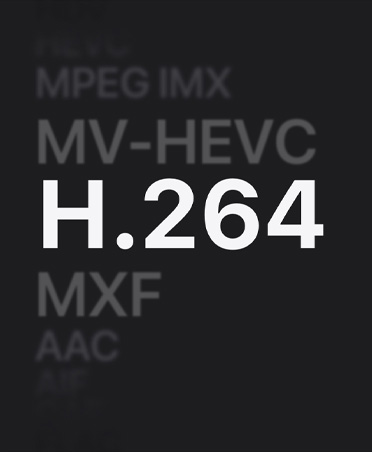
Share in high quality.
Export your completed project as a professional‑quality file that can be used for the final stages of post‑production or broadcast and distribution.
-
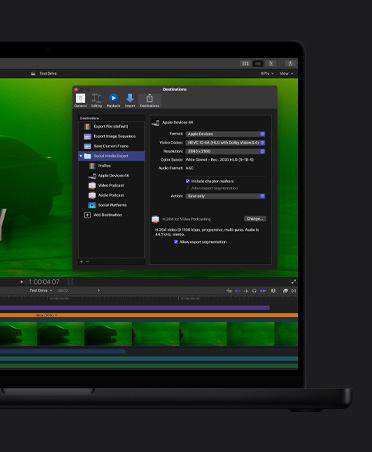
Batch export.
Export multiple projects, clips or clip ranges simultaneously for different destinations, such as mobile devices or social media.

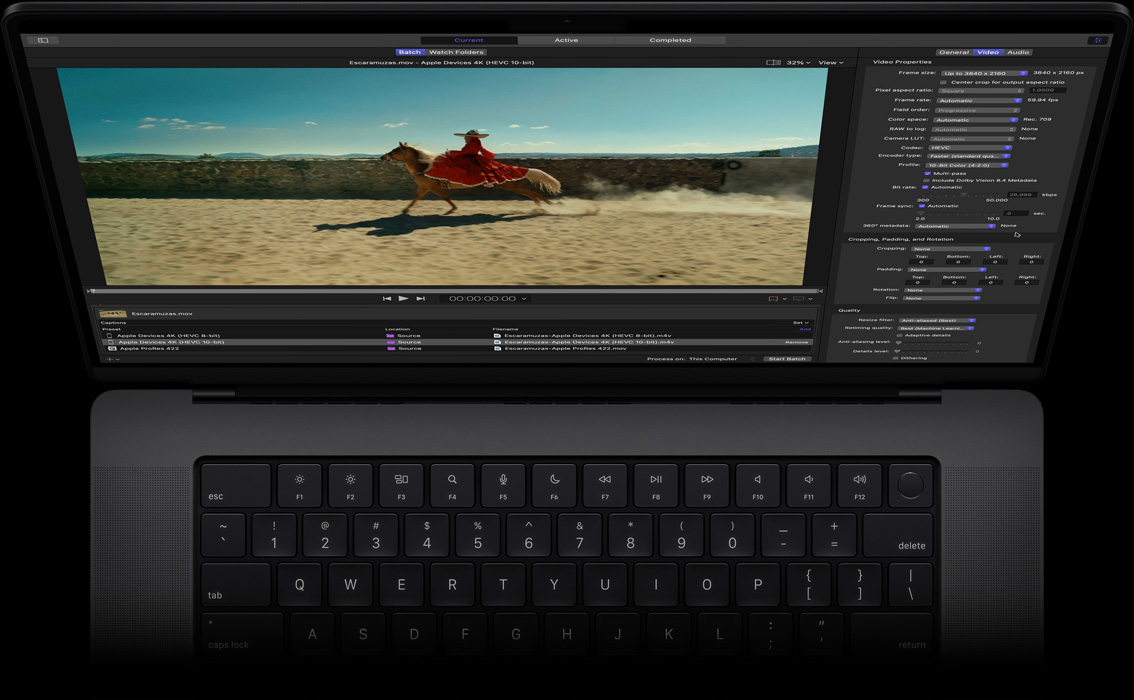
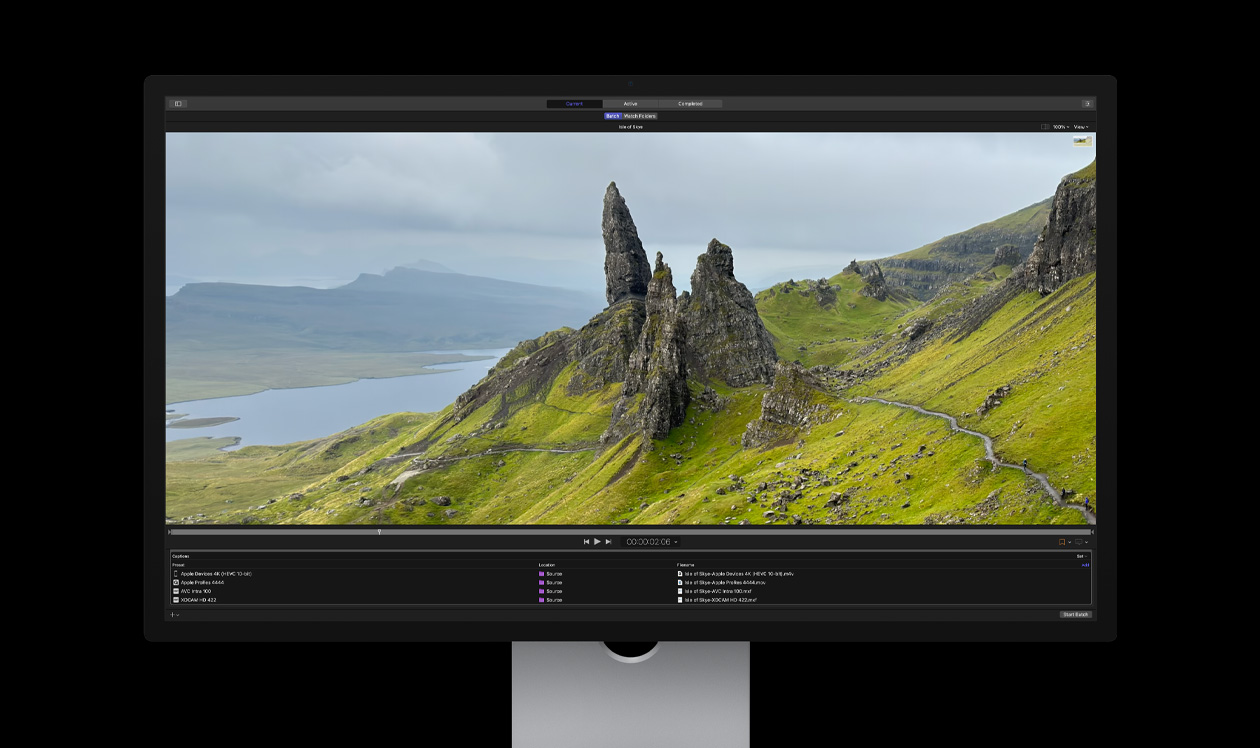
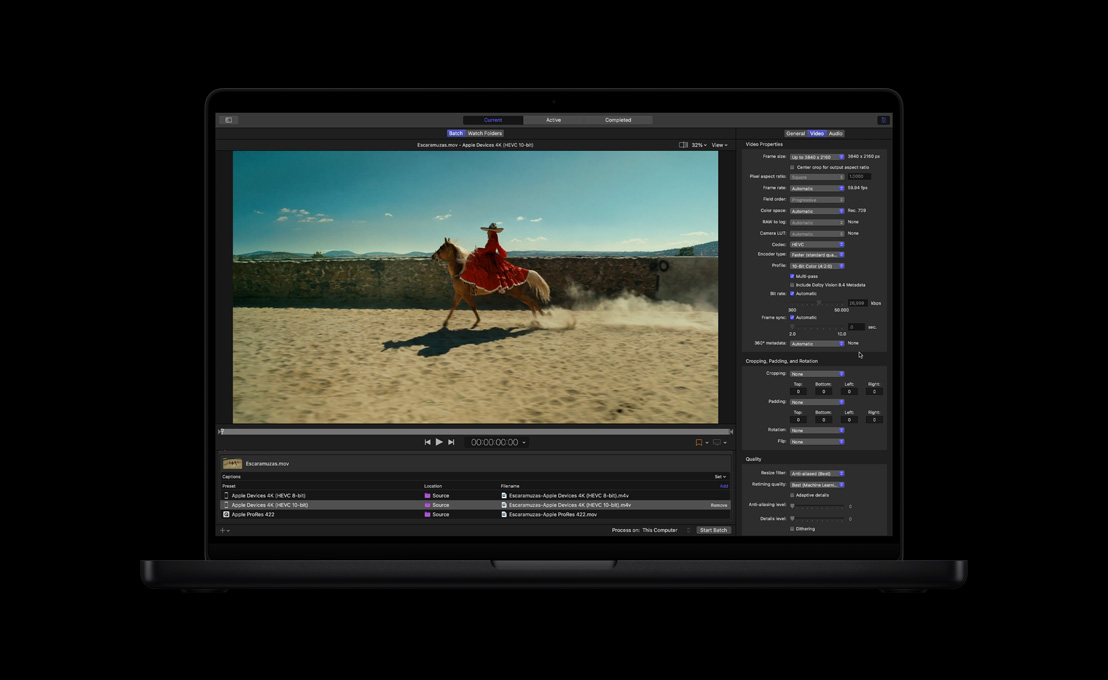
Compressor. Expand your encoding options.


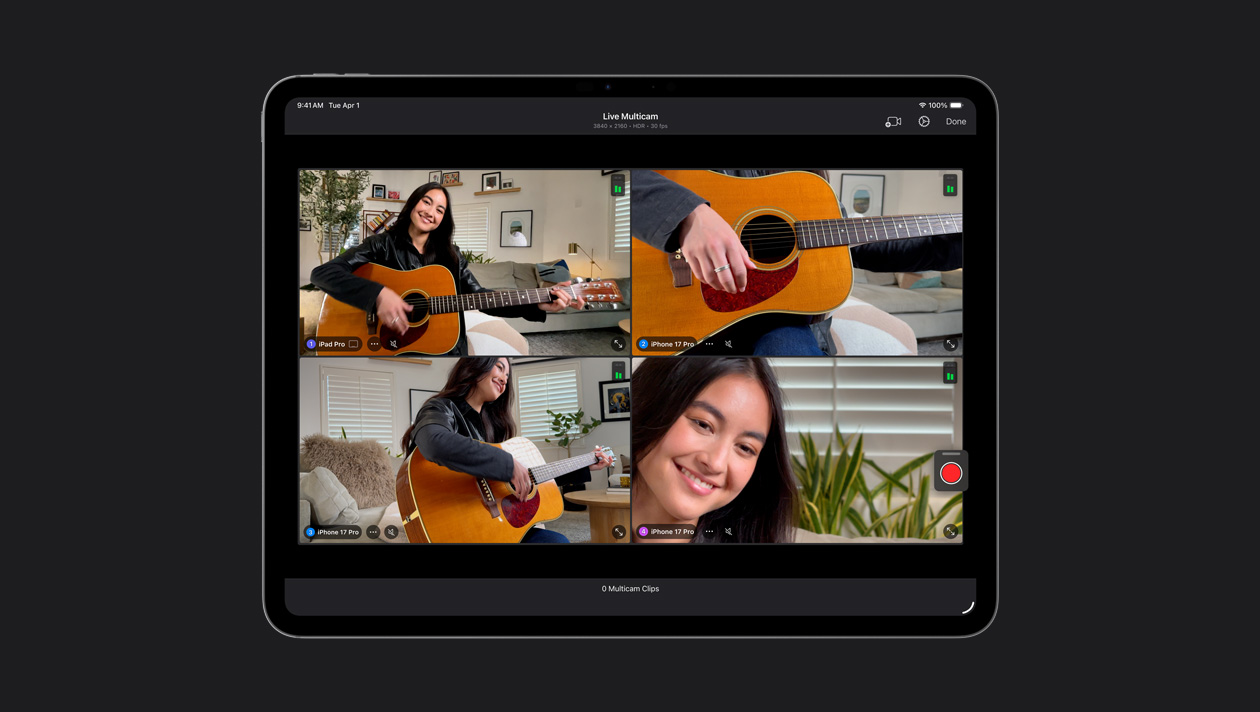
Connect up to four iPhone or iPad devices, control their settings remotely and automatically sync all your footage. Easily record music videos, podcasts and interviews.
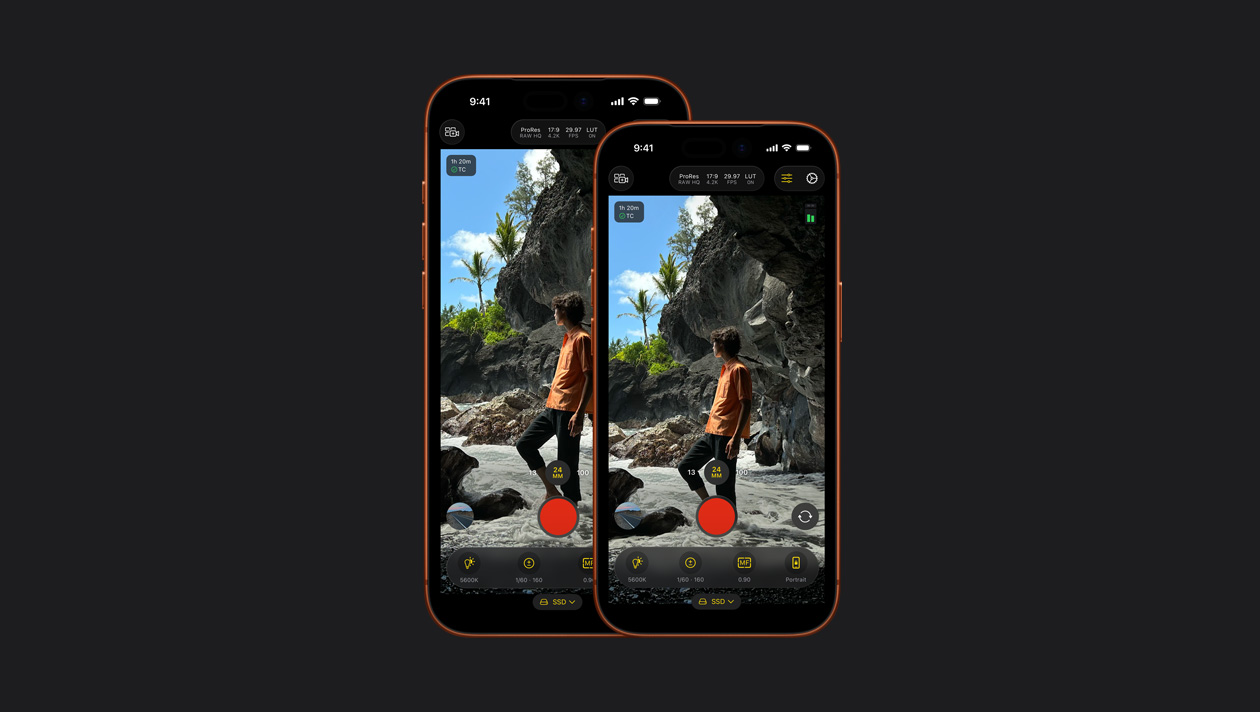
Capture professional‑level footage on your iPhone or iPad with powerful manual controls, including ISO, shutter speed, white balance and more.7
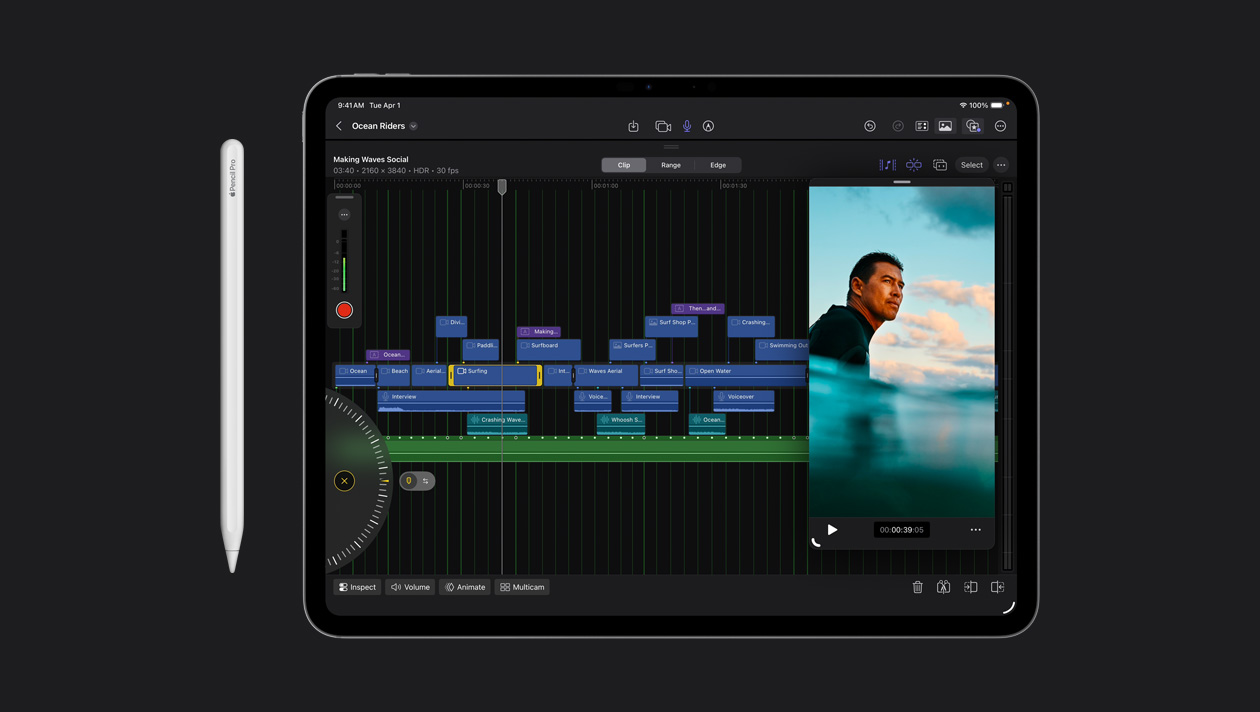
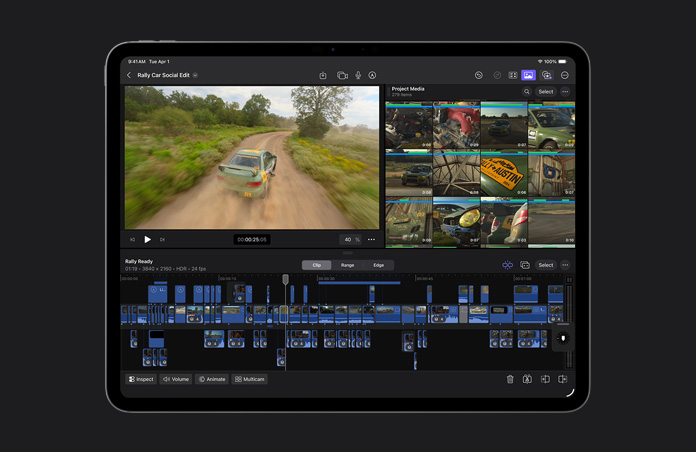
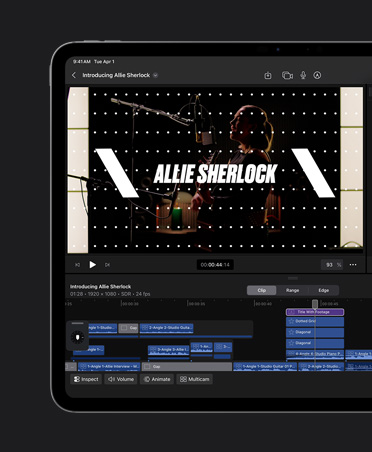
Make frame‑accurate edits with just a tap of your finger. Or spin the lightning‑fast jog wheel to zip through footage and fine‑tune your clips.
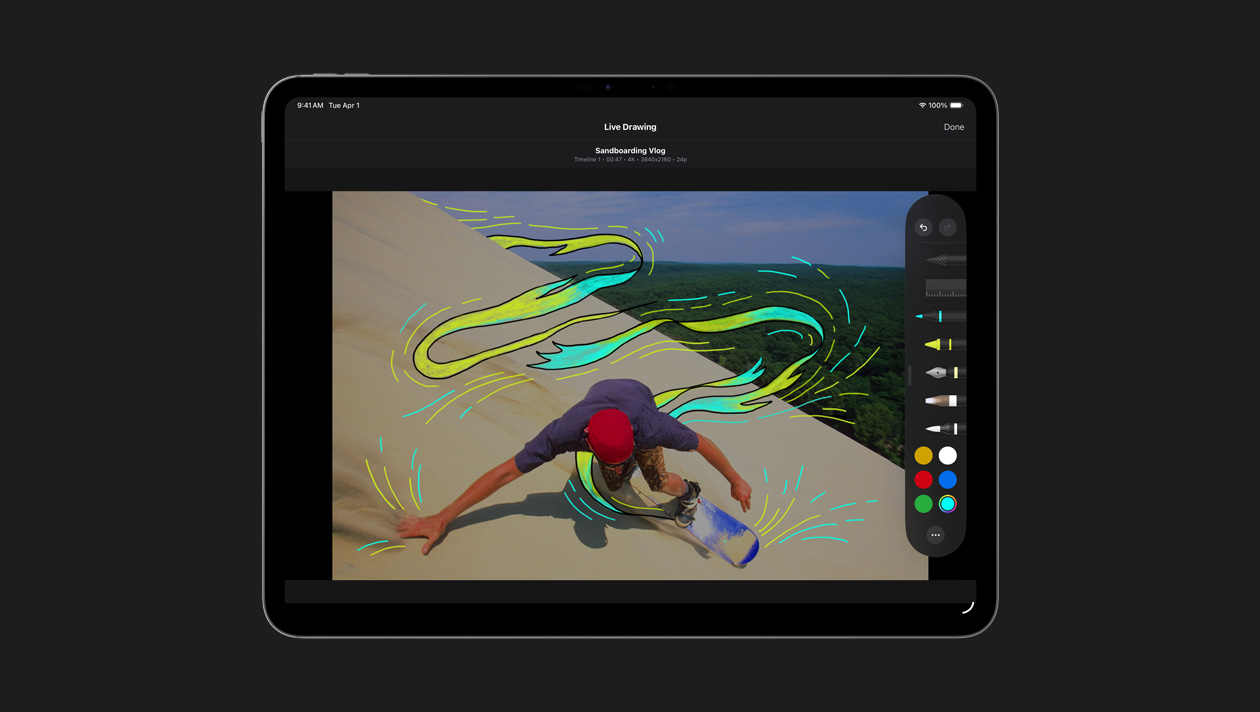
Draw, highlight and write directly on footage with touch or Apple Pencil to create unique, animated titles and illustrations.
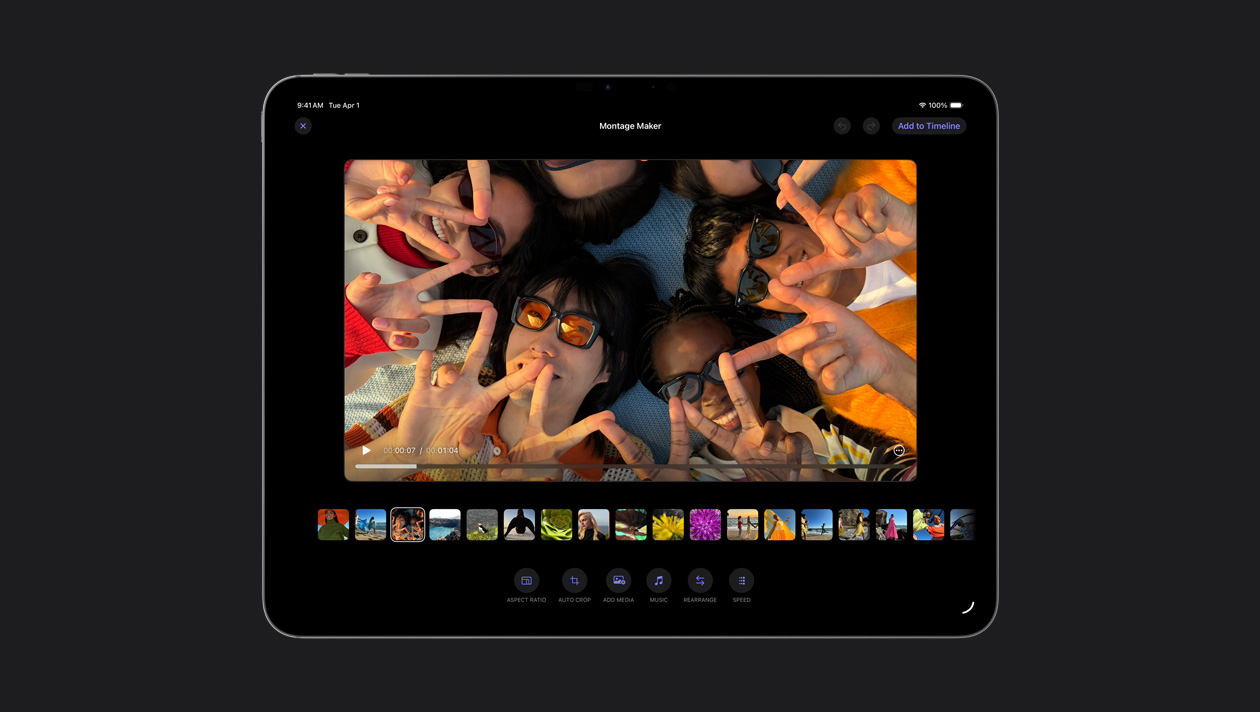
Montage Maker automatically selects the best visual highlights from your footage and cuts them to the beat of any song. Then you can fine‑tune the pacing, make a few tweaks and share away.
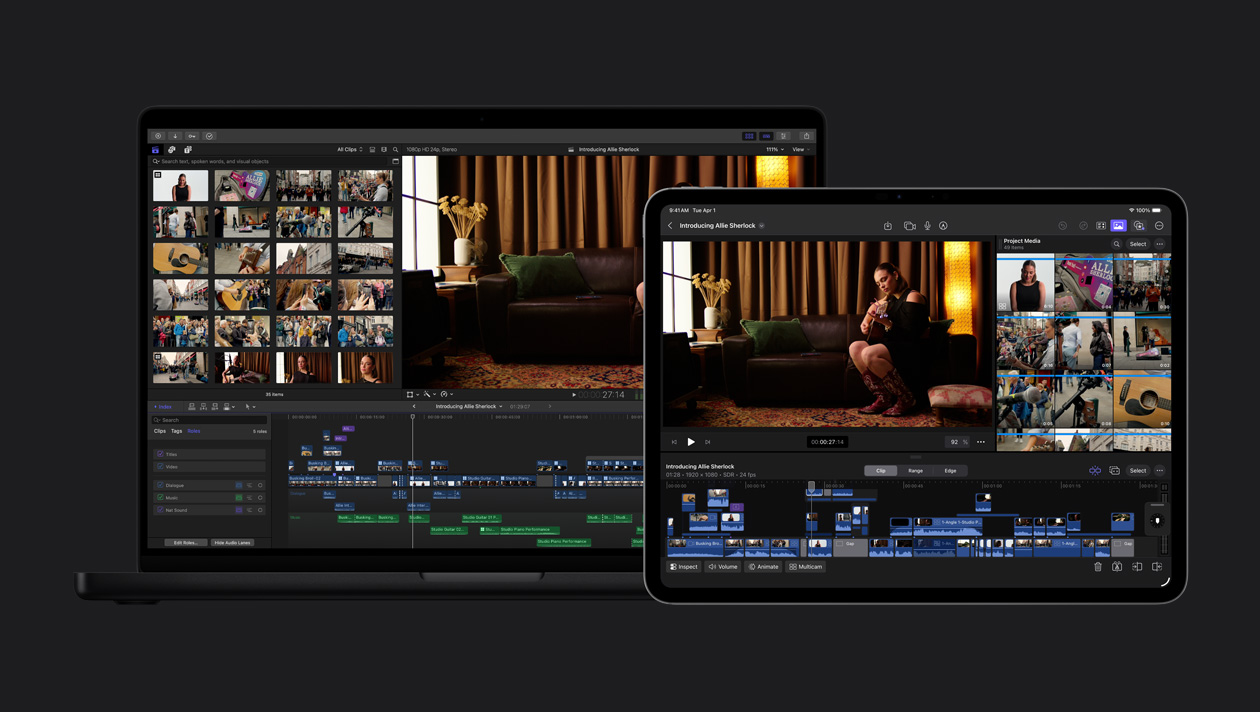
Export your iPad project to Mac to access features like advanced colour grading, Magnetic Mask and more.
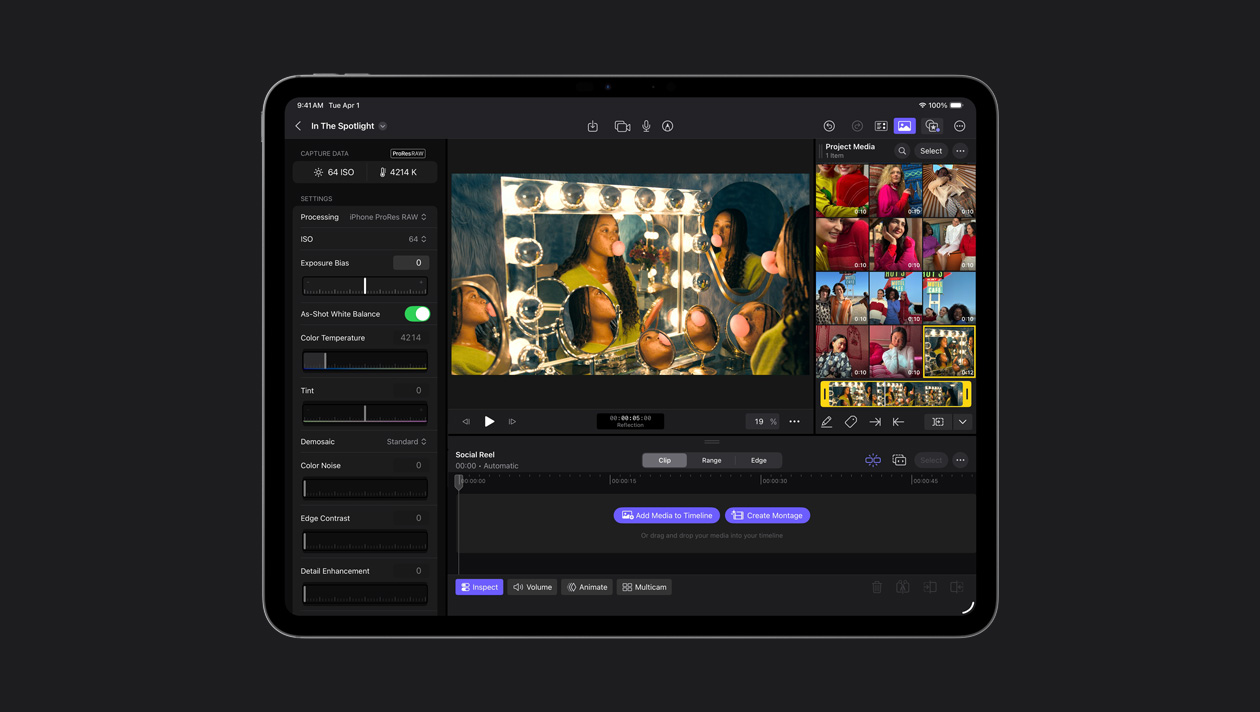
Final Cut Camera lets you capture in ProRes RAW for maximum flexibility in shaping your video’s look and extending detail in highlights and shadows. ProRes RAW delivers RAW quality with faster rendering and export.
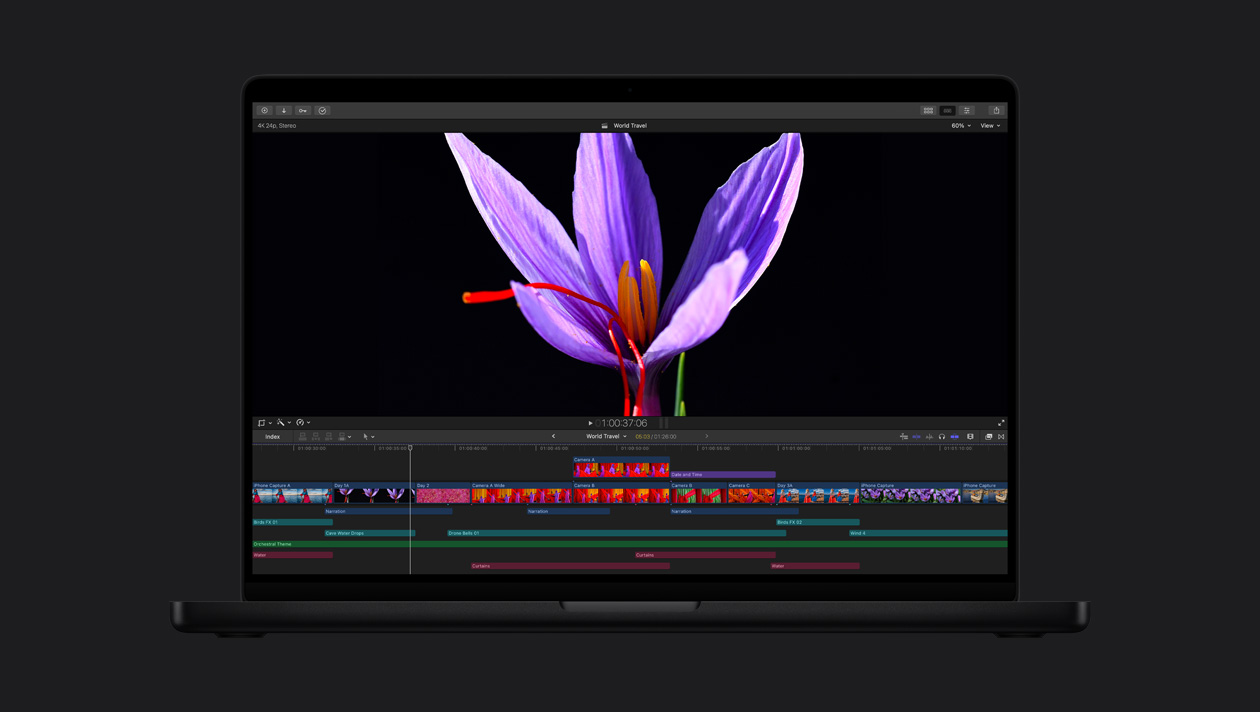
The industry‑leading Liquid Retina XDR and Ultra Retina XDR displays provide amazing brightness, contrast and colours — perfect for HDR editing, grading and delivery with Final Cut Pro.
Easily import your iMovie project into Final Cut Pro and start exploring all of its advanced features.