
Sign in to iCloud on all your devices
To set up iCloud on your devices, sign in to each of them with the same Apple ID and password. You can choose which apps store information in iCloud and which iCloud features you’re using separately on each device. Learn more about how each app or feature uses iCloud.
Note: When you turn off iCloud for an app or feature on a device, information stored in iCloud for that app or feature is no longer available on that device. However, it’s still available on other devices where iCloud is turned on for the app or feature. See How iCloud keeps information up to date across all your devices.
Set up iCloud on your iPhone, iPad, or iPod touch
On your iPhone, iPad, or iPod touch, go to Settings > [your name].
If you don’t see your name, tap “Sign in to your [device],” enter your Apple ID (or another email address or phone number on file), then enter your password.
Do one of the following:
iOS 16, iPadOS 16, or later: Tap iCloud, then turn on each app or feature you want to use. Tap Show All to see more apps.
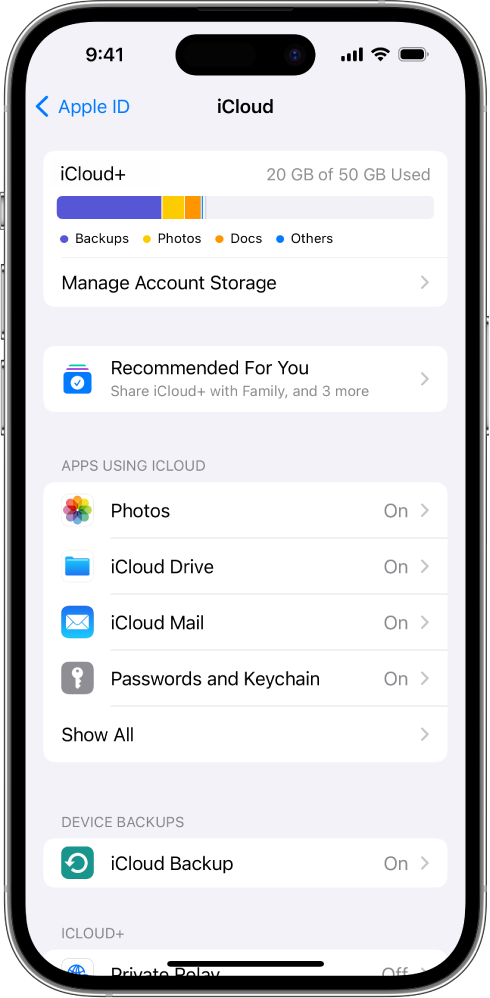
iOS 15, iPadOS 15, or earlier: Tap iCloud, then turn on each app or feature you want to use.
Set up iCloud on your Mac
On your Mac, do one of the following:
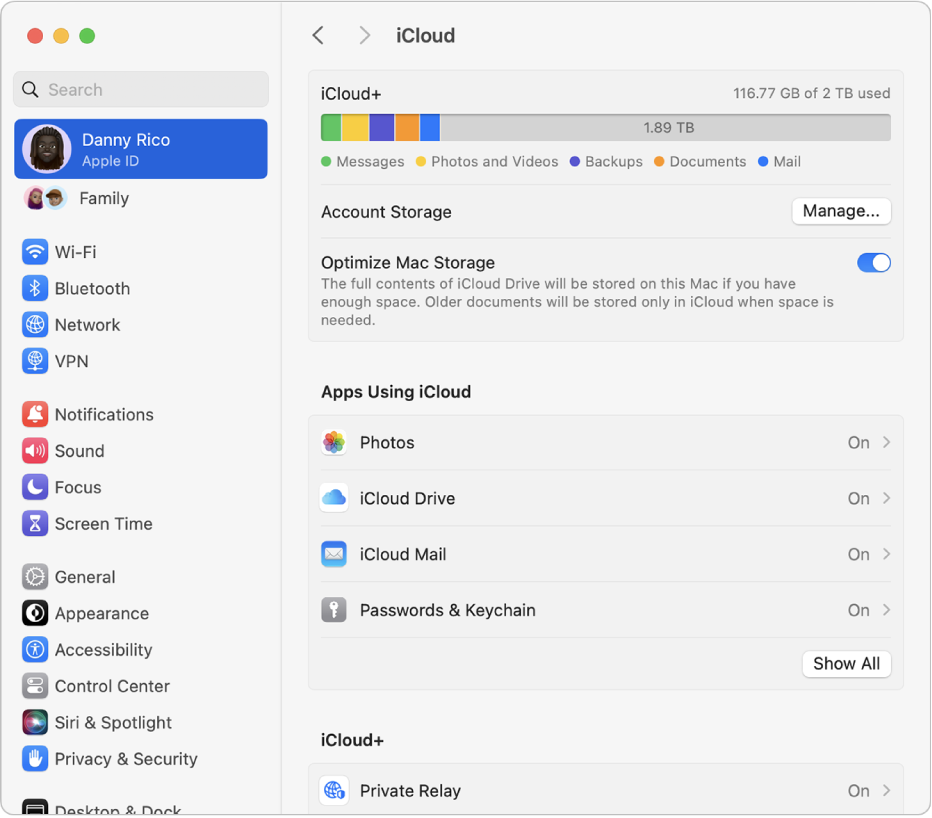
macOS 13 or later: Choose Apple menu
 > System Settings, click [your name] at the top of the sidebar, then click iCloud.
If you don’t see your name, click “Sign in with your Apple ID,” enter your Apple ID (or another email address or phone number on file), enter your password, then click iCloud.
macOS 12 or earlier: Choose Apple menu
> System Preferences, click Apple ID, then click iCloud.If you don’t see Apple ID, click Sign In, enter your Apple ID and password, then click iCloud.
Turn on or select each app or feature.
Set up iCloud on your Apple Watch
For an Apple Watch you pair with your iPhone: If you turn on iCloud for an app or feature on your iPhone, you can see information from that app or feature on your Apple Watch (if available). You can choose what information appears on your Apple Watch by changing settings in the Apple Watch app on your iPhone. See The Apple Watch app in the Apple Watch User Guide.
For an Apple Watch set up by a family member: You can use the Settings app on the Apple Watch to turn iCloud on or off for an app or feature.
Set up iCloud on your Apple TV
On your Apple TV, open the Settings app.
Choose Users and Accounts, then select your account.
If you haven’t signed in with your Apple ID for iCloud, choose iCloud > Sign In, then enter your Apple ID and password.
In the iCloud section, choose an app or feature, then turn it on or off.
Set up iCloud on your Windows computer
To use iCloud for Windows, you must set up iCloud on an iPhone, iPad, iPod touch, or Mac, then follow these steps.
If you don’t already have it, download iCloud for Windows from the Microsoft Store. See the Apple Support article Download iCloud for Windows.
If you’re asked to sign in, enter your Apple ID (or another email address or phone number on file) and password.
For each app or feature, click Sync [app or feature] or Not Now in the bottom-right corner.
For certain apps and features, you can also adjust Advanced Settings or install extensions during the setup process.
Choose whether to share iCloud analytics, then click Finish Setup.
For more information, see the iCloud for Windows User Guide.
If you have trouble setting up iCloud, see the Apple Support article If you can’t connect or sign in to iCloud.
Note: Some iCloud features have minimum system requirements. iCloud may not be available in all areas, and iCloud features may vary by area. See the Apple Support article System requirements for iCloud. For information about features, go to apple.com/icloud/.