Logic Studio

New

200+ Workflow Enhancements

Logic Pro 9

Flex Time

Flex Editing.

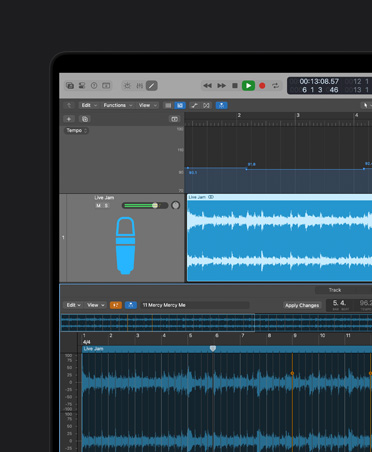
Flex Time delivers a breakthrough form of nondestructive of audio editing called Flex Editing. Now you can edit the timing of single or multiple regions without making a single cut or splice. Flex Editing can be performed with the Flex Tool (a new mouse tool) or by manipulating Flex Markers in Flex View. Learn more

Flex Tool.

This new mouse tool provides quick access to basic Flex Editing functions. Use it to push beats around by simply clicking and dragging anywhere within an audio region. Learn more

Flex View.

The Flex View provides access to the complete set of Flex Editing tools, as well as useful visual feedback on all your Flex Editing tasks. Learn more

Slicing Flex Mode.

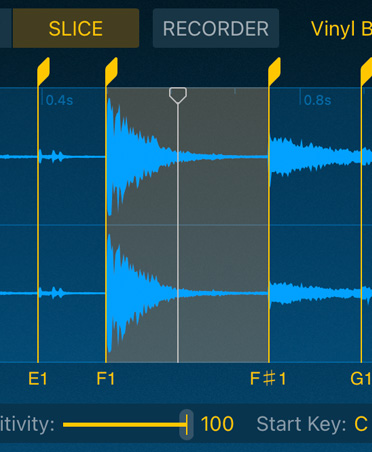
This unique mode allows you to perform Flex Editing without applying time compression or expansion to the original audio. It’s perfect for drum tracks, percussive tracks, or any other track where you want to preserve the original attack, release, and length of the original performance. Learn more

Rhythmic Flex Mode.

This mode is designed to help you work with non-monophonic material, such as rhythmic guitars, keyboard parts, and Apple Loops. Learn more

Monophonic Flex Mode.

Monophonic Flex Mode delivers excellent sonic quality for solo vocals and monophonic instruments like melody and bass lines. Learn more

Polyphonic Flex Mode.

This mode time-stretches material based on a process called phase vocoding. Although it requires more processing power than the other Flex Modes, it delivers high sonic quality for complex polyphonic material. detailed mixes, and all kinds of guitar, piano, and choir chords. Learn more

Tempophone Flex Mode.

By emulating the effect of an historic tape-based time-stretching device known as a tempophone, this mode delivers a mechanical sound with many artifacts similar to those produced with basic granular synthesis techniques. It’s designed for creative special effects. Learn more

Speed Flex Mode.

Speed Flex Mode time-stretches material by playing it faster or slower. Since this creates dramatic pitch shifts, it’s most practical for drums and other non-pitched material. But you can also use it for interesting creative effects. Learn more

Audio Quantize.

Flex Time makes it possible to quantize audio regions the same way you do MIDI regions. Use Groove Templates to apply the timing and feel of one track to another. Learn more

Varispeed.

Slow down or speed up an entire multitrack project effortlessly, whether you want to try out different tempos or take it slow while you play a difficult solo. Learn more

Speed Fades.

Get creative by adding turntable-style starts or stops with the kind of precision that would impress even the best DJs. Learn more

Improved Transient Detection.

The transient detection algorithms in Logic Pro 9 have been rewritten, allowing for dramatically improved results. Learn more

Average Tempo Detection.

Use beat detection to find the average tempo of one or more selected audio or MIDI regions. Learn more

Tempo Import/Export.

Now the audio you import from other Logic projects can automatically conform to the tempo of a project you’re working on. Or the other way around — the file you import can also set the tempo for the whole project. Learn more

Better handling of tempo events when Beat Mapping.

Manually entered tempo events are now protected when beat mapping.

Marquee Selection.

Now you can move an entire phrase or specifically define boundaries for Flex Editing using Marquee selections. Learn more

Snap transient to beat.

Now you can snap the first detected transient within the currently selected region or regions to the nearest beat. This is especially useful for establishing the first downbeat when you want to Beat Map a live recording that wasn’t performed to a click.

Back to Top

Recording and Take Editing

Enhanced take editing.

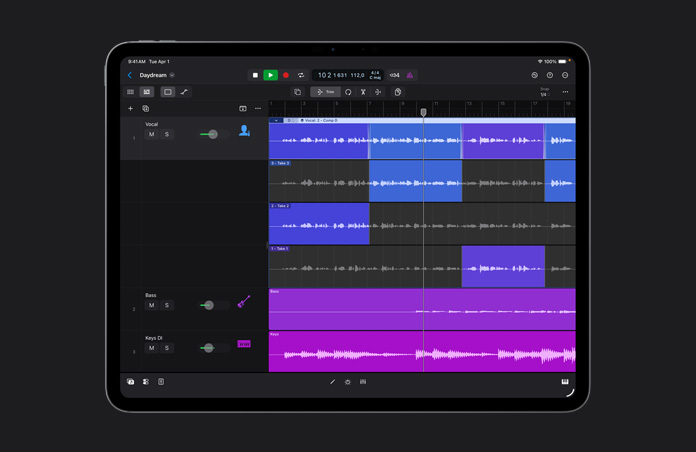
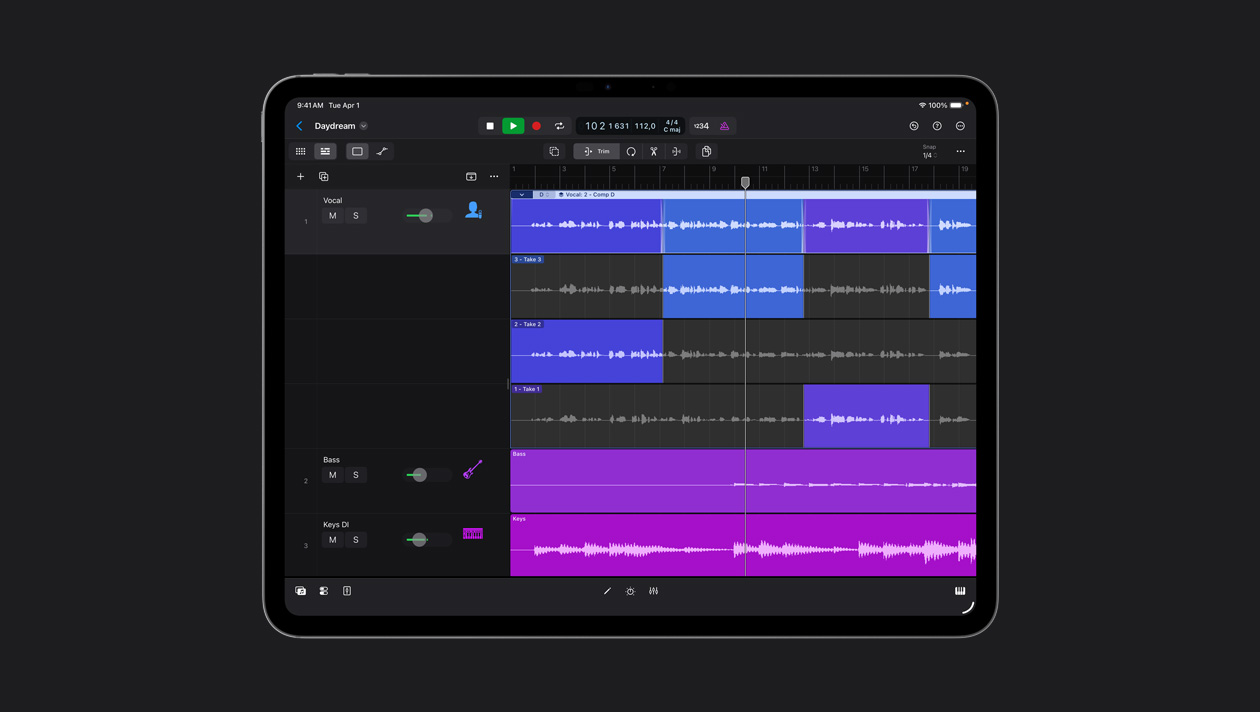
You can now perform basic edit functions in open take folders, without leaving Quick Swipe Comping. Cut regions and parts, re-arrange them in time, or move them between take lanes. Learn more

Easily re-order takes.

Drag any take onto the take folder and it becomes the first take in the list.

Use take folders as playlists.

If you enable Replace mode when punching in and out of a take folder, you can replace a section of the region without a new take lane. This makes it possible to use take folders for playlist-style management.

Shortcut menu for take regions.

A new shortcut menu for take regions makes it easy to slice, trim, and set locator values based on active comp sections.

Auto-colorize takes.

Now when you record, you can set it up so that each take in your take folder is a different color. It’s a great way to keep track of consecutive takes. Learn more

Easily record-enable multiple audio and software instrument tracks.

Now you can change the selection and record-enable audio tracks without losing the record-enable status of your software instrument tracks.

Switching Input Mode.

Now you can switch the Input Monitoring Mode for multiple channel strips, which is helpful when you’re rehearsing with ensembles or multitrack drums.

Don’t lose track of recorded files.

If you forget to name a track, Logic will append the name of the project to the generic name given to the new recording. If you name the track, it will name the audio file by that name.

Know your latency.

When you’re working with external hardware, you can see the acoustic roundtrip latency value in milliseconds, directly beneath the I/O buffer size. Click back and forth between Resulting Roundtrip Latency and Resulting Output Latency. The same feature is available in MainStage.

Back to Top

Creative Production Tools

Drum replacement and doubling.

Now you can replace or double less-than-perfect drum tracks with triggered samples in just a few clicks — and you can fully edit the resulting MIDI trigger notes. No third-party plug-ins are required. Learn more

Convert to Sampler Track.

Transform any audio region into a sampler instrument in one simple step. A MIDI track triggers the sample so it sounds just like the original; you can then modify and resequence the parts. Learn more

Drag and drop to create an Apple Loop.

Just drag and drop an audio file from the Arrange window onto the Apple Loops Browser and you’re on your way.

Adding notes in Piano Roll.

To drop a note into Piano Roll, control-click to access the shortcut menu, then select Create Note. The note’s channel, velocity, and length are determined by the last selected or edited note event.

Transform window presets.

The MIDI Transform Editor window features new factory presets for randomizing pitch, velocity, and note length. That gives you a lot of creative programming options. Try them on the MIDI regions created by the new Convert to Sampler Instrument feature.

Back to Top

Track and Region Bouncing

Bounce Track In Place.

Render one or more selected audio or software instrument tracks into a new audio file, with or without active plug-ins and automation. Learn more

Bounce Regions In Place.

To consolidate regions or print effects down to a single audio file, select the new Bounce Regions In Place option from the Region menu or Region shortcut menu. You can render one or more selected regions, with or without the track’s effects or automation. Learn more

Bounce outputs of a multi-output instrument.

It’s now possible to create individual bounces from all the outputs of multi-output instruments. Just select the option from the Bounce dialog box.

Overload protection when bouncing.

The new Overload Protection option, found in the Normalize menu of the Bounce dialog box, will adjust the level of bounce if needed to avoid clipping in the final file.

Include volume and pan automation when bouncing.

Now you can decide whether you want to incorporate volume and pan in your bounced files.

Include Audio Tail.

Select this option when bouncing and the resulting file will be lengthened if necessary to include any trailing content produced by effects, such as a lingering delay, or by an instrument with a long release time.

Back to Top

Mixing and Track Management

Selective Track Import.

Now you have powerful options for selectively importing content from one project into another. Bring in a better performance or complex mixer configuration from a different session. Import a Track region, folder content, plug-ins (including settings), sends (including level, routing, and destination channel strips), Input/Output assignments (including destination channel strip), or automation data. You can even import Track Notes or the Marker Track, Tempo Track, or Signature Track. Learn more

Tempo-independent instrument delay.

You can now not only display a tick-based instrument delay value in milliseconds, but also set the delay value itself in .1 millisecond increments. This is especially useful for external instruments with large inherent latency, such as MIDI-controlled acoustic pianos, because the negative delay value which compensates for their latency is now independent of the project tempo. Learn more

Plug-in delay compensation for external MIDI instruments.

When you’re using an external console to mix outputs of classic MIDI sound sources with Logic outputs, the required track delay depends on the plug-in delay compensation (PDC) value, which can potentially change every time you add a plug-in. Now the delay value in the inspector of any external MIDI track can be automatically compensated by the calculated PDC value.

Higher fader resolution.

The resolution of channel strip faders has almost doubled and provides well defined steps over the entire range, starting with increments of 0.1 dB at top of the fader, followed by 0.2 dB, 0.5 dB, etc.

Higher resolution automation editing.

Now you can alter Volume and Send automation nodes in .1db increments. Just hold the Control key while you change the value.

Relative volume automation changes for grouped tracks.

Automation edits made on a track belonging to a group will now make relative, rather than absolute, changes to the automation on other tracks in the group.

Solo groups.

Activate the new group setting “Solo” and you can listen to all the tracks in a group by pressing the solo button on any one of them. Learn more

Mono outputs.

Logic Pro now gives you the ability to create mono Output channel strips in the Mixer. Just select the desired output from the channel strip output menu. Learn more

Ascending routing assignments.

Select the audio or software instrument tracks you want to work with. Then press and hold the option key while changing the Input/Output routing of the tracks. This will assign Inputs/Outputs for each selected channel strip, ascending from left to right.

Stereo master output.

Use the new definable stereo output features to switch between different monitoring systems on a global basis, rather than on each individual project. Learn more

Easier navigation in the mixer.

Use the arrow keys to move to the next or previous channel strip. Use the Tab and Shift+Tab keys to do the same when naming mixer channels.

Faster EQ thumbnails.

Re-written EQ thumbnails in channel strips not only draw faster, but are easier to read.

Arrange Channel Strip Color Labels.

Channel strip color labels can now be displayed in the Arrange Inspector, making it easier to identify related channels between the main Mixer and the Arrange channel strip view.

Quick Look previews.

Logic Pro generates a thumbnail image for every project, which lets you use Quick Look to view the contents of a project without having to open it. Every time your project is saved, a new image is generated.

Back to Top

Arrange Window

Fade Tool Click Zone.

Enable the Fade Tool Click Zone for instant access to all your fade and crossfade functions. Just hover over the zone at the top of a region, and your cursor turns into a Fade Tool. Learn more

Marquee Tool Click Zone.

Enable the Marquee Tool Click Zone for instant access to all the Marquee functions. Just hover over the zone at the lower half of a region, and your cursor turns into your Marquee Tool. Learn more

Cut with the Marquee tool.

Just double-click with your Marquee tool to cut regions, events, or folders. No need to use the Scissors or Pointer tool.

Paste at Marquee selection.

The Marquee selection now serves as an insertion point for pasting content from the clipboard. If there is no Marquee selection, your content will be pasted at the playhead position on the selected track.

Turn region selections into Marquee selections.

There are two new shortcuts for turning region selections into Marquee selections. With the Marquee tool, option-command-click a region or multiple selected regions to create a Marquee selection based on the region borders. If you have a Marquee selection highlighted, shift-option-command-click other regions to extend the selection.

Adjust fades quickly.

When using the Crossfade tool, you can edit curve type or remove a fade via the new shortcut menu.

Cut, copy, or paste an entire Marquee selection.

When you cut, copy, or paste a Marquee selection, the empty space in the selection is included, making it a lot easier to edit regions that don’t start on a bar or beat.

Smart cropping.

The Crop Regions Outside Locators feature has been expanded to include Marquee selections. If you make a Marquee selection, this command will delete all regions outside the Marquee selection.

Hide grouped tracks.

In the Group Settings table, just press “H” to hide the grouped tracks. This enables (or disables) the Hide Track button for all the tracks in the group. Learn more

Slice region at transient.

Now you can easily slice a region into individual sections that can be muted, erased, shuffled, or otherwise manipulated. In Flex View Mode, just control-click on the region you want to edit and select “Slice at Transients” from the shortcut menu.

New nudge values.

New key commands allow you to nudge a region or event position left or right by 1 millisecond or 10 milliseconds.

Align first transient to a beat.

A new shortcut lets you take a freely recorded audio performance and line up the first transient to a beat.

Scrubbing with the Solo Tool.

Click and drag the Solo Tool on single or multiple regions to scrub the audio. This helps you pinpoint the exact location you want to cut or edit to.

New Solo tool behaviors.

Option-click with the Solo tool anywhere within a region, or a selection of regions, to solo and play them from the beginning.

Fast track creation.

Now you can create specific types of tracks without the dialog box. Option-click the Create Track button to create the same kind of track as the currently selected one. Option-click the Duplicate Track button to create a new track with the same channel strip.

Easy track header configuration.

Track header buttons can now be enabled and disabled from a shortcut menu, so it’s easier to keep the right set of track controls at your fingertips.

One track header line.

The new “Allow Two Lines” menu selection lets you decide whether you want to display one line or two in the Track Header. Two lines are displayed by default. Learn more

Improved Region Inspector.

The parameters in the Region Inspector window have been reorganized to provide easier access to, and smarter grouping of, quantization settings.

Region Inspector that floats.

The Region Inspector is now available as floating window, so it’s easy to access Quantize and other parameters wherever your mouse is. Learn more

Back to Top

Transport and Navigation

Stop, Play and Record options.

The transport buttons now have shortcut menus that change the behavior of the Stop, Play, and Record functions. You can customize the controls to fit your workflow or to behave like other DAWs you may have used. Learn more

Automatically set Locators.

New options in the shortcut menu for the Cycle button allow the Locators to automatically follow any note, region, or Marquee selection.

Display Locators as time.

When using a Time Ruler (instead of the usual Bar Ruler) as the master ruler, Locator positions will also be displayed as time positions.

Switch between bar and time display.

You can now easily switch between Giant Bar and Giant SMPTE displays via a shortcut menu. Learn more

Navigate by transient.

New key commands in the Sample Editor and Arrange window let you move forward or backward based on transients.

Back to Top

General Improvements

Track Notes.

With a Track Note for each channel strip, you can easily jot down details like the mic used, the musician on the track, or the settings used on any external pieces of audio equipment. Track Notes appear under the channel strip in the Mixer and can be viewed in full in the linked-text tab of the Arrange window. Learn more

Project Notes.

Use Project Notes to keep track of bigger events, like who did what and when. You can keep Notes onscreen and handy in the Arrange window, or hide them at any time to eliminate clutter. Learn more

Support for trackpad gestures.

Zoom in on editors, scroll through files, and even control volume using track pad gestures like pinch, swipe, and rotate.

New toolbar items.

Customize your toolbar for easy access to Crop, Delete Market, Bounce Regions, Zoom (selection or project), Open Group List, Automation Quick Access, and Group Clutch. Also, all toolbar items that go together are grouped in pairs to use toolbar space more efficiently.

Auto-name channel strips.

Unless you name them manually, channel strips will be named automatically when you load a channel strip setting, software instrument setting, or EXS Instrument — or when you drag the first audio file to a track.

Hear it as it sounds.

When you’re working in the Sample Editor and Audio Bin, you can now choose to monitor through the associated Arrange window channel strip or the dedicated pre-listen channel.

New options in the Sample Editor.

From the Sample Editor Edit menu, look for new “Select All Following” and “Select All Previous” commands that make it easier to select and delete unwanted portions of your files.

Snap region anchor to transients.

Now you can set the region anchor to the next or previous transient using a menu option or key command in the Sample Editor. It’s great for creatively shifting the position of a region in the Arrange window based on transients, or placing the peak of a sound effect at a precise moment in time.

Transient trimming.

Create tightly edited regions quickly with a new Sample Editor feature that lets you edit boundaries to the nearest transient.

Previewing audio slices.

The Sample Editor provides multiple options for previewing the audio between transient markers. In the transient display mode, you can double-click to select the material between transient markers and hit pre-listen. Or you can click and hold the Solo Tool between the transients — a longer click will still scrub. Finally, there are a set of key commands that let you shift and preview selections based on transients.

File Browser preview keeps on playing.

The pre-listen feature in the File Browser will now stay active even after it comes to the end of the file. This lets you click through files quickly, without having to start and stop for each one.

Set input and output drivers independently.

The selections for input and output audio devices are now made in two separate menus. That gives you the option to use one device for input and another for output. Learn more

Information packed audio files.

Now audio files recorded in Logic Pro automatically include the original time stamp, tempo, and marker data.

Back to Top

Interface Enhancements

Stay focused.

A new white frame highlights the active area in your Arrange window so you can keep better track of which area will be affected by key commands.

Improved shortcut menus.

Logic Pro 9 has more shortcut menus, with more in them, than ever. The Region shortcut menu alone gives you access to over 70 separate functions, keeping the five most recently used available at the top.

Resizable plug-in windows.

Enlarge your plug-in windows by 125, 150, 175, or 200 percent just by dragging the lower right corner. Then you can easily find and manipulate controls, even for the most complex plug-ins and highest resolution monitors. Learn more

More colors for notes.

The color of notes in the Piano Roll can now be based on one of three options: region, MIDI channel, or velocity. And there’s now a different color for each of the 127 velocity values.

Multiple progress bars.

When you’re loading a song, the files and plug-ins will have multiple progress bars, so you always know what’s happening.

Aggregated alerts.

If you launch a Logic Pro project that is missing audio files or samples, the alerts for the missing assets are now conveniently collected in one dialog box.

Skip and Skip All.

Now you can Skip or Skip All when there’s an audio file is missing

Key Command for Digital Cinema Desktop.

Quickly activate or deactivate video output using a new key command.

Fine-tuning text and menus.

The interface text and menu structure have been improved throughout Logic Pro, making it easier to use.

Back to Top

File Management

Embedded tempo events.

When you record, bounce, or export audio files with Logic Pro, tempo events are automatically included. With Flex Time, this means the tempo of audio you import from other Logic projects can automatically change to match the tempo of the project you’re working on, even if there are tempo changes. Tempo information can also be read by Playback, the new backing track player in MainStage 2. Learn more

Import/Export of markers.

Although markers are now automatically added to files recorded or bounced in Logic Pro, you can also use new commands to import or export the data manually. Learn more

Audio regions and files.

Now that Logic Pro can import and export region data to and from any kind of audio file, it’s easier to share audio files and their associated regions across applications. Learn more

Shortcut menu for the Audio Bin.

Access options like “Show in Finder” and “Add to Arrange” from a new shortcut menu in the Audio Bin, whether you use the bin in the main Arrange window or the stand-alone version.

Navigating the bin.

In the Media Browser, you can now option-click a group triangle to open or collapse all the groups. Within a group, option-click an audio file to open or collapse all the regions inside that group.

Back to Top

Scoring

Score with Chord grids.

Now you can use guitar chord grids in the Score window. Choose from the Logic Studio library that features over 4000 chord grids or create your own. Learn more

Chord library audio preview.

The chord grid picker lets you play a strummed or arpeggiated preview for the selected chord. Learn more

Guitar chord library.

The built-in library of over 4000 chord grids can be sorted by root note, bass note, chord type, and level of difficulty. So it’s easy to find what you need.

Visually align chord grids and other score objects.

The View menu for the Score window now includes a Guides option that displays vertical guides, indicating the relative alignment of chord grids or other score objects to a specific time position. Learn more

Highlighted Notes.

Selected objects in the Score window will no longer flash — instead they’ll be highlighted in the color of your choice.

Duration bars for notes.

A new View option lets you graphically edit note lengths in the Score window, like you would if you were using the Piano Roll editor. Learn more

Score selection colors.

Now you can define your own colors for both the selected notes and the selected stave. Learn more

Stem options in shortcut menu.

You can set stems to display up, down, or not at all from a new shortcut menu.

Easy view option for note heads.

Notes in the Score window can now be viewed with large circular or oval note heads that contain the note name or assigned fingering — a great feature for music teachers and students. Learn more

Independent shortcut menus in the Score window.

When you click on notes in Tab view you’ll get different shortcut options than in Notation view. So you always have the shortcuts you need at hand.

Enharmonic chord names.

Now you can change the display name of a chord to its enharmonic equivalent.

No more redundant full-bar rests.

Full-bar rests are now hidden in all but the first voice of polyphonic staves.

Back to Top

Plug-ins & Sounds

Pedalboard.

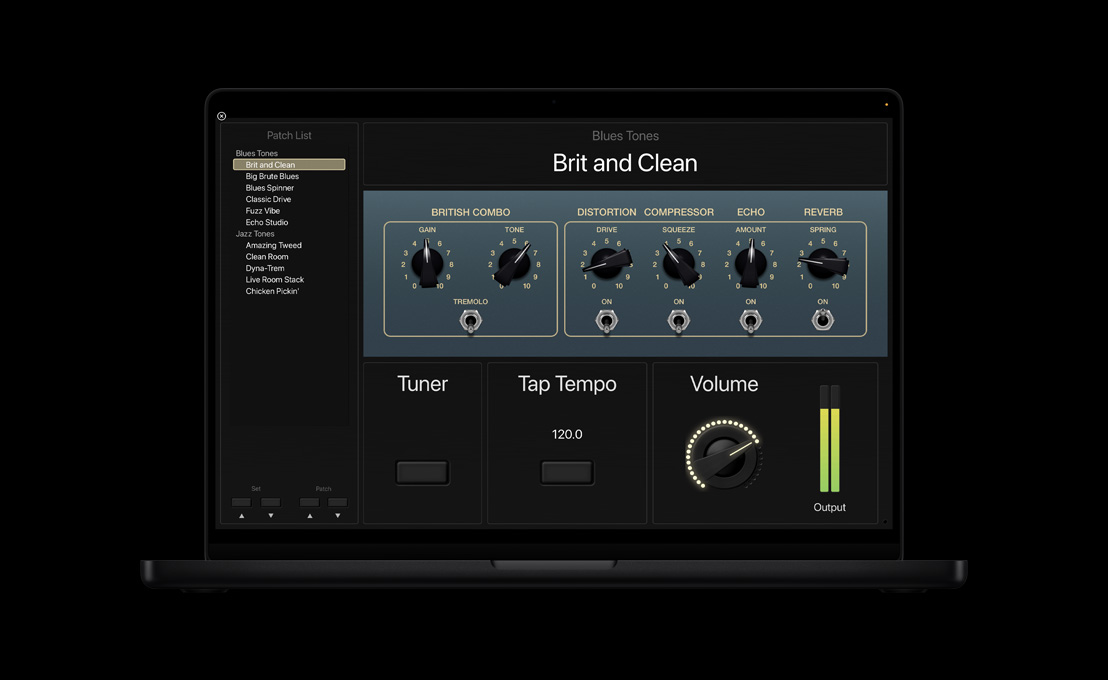
Fire up 30 stompboxes that deliver lush effects like Overdrive, Distortion, Fuzz, Delay, Chorus, Flange, Phaser, Tremolo, Treble Boost, Wah, and more. Pedalboard features routing options for creating parallel processing chains, as well as configurable MIDI controller support. Learn more

Amp Designer.

Build your dream rig by mixing and matching 25 amps, 25 speaker cabinets, and 3 mics that you can freely position in space. Learn more

Loopback.

This live loop recorder gives you all the features of a hardware based looper, letting you create spontaneous arrangements onstage (MainStage only). Learn more

Playback.

Turn your Mac into a flexible, reliable backing track player, and fill out your sound with a simple stereo track or a set of separate, mixable stems (MainStage only). Learn more

Ultrabeat Pattern Mode setting is retained when switching kits.

Now you can continue to trigger patterns with MIDI keys once you load a new kit.

EXS24 fade parameter.

This new zone parameter helps smooth audio transitions when you’re playing triggered portions of beats. It’s especially useful when you use Create Regions to New Sampler Track, or when you want to set the fade time at the end of each sample.

Surround Sampler.

The EXS24 sampler now supports multi-channel interleaved audio files so you can can create and perform with sampler instruments that playback in surround sound.

Automated pitch fix.

The Vocal Transformer and Pitch Correction plug-ins now have detune options with a range of ± 50 cents — perfect for quick manual pitch correction fixes. Learn more

Longer Delays.

Tape Delay now includes options for whole notes, adding to the 1/16, 1/8, 1/4, and 1/2 note values you’re used to working with.

Automate Space Designer EQ.

The EQ for Space Designer can now be automated.

Match EQ with no delay.

Match EQ now offers a mode with zero latency.

A better tuner.

The hold time for the Tuner plug-in and the full-screen tuner in MainStage has been increased to make tuning easier.

Better control surface parameter access.

The order in which plug-in parameters appear on control surfaces has been improved for practically all plug-ins, so that the most important 8 or 16 parameters are immediately accessible.

Easier MIDI learn.

When learning controller assignments, the plug-in parameter GUI will move with incoming controller events as soon as they’re recognized — you no longer have to leave Learn mode. When learning multiple assignments, the large help tags will only be displayed during the first assignment and will not cover the GUI during later assignments.

Warped impulse responses.

More than 450 new warped impulse response files radically transform what Space Designer can do. Give ordinary sounds a bizarre, other-worldly quality or emulate the sound of running the signal through various size speakers or analog devices.

Voices Jam Pack.

The entire contents of the Voices Jam Pack have been added to the Studio Sound Library. Now you can build or embellish your song with Apple Loops produced from lead vocals, rappers, backup singers, or an entire choir. And check out the new collection of instruments built from samples of the human voice and body.

Back to Top

MainStage 2

Working with Patches

Patch Inspector.

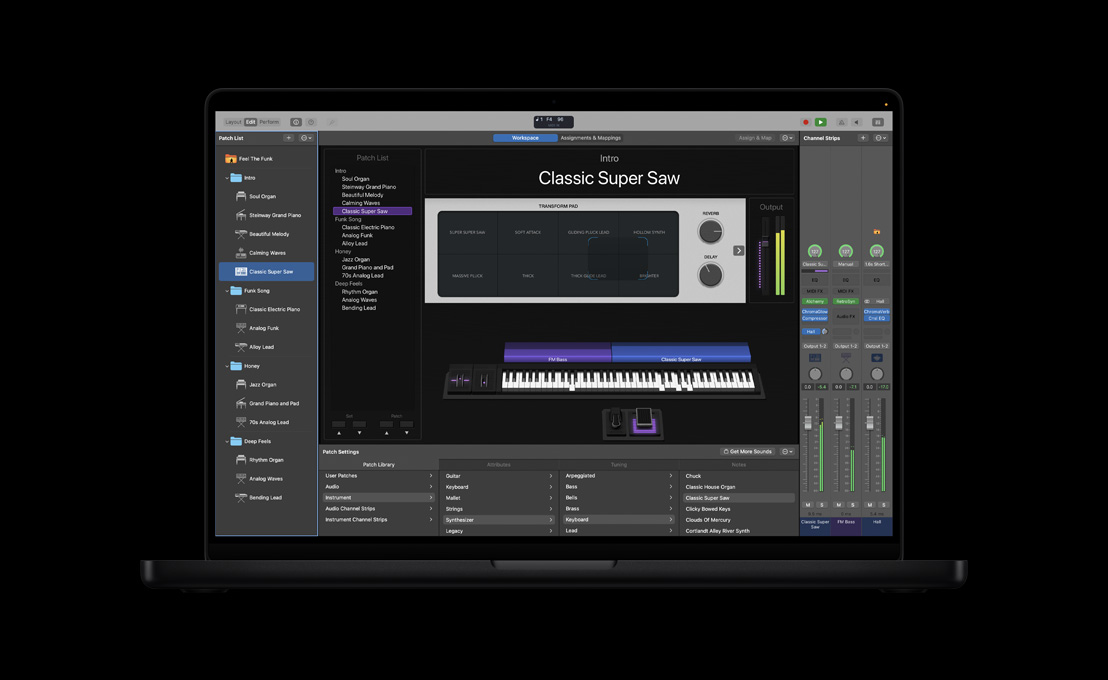
The new Patch Inspector makes it easy to find the right patch to start with, then you can tweak it to the get the perfect sound. The Patch Library streamlines setup even more with patches that are pre-mapped to work with the MainStage templates. Learn more

Moving patches.

The Move Again command lets you move selected patches multiple times. Use it to drag, paste, create, or delete patches in the Patch List, or to easily sort your patches and sets for an upcoming concert. Learn more

Back to Top

File Management

Saving projects.

This feature collects all linked Logic Studio assets into a concert folder, so it’s easy to move your live setup to another computer or share it with band members. Learn more

Back to Top

Hardware Support

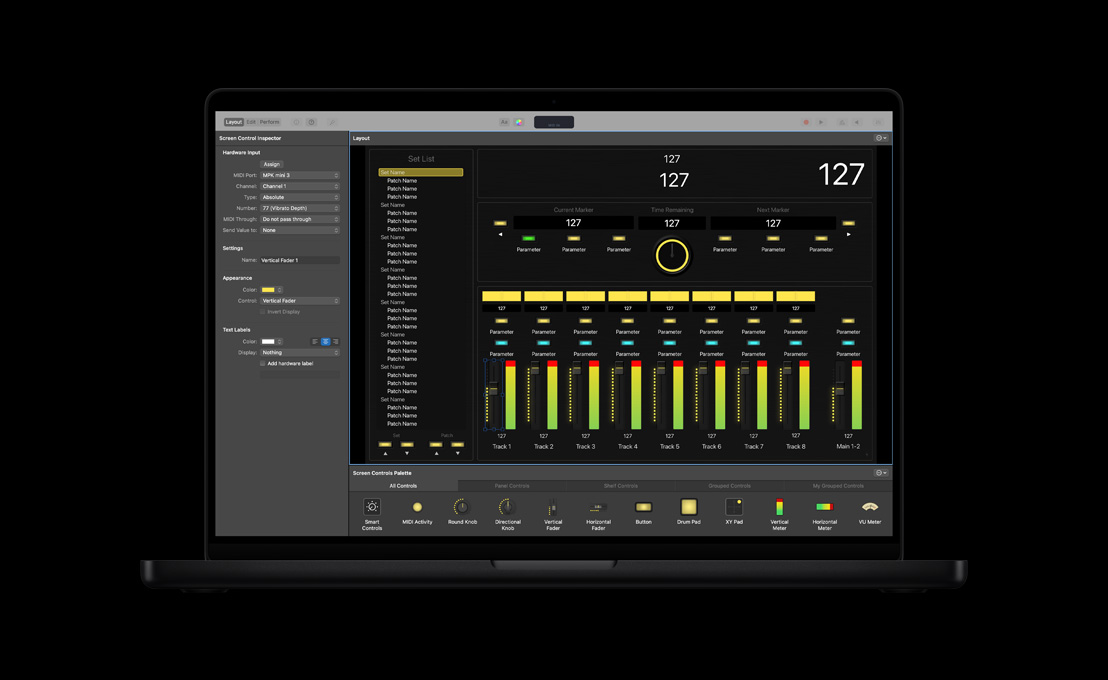
Screen controls.

Standard hardware control knobs and faders now function almost as naturally as endless encoders, thanks to new options that determine how a parameter behaves when it’s out of sync with its hardware control. Instead of simply jumping to the new value, the parameter can either wait to move until it’s aligned with its hardware control or change by a relative amount until the hardware control reaches the same position. Learn more

Multiple controller access to multitimbral instruments.

You can now assign multiple controllers to send data to the same multitimbral software instrument on independent MIDI channels, allowing you to do things like use bass pedals and two keyboards to trigger the three sections of an EVB3 organ. Learn more

Two-way communication.

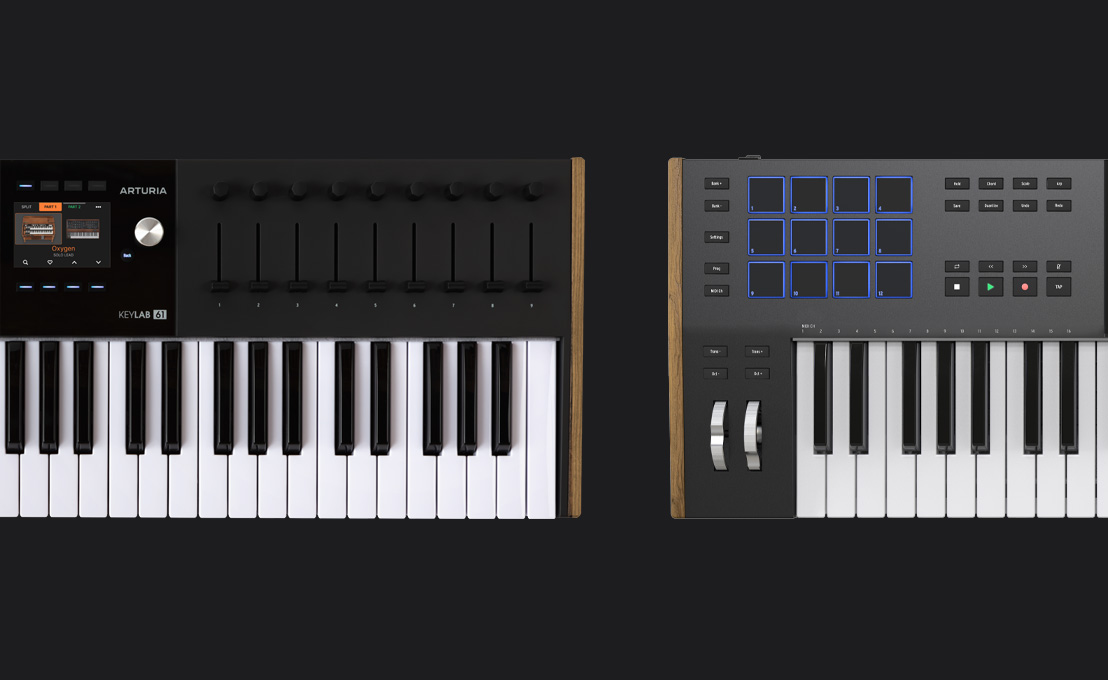
With MainStage 2, you can echo current parameter data to MIDI hardware controllers. This allows controllers that provide visual feedback — such as LED rings around encoder knobs, or text to indicate the current patch or bypass state — to display updated information whenever you change patches or manipulate a control on screen. Multiple devices are supported, including the Axiom Pro, Korg KONTROL49 and microKONTROL, Frontier Tranzport, Waves GTR Ground, Apogee GiO, Killmix Mini, and Behringer BCF2000. Learn more

MIDI Out.

Now you can control outboard MIDI keyboards and devices. You can even send bank and program changes. Learn more

Support for MMC and MIDI Real-Time messages.

MainStage 2 supports MMC MIDI messages, as well as MIDI Start, Stop, Continue, and Reset messages. Learn more

Back to Top

Performance and Reliability

Channel strip aliasing.

Now you can share a single channel strip or plug-in instance across multiple patches. That means a large instrument, such as a multi-gigabyte piano, only has to be loaded once but can appear in multiple patches. Learn more

Fast patch switching.

If a knob is mapped to switch patches, just turn it and MainStage will switch through the patches quickly and smoothly.

Your last state is always saved.

MainStage automatically saves the last state of your performance. So if you ever happen to quit unexpectedly, it will re-launch right where you left off.

Feedback protection.

MainStage now attempts to detect and suppress unexpected feedback from microphones. Learn more

Change patches at just the right time.

If you start a patch change, you now have the option to wait until the last note is released before MainStage switches to the new patch. Learn more

Silence previous patch when changing patches.

Instead of letting previous patches decay naturally, patches can now be set to instantly silence the previous patch. This can be useful for artistic reasons, or to free up power for the next patch. Learn more

Use a button to jump directly to a patch number.

Now you can call up a specific sound just by pressing a button. Map a button to the action “Current Patch #,” then set the range to, say, a minimum of 10 and maximum of 10 — this will jump you to straight to patch 10. Learn more

Back to Top

Plug-in Hosting

Universal clock.

This clock keeps all your time-based plug-ins in perfect sync — even multiple instances of the same plug-in, like Ultrabeat.

EXS24 Instrument Editor.

You can now edit EXS24 sampler instrument zones and groups in the EXS Instrument Editor right in MainStage. Learn more

Software Instrument multiple output support.

Route the individual sounds of multi-output instruments, like Ultrabeat and third-party plug-ins, to discrete channel strips for additional processing. Learn more

EXS24: Support for more than 4GB RAM.

Load all the EXS instruments you want into a single concert.

All Studio Effects plug-ins now available.

All high latency plug-ins are now available in MainStage. This is especially helpful for use with Playback, since latency is not an issue. The cumulative latency for all plug-ins on a channel strip is now displayed in milliseconds, just above the name label.

Back to Top

New Screen Controls

Waveform Display screen object.

A new screen control object can display waveforms in the layout for Playback or Loopback plug-ins. Learn more

Compact MIDI monitor object.

This compact object is a space-efficient substitute for the keyboard object. Learn more

Progress Indicator.

This new rotary dial object is a convenient way to display the current position of Playback and Loopback. Learn more

Analog VU Meter.

Check out this analog-style alternative to the digital LED meter. Learn more

Draw bars screen control object.

Use realistic tone wheel organ draw bars to display and control Hammond organ instruments. Learn more

Back to Top

Sound Design and Control

Auxiliary channels in patches.

Now you can create patch-level auxiliary channel routings and bus effects.

More mappings and layers per concert.

In MainStage 2, you can create larger, more complex setups for your live performances.

More mixer channels.

Instead of 256 mixer channels, there are now 1024 available to you.

Custom and Hermode tuning.

Each patch can contain custom tuning settings for software instruments and be set to use the same Hermode tuning option found in Logic Pro. Learn more

Pan Law support.

The MainStage mixer channel pan control can follow several Pan Laws. Learn more

Velocity scaling.

Set it up using a graph so that velocity scales differently in each patch. Learn more

Create new patch from multiple selected patches.

Now you can create a new patch that contains copies of the channel strips and settings from all selected patches. That’s different from merging patches, which deletes the original patches. Learn more

Bulk change Input/Output for channels.

The input and output menus feature a new option that lets you change all the channels in your patches to share the same Input/Output. So if you’ve moved a guitar from Input 1 to Input 5, you can use this new option to change all the patches that use Input 1 to Input 5 at the same time.

MIDI message transmission at concert or set level.

Knobs can be made to transmit any MIDI message from concert and set levels. This gives you more flexibility and saves time since you can avoid setting this up for each patch.

Faster Input/Output changes to mixer channels.

When you have multiple channels selected, any changes you make to one will be made to all the rest.

Metronome can now be routed independently.

Just send a click to the specific performers that need it.

Back to Top

Interface Improvements

Key Command Editor.

Modify key commands using a new, large-screen graphical editor. Learn more

Edit multiple screen controls at the same time.

Now you can edit the attributes for multiple screen controls, like setting the color of objects, at the same time.

Lift and Stamp screen control attributes.

You can “lift,” or copy, certain parameters from a screen control and “stamp” them onto other screen controls. This makes it easy to give multiple screen controls the same size, appearance, and text attributes to create a uniform look in your layout. Learn more

New template picker.

Choose your template based on a preview of what it looks like, instead of just a name and description. Learn more

Layout guides.

When you’re moving objects in layout, new snap-to guides appear to help you keep everything lined up. Learn more

No more Layout grid.

Objects now move freely without snapping to a grid, and screen controls can be aligned using guides.

Background Images.

Personalize the look of your layouts with new background images, or your own custom images, that will appear behind your controls. The images change with each patch. Learn more

Grouped controls.

Screen controls can now be grouped and saved together, making it easier than ever to create or redesign layouts. There’s even a palette of pre-designed grouped controls that give you a head start when building more elaborate layouts from scratch. Learn more

Improved keyboard Layer/Split editing.

Splits and layers are now managed in a single edit window, which dramatically speeds up the process of customizing the software instruments in each patch. Learn more

Stay focused.

A new white outline helps make it clear which area will respond to actions like the Delete key.

Plug-in insert focus ring.

Now you can select the insert slot containing a plug-in and use the linked library browser to load plug-in settings, the same way you do in Logic Pro.

Reset/Compare switch status.

The Reset/Compare switch in the tool bar now indicates when you’re listening to the current patch or its last saved state. Learn more

Link button for plug-in interfaces.

If the Link button is active in a plug-in interface, selecting a different channel strip will switch the plug-in interface to match.

Drag and drop patch creation.

Drag and drop a channel strip setting file (.cst) onto the patch list, and MainStage creates a new patch, adds the required channel, and loads the channel strip setting.

Use custom auxiliary and output names.

If an auxiliary or output channel has a custom name, that name will show up in any popup menu where the channel can be selected as a routing destination. For example, if you name Auxiliary 1 “Delay,” then a bus send to that auxiliary will display “Delay” instead of “Bus 1.”

Exponential meter ruler in mixer.

Look for an exponential “ruler” on the left side of the mixer area, the same way it’s displayed in Logic Pro.

Finer screen control adjustments.

Control+drag gives you fine control, and control+shift+drag gives you super-fine control. Combine these with mouse movements for precise, high-resolution manipulation of your controls.

Channel strip View shortcut menu.

Control-click or right-click anywhere on a channel strip for a shortcut menu with a list of View options. You can turn off features like EQ thumbnails, Bus inserts, etc.

New toolbar items.

Record, Play, and Lift/Stamp have all been added as options for the toolbar. Learn more

Display two lines of text for each channel strip.

The “Channel Strip/Value” mode displays the name of the channel strip and the value of the target parameter.

Back to Top

Third-party Support

Hot plug Input/Output preferences.

There are now two ways for MainStage to react if you hot disconnect or add an I/O device. Set your preferences to ask you what to do each time, or to automatically select a newly attached device. Learn more

Extensive ReWire Master support.

Send MIDI to ReWire instruments and route audio back. There’s also support for custom channel, controller, and note names.

Audio recording

Record audio output as CAF/WAVE/AIFF files directly from MainStage.

Back to Top

Soundtrack Pro 3

Voice-level match.

Sometimes the dialogue in a take you want to use is softer or louder than the dialogue in the rest of your project. Use the new Voice Level option in the Lift and Stamp tools to seamlessly match dialogue volume in a few clicks. Soundtrack Pro instantly identifies and analyzes vocal content in both the lifted clip and the clip you stamp, and automatically adjusts the amplitude of the stamped clip to make the dialogue levels match. Learn more

Drag and drop in the File Editor

The File Editor in Soundtrack Pro 3 lets you use a simple drag-and-drop interface to add, remove, and reorder channels.

Edit in Spectrum View.

Cut, copy, paste, and adjust the amplitude of frequency selections in the Frequency Spectrum View. Learn more

Better Logic Integration.

Tighter integration with Logic Pro makes it easier for musicians to nondestructively round-trip mono or multichannel audio files when using the File Editor in Soundtrack Pro.

Support for third-party time-stretching algorithms.

Stretch and compress audio with unprecedented precision using three Apple time-stretch algorithms, as well as popular third-party plug-ins. Support for Serato Pitch ‘n Time, iZotope Radius, and SoundToys Speed lets you switch algorithms as you work. Learn more

Advanced Time Stretch.

Use the Actions list to edit, suspend, and reorder time-stretch operations. A new option in the Time Stretch window lets you specify duration as a percentage with up to four decimal places. The window displays the number of samples added or removed as you stretch or compress audio.

Better repairing and restoring of damaged audio.

The improved broadband noise reduction feature uses a high-resolution noise print to reduce unwanted background audio with even more precision. And the Power Line Hum feature allows you to adjust the number of harmonics you remove when repairing recordings that have picked up hum from ground loops.

New multitrack editing tools.

Fly through editing using new commands for trimming and extending clips, and adding fades.

Multitake recording.

Record directly into the Multitake Editor, so you don’t waste time with separate recording setups in the Timeline.

Better normal.

The enhanced Normalize function lets you select Peak or RMS algorithms when making level adjustments.

Better Waveform Zoom

Use the new Waveform Zoom function to closely inspect low-amplitude audio clips right in the Timeline.

Faster navigation.

Now you can speed through editing sessions using new, special-purpose commands for playhead scrolling, multiple concurrent snap levels for playhead and clips, and user-definable nudge. There are also additional playback options for auditioning changes. Learn more

Support for trackpad gestures.

Zoom in on editors, scroll through files, and even control volume using track pad gestures like pinch, swipe, and rotate.

Fast access to related files.

To evaluate an alternate take or mic placement, you used to have to root through the Bin or file system to find the files. Now you can control-click any clip in the Timeline to call up a menu of related files. Soundtrack Pro instantly inserts any file you select, while maintaining existing clip boundaries. Learn more

iXML support.

Soundtrack Pro now reads iXML metadata, which is used in audio field recording to capture details such as project name, scene number, take number, and notes. You can view the iXML metadata in the Bin, in the Details pane in the Multitrack Editor, and in the Project pane in the standalone File Editor. In addition, Soundtrack Pro uses iXML tags behind the scenes to help identify related files and display channel information in the “Replace with Related File” pop-up menu. Learn more

Deep integration with Euphonix control surfaces.

With new support for the EuCon protocol, Soundtrack Pro lets you experience tactile control through an attached Euphonix control surface, from fully equipped Pro Series consoles to portable Artist Series units. Choose the Euphonix MC Mix for desktop mixing or select the MC Control, which now features a high-resolution touchscreen interface designed specifically for surround panning in Soundtrack Pro 3. Learn more

Improved application performance.

Soundtrack Pro 3 has a vastly reduced memory footprint and a redesigned architecture for faster performance. Automatic Audio Unit validation on launch helps ensure that your third-party plug-ins function smoothly.

Improved DC offset detection and repair.

DC offset can significantly impair audio quality through reduced headroom and related artifacts. Soundtrack Pro now detects and repairs audio with variable and fixed DC offset. Learn more

Streamlined cycle region control.

It’s now especially easy to create and modify cycle regions. Create a cycle region by dragging in the lower ruler. To remove the region, simply double-click the lower ruler or drag the cycle region to zero duration.

Clear gridline mapping.

Gridlines in the Timeline intelligently adjust to your zoom level, so you always maintain a clear view of frame boundaries and clip locations.

Spot Timeline clips to playhead/timecode.

Easily shift clips across the Timeline by spotting to the playhead location or timecode value. Learn more

Record, Mute, and Solo shortcuts.

Instantly access commonly used track controls using new menu items and keyboard shortcuts. Just type R for Record Arm, T for Mute, and Y for Solo.

Improved notification when exporting large files.

Soundtrack Pro now notifies you when you attempt to export AIFF, WAV, and SDII files that are larger than the 4GB maximum allowed by these three audio file formats.

Quick Look support.

New Quick Look support lets you instantly audition Soundtrack Pro Audio File Project (STAP) files from anywhere in the Finder. Just tap the Space bar to play the STAP file without opening Soundtrack Pro.

Back to Top

Waveburner 1.6

DDP support.

Waveburner can now save files in the Disc Description Protocol format for easy and secure transfer to a CD production facility. Learn more

Graphic parameter automation.

Now you can automate plug-in parameters using a breakpoint edit interface like the one in Logic. Learn more

Better view of final result.

The new Mix Lane view gives you a real-time visualization of all your edits, including effects and potential automatization. Clippings are displayed in red and easy to localize. Learn more

Better support of two displays.

You can open Lists as a separate window — on a second display, for example — and use your main monitor as a large waveform window.

Back to Top