
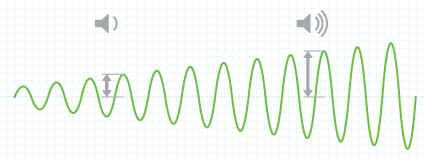
Sound travels in waves, produced when an object — such as a stereo speaker — pushes on the air around it, causing small changes in air pressure. To describe sound waves, acoustic experts refer to concepts such as frequency and amplitude.
You can easily set a Volume Limit on your iPod and iPhone. Click here to get answers to frequently asked questions about the Volume Limit.
The Science of Sound
The frequency of the waves in the sound determines the sound wave’s pitch. Frequency is commonly measured in Hertz (Hz) with one Hz being equal to one wave completing a cycle per second. The human ear can detect a wide range of frequencies — from approximately 20 Hz to 20,000 Hz. Amplitude is a description of the sound wave’s strength. As the amplitude of a sound wave increases, the volume of the sound increases. Music consists of a mixture of different frequencies and amplitudes.
The sound level heard by your ears is commonly measured in decibels. When referring to sound, a decibel is used to measure the amplitude of the sound wave. Decibels are useful in measuring sound because they can represent the enormous range of sound levels the human ear can hear using a more manageable scale. On the decibel scale, the softest sound that can be heard is 0 dB. Each increase of 10 dB represents an approximate doubling of the perceived loudness of the sound.
Sound and Your Ears
You can hear because your ears convert the vibrations of a sound wave in the air into signals that your brain interprets as sound. When the vibrations of a sound wave enter your ear, your eardrum and a set of tiny bones in your ear (the well-known hammer, anvil and stirrup) amplify those vibrations. In your inner ear, these amplified vibrations move tiny hair cells that then convert the vibrations into nerve impulses sent to your brain. Your brain then interprets these nerve impulses as sound.
If you expose your ears to excessive sound pressure, you can harm those small hair cells in your ears. And if harmed, those hair cells can lose the ability to transmit sound to your brain. As a result, you could experience noise-induced hearing loss. Symptoms can include distorted or muffled sound or difficulty understanding speech.
While you can experience noise-induced hearing loss as a result of a one-off exposure to an extremely loud sound — like a gunshot — noise-induced hearing loss can also occur as a result of repeated exposure to loud sounds over time.
Listen Responsibly
Most research about noise-induced hearing loss has focused on prolonged exposure to loud sounds in industrial workplaces. While not as much research exists regarding the effect of recreational exposure to loud sound, if you listen to music and audio with headphones or earbuds — whether they’re connected to your iPod, your computer or some other audio source — you should follow a few common-sense recommendations.
Think about the volume
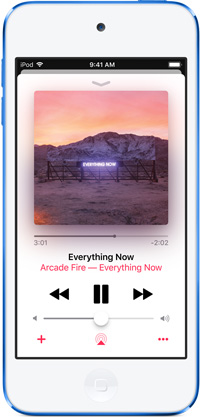
There’s no single volume setting appropriate for everyone. You may experience a different sound level with different earbuds or headphones and with different EQ settings. Some hearing experts recommend that you set the volume while in a quiet environment, turn the volume down if you can’t hear people speaking near you, avoid turning up the volume to block out noisy surroundings and limit the amount of time that you use earbuds or headphones at high volume.
Keep Track of Time
You should also pay attention to how long you listen to audio at high volume. Remember: you can adapt to higher volume settings over time, not realising that the higher volume may be harmful to your hearing. Hearing experts warn that noise-induced hearing loss can also occur as a result of repeated exposure to loud sound over time. The louder the volume, the less time required before your hearing may be affected. If you experience ringing in your ears or hear muffled speech, stop listening and have your hearing checked.