
Add a card to Apple Wallet.


Scan code with iPhone.
Use the Camera app to set up Apple Pay and add a debit or credit card in the Apple Wallet app.

-
Privacy and Security
What if I lose my iPhone?
Use Find My to suspend Apple Pay with Lost Mode, or remove your payment cards from Apple Wallet remotely.

-
Rewards
Can I still earn my card’s rewards?
Yep. Apple Pay doesn’t change how you earn your credit card points and rewards.






-
Authorize payments securely.
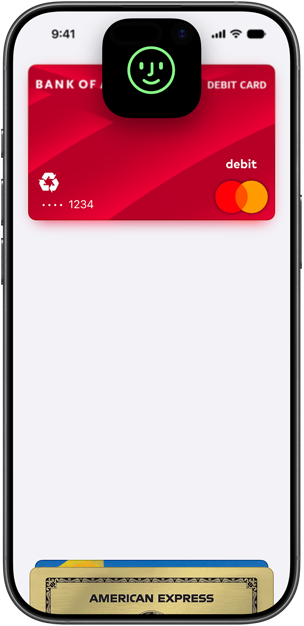
Apple Pay is designed so only you can pay — your transactions are protected by Face ID, Touch ID, or your passcode. And you get the same fraud protections as with your physical card.

-
Your actual card number is never shared.
With device‑specific tokenization, Apple Pay uses a unique code for every purchase. This keeps your actual card number hidden from merchants in stores, online, and in apps to help reduce card fraud.

-
Lost your device? Lock it down.
Use Find My to activate Lost Mode, which instantly suspends Apple Pay and displays a message with your contact information on your device. If it’s truly lost, you can remotely erase your payment cards.
-
Your transactions are not for sale.
Apple doesn’t sell your transaction data for third‑party marketing or advertising.
-
Keep your actual card number on lock.
Only you and your bank or card issuer know your actual card number. It’s encrypted on your Apple devices and iCloud Keychain, where Apple can’t see it.
Acceptance
Pay practically
anywhere.
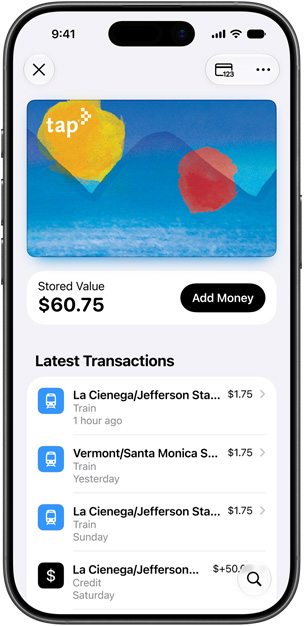
Use Apple Pay anywhere there’s a Contactless payment symbol in stores and Apple Pay symbol online or in apps — and even for transit. So whether you pay at checkout with your iPhone in person or at home with your Mac, you’ll never have to reach for your wallet.
-
Check out across your Apple devices.
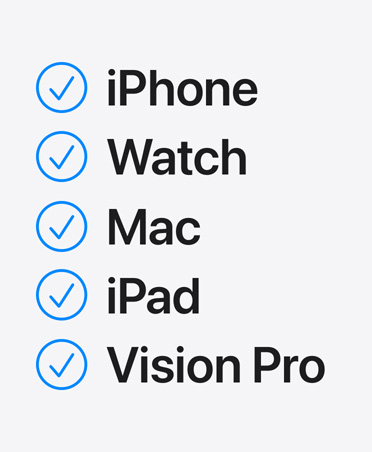
You can use Apple Pay on your iPhone, Apple Watch, Mac, iPad, and Apple Vision Pro. So when you’re out for a run — or just ordering food from the couch — you have an easy way to pay.
-
The symbol seals the deal.
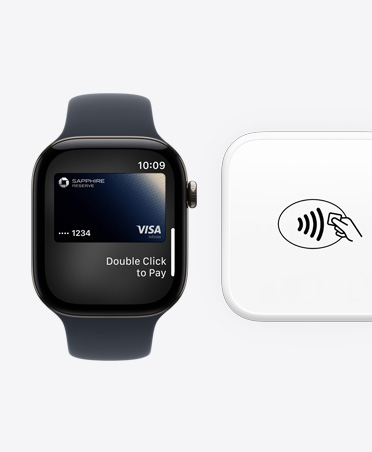
You can use Apple Pay anywhere that accepts contactless payments at the register in stores. Double‑click. Tap. Done.
-
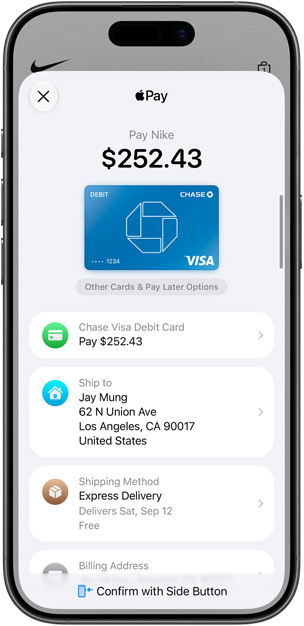
Pay confidently online and in apps.
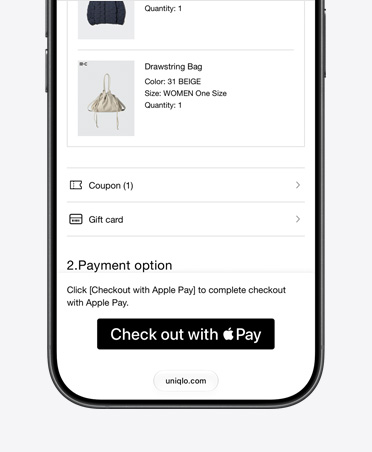
For anything from clothes to electronics, you can shop across millions of websites and apps. Select the Apple Pay button at checkout, review and edit payment and shipping details, confirm your purchase with Face ID, and track your order with Apple Intelligence.1
-
Fly through checkout in Safari.
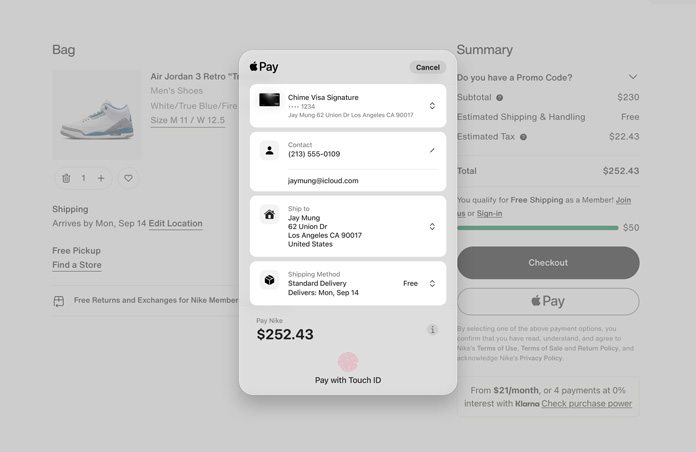
Shopping online in Safari on your Mac makes checking out a breeze. Select the Apple Pay button at checkout, and your default card, shipping, billing, and contact details appear in one view for you to review or change. To confirm and pay, authenticate your purchase with Touch ID or your password. It’s that simple.
-
Apple Pay works in other browsers, too.
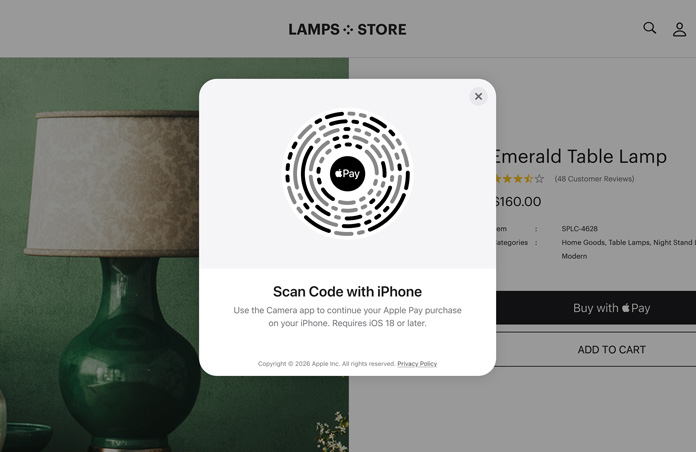
You can also use Apple Pay in third‑party browsers with participating merchants. Just select Apple Pay at checkout, scan the QR code with your iPhone, review your payment and order details, and confirm your purchase.2
-
Pay the fare with a tap.
In eligible cities worldwide, you can use Apple Pay for public transportation.3 With Express Mode, just hold your iPhone or Apple Watch to the Contactless Symbol on the reader without even unlocking your device, and you’re ready to ride.4


-
Works locally, worldwide.
Apple Pay works around the world, anywhere contactless payments are accepted. So you can pay with just your phone, even when you’re far from home.



Pay in Full
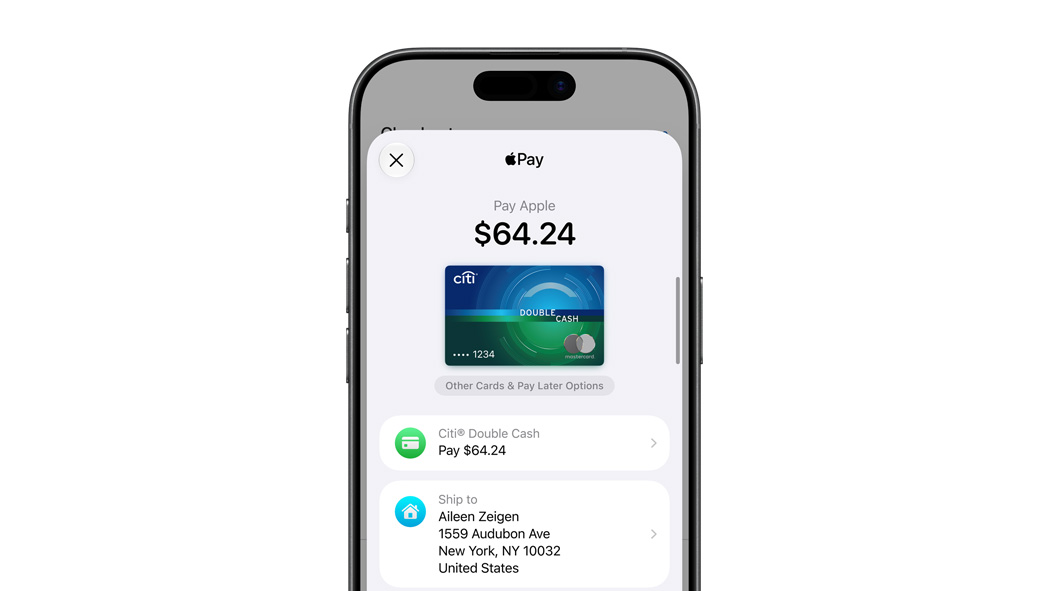
Cover your entire purchase with any payment card you’ve added to Apple Wallet. Use your default card or choose a different one, the same way you would with your physical wallet.
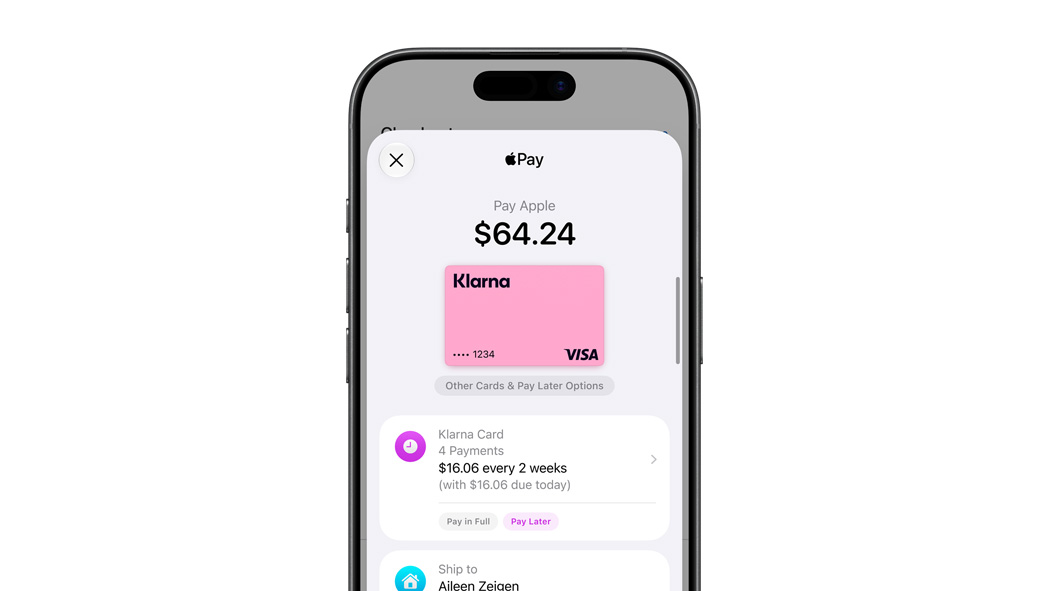
Pay Later
Split eligible purchases into smaller payments over time through an eligible card or pay‑later provider at checkout — in stores, online, and in apps.5
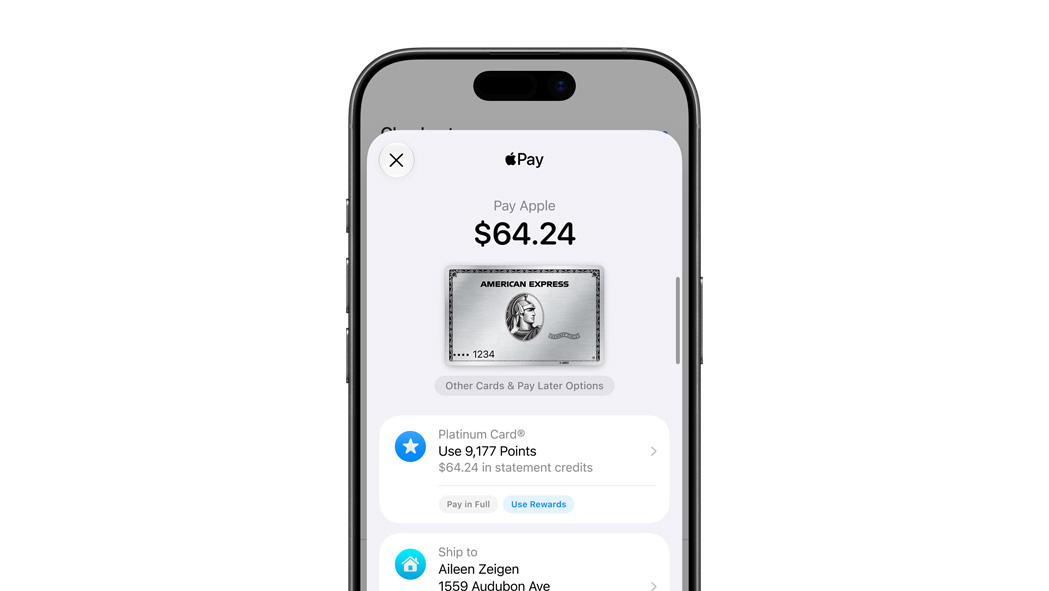
Pay with Rewards
Apply your eligible credit card’s rewards, points, or miles toward part or all of a purchase.6 When you redeem rewards, a statement credit is applied after the transaction is complete.
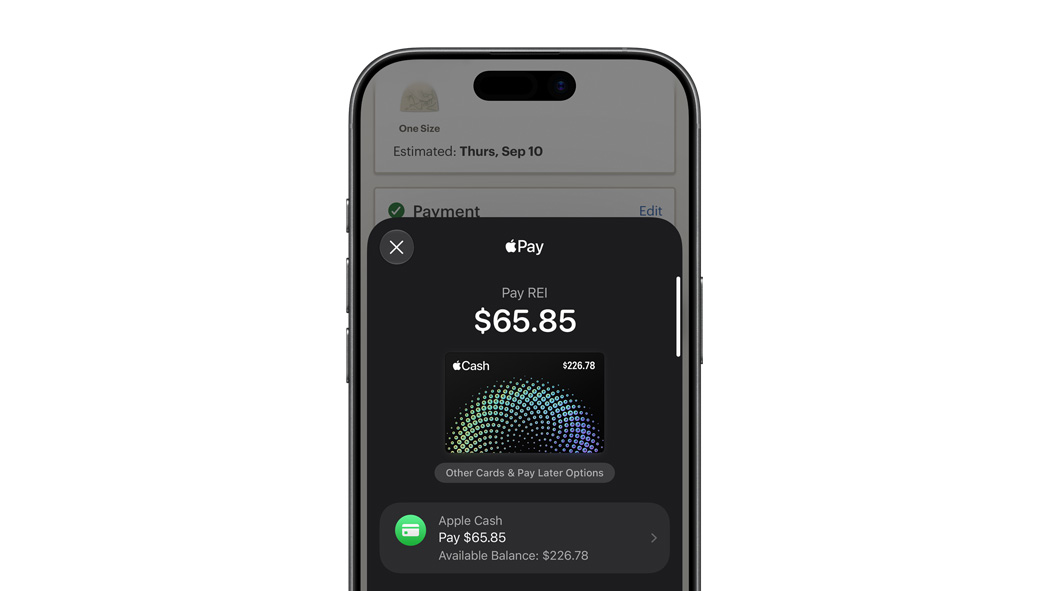
Pay with Apple Cash
When you receive Apple Cash from others or add funds using a debit card, you’ll have a balance on your Apple Cash card. You can use it like any payment card in Apple Wallet to make purchases with Apple Pay — in stores, online, and in apps.8