New features
available with iPadOS.
iPadOS is designed to make your iPad even more powerful and capable. So you can do more things even more easily.
Keep multiple apps at the ready in Slide Over and quickly access your favorites with just a swipe.
Quickly move between Slide Over apps by swiping along the bottom.
Swipe up to see all the apps in Slide Over.
Easily make a Slide Over app full screen by dragging it to the top.
Quickly close a window in Slide Over by going to the App Switcher and flicking up.
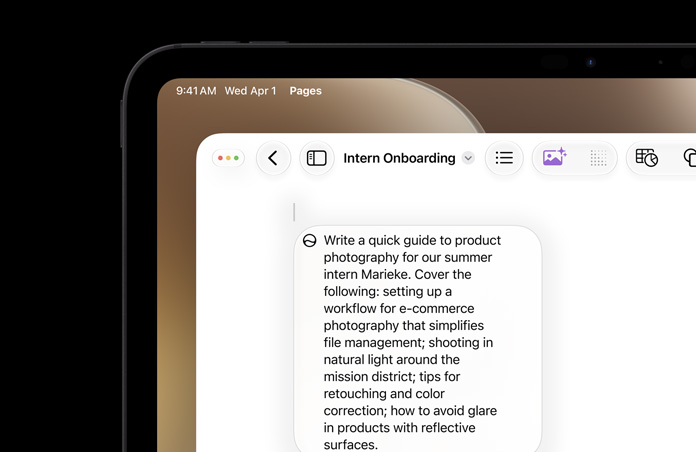
You can now open multiple windows from the app in Split View. Perfect for working on two notes or Pages documents, viewing two maps, or organizing files in the Files app.
Open a window from the same app in multiple spaces so you can work on different projects across your iPad.
Quickly open a window by dragging the content into its own space. Drag a link to open Safari, a location to open Maps, or an email address to open Mail.
The updated App Switcher shows all spaces and windows for all apps along with title windows.
See all the open windows for an app by tapping its icon in the Dock.
The Home screen has been redesigned with the icons arranged in a tighter grid. The refined layout gives you more room for apps and information.
Get at‑a‑glance information by pinning your Today View widgets on the Home screen.
Use the widget editor to choose your favorite widgets, which will always appear on the Home screen. Swipe up to see all your other widgets.
Thanks to advanced prediction algorithms, latency in Apple Pencil is as low as 9 milliseconds.1 So it feels even more like writing on paper.
The redesigned tool palette has a fresh new look and several improvements. You can drag it to either side of the screen, or minimize it in the corner so you have more room for your content.
A pixel eraser lets you remove exactly what you want from a drawing, and a ruler makes it easy to draw straight lines.
Now when you take a screenshot, you can capture the entire document, email, or web page and mark it up.
Quickly take a screenshot using Apple Pencil by dragging it from either bottom corner.
Use your iPad as a second display for additional screen space. Have one app open while you work in another or see how a presentation looks in presentation mode while editing it on your Mac.
Mirror the screen on your Mac to have two screens displaying the same content, making it perfect for sharing with others.
Connect your iPad to your Mac using a cable to keep it charged, or use it wirelessly — within 10 meters — for greater mobility.
Use the precision and intuitiveness of Apple Pencil with your favorite creative Mac apps. Draw and write naturally, edit a photo or graphic, and use it to point and click like you would with a mouse.
Write and sketch on PDFs or mark up your documents with Apple Pencil. See the updates live on your Mac as you mark them up on your iPad.
Create a sketch on your iPad using Apple Pencil and easily insert it into any document on your Mac.
Instantly navigate long documents, web pages, and conversations by dragging the scroll bar.
Moving the cursor is even faster and more precise — just pick it up and drag it to where you want. It will automatically snap to lines and between words.
Select text just by tapping and swiping. For quick sentence and paragraph selection, triple- or quadruple‑tap.
Double-tap to quickly select addresses, phone numbers, email addresses, and more.
New gestures make cut, copy, and paste a snap. Pinch up with three fingers to quickly copy, pinch up with three fingers two times to cut, and pinch down with three fingers to paste.
Undo with a simple three‑finger swipe to the left or redo by swiping three fingers to the right.
Quickly select email messages, files, and folders by tapping with two fingers and dragging.
The QuickType keyboard now includes QuickPath, so you can swipe your finger from one letter to the next to type without removing your finger from the keyboard to enter a word.
Pinch to shrink the QuickType keyboard and move it wherever you want so there’s more room for your apps.
You can swipe or tap to type interchangeably, so you can choose what’s most convenient even if you’re mid‑sentence.
Alternate word options appear in the predictive bar, so you can quickly choose a different option.
Support for English, Simplified Chinese, Spanish, German, French, Italian, and Portuguese is now included.
Dictation automatically detects which language a user is speaking. The language will be chosen from the keyboard languages enabled on the device, up to a maximum of four.
You can now install custom fonts and use them in your favorite apps.
Easily see and manage the fonts you’ve installed right in Settings.
Fonts will be available from the App Store, making it easy to find and install them.
Easily browse files deep in nested folders in the new Column View. Just select a file and get a high‑resolution preview.
Quick Actions make it easy to rotate, mark up, or create a PDF in the Files app.
Column View displays a rich set of metadata, so you can see the details for each file as you browse.
A new downloads folder gives you a central place to access your web downloads and attachments from Safari and Mail.
Access files on a USB drive, SD card, or hard drive.
Share folders with friends, family, and colleagues in iCloud Drive. You can even give them access for adding their own files.
Create folders on the local drive and add your favorite files.
Select files and zip them for easy sharing via email. Tap a zip file to expand it into a folder and access the files.
Connect to a file server at work or a home PC using SMB from Files.
A host of new keyboard shortcuts make navigating Files even easier.
Search suggestions make it simple to find what you’re looking for. Just tap the suggestion to quickly filter your results.
Create a digital copy of physical documents and put them directly in the location where you want to store them.
An updated start page design includes favorites, frequently visited, and most recently visited websites so you can quickly get to the site you want. Siri suggestions surface relevant websites in your browsing history, frequently visited sites, links sent to you in Messages, and more.
Check the status of a file you’re downloading, access downloaded files quickly, and drag and drop them into a file or email you’re working on. You can even download files in the background while you get work done.
Choose to resize your photo to small, medium, large, or actual size before you upload it.
The new View menu in the Smart Search field gives you quick access to text size controls, Reader view, and per‑site settings.
Choose to enable camera, microphone, and location access depending on the website you’re visiting. You can also decide whether to view a website in its desktop or mobile version, use Reader view, and enable content blockers on a per‑site basis.
Quickly zoom in and out on a website’s text.
Save a set of open tabs to Bookmarks so you can quickly reopen them later.
If you start to type the address of a website that’s already open, Safari directs you to the open tab.
New options let you email a web page as a link, as a PDF, or in Reader view from the share sheet.
If you try to use a weak password when signing up for a new website account, Safari warns you.
Your Safari history and open tabs that have synced with iCloud are now protected with end‑to‑end encryption.
Safari automatically presents a website’s desktop version for iPad. Touch input maps correctly when a website expects mouse or trackpad input. Website scaling takes advantage of the large iPad screen, so you’ll see websites at their optimal size. And scrolling within web pages is faster and more fluid.
Navigate the web even faster with over 30 new keyboard shortcuts when you use an external keyboard.
Now you can access the full Safari toolbar in Split View.
A new Dark Mode option gives iPadOS and apps a beautiful dark color scheme. Perfect for low-light environments, Dark Mode is easier on your eyes and won’t disturb people around you.
Tap the new button in Control Center to quickly turn Dark Mode on and off, such as when you enter a dark room or theater.
Have Dark Mode turn on and off at a certain time or based on sunrise and sunset, which is great when you’re outside at night or using your iPad before you go to bed.
New wallpapers optimized for Dark Mode automatically change as you switch between light and dark.
Dark Mode is beautifully integrated throughout iPadOS, from built‑in apps and settings to system‑level views.
An API lets third‑party developers implement Dark Mode in their apps.
Control the location data that you pass to apps with new, fine-grained controls. You can choose to grant an app access to your location once or anytime you use it.
Receive a notification when an app is using your location in the background, so you can decide whether to update your permission.
API changes and new controls help prevent apps from accessing your location without your consent while you’re using Wi-Fi and Bluetooth.
Now you can control whether you share your location when you share a photo on social media.
Protections related to browser fonts have been expanded.
Sign in to apps and websites quickly and easily using the Apple ID you already have. No filling out forms or creating new passwords. Just tap Sign In with Apple, use Face ID or Touch ID, and you’re all set.
Apple will never track or profile you when you sign in with Apple. The most information you’ll have to share with an app or website is your name and email address.
Not sure you want to share your email address with a particular app? You’re in control. You can choose to share or hide your email address. You can also choose to have Apple create a unique email address for you that forwards to your real address.
Sign In with Apple requires your Apple ID to be protected with two‑factor authentication. That way access to the accounts in your favorite apps is protected as well — automatically.
Sign In with Apple works on all your Apple devices as well as the web and apps on Android or Windows. No matter where you need to sign in to your favorite app, you can use Sign In with Apple.
Recorded clips of activity are securely stored in iCloud when people, pets, or cars are detected by HomeKit‑enabled cameras. And privacy settings allow you to control when your cameras stream, record, or shut off.
Enabled routers bring an extra layer of security to your smart home. Use the Home app to control which services your HomeKit accessories can communicate with in your network and on the internet.
Access songs, playlists, and radio stations with Apple Music.
There are more robust accessory controls in the Home app.
Siri shortcuts can now be added to automations.
The all-new Photos tab lets you browse your photo library with different levels of curation, so it’s easy to find, relive, and share your photos and videos. You can view everything in All Photos, focus on your unique photos in Days, relive your significant moments in Months, or rediscover your highlights in Years.
Throughout the Photos tab, muted Live Photos and videos begin playing as you scroll, bringing your photo library to life.
In Days, Months, and Years, photo previews are larger to help you distinguish between shots. Photos uses intelligence to find the best part of your photo in photo previews, which means you get to see the uncropped version of your photo when you tap to view it.
Animations and transitions keep your place in the Photos tab, so you can switch between views — like Days and All Photos — without losing your place.
Duplicate photos, screenshots, whiteboard photos, documents, and receipts are identified and hidden, so you see only your best shots.
Months presents your photos by events, so you can rediscover the moments that matter most.
The Photos tab displays the name of the location, holiday, or concert performer to provide helpful context for your significant events.
Years is contextual, so it shows you photos taken on or around today’s date in past years.
If you have birthdays assigned to people in your People album, the Photos tab will highlight your photos of them on their birthday.
View your library in All Photos however you’d like. Zoom in for a closer look, or zoom out to quickly scan through your library and see all your shots at once.
All your new screen recordings are now in one place.
You can combine multiple search terms — like “beach” and “selfies” — without tapping each word in search.
Soundtracks for Memory movies are selected based on what you listen to in the Music app.
When you press and hold to play a Live Photo, Photos will automatically extend the video when you have Live Photos taken within 1.5 seconds of each other.
As you apply an edit, each adjustment displays its intensity, so you can see at a glance which effects have been increased or decreased.
Tap each effect icon to see what your photo looked like before and after the effect was applied.
Control the intensity of any filter, like Vivid or Noir, to fine‑tune your look.
Enhance now lets you control the intensity of your automatic adjustments. As you increase or decrease Enhance, you’ll see other adjustments — including Exposure, Brilliance, Highlights, Shadows, Contrast, Brightness, Black Point, Saturation, and Vibrance — intelligently change with it.
Nearly everything you can do with a photo you can now do with a video. Adjustments, filters, and crop support video editing, so you can rotate, increase exposure, or even apply filters to your videos. Video editing supports all video formats captured on iPad, including video in 4K at 60 fps and slo-mo in 1080p at 240 fps.
Video edits are now nondestructive, so you can remove an effect like a filter or undo a trim to return to your original video.
Boost muted colors to make your photo less rich without affecting skin tones and saturated colors.
Balance the warmth of an image by adjusting temperature (blue to yellow) and tint (green to magenta).
Change photos by making edges crisper and better defined.
Increase image clarity by adjusting the definition slider.
Reduce or eliminate noise such as graininess or speckles in photos.
Add shading to the edges of your photo to highlight a powerful moment using Strength, Radius, and Falloff.
Straighten, crop, and adjust the perspective of your photos automatically.
You can pinch to zoom while editing to review your changes on a specific area of your photo.
The Image Capture API allows developers to leverage the Camera Connection Kit to import photos directly into their apps.
Apps launch up to 2x faster in iPadOS.2
Unlocking the 11‑inch iPad Pro and 12.9‑inch iPad Pro (3rd generation) is up to 30 percent faster.3
Starting this fall, apps from the App Store will be packaged in a new way that makes them up to 50 percent smaller.2
App updates will be up to 60 percent smaller on average.2
A game subscription service with over 100 amazing new games, all with no ads or additional purchases. A single subscription allows you to download and play any Apple Arcade game from the App Store, and games will be added regularly. You can play Apple Arcade games across iPhone, iPad, Mac, and Apple TV, and every game is playable offline.
The App Store now supports Arabic and Hebrew languages across stories, collections and lists, product pages, and search.
You can choose to download apps and games over your cellular connection.
Introducing a new way to control your iPadOS devices, entirely with your voice.4
Voice Control uses the Siri speech recognition engine to give you the latest advances in machine learning for audio‑to‑text transcription.5
Whether you’re writing a biology report, filling out a legal document, or emailing about a favorite topic, you can add custom words to ensure that Voice Control recognizes the words you commonly use.
All audio processing for Voice Control happens on your device, ensuring that your personal data is kept private.
Thanks to rich text editing commands, you don’t have to rehearse before you speak. Making corrections is quick and easy. You can replace phrases by name. Try saying, “Replace I’m almost there with I just arrived.” Fine-grained editing also makes it simple to select text. Try saying, “Move up two lines. Select previous word. Capitalize that.”
If you need to correct a word, simply ask and you’ll be presented with a list of suggested replacements.
Voice Control understands contextual cues, so you can seamlessly transition between text dictation and commands. For example, say “Happy Birthday. Tap send.” in Messages, and Voice Control sends “Happy Birthday” — just as you intended. You can also say “Delete that,” and Voice Controls knows to delete what you just typed.
You can rely entirely on your voice to navigate an app. Comprehensive navigation is provided by navigation commands, names of accessibility labels, numbers, grids, voice gestures, and recorded commands.
Navigation commands give you quick ways to open apps, search the web, press the Home button, and more.
You can easily navigate by telling Voice Control to select the name of an accessibility label for buttons, links, and more.
Say “show numbers” to see numbers appear next to all clickable items onscreen. Use this to quickly navigate complex or unfamiliar apps. Numbers automatically appear in menus and whenever you need to disambiguate between items with same name. Just say a number to click it.
Saying “show grid” superimposes a grid on your screen and allows you to precisely do things like tap, zoom, drag, and more.
Use your voice to perform gestures, such as tap, swipe, pinch, zoom, press the Home button, and more.
You can record multistep gestures for apps on your iPad device. So if you love to send messages with fireworks, you can record the gestures to do this and use the recording to quickly send messages with fireworks.
With Attention Awareness, Voice Control goes to sleep when you turn your head away from the TrueDepth camera on an iPad. It doesn’t activate until you look back at the screen — so you can talk to a friend nearby without affecting your device.
Siri sounds more natural than ever, particularly while speaking longer phrases, with a voice that is generated entirely by software.
Siri offers personalized suggestions in Apple Podcasts, Safari, and Maps. Siri can even detect reminders in messages and events in third‑party apps.
Siri can now play music, podcasts, audiobooks, and radio with third‑party apps.
Ask Siri to tune in to your favorite radio station.
Siri has a new Indian English voice.
Motion Capture lets developers integrate people’s movement into their apps.
AR content appears naturally in front of or behind people, enabling more immersive AR experiences and fun green-screen-like applications.
The most popular way to quickly share content is smarter and faster.
When you share a photo or document, receive a suggestion about who you might want to share it with and which app you may want to use, so you can share with just a tap.
Easily see how many people around you are available for AirDrop. Apps are even intelligently sorted based on the content you’re sharing.
You can customize options for the content you’re sharing, like removing the Live Photo action or location information from a picture you’re sending to a friend.
Rebuilt from the ground up, the brand‑new map features significantly improved and more realistic details for roads, beaches, parks, buildings, and more.
Explore where you’re going before you get there with an immersive 3D experience that gives you a 360-degree view of a place. And enjoy smooth and seamless transitions as you navigate your way around.
Build collections of your favorite and soon‑to‑be‑favorite locations and share them with friends and family.
Whether it’s home, work, the gym, or your kid’s school, create a list of places you visit often for quick, one‑tap navigation.
Junction View helps drivers eliminate wrong turns and directional misses by lining them up in the correct lane before they need to turn or enter an elevated road.
Share your estimated time of arrival with family, friends, and coworkers. Your ETA even updates should a significant delay occur.
A redesigned customer feedback experience makes submitting incorrect addresses, business locations, or operating hours that much easier.
More natural language enhances the navigation experience. So instead of saying “in 1,000 feet turn left,” Siri says “turn left at the next traffic light.” Improved navigation also guides you closer to your end-point destination, which is especially important for large venues.
Maps offers transit schedules, arrival times, network stops, and system connections for better route planning. It even includes important real-time information like outages and cancellations.
Up-to-the-moment information about your flight terminals, gate locations, departure times, and more is now available.
Place cards are more helpful and easier to use, with dynamically updated information for things like Today@Apple sessions at Apple Store locations, movie theater time listings, and more.
Updates include vector overlays that allow developers to add heat maps, weather, or buildings on top of the map, as well as point-of-interest filtering. MapKit also supports Dark Mode.
Automatically share your name and photo when you start a conversation or when the other person responds in a message. Decide whether you share with everyone, just your contacts, or not at all. You can even choose to use an Animoji, image, or monogram for your photo.
Automatically generate sticker packs based on your Memoji and Animoji characters that allow you to express a range of emotions in Messages.
Search in Messages makes it easier to find what you’re looking for. Even before you type a character, you can see recent messages, people, photos, links, and locations you might be looking for. When you type in a search, Messages categorizes the results and highlights matching terms. You can also search within individual conversations for the message you’re looking for.
The details pane organizes links, locations, and attachments that have been shared in the conversation so they’re easy to find at a glance.
Makeup lets you customize blush and eyeshadow and includes editing tools that make it easy to get just the right look. Customize your teeth with braces and add a piercing to your nose, eyebrows, eyelids, and around your mouth. There are also 30 new hairstyles, over 15 new pieces of headwear, and more earrings and glasses.
Three new Animoji characters — mouse, octopus, and cow — give you more options to express yourself. Smiley lets you capture just the right expression and share it with your friends and family.
All devices with an A9 chip or later support Memoji and Animoji sticker packs.
The redesigned Reminders app features more powerful and intelligent ways to create, organize, and keep track of your reminders.
With the new quick toolbar just above the keyboard, it’s easier than ever to add times, dates, locations, flags, or even helpful attachments to reminders. All without having to go to another screen.
Now you can type longer, more descriptive sentences. Reminders will automatically understand and provide relevant suggestions.
When you’re chatting with someone in Messages, Siri recognizes possible reminders and makes suggestions for you to create them.
Add photos, documents, scans, and even web links to your reminders to make them more informative and useful.
Now there are even more useful ways to organize your reminders. Just drag and drop or swipe to add smaller tasks under a larger reminder. You can also group multiple lists together.
Keep track of your upcoming reminders with smart lists that automatically organize and display them. See only your reminders scheduled for today, reminders flagged as important, or all your reminders across every list in one place.
Tag someone in a reminder and the next time you’re chatting with that person in Messages, a reminder will surface right then and there.
Customize the appearance of your personal or shared iCloud lists, choosing from 12 beautiful colors and 60 expressive symbols.
Choose from a variety of colors when you flag an email message. Colored flags are synced via iCloud to Mail on all your Apple devices, and they can be changed or removed at any time.
Have all email from a specified sender blocked and move the messages directly to the trash. Blocking a sender works across all your Apple devices.
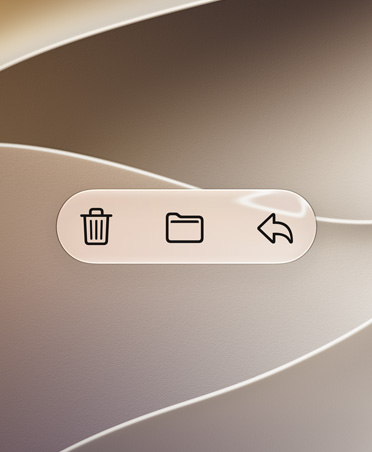
In addition to reply, reply all, forward, and print, the Reply menu adds convenient access to notify me of replies, mark as unread, move to junk, move to different mailbox, and flag options, as well as the new Mute Thread option.
Easily mute notifications from an overly active email thread across all your Apple devices.
A convenient new format bar appears above the keyboard when you type text, providing comprehensive formatting and attachment options including the ability to scan, insert a photo or video, add attachments, and insert drawings.
A new menu adds comprehensive text formatting tools that let you compose professional‑looking email. Formatting includes new font style, size, and color selections, strikethrough, alignment, numbered and bulleted lists, and indenting and outdenting options.
All system fonts are supported, as well as the ones you acquire.
The new photo selector occupies the lower portion of the screen so you can see your email while choosing the photo.
When adding a recipient to an email address, Mail lists email address choices under each sender.
Drag a window to compose an email next to your primary inbox, so you can view or copy from one message and paste it into another, all without obscuring either message.
Now you can see your notes as visual thumbnails, making it easier than ever to quickly find the note you’re looking for. It’s especially great for notes with images, sketches, or Apple Pencil handwriting.
Collaborate on folders with other people by giving them access to a folder’s contents where they can add their own notes, attachments, or subfolders.
Search recognizes what’s in the images inside your notes and can help you find specific text in the items you’ve scanned, like receipts or bills. In addition, you’ll receive single‑tap search suggestions.
Quickly reorder checklist items using drag and drop, swipe to indent items, and move checked items to the bottom. If you’ve completed the checklist and want to use it again, you can click to uncheck all the items and start over.
Organize your notes by creating folders and nested subfolders and easily manage how they’re organized in your folder lists.
Share notes and entire folders as view only so you’re the only one who can make changes.
Siri can read incoming notifications from your messaging apps when you can’t reach for your iPad.
Pair two sets of AirPods to one iPad and enjoy the same song or movie along with a friend.
Siri can now learn the voices of family members using HomePod, so everyone has a personalized experience.
Hand off music and podcasts to HomePod so you can continue listening when you get home.
Read a book or listen to an audiobook for five minutes while in line for coffee, on your commute, or before bed to achieve your Daily Reading Goal. Build streaks to celebrate your achievements and share books you’ve finished with the Books Read this Year collection.
When you call supported businesses, iPadOS offers to start a Business Chat instead, so you can interact with a business from a text instead of waiting on hold.
iPadOS supports adding attachments to events in Calendar.
Hundreds of new, more specific relationship labels in Contacts help users manage their growing contact lists.
Create a Memoji for yourself and your other contacts right inside Contacts.
Find My iPhone and Find My Friends are now combined in a single, easy‑to‑use app to help you locate the people and devices that are important to you.
Locate a missing device even if it’s not connected to Wi‑Fi or cellular using crowd‑sourced location. When you mark your device as missing and another Apple user’s device is nearby, it can detect your device’s Bluetooth signal and report its location to you. It’s completely anonymous and encrypted end‑to‑end, so everyone’s privacy is protected.
Turn on lyrics to follow along with your favorite music as it plays. Each line appears in step with the music, so you always know where you are and what’s coming next. Scroll and tap any line to jump to your favorite verse. Beautiful animations make following along with your favorite songs fun.
With one tap, see the queue of songs playing next and the playlist, album, or station it’s playing from. You’ll always know what song is coming up, and you can change the order easily.
For Apple News+ subscribers, relevant business content from Apple News+ publications appears directly in the Stocks app for users in the U.S., UK, and Australia.
The new Reality Composer app for iPadOS developers lets you quickly and easily prototype and produce augmented reality experiences with no previous 3D experience.
Apps on your iPad reduce their network data usage.
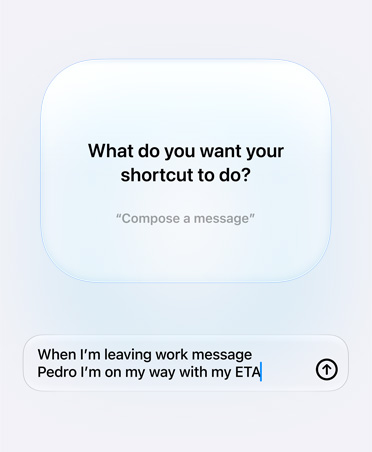
Shortcuts are even more powerful, enabling you to interact with your apps in a conversational way.
The Shortcuts app is now built in and home for all your shortcuts.
Get started with the Shortcuts app by adding a personalized daily routine to help streamline your day.
Set up automations to start a shortcut based on over 100 different triggers.
More business news publications have been added to the Apple News feed within Stocks, which is available for users in the U.S., UK, and Australia.
Edit your recordings with more precision with pinch to zoom on the waveform.
Voice Memos has split‑screen support on iPad.
iMessages detected as spam are automatically moved to the Unknown Senders folder.
Give yourself more space to write in the handwriting keyboard by pulling up on the tab.
New predictions for Cangjie, Stroke, and Handwriting keyboards bring more relevant character and emoji predictions for Cantonese users.
A new dedicated QR code mode in Camera, accessible from Control Center, offers improved QR code performance, a flashlight option, and enhanced privacy.
A new form of management called User Enrollment, built specifically for Bring Your Own Device, maintains user privacy while keeping corporate data protected.
Deliver custom content during Automated Device Enrollment to enhance security and show users tailored information.
Create and manage Apple IDs used by employees, giving them access to services like iCloud Drive and iCloud Notes.
APIs for identity providers and app developers enable users to seamlessly log in to apps and websites using the security of Face ID and Touch ID.
Use your PlayStation 4 game controller with iPad.
Use your Xbox One S game controller with iPad.
iPadOS introduces all‑new and more natural Indian English male and female Siri voices.
When you set up a new device, iPadOS presents enhanced options if it detects that you may speak more than one language. It offers to add relevant languages to your keyboard, dictation languages, and preferred languages.
iPadOS now supports all 22 Indian languages, with the addition of 15 new Indian language keyboards: Assamese, Bodo, Dogri, Kashmiri (Devanagari, Arabic), Konkani (Devanagari), Manipuri (Bangla, Meetei Mayek), Maithili, Nepali, Sanskrit, Santali (Devanagari, Ol Chiki), and Sindhi (Devanagari, Arabic).
A romanized Hindi and English bilingual keyboard is supported, including typing predictions.
The Devanagari Hindi keyboard includes typing predictions that suggest the next word as you type and learn from your typing over time.
Four new system fonts for Gurmukhi, Kannada, Odia, and Gujarati help deliver greater clarity and ease when reading in apps like Safari, typing in Messages and Mail, or swiping through Contacts.
There are 30 new document fonts for Hindi, Marathi, Nepali, Sanskrit, Bengali, Assamese, Tamil, Telugu, Gujarati, Kannada, Gurmukhi, Malayalam, Odia, and Urdu.
Video streaming apps like Hot Star and Netflix can optimize the time of day to download your content, helping to avoid congested networks and peak cellular data prices.
iPadOS includes 38 new keyboard languages for Albanian, Assamese, Bodo, Burmese, Cantonese, Dhivehi, Dogri, Faroese, Kashmiri (Arabic, Devanagari), Kazakh, Khmer, Konkani, Kurdish (Arabic, Latin), Kyrgyz, Lao, Malay (Arabic), Manipuri (Bangla, Meetei Mayek), Maithili, Maltese, Mongolian, Nepali, Pashto, Sanskrit, Santali (Devanagari, Ol Chiki), Sindhi (Arabic, Devanagari), Sinhala, Tajik, Tongan, Turkmen, Uyghur, and Uzbek (Arabic, Cyrillic, Latin).
Next‑word predictions are now available on the Swedish, Dutch, Vietnamese, and Arabic keyboards. The keyboard learns as you type over time and predicts the word or emoji you’re most likely to use.
A Thai and English bilingual dictionary and a Vietnamese and English bilingual dictionary are now available.
Multilingual users can switch languages with greater ease, with dedicated keys for switching between languages and selecting emoji.
Use third‑party apps in a different language from your system language.
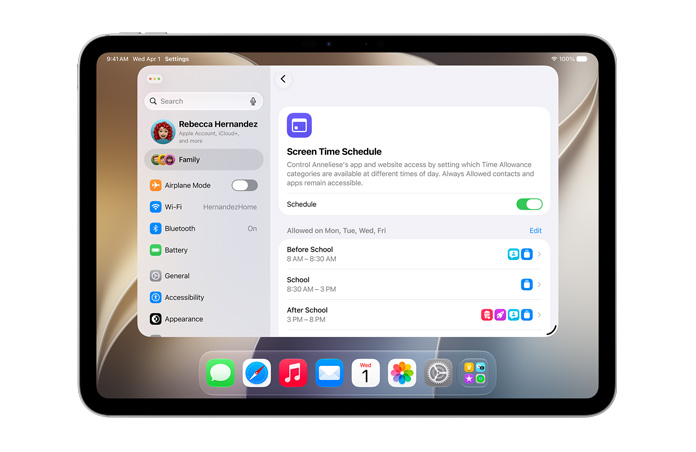
Create combined limits with a combination of app categories, specific apps, or websites.
Usage data now spans 30 days so you can compare the previous week’s Screen Time numbers.
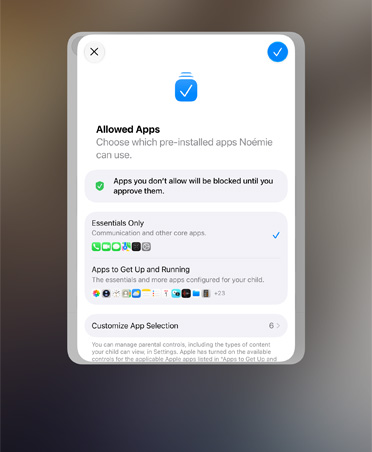
Control who your children can communicate with — and who can communicate with them — throughout the day and during Downtime.
Parents can use Screen Time to manage the contacts that appear on their children’s devices.
When a Screen Time limit is met, you can tap “one more minute,” giving you time to quickly save your work or log out of a game.
You can now select Wi-Fi networks and Bluetooth accessories right from Control Center.
The redesigned volume control appears in the upper-left corner, so it doesn’t interfere with your content.
Preview email messages, web links, and more simply by pressing and holding to see a hint of the content.
Press and hold an app icon to quickly perform actions specific to the app.
Enjoy a thrilling surround sound experience from content with Dolby Atmos, Dolby Digital, or Dolby Digital Plus soundtracks.6
iPadOS supports the latest standard from Wi-Fi Alliance to provide you with a more secure browsing experience.
Automatically connect to your nearby iPad personal hotspot when there’s no internet connection available.
Remain connected to your nearby iPad personal hotspot even when your device sleeps, so you can receive incoming messages and push notifications.
Your family’s devices can automatically connect to your nearby iPad personal hotspot when there’s no internet connection available.
Your iPad determines which Wi-Fi networks at your location are being used and notifies you if one is available.